Download free dishwasher CAD blocks for AutoCAD
Where to find free dishwasher DWG blocks, what the plan, elevation and section views show, and how to drop a 600mm appliance into your kitchen run.
Sumana KumarUpdated 28 June 20264 min read
Where the dishwasher blocks live
Every dishwasher block on this site sits in the Kitchen category, and you can reach the exact files a couple of ways. Search 'dishwasher' from the top bar and you will land on the appliance blocks directly, or open the Kitchen hub and scroll to the appliances. There is no account to make and no email gate — you click the block, you get the DWG. The licence is permissive too: everything here is free for personal and commercial work with no attribution required, so a dishwasher you place in a client's kitchen drawing carries no strings.
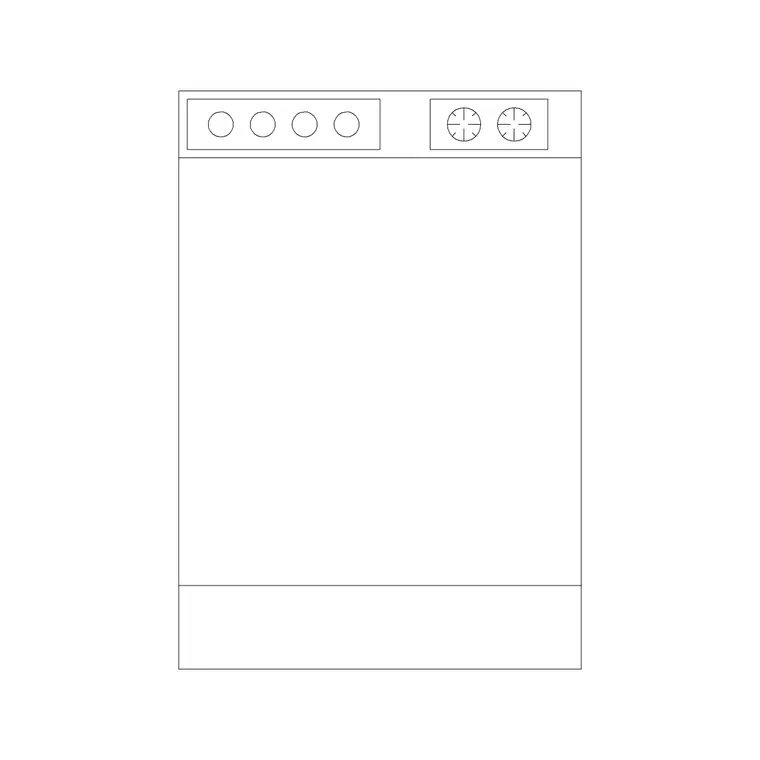
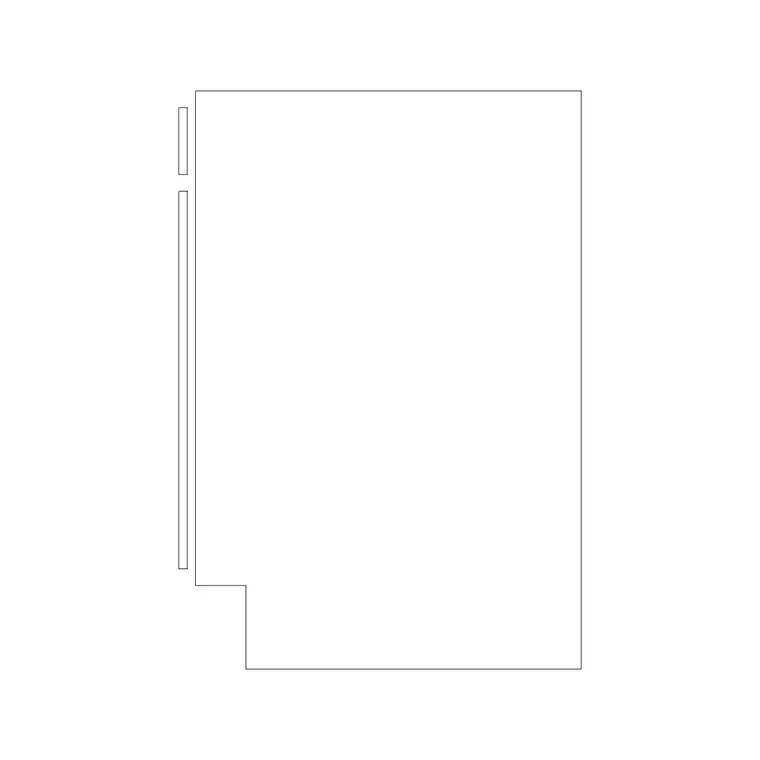
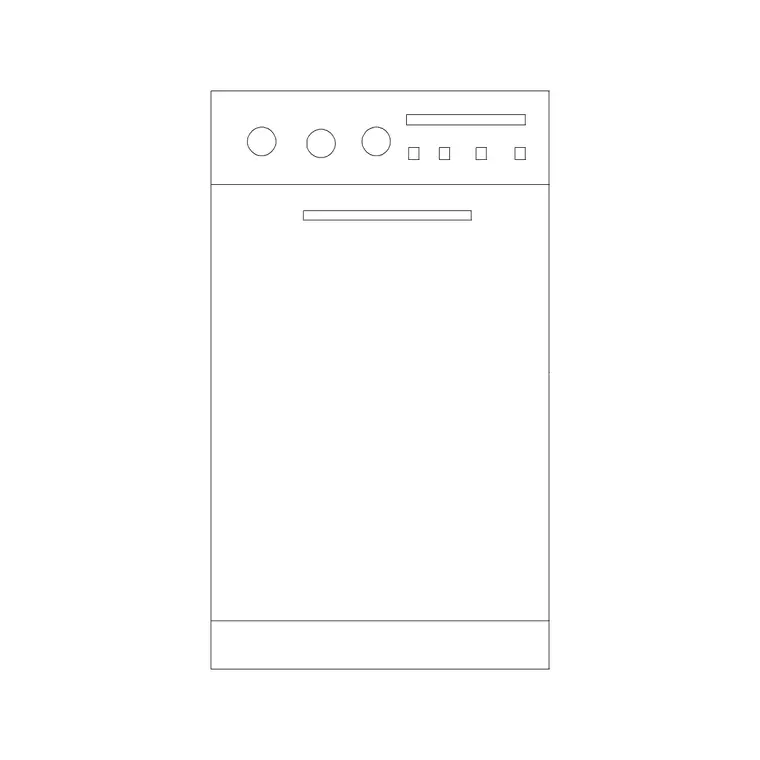
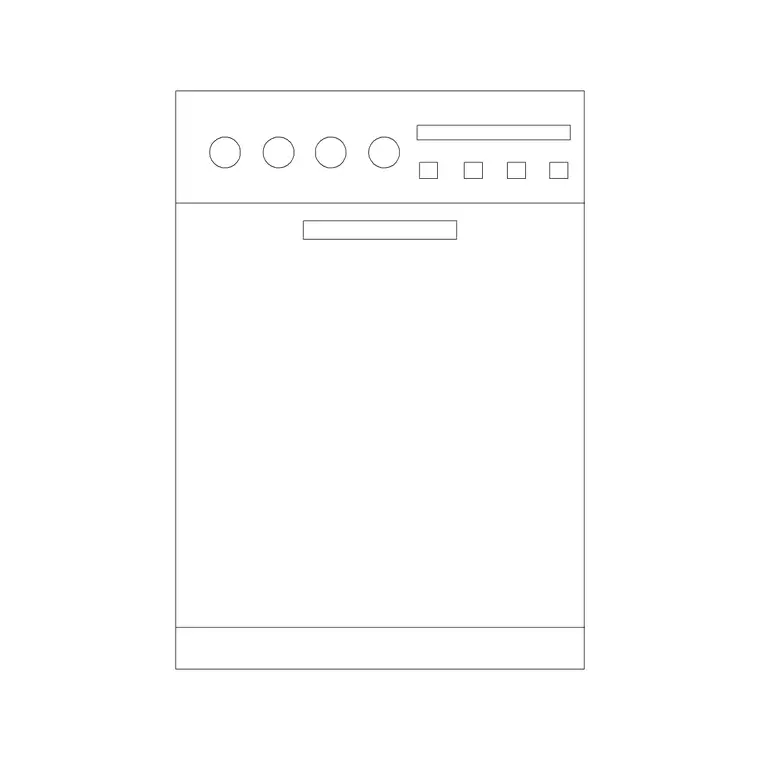
You will find a few variants rather than a single generic box, which matters because a dishwasher is drawn differently depending on the view you need. There are dedicated elevation and section drawings (Dishwasher Elev and Dishwasher Sect) alongside two general plan-ready files (Dishwashers 1 and Dishwashers 2). Grab whichever view your current sheet calls for — usually the plan footprint for a kitchen layout, the elevation when you are drawing the run of units straight on, and the section when a construction detail has to show the inside of the machine. It is worth downloading more than one so you have the right view to hand when the sheet changes.
What a dishwasher block should contain
A standard built-in dishwasher is 600mm wide, which is the same module as a base cabinet so it slots into a kitchen run cleanly. Depth is typically around 550–600mm to sit flush with the worktop overhang, and the appliance height sits under a 900mm worktop. Slimline machines exist at 450mm wide; if your layout is tight, that is the variant to reach for.
A good plan block is essentially a 600mm square with the door face indicated and, often, a faint swing or pull line so you can confirm the door has room to drop open into the kitchen. The elevation view adds the front panel, the control fascia and the kickplate at the bottom. The section view is the most detailed of the three — it cuts through the machine to show the tub, racks and the void it occupies, which is what you want when you are drawing a construction-level kitchen section rather than a presentation plan.
Downloading and saving the file
Click the dishwasher block you want and the DWG downloads straight to your Downloads folder. Files here are saved to a widely compatible AutoCAD format, so they open in any recent version of AutoCAD as well as free tools like LibreCAD, DraftSight or NanoCAD without a 'cannot read file' error.
Before you insert it into a live drawing, it is worth opening the downloaded DWG on its own first. Run a quick AUDIT and PURGE to strip any orphaned data, and draw a dimension across the front face to confirm it measures the 600mm you expect. Thirty seconds of checking means you trust the block when you place it, instead of discovering a scale problem after it is already wired into your kitchen plan.
Inserting the dishwasher into your kitchen plan
In your kitchen drawing, type I and press Enter to open the Blocks palette, click Browse, and point it at the downloaded dishwasher DWG. Leave the scale at 1 and rotation at 0 to start. Make your appliances or fixtures layer current before you insert, so the block adopts it — most blocks here are built on layer 0 specifically so they inherit the host layer rather than fighting it.
Use object snaps to land the dishwasher precisely against the cabinet run. Snap the back corner of the block to the wall line and the side to the adjacent cabinet edge so the 600mm module aligns with the rest of the units. Convention is to place the dishwasher next to the sink, since they share plumbing — drop it directly beside your sink unit and the drainage run stays short and sensible. If the door swing reads the wrong way for the room, select the block and ROTATE or MIRROR it so the door opens into clear floor space, not into a walkway.
Common fixes and finishing touches
If the dishwasher comes in absurdly large or vanishes until you Zoom Extents, that is a units mismatch, not a broken file. A block drawn in millimetres dropped into a metre drawing lands 1000 times too big; the reverse makes it shrink to a dot. Set INSUNITS to millimetres in both files before inserting, or insert anyway and SCALE the block by 0.001 to bring it down (or 1000 to scale it up). If you are unsure of the source units, measure the front face and divide the 600 you want by the number AutoCAD reports to get the exact factor.
Once placed, add a short clearance note or a faint dashed rectangle in front showing the ~1100mm of floor a person needs to stand and load the machine with the door fully open — kitchens fail on exactly this kind of overlooked clearance, especially in a galley where the opposite run is close. For an elevation sheet, swap to the Dishwasher Elev block so the front panel and kickplate read correctly straight on, and reserve the section block for your construction details where the internal tub and racks need to be shown. Keeping the dishwasher beside the sink one last time pays off here, because the section will show the shared waste run cleanly.
Questions
Frequently asked
How wide is a standard dishwasher block?+
A built-in dishwasher is 600mm wide — the same as a base cabinet module — so it aligns with a kitchen run. Slimline models are 450mm wide for tight layouts.
Are the dishwasher CAD blocks free for commercial use?+
Yes. Every block on CADBlockDWG is free in DWG for both personal and commercial projects, with no signup and no attribution required.
Which dishwasher view should I download?+
Use the plan footprint for a kitchen layout, the elevation when drawing the run of units straight on, and the section file for construction-level kitchen sections.
Free downloads from this article
Free CAD block library
Download the blocks from this article — free, no signup


