Building an office floor plan in AutoCAD from free blocks
Lay out an office floor plan in AutoCAD from free DWG desk, table and people blocks: workstation grids, circulation widths, and arraying desks at scale.
Saumyajit MaityUpdated 17 April 20264 min read
Think in zones, then in grids
An office floor plan is a layout of zones before it is a layout of furniture. Block out the open-plan desking area, the meeting rooms, the breakout or kitchen zone, reception, and the circulation spine that connects them — all against the building shell and its core (lifts, stairs, WCs) — before placing a single desk. Get the zones right and the furniture simply fills them; get them wrong and no amount of neat desk placement will save the plan.
Within the open-plan zone, work to a grid. Desks in an office are repetitive by nature, so deciding a workstation module — a desk plus its chair and circulation share — lets you array it cleanly across the floor instead of placing each one by hand. Mark the structural grid and the window line too, since people generally want to face into the room or along the glazing rather than at a column. With zones and a desk grid decided, the floor fills quickly from free blocks.
Download the desk, table and people blocks (free DWG)
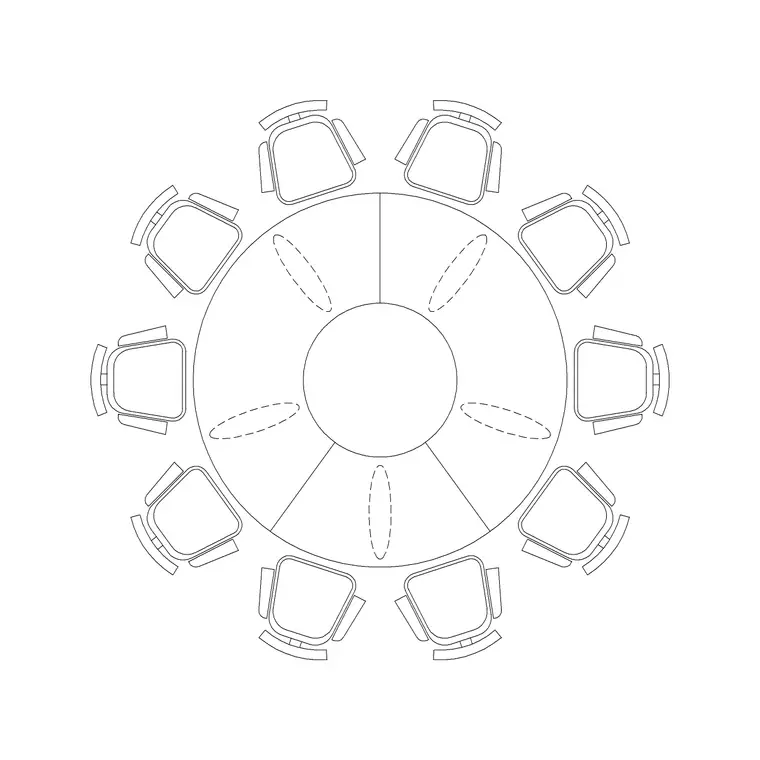
The Office category on CADBlockDWG carries desks, workstations, meeting and conference tables, reception counters and storage, all free in DWG with no account and free for commercial use. For meeting rooms, multi-seat tables save real time — a 10-seater round table block, for instance, fits out a boardroom in a single insertion rather than a tedious manual build of table plus ten chairs. Grab the desk module you want for the open plan and a couple of meeting-table sizes for the rooms.
To make the plan read as a workplace, add scale figures from the People category — a plan-view human figure dropped at a few desks and in the breakout area communicates how the space is used and gives an instant sense of scale. A plant or two from Trees & Plants softens the open floor. Each block is a single small DWG; pull only the ones you need. Everything here is free for commercial use, so the populated plan goes straight into a fit-out proposal.
Array the workstations, then place the rooms
Set your furniture layer current and insert one desk module where the first workstation sits, snapping it to your grid with object snaps. Leave scale at 1 and fix INSUNITS if it arrives oversized. Then array it: use ARRAY (rectangular) to repeat the workstation across the open-plan zone at your chosen module spacing, generating a whole bank of desks in one operation. Adjust the array counts to fit the available width and depth, and mirror back-to-back rows so two runs of desks share a spine.
With the open plan populated, drop the meeting tables into their rooms — the 10-seater into the boardroom, smaller tables into the huddle rooms — each a single insertion. Add the reception counter at the entrance and storage along the walls. Keep everything ByLayer so the entire furniture layer can be dimmed for a base-build drawing or coloured up for a presentation. Arraying is the key move: it turns dozens of identical placements into one.
Get the circulation widths right
Offices have to move people, so the circulation widths are not optional niceties — they are what makes the plan workable and, often, code-compliant. Keep the main circulation spine generously wide so two people pass comfortably and it can double as an escape route; keep secondary aisles between desk banks wide enough to walk and to pull a chair out without blocking the aisle. Leave clear space for chairs to roll back behind each desk, and check that the route to the fire exits stays clear of furniture along its whole length, since that is what a building-control reviewer will look for.
Because the desks and tables are real blocks at real size, you can immediately see whether an aisle is too tight, whether a meeting-room door swings into a desk, or whether the boardroom chairs overrun the room. Add the people blocks at a few desks and the scale becomes intuitive — you are reading the plan the way an occupant would, judging whether someone can actually reach their seat and get out again. Adjust the array spacing or shift a desk bank until the routes read clear and generous; it is far easier to slide a whole arrayed bank by half a metre now than to rework a fit-out once the furniture is on order.
Layer discipline and a clean issue
An office plan is usually issued in several flavours — furniture layout, power-and-data, a base-build plan — so layer discipline pays off here more than almost anywhere. Keep desks, meeting furniture, storage, people and planting on distinct layers, with everything ByLayer, so you can switch any of them off to produce the exact drawing each consultant needs from one model. A small-power layout, for instance, just wants the desks visible as position references.
Run a quick AUDIT and PURGE after importing several block families to strip orphaned data and keep the file responsive at floor-plate scale. Put the workflow together — zones first, a desk module arrayed across the open plan, meeting tables placed as single blocks, scale figures for legibility, and generous verified circulation — and a full office floor plan comes together remarkably fast, entirely from free DWG content ready for a fit-out package.
Questions
Frequently asked
Where can I download free office desk and meeting-table blocks?+
The Office category on CADBlockDWG has desks, workstations and multi-seat meeting tables — like a 10-seater round table — free in DWG with no signup and free for commercial use.
What is the fastest way to lay out office desks in AutoCAD?+
Insert one desk module, then use the ARRAY command to repeat it across the open-plan zone at your workstation spacing. That turns dozens of placements into a single operation.
How do I show scale and occupancy on an office plan?+
Drop plan-view human figures from the People category at a few desks and in the breakout area. They communicate how the space is used and give an instant sense of scale.
Free downloads from this article


Free CAD block library
Download the blocks from this article — free, no signup