Building a site plan in AutoCAD from free car & people blocks
Build a site plan in AutoCAD using free DWG car, people and tree blocks: adding scale and life, choosing the right views, and entourage layers.
Saumyajit MaityUpdated 3 June 20264 min read
A site plan needs context, not just geometry
A site plan sets a building in its surroundings — the boundary, access, parking, landscape and neighbouring context — and its job is to communicate how the scheme sits in the real world. A purely geometric site plan, all lines and no life, reads as engineering and leaves a client cold. Add cars, people and trees at the right scale and the same drawing suddenly reads as a place: you can see how big it is, how people arrive, and how it feels to be there.
This supporting content is called entourage, and on a site plan it does real work beyond decoration. A car in a bay proves the bay is big enough. A figure on a path shows the route is used and gives instant scale. A tree shows shade and screening. So build the base — boundary, building footprint, roads, paths, parking, levels — on its own layers first, then dress it with free entourage blocks to make it legible.
Gather the entourage blocks (free DWG)
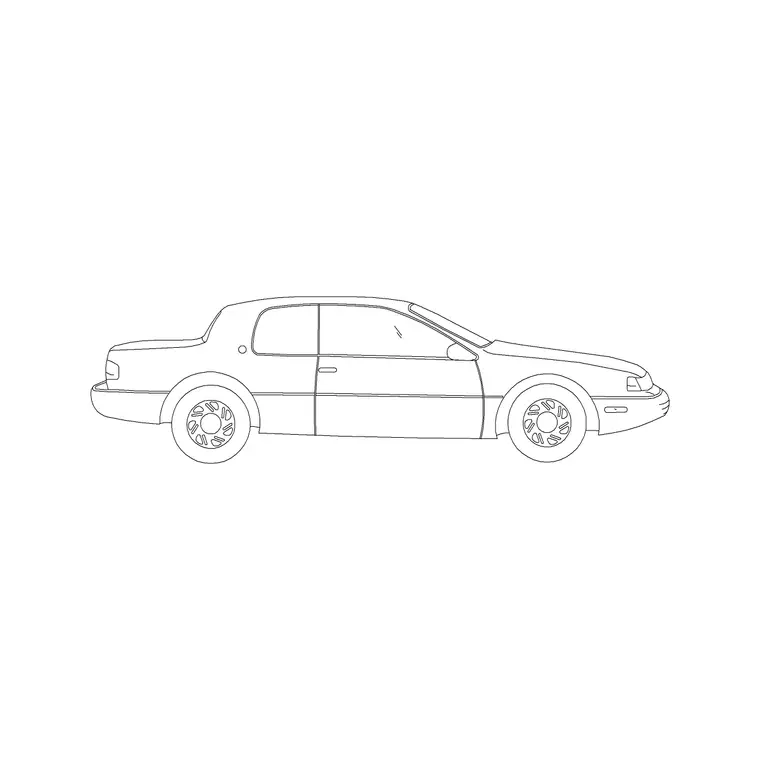
Three categories on CADBlockDWG cover site-plan entourage, all free in DWG with no signup and free for commercial use. From Vehicles, grab a car such as the 2 Door Sedan Car to populate parking and drop-off zones and to verify bay sizes. From People, grab plan-view figures like Human Figure Plan 1 to place along paths and entrances for scale and life. From Trees & Plants, grab plan-view trees to show landscape and screening.
Mind the view as you choose. On a site plan — a top-down drawing — you want plan-view blocks: the top-down outline of a car, the plan footprint of a person, the canopy circle of a tree. Elevation versions of these (a car in side profile, a standing figure, a tree silhouette) belong on a street elevation, not the plan. The catalogue labels blocks by view, so pick the plan versions here. Each is a single small DWG; pull only the few you need to dress the site.
Place cars to prove the parking works
Set an entourage or vehicles layer current and insert the car block into the parking bays, snapping it to the bay setting-out with object snaps. Leave scale at 1 and fix INSUNITS if it arrives oversized. Placing real cars does more than decorate — it tests the layout: you can see at once whether a standard car actually fits the bay, whether the aisle is wide enough to manoeuvre out of it, and whether the drop-off zone has room for a vehicle to pull in and clear the route. On a context site plan this matters even when the parking is not the focus, because a reviewer or a client will instinctively check that the cars look like they belong in the spaces drawn for them.
Vary the cars a little — rotate some, mirror others, and use more than one model if you have them — so the parking does not look like a row of identical stamps. Leave some bays empty, as a real car park is rarely full; a mix of occupied and empty bays reads far more naturally than a perfect grid of identical cars and tells the truthful story of how the parking is used. If the scheme has a drop-off or a service bay, drop a car there too so the access arrangement reads clearly at a glance.
Add people and trees for scale and life
Switch to your figures layer and dot plan-view people along the paths, at the building entrance, and in any public space — a plaza, a courtyard, a seating area. Human figures are the most reliable scale reference on any drawing because everyone instinctively knows how big a person is; a few well-placed figures make the whole site immediately readable. Cluster them naturally near entrances and thin them out across open ground rather than spacing them evenly, which looks artificial.
Then add plan-view trees on the planting layer to show landscape, shade and screening, varying species, size and rotation so the planting reads as designed rather than stamped. Together, cars, people and trees turn a bare site plan into a living context drawing. The key throughout is restraint and realism: enough entourage to bring the drawing to life and prove it works, placed naturally, without burying the actual design under decoration.
Keep entourage on its own layers
Put all entourage — vehicles, people, planting — on dedicated layers, separate from the building and the survey, with everything ByLayer. This matters because the same site plan often has to be issued in different forms: a clean technical site plan for approval with the entourage frozen off, and a dressed-up context plan for a presentation or planning statement with it all showing. Layered properly, both come from one file at the flick of a layer.
Run a quick AUDIT and PURGE after importing several entourage families to strip orphaned data and keep the drawing responsive at site scale. Put it together — accurate base, plan-view entourage from Vehicles, People and Trees & Plants, cars placed to prove the parking, figures and trees for scale and life, and disciplined entourage layers — and a site plan that genuinely communicates the scheme in its context comes together fast, entirely from free DWG blocks.
Questions
Frequently asked
Where can I download free car and people blocks for a site plan?+
The Vehicles and People categories on CADBlockDWG have plan-view cars and figures — like the 2 Door Sedan Car and Human Figure Plan 1 — free in DWG with no signup and free for commercial use.
What is entourage on a site plan?+
The supporting content — cars, people, trees — that gives a drawing scale and life. On a site plan it also tests the design: a car proves a bay fits, a figure shows a route is used.
Should site-plan cars and people be plan or elevation blocks?+
Plan-view, since a site plan is a top-down drawing. The top-down outline of a car and the plan footprint of a figure are correct; elevation versions belong on a street elevation.
Free downloads from this article


Free CAD block library
Download the blocks from this article — free, no signup