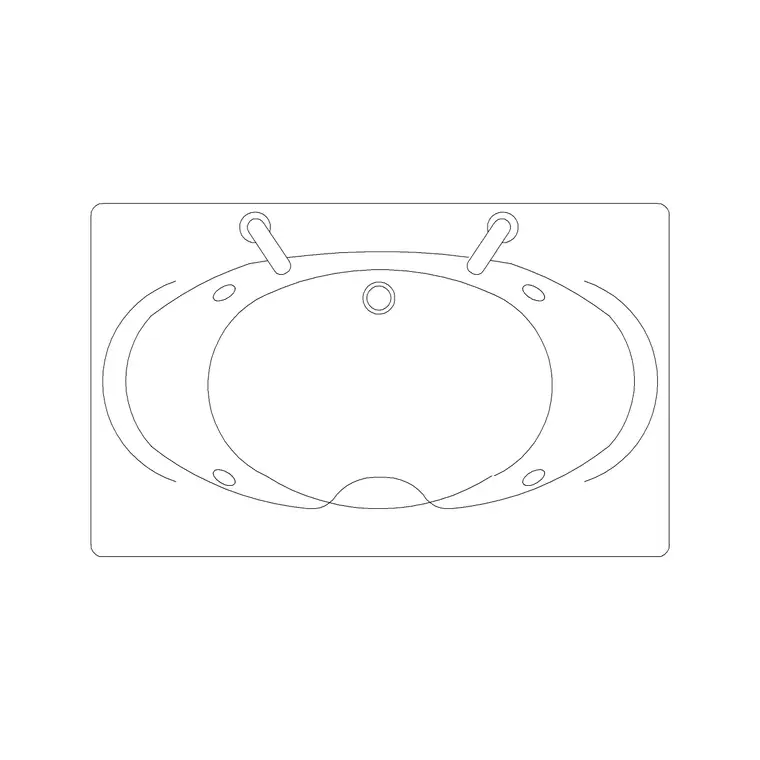
Building a living room in AutoCAD from free blocks
Furnish a living-room floor plan in AutoCAD using free DWG sofa, table and plant blocks: where to find them, clearances to check, and how to lay it out fast.
Saumyajit MaityUpdated 23 January 20264 min read

Start with the shell, not the sofa
A living room is the easiest space to over-furnish and the easiest to get wrong, so resist the urge to drop a sofa in first. Draw or import the room shell — walls, the door opening and its swing, windows, and any fixed features like a fireplace or a TV niche — and put it on its own layers before any furniture lands. The furniture exists to be tested against that shell, so the shell has to be honest first.
With the empty room on screen, mark the obvious constraints. Where does the door swing into the room, and how much arc does it eat? Where is the natural focal point — a window with a view, a media wall, a fireplace? Living rooms almost always orient their seating toward one focus, so deciding that now saves you from rearranging blocks three times later. Once the shell and the focus are clear, furnishing it from free blocks is quick.
Where to get the living-room blocks (all free DWG)
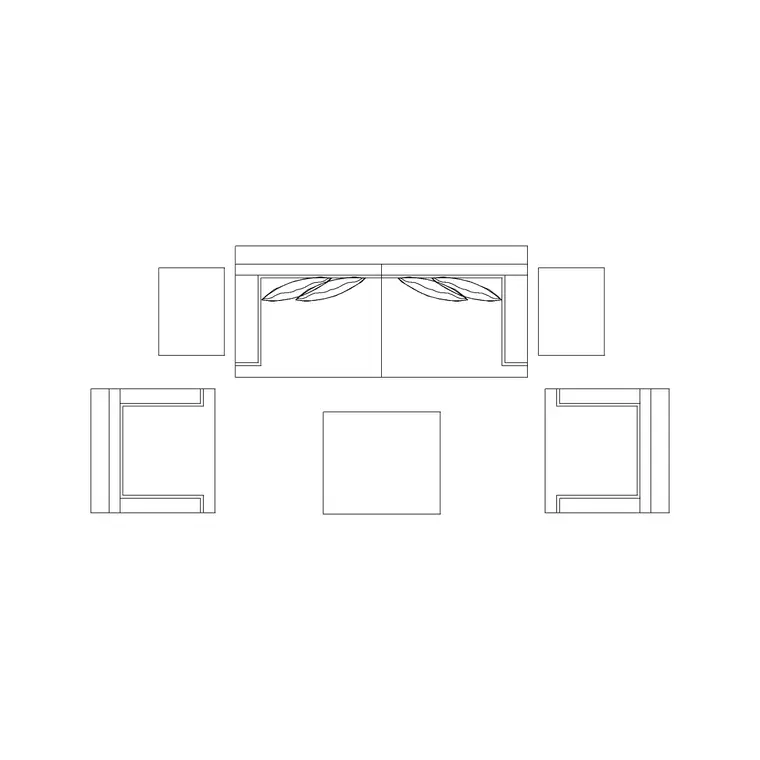
Everything you need for a residential lounge sits in the Furniture category on CADBlockDWG, free to download in DWG with no signup and free for commercial use. The anchor piece is the sofa. Two ready-made arrangements — Sofa Set Plan 1 and Sofa Set Plan 2 — give you a plan-view seating group (sofa plus chairs around a low table footprint) rather than a single bare couch, which is exactly what reads well on a layout. Drop one of those in and most of the room is already legible.
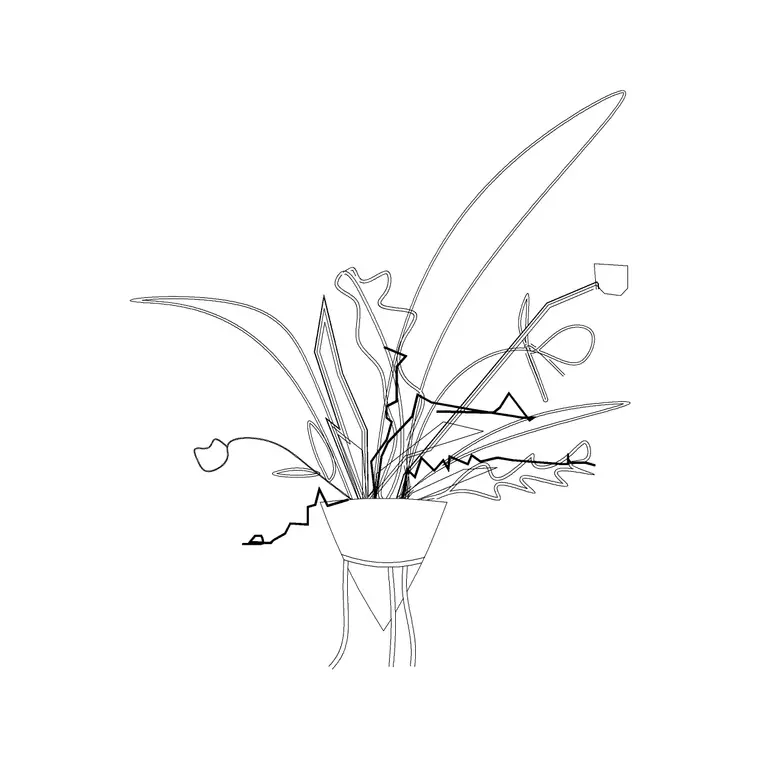
Round the scheme out with a coffee table, a TV unit or cabinet, and a plant or two to soften a corner. For greenery, the Trees & Plants category carries indoor pieces such as a large indoor plant with MS legs that works as an elevation accent or, in plan, as a corner marker. Browse the Furniture category for armchairs, side tables and shelving; grab the few you need and keep the rest for next time. Each download is a small DWG file containing the block — no bundles to unpack, no account wall.
Insert and place each piece
In your working drawing, set your furniture layer current, then run INSERT (shortcut I) and browse to the downloaded sofa DWG. Leave scale at 1 and rotation at 0 to start — these blocks are drawn at real-world size, so a scale of 1 is correct. Click to drop the seating group facing your chosen focal point. If it lands too big or invisible, that is a units mismatch, not a broken file: set INSUNITS to millimetres in both files, or scale by 0.001 if the room is drawn in metres.
Place the rest around the anchor. Use object snaps (F3) to align the coffee table centred on the sofa and to sit the TV unit flush against the wall opposite the seating. Rotate pieces with ROTATE once they are down — it is easier to judge an angle in context than to guess it on insertion. Because these blocks are built to inherit the host layer, having your furniture layer current means they all adopt its colour and lineweight automatically, keeping the plan tidy from the first click.
Check the clearances that make a room work
A furnished plan is only useful if the gaps are real, so verify the circulation. Leave roughly 400mm between the front of the sofa and the edge of the coffee table — enough to set a cup down and to walk past without barking a shin. Keep a clear path of around 700 to 900mm through the room so people can cross it without weaving between furniture. And confirm the TV sits a comfortable viewing distance from the seating rather than crammed against it.
This is where furniture blocks earn their keep: you can see at a glance whether the door swing clips an armchair, whether the route from the hall to the balcony is blocked, or whether the seating group crowds a radiator. Drag pieces until the gaps look right. Catching a circulation problem now — while it is a click to fix — is far cheaper than discovering it after the walls are committed.
Polish: rugs, layers and a quick audit
Two small touches lift the drawing. Add a rug outline under the seating group — a simple rectangle on a separate layer — to visually bind the furniture into a zone; it instantly reads as a designed lounge rather than scattered objects. And keep all the furniture on a dedicated layer (or a couple: furniture, planting) so you can dim it back when you need a clean structural plan, or push it forward for a presentation sheet.
Finally, run a quick AUDIT and PURGE after importing several blocks from different downloads. It strips any orphaned data the blocks brought in and keeps the drawing light. Put it together — honest shell, anchor sofa group, supporting pieces, verified clearances, tidy layers — and a living-room layout that once took an afternoon of hand-drawing comes together in a few minutes of inserting and nudging free blocks.
Questions
Frequently asked
Where can I download a free sofa block for a living-room plan?+
The Furniture category on CADBlockDWG has plan-view seating groups like Sofa Set Plan 1 and Sofa Set Plan 2, free in DWG with no signup and free for commercial use.
How much space should I leave between a sofa and a coffee table?+
About 400mm — enough to set down a cup and pass in front comfortably. A furnished block lets you check this gap at a glance before committing walls.
Why did my sofa block come in the wrong size?+
Almost always a units mismatch. Set INSUNITS to millimetres in both the block and your drawing, or scale by 0.001 if your room is drawn in metres.
Free downloads from this article
Free CAD block library
Download the blocks from this article — free, no signup