Building a furniture layout plan in AutoCAD from free blocks
Create a furniture layout plan in AutoCAD from free DWG furniture blocks: a room-by-room method, clearance rules of thumb, and clean furniture layers.
Saumyajit MaityUpdated 2 May 20264 min read

What a furniture layout plan is for
A furniture layout plan — sometimes called a furniture, fixtures and equipment (FF&E) plan — exists to prove a space works before anyone builds or buys. It shows every loose item in position so a client can read the scheme, a contractor can coordinate power and lighting to suit, and you can confirm that real furniture at real size actually fits with real clearances. It is one of the most persuasive drawings you can put in front of a client, because it turns abstract floor area into a place they can picture living or working in.
The whole drawing depends on accurate blocks. If the sofa, the bed or the dining table is mis-scaled, the plan lies, and the clearances you sign off are fiction. So the method below is really about pulling correctly-sized free blocks into each room and reading the gaps honestly. Done across a whole dwelling or floor, it is the same repeatable process room after room.
Source the furniture blocks (free DWG)
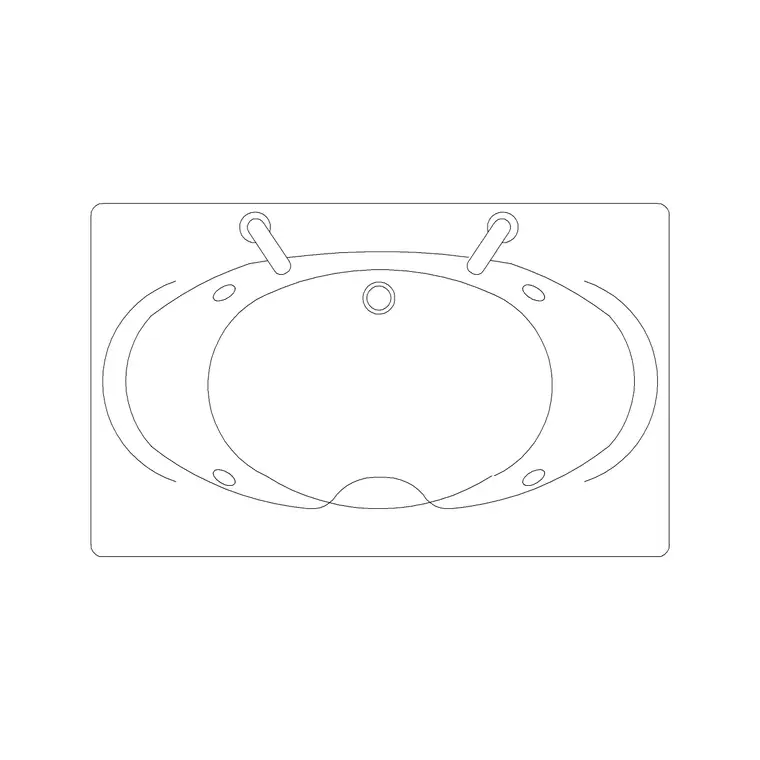
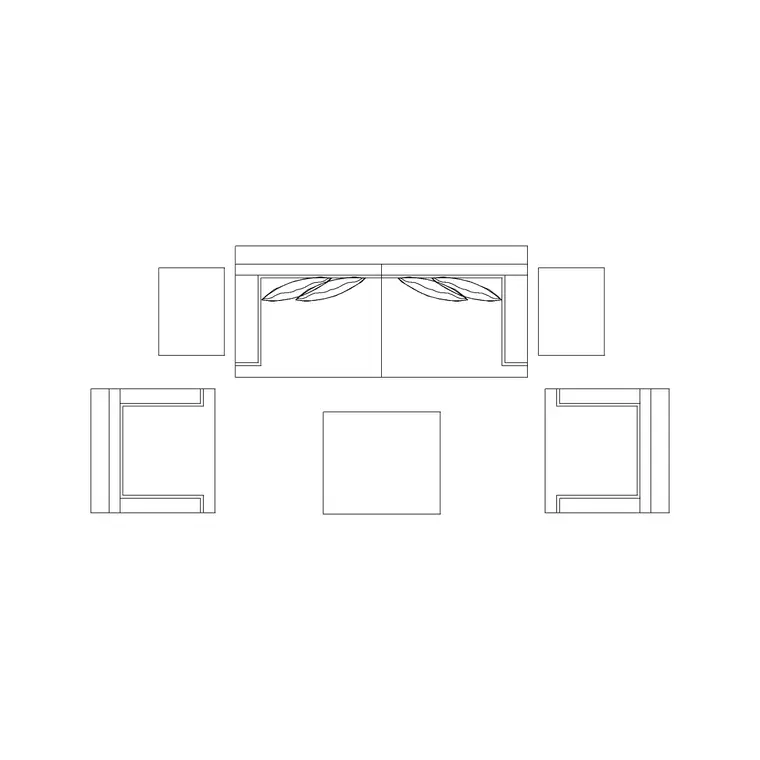
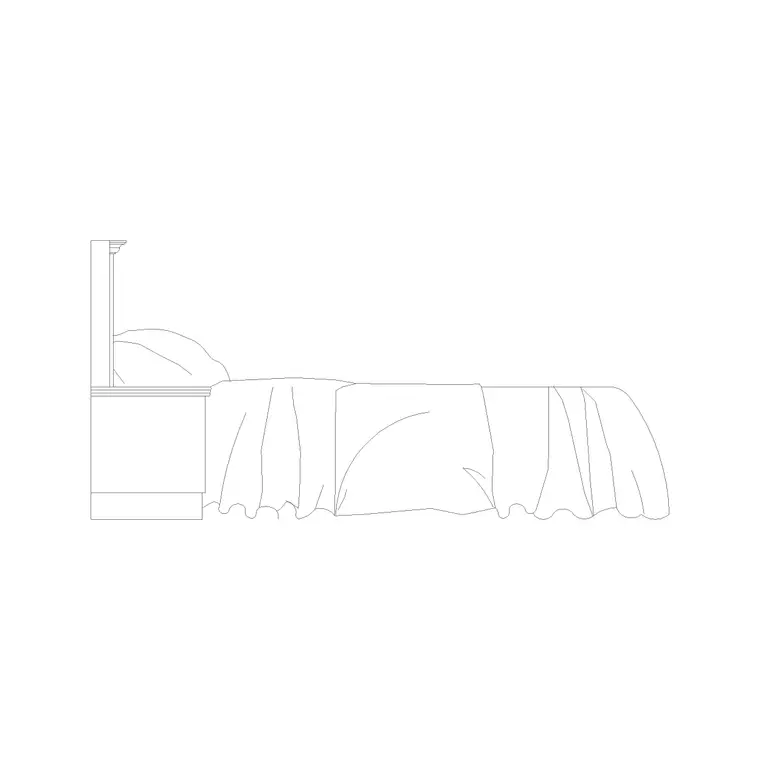
The Furniture category on CADBlockDWG is the core source — sofas, armchairs, dining and coffee tables, beds, desks, wardrobes and shelving — all free in DWG, no signup, free for commercial use. For seating, the ready-made Sofa Set Plan blocks give you a whole lounge group in one drop. The Bedroom, Kitchen, Bathroom and Office categories supply the room-specific pieces, and Trees & Plants adds indoor greenery to soften the scheme.
Pull each piece as a single small DWG. A practical tip: as you gather the blocks for a project, drag your most-used ones onto a tool palette grouped by room — sofas and tables on one, beds and wardrobes on another. From then on each piece is a single click to place, which is what turns a multi-room furniture plan from a slog into a quick pass. Everything is free for commercial use, so the finished layout goes straight into a client package.
A room-by-room placement method
Work one room at a time and place the dominant piece first, then the supporting items around it — the same logic in every space. In the living room, set the sofa group toward the focal point, then the coffee table and media unit. In the bedroom, the bed against a solid wall, then bedside tables and wardrobe. In the dining area, the table centred in its zone, then chairs and a sideboard. In a kitchen, the run of base units, then the appliances. Set your furniture layer current before inserting so every block inherits it, and leave scale at 1, fixing INSUNITS if anything lands oversized.
Use object snaps to align and centre pieces — coffee table on the sofa axis, dining table centred between walls — and ROTATE items into orientation once they are down. Moving room by room keeps the task manageable and stops you from endlessly re-juggling the whole floor; finish one space, confirm its clearances, then move to the next. It also makes the drawing easier to review: a colleague or client can sign off the lounge while you are still resolving the bedroom, rather than waiting for the whole floor to land at once.
Clearance rules of thumb to check
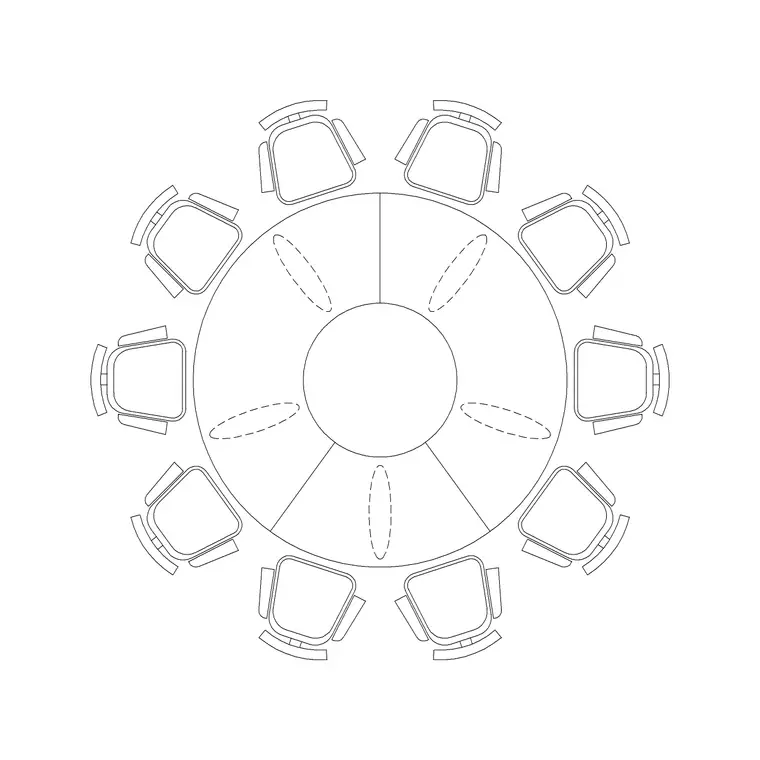
A furniture plan is only as good as its gaps, so check the same handful of clearances in every room. Around a dining table, keep enough space on each side for chairs to pull out and for someone to pass behind a seated diner. In the living room, leave a comfortable gap between sofa and coffee table and a clear path through the room. In bedrooms, access down at least one side of the bed and swing room for wardrobe doors. Everywhere, confirm door swings do not clip furniture.
With accurate blocks in place, every one of these is visible at a glance — the plan tells you immediately when a chair has nowhere to pull out or a door arc slices through a bed. That instant feedback is the entire value of the drawing: you catch the problem now, while it is a drag-and-drop fix, rather than after a sofa has been ordered or a wall committed.
Layer it so it stays useful
Keep all furniture on a dedicated layer — or a small set such as furniture, joinery and planting — with everything ByLayer. That single habit is what makes the plan reusable: dim the furniture for a structural or services drawing, freeze it for a bare shell, or push it forward and colour it up for a presentation, all from the Layer Manager without touching a block. A clean layout plan and a clean base plan then come out of the same file.
Finish with a quick AUDIT and PURGE after importing across several rooms to strip orphaned data and keep the drawing light. Put the method together — accurate free blocks, dominant piece first in each room, clearances checked room by room, and disciplined layering — and you can furnish an entire home or floor in a fraction of the time hand-drawing would take, with a plan you can confidently sign off and reissue in any flavour a project needs.
Questions
Frequently asked
What is a furniture layout plan?+
A plan showing every loose furniture item in position so you can confirm a space works — real pieces at real size with real clearances — before anything is built or bought. Often called an FF&E plan.
Where do I download free furniture blocks for a layout plan?+
The Furniture category on CADBlockDWG covers sofas, beds, tables, desks and storage, free in DWG with no signup and free for commercial use, with room-specific pieces in the related categories.
How do I keep a furniture plan reusable across drawings?+
Put all furniture on its own layer with properties ByLayer. Then you can dim it for a structural plan or push it forward for a presentation from the Layer Manager, reusing one file for many sheets.
Free downloads from this article
Free CAD block library
Download the blocks from this article — free, no signup