Publishing a Drawing Set: Batch-Plotting Multiple Sheets to PDF
How to use Publish to batch-plot a full drawing set to PDF reliably, and the page setup habits that stop sheets coming out at the wrong scale.
Saumyajit MaityUpdated 21 May 202612 min read
The night before a submission is the wrong time to learn this
I have watched someone plot twenty sheets one at a time the evening before a deadline, opening each layout, checking the scale, hitting plot, waiting, and repeating, and it is exactly the kind of task that a proper batch workflow turns into a five minute job instead of a two hour one. The tool that does this is PUBLISH, and most people who have never used it seriously are plotting sheet by sheet purely out of habit rather than necessity.
The reason people avoid it is usually one bad early experience, a batch that came out with some sheets at the wrong scale or missing content, which is almost always a page setup problem rather than anything wrong with Publish itself, and that distinction is worth understanding properly before you rely on it for something that actually matters.
The first time I actually trusted Publish with something that mattered, a full permit set rather than an internal draft, I still plotted the first sheet individually afterward just to confirm it matched what I expected, purely out of leftover caution from that earlier bad experience elsewhere. That caution faded once I understood exactly why the earlier failure happened, and once page setups are handled properly, Publish has been reliable every time since, which is really the point of this whole post.
What PUBLISH actually does differently from PLOT
PLOT handles one layout at a time, interactively, with you present to confirm settings and preview before committing. PUBLISH instead takes a list of layouts or sheets, queues them, and processes the whole list unattended, applying whatever page setup each individual sheet already has saved, and typically combining the result into a single multi sheet PDF rather than a pile of separate files.
That unattended part is exactly why page setup consistency matters so much for a good batch result. Publish is not making decisions on your behalf, it is faithfully executing whatever each sheet's saved settings already say, so if those settings are inconsistent or missing, the batch output will faithfully reproduce that inconsistency across every affected sheet.
That unattended nature is also precisely what makes it worth using once trusted, since it frees you to keep working on something else, reviewing a different sheet, answering a call, while a large set processes in the background, rather than babysitting each individual plot command one after another. The time saved compounds quickly on any set past a handful of sheets, which is most real projects.
One detail worth knowing before you lean on Publish for a large combined PDF, the output follows the exact order sheets sit in inside the Publish list, top to bottom, not whatever order the layout tabs happen to sit in along the bottom of the screen. Building that list by dragging tabs in one by one as you happen to notice them, rather than deliberately sequencing it to match the drawing set's actual sheet numbering, is exactly how a combined PDF ends up with sheet seven appearing before sheet three, which is a genuinely awkward thing to discover only after a client has already opened the file. Reordering the list, dragging entries up and down until they match your intended sheet sequence, takes seconds and is worth doing as a matter of habit rather than only after the first time it goes wrong.
Sheet Set Manager versus an ad hoc list of layouts
For larger, ongoing projects, AutoCAD's Sheet Set Manager lets you build a formal sheet set, a DST file, which adds structure, sheet numbering, title block data fields that populate automatically, and a proper index you can publish as a set. It is genuinely worth the setup time on a project with dozens of sheets across multiple disciplines.
For a smaller, one off job, building a full sheet set is often more overhead than the task deserves. Publish also accepts a simple ad hoc list of layouts assembled directly from the Publish dialog, add the layouts you want in the order you want them, and that list works perfectly well for a modest drawing set without any sheet set infrastructure behind it.
A reasonable rule of thumb for deciding between the two, if the project is going to see multiple revisions and resubmissions over months, the upfront cost of a proper sheet set pays for itself through the automated numbering and title block data alone. If it is a single deliverable that will not be revisited, an ad hoc Publish list gets the same PDF out the door with far less setup overhead.
Why every sheet needs a consistent saved page setup first
This is the single habit that determines whether a batch plot goes smoothly or produces a mess. Before publishing anything, every layout involved needs its own saved page setup, plotter or PDF driver, paper size referencing a real standard like the ISO 216 series for A1 or A3 sheets, plot style table, plot scale, and plot area, all confirmed and saved rather than left at whatever ad hoc settings happened to be active last time someone touched that layout.
Page Setup Manager is where you create and name these configurations, and once a layout has a named setup applied and saved, Publish will use it faithfully every time. Skip this step and Publish simply repeats whatever inconsistent, half configured settings each layout currently carries, which is where the classic complaint about batch plotting producing wrong scale sheets actually comes from.
A practical way to build these page setups efficiently across a large set, configure one layout correctly, save its page setup with a clear descriptive name, then import that same named setup onto every other layout that should share it via Page Setup Manager's import function, rather than manually reconfiguring the plotter, paper size, and plot style table from scratch on every single sheet. That single import step is what actually makes consistency achievable across dozens of sheets rather than aspirational.
The failures that actually happen, and why
Sheets plotting at the wrong scale is almost always a missing or inconsistent page setup on that specific layout, not a Publish malfunction, since Publish has no scale logic of its own beyond what each sheet's setup specifies. Fonts or xrefs not found, particularly common when plotting from a shared network drive with inconsistent local paths across different machines, cause sheets to publish with substituted or missing geometry, which looks alarming but traces back to file paths rather than the plot process itself.
An unresolved or corrupted plot style table reference is another quiet failure mode, purge unused and broken plot style table references periodically, especially on a drawing that has passed through several hands or several software versions over its life.
A less obvious failure worth watching for on a mixed discipline set, a layout copied from a different project template can silently carry over that project's paper size or plot style table rather than the current one, especially if someone built a new sheet by copying an existing layout tab as a shortcut. Confirm every copied layout's page setup explicitly rather than assuming it inherited the right settings just because it looks visually correct in the drafting view.
Worth adding one more failure mode to this list specifically because it is so easy to overlook, a mix of colour dependent CTB and named STB plot style tables across different layouts in the same set. AutoCAD lets a drawing use either system, but mixing them within a single batch, some sheets referencing a CTB table for lineweight by colour, others referencing an STB table for lineweight by named style, produces genuinely inconsistent line weight behaviour across the published set even when every individual sheet's page setup otherwise looks fine on inspection. Standardise on one system across an entire drawing set before publishing, and confirm every sheet's plot style table type matches, rather than discovering the inconsistency only once the whole set is already out.
What to do when a batch stalls or fails partway through
Even with every page setup confirmed, a genuinely large batch, thirty, forty, fifty sheets, occasionally stalls partway through, usually because one specific layout is referencing a missing font, a broken xref path, or an unresolved plot style table that the earlier checks did not happen to catch. When that happens, Publish typically logs the failure to the Plot and Publish Details dialog rather than silently skipping the sheet, and it is worth actually opening that log rather than assuming the batch simply finished, since a partially completed combined PDF missing three sheets from the middle looks, at a glance, exactly like a complete one.
The practical fix, once the log identifies the offending layout, is almost always isolating that single sheet, publishing it on its own, and watching for the specific error rather than re-running the entire forty sheet batch again from scratch and hoping the same failure does not recur. Nine times out of ten the isolated failure traces back to exactly the same short list covered above, a page setup that was never actually confirmed on that particular layout, a font or xref path that only breaks on this specific machine, or a plot style table reference that never got cleaned up after that sheet was copied from an older project template. Fix the one sheet, confirm it plots cleanly on its own, then re-run the full batch rather than assuming the fix has definitely worked without checking.
A genuinely useful habit on any set large enough that a full re-run costs real time, publish in smaller batches of ten or fifteen sheets at a time rather than one single enormous list, since a failure in a smaller batch is faster to isolate and re-run than hunting for one broken sheet inside fifty, and the time cost of splitting the list into a few smaller runs is trivial compared to the time cost of a failed fifty sheet batch that has to be fully repeated.
A practical checklist before you hit Publish
- Confirm every layout involved has its own saved, named page setup, not a default or ad hoc configuration. - Verify Plot with Plot Styles is checked wherever lineweight fidelity matters. - Check the BACKGROUNDPLOT system variable, since publishing a large set in the background lets you keep working in AutoCAD rather than being locked out while it processes. - Use Plot Stamp if your office wants a batch date and filename stamp automatically applied for traceability across the set. - Run a plot preview on at least one representative sheet from each discipline or sheet type before publishing the full set, not just the first sheet in the list.
A few minutes spent on this checklist before publishing catches the vast majority of batch plotting problems before they reach a client or a printer.
Worth keeping this checklist somewhere genuinely reusable, a note pinned to the template file, a short standard in the office wiki, rather than trusting memory alone under deadline pressure, since deadline pressure is exactly when a rushed skip of one of these steps is most likely, and exactly when the consequences of skipping it are most expensive to discover late.
A worked example, a small residential set
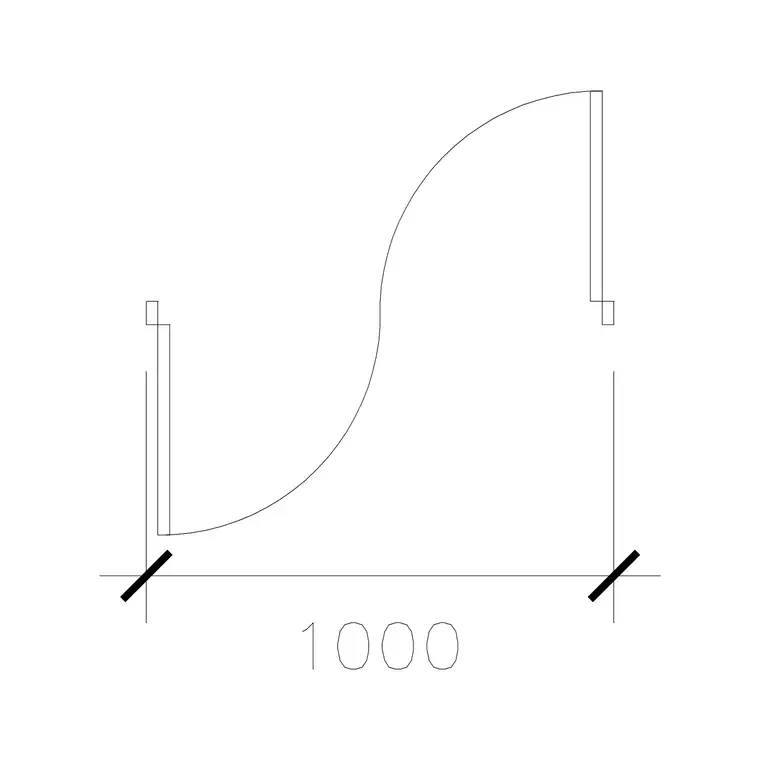
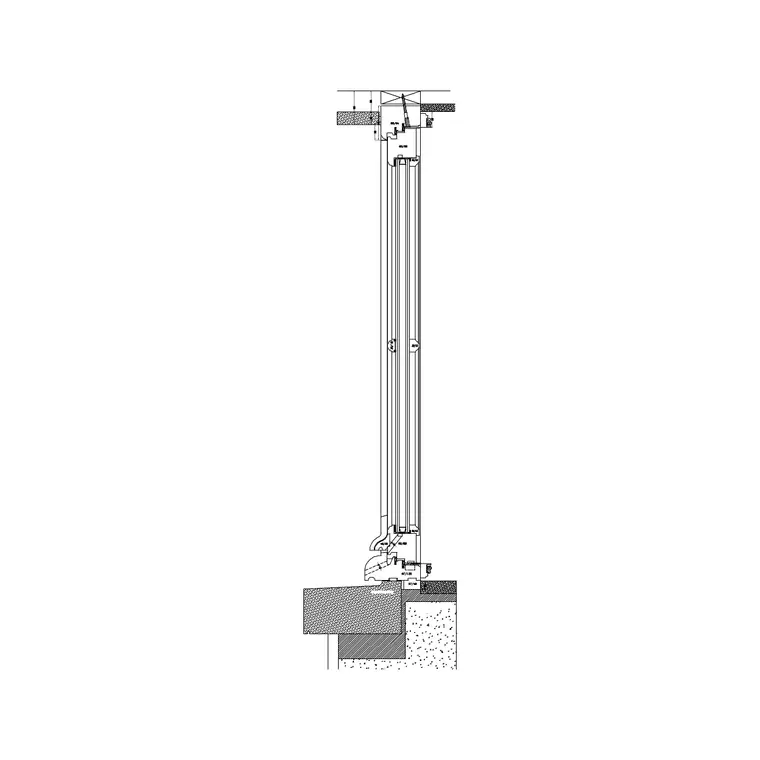
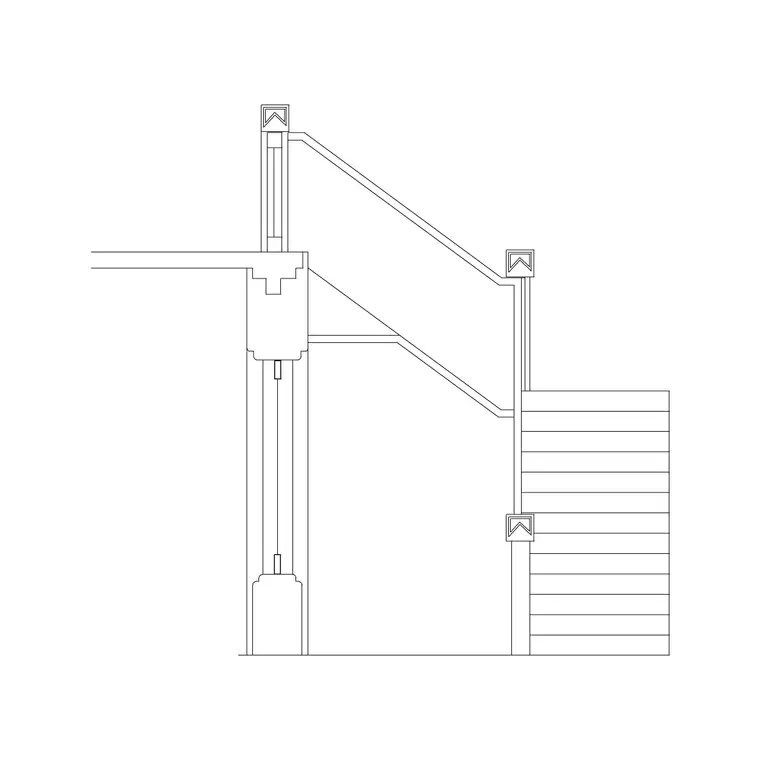
Picture a modest residential submission, a floor plan sheet with a door schedule referencing blocks like 1000 Mm Door Type 1, a window schedule sheet referencing Window Plan 1, and a stair detail sheet built around a block like Metal Staircase Front Elevation 1. Each of those sheets likely plots at a different scale, the floor plan perhaps at 1:100, the stair detail at a larger 1:20 or 1:25 for legibility, and each one needs its own north arrow and title block positioned consistently.
This is precisely the situation where inconsistent page setups cause visible trouble, if the stair detail's page setup was copied from the floor plan without adjusting scale, it publishes at the wrong size relative to everything else in the set, even though nothing about Publish itself did anything wrong. Confirming each sheet's setup individually before batching them together is what prevents that.
The same set also benefits from thinking about the sheets holistically before publishing, a north arrow appearing at a consistent position and orientation across the floor plan and site plan sheets, a title block referencing the correct sheet number in sequence, and a stair detail sheet whose scale and page setup were confirmed independently of whatever the floor plan happened to use. None of that consistency comes automatically from Publish itself, it comes from the setup work done on each individual layout beforehand, which is really the entire theme of this post.
A door and window schedule sheet in particular deserves its own explicit page setup check even on a small project, since it typically carries a table rather than a scaled plan, and a page setup copied from a scaled architectural layout can occasionally apply an unwanted scale factor to what should really be plotted at a simple one to one paper layout. A quick preview specifically on schedule and table style sheets before batching catches this, since it is easy to overlook when your attention is mostly on the scaled drawing sheets around it.
Tying it back to lineweight quality
A batch plotted set is only as good as its weakest sheet, and lineweight fidelity, covered in more detail elsewhere, is just as relevant here as scale. A page setup that omits the correct plot style table produces flat, uniform looking output across every sheet in the batch simultaneously, which is a much bigger problem to discover after publishing forty sheets than after plotting one.
Spend the setup time once, verify it on a couple of representative sheets, and Publish becomes the fast, reliable tool it is meant to be rather than a source of last minute surprises the night before a deadline.
Once a batch has genuinely gone well a few times running, it stops feeling like a risk and starts feeling like the obvious default, which is really the state you want to reach, plotting a full set through Publish should be the boring, expected outcome on every project, not something reserved only for when there is enough time to babysit it carefully. Getting the page setup discipline right the first few times is what buys you that boredom permanently.
That is really the payoff worth chasing, a drawing set going out reliably, at the right scale, with the right lineweights, without anyone needing to hover over the process the night before it matters.
Further reading
Questions
Frequently asked
What is the difference between PLOT and PUBLISH?+
PLOT handles a single layout interactively with you present to confirm settings. PUBLISH queues a list of layouts or sheets and processes them unattended, typically combining them into one multi sheet PDF.
Can Publish output one combined PDF instead of separate files per sheet?+
Yes. The Publish dialog includes an option to merge every sheet in the batch into a single multi sheet PDF rather than producing individual files.
Why did some sheets in my batch come out at the wrong scale?+
Almost always an inconsistent or missing page setup on that specific layout, not a fault in Publish itself. Verify each sheet's saved page setup before batching.
Do I need a full Sheet Set built in Sheet Set Manager for a small project?+
Not necessarily. An ad hoc list of layouts assembled directly in the Publish dialog works fine for a modest set, a full sheet set earns its setup time on larger, ongoing projects.
Free downloads from this article


Free CAD block library
Download the blocks from this article — free, no signup