Window CAD block sizes & dimensions explained (free)
Standard window widths, sill and head heights, and how window blocks read in plan vs elevation — plus where to download free DWG window blocks at real scale.
Sumana KumarUpdated 22 May 20264 min read
Two views, two different blocks
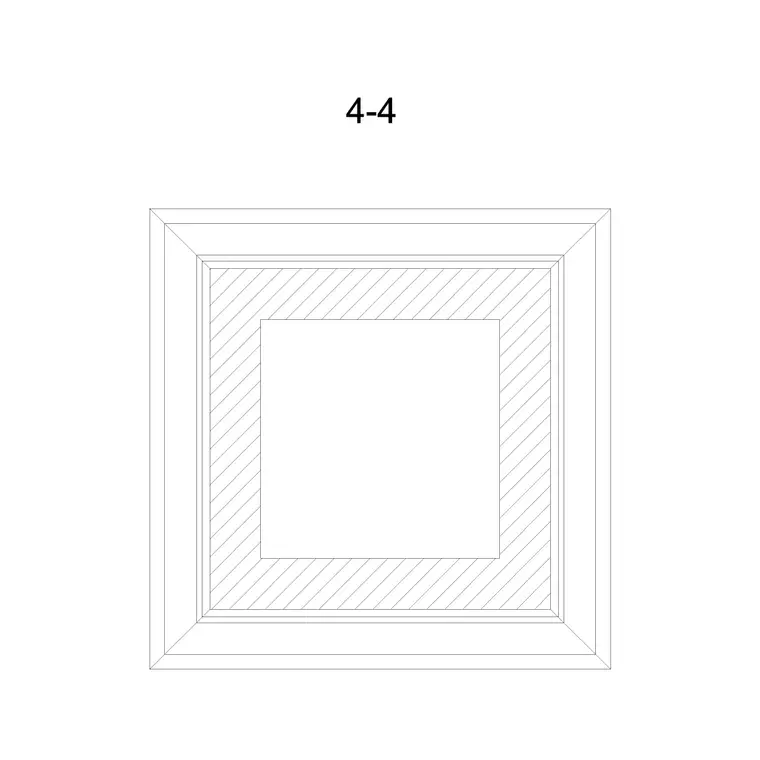
Windows are one of the clearest examples of why drawing view matters when you pick a block. A window in plan is a short run of lines cut through the wall — the frame, the glass line, and sometimes the swing of an openable casement — seen from above at the standard 1.2m cut height. A window in elevation is the thing most people picture: a rectangle with mullions, transoms and opening lights drawn face-on. They are completely different geometry, and using the wrong one is an instant tell of inexperience.
Many blocks here ship both views; the Window Plan blocks (1-4) are the top-down cuts for layout drawings, while elevation and shutter blocks show the face. Decide which drawing you are populating before you download: a floor plan needs the plan cut, a façade or interior elevation needs the elevation block. Get the view right and the size will read honestly in context.
Standard window widths and heights
Window sizes are less rigidly standardised than doors because they respond to room size, daylight and façade composition, but typical ranges are easy to keep in mind:
- Width: 600mm for a small toilet or stair window, 900-1200mm for a single-room window, 1500-1800mm for a living-room or twin-light window, and 2400mm and up for full-width glazing made of multiple lights. - Height: 900-1200mm is common for a standard window, 1500mm for tall living-room glazing, and 600mm or less for high-level or borrowed-light openings.
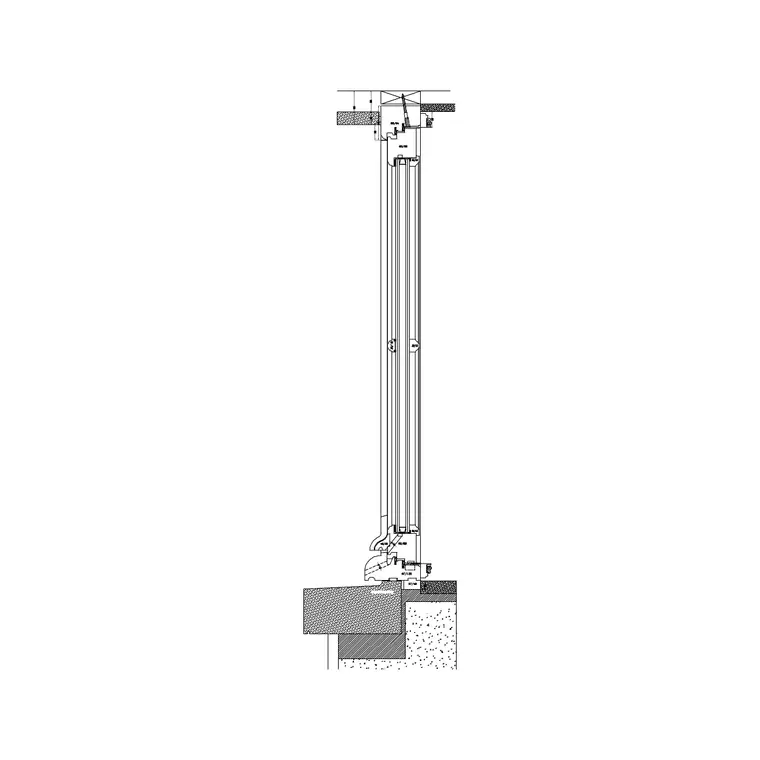
Two heights govern where a window sits vertically, and both only appear in elevation or section, not in plan: the sill height (top of the sill above finished floor) and the head height (top of the opening). A sill of about 900mm is typical for habitable rooms so furniture can sit beneath it; a kitchen window often sits at about 1050mm to clear a worktop; a head height around 2100mm aligns with door heads for a tidy façade.
Casement, sliding, awning and roman variants
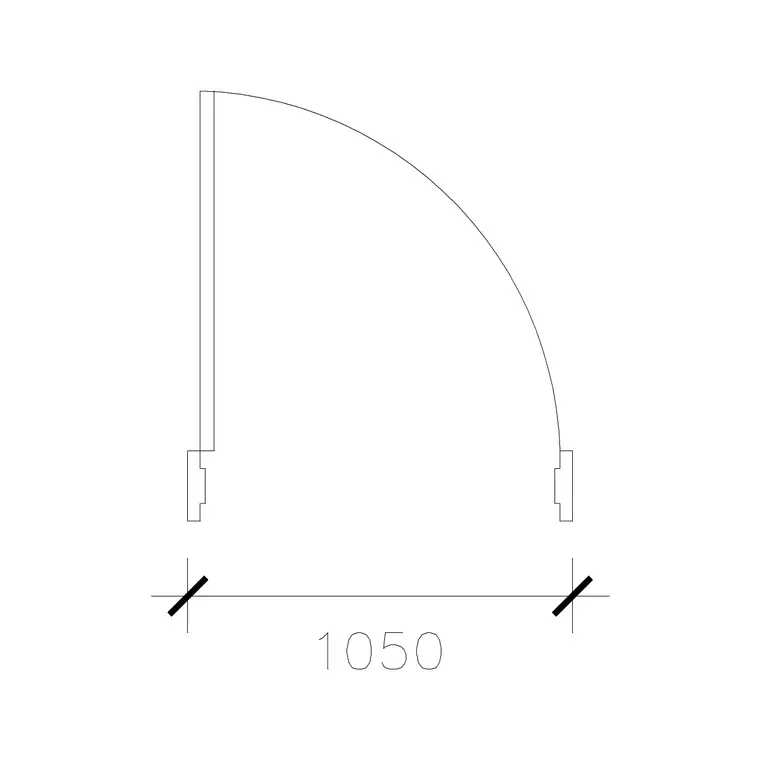
The catalogue covers the opening types you actually specify. Casement (side-hung openable) windows show a hinge and a swing line in plan and an opening triangle in elevation. Sliding windows show a track and overlapping leaves. Awning (top-hung) windows tilt out at the bottom, drawn with the hinge at the head. Fixed lights have no opening symbol at all — just glass.
You will also find decorative families such as the roman window blocks (two-shutter, round-side and square variants), which suit traditional and arched openings. As with doors, the opening type changes the symbol but not the basic size logic: pick the overall width and height to suit the room and façade first, then choose casement, sliding, awning or fixed to match how the window is meant to work. Drawing the opening light also lets you check that an outward casement will not foul a path or a neighbouring window when open.
Downloading and placing a window block
Open the Windows category, pick the block in the view you need (plan cut for layouts, elevation for façades), and download the free DWG; DXF is available where your software prefers it, and there is no login. In a floor plan, insert the plan block and snap its frame into the wall opening so the glass line sits centred in the wall thickness. In an elevation, insert the elevation block and align its sill to the correct height above your floor datum.
Units work the same as every block: these are drawn at real-world size, so insert at scale 1 in a millimetre drawing, or set INSUNITS (or scale by 0.001) for a metre drawing. Verify by dimensioning the width — a single-room window should read about 1200mm. Because window blocks are typically built on layer 0, set your "Windows" or "Glazing" layer current before inserting so the block inherits the right properties and plots cleanly with the rest of the building fabric.
Common mistakes to avoid
The two recurring errors with window blocks both come from ignoring the section. The first is forgetting sill height entirely: a window dropped onto an elevation at floor level looks like a door, and a window that should clear a worktop ends up behind it. Always set the sill above your floor datum at a height that suits the room. The second is mixing views — a plan cut accidentally placed on an elevation, or vice versa — which reads as wrong immediately.
A third, subtler issue is glass-to-wall alignment in plan. The glass line should sit roughly central in the wall, not flush to the inside or outside face, unless you are deliberately showing the frame set forward or back. Spend the few seconds to centre it, match the frame depth to the wall thickness, and your windows will look resolved rather than pasted on. Done well, a window block communicates daylight, view and ventilation at a glance — which is most of what a window is for on a drawing.
Questions
Frequently asked
What is a standard window sill height?+
About 900mm above finished floor for habitable rooms, so furniture sits beneath it; kitchen windows often sit around 1050mm to clear a worktop. Sill height only shows in elevation or section, never in plan.
Why are there separate plan and elevation window blocks?+
Because they show different things: the plan block is the cut through the wall seen from above, and the elevation block is the face with mullions and opening lights. Match the block view to the drawing you are in.
Can I download these window blocks for free?+
Yes. Every block in the Windows category is a free DWG (often DXF too), no signup, and free for commercial use.
Free downloads from this article

Free CAD block library
Download the blocks from this article — free, no signup