Where to find free TV unit DWG files (and how to use them)
Free TV unit and media console DWG files for AutoCAD. Where to look, the depth and width to plan for, and how to place a TV unit on a living-room wall.
Saumyajit MaityUpdated 6 June 20264 min read
What a TV unit block represents
A TV unit — the low media console that carries the television and holds equipment — is a simple rectangular block in plan: a shallow cabinet outline, often with a line indicating the screen above it. TV units are typically 400 to 500mm deep and 1200 to 2000mm wide depending on the screen size they support, sitting low against the wall opposite the seating.
When you draw one in CAD it is mostly about the footprint and the wall it occupies, both of which a plan block captures. Because the geometry is vector DWG it measures true, so you can confirm that depth and width with a quick dimension. The catalogue is strongest on seating and storage rather than dedicated media units, so if there is no TV-unit-specific block to hand, a shallow cabinet or console outline works as a stand-in — and the Furniture category is the place to browse for the closest fit.
Finding a media console on the site
Browse the Furniture category, which holds the living-room pieces, and search 'table' or 'cabinet' to find shallow console-style outlines you can use as a TV unit. A console or side-table block of the right proportions reads perfectly well as a media unit on a plan, where what matters is the rectangle against the wall and its depth.
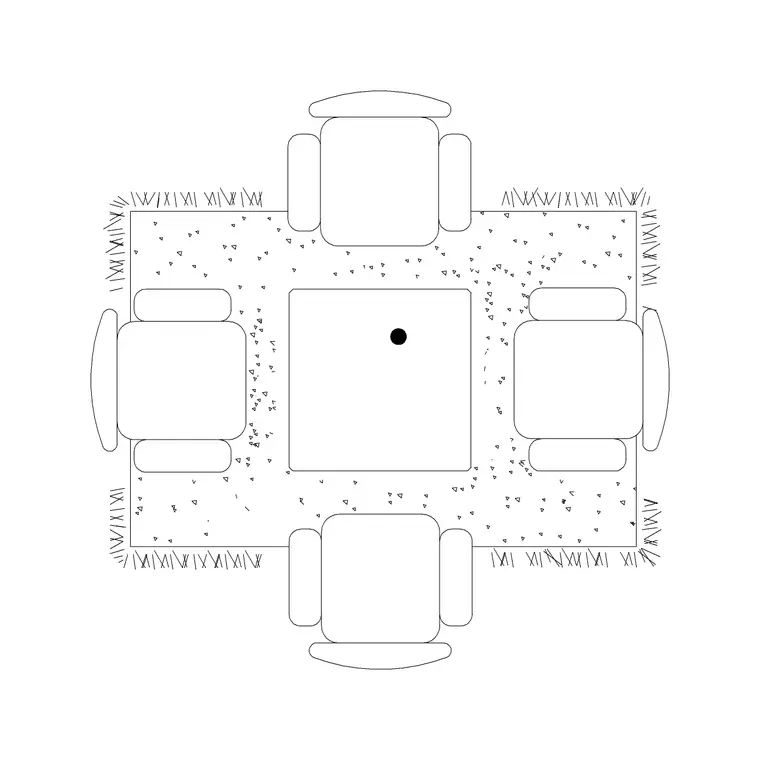
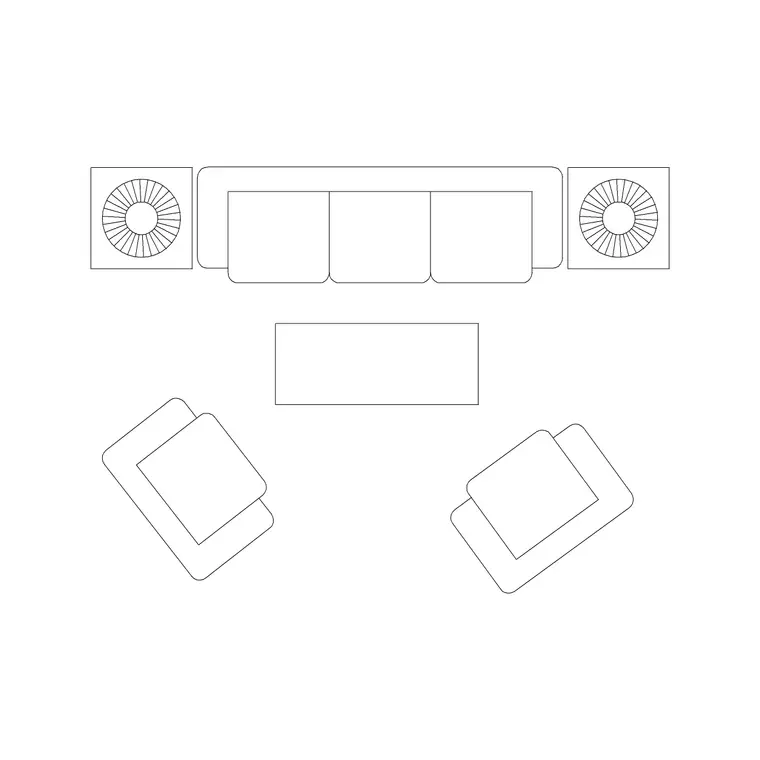
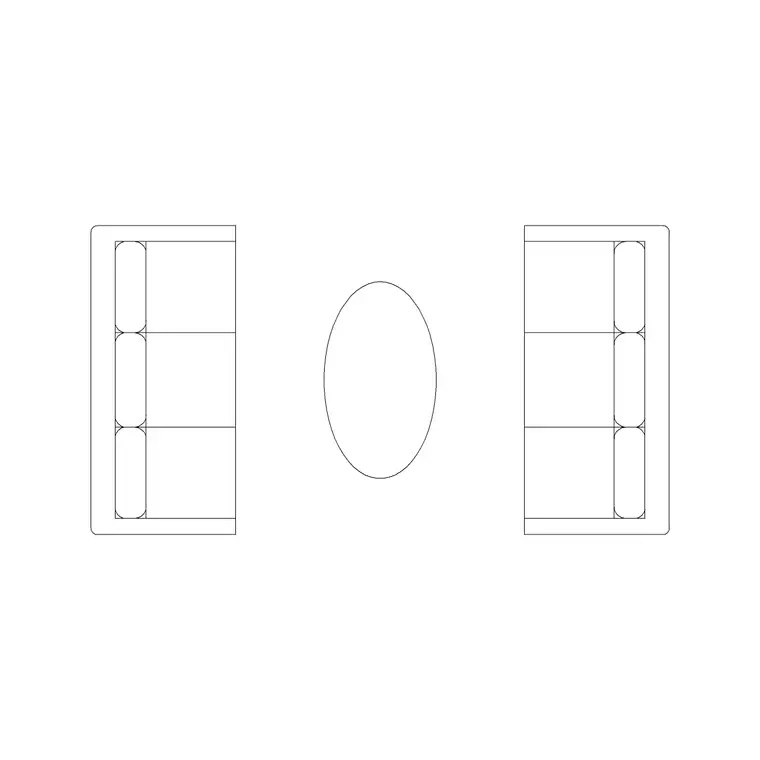
The Table With Rug and the sofa-set blocks help you establish the rest of the living-room arrangement around the TV wall — the sofa and seating that face the screen — so the media unit sits in a complete, readable layout rather than floating alone. Open any product page, check the preview, and download the DWG; there is no signup, and everything is free for commercial use.
If you need an exact branded media unit with catalogue dimensions, that is a case for the manufacturer's own CAD download; for a generic TV console on a layout, a suitably sized cabinet block from the Furniture category is all you need.
Inserting and placing the unit
Run INSERT (I), browse to the chosen DWG, and place it at scale 1, rotation 0. Snap the back of the cabinet flush to the living-room wall — a TV unit always sits hard against the wall — using an object snap on the wall line rather than placing it by eye.
If the block comes in the wrong size, set INSUNITS consistently or SCALE by 0.001 / 1000 to bridge millimetres and metres. Then move the unit onto your Furniture layer so it groups with the rest of the room.
Centre the TV unit on the seating, not just on the wall: the screen wants to line up with the primary sofa so the viewing angle is comfortable. A quick way to check is to draw a centreline from the middle of the sofa to the wall and place the unit on it.
Getting the viewing layout right
A TV unit is only as good as the viewing geometry around it, so use the plan to test it. Keep the seating roughly square-on to the screen and at a sensible distance — for a typical living room that is around 2.5 to 3.5 metres from sofa to screen, which a furnished plan lets you measure directly. Too close and the room feels cramped; too far and the screen reads as small.
Leave a clear walkway in front of the unit so people can reach the equipment and pass along the wall — about 600 to 700mm. If the unit carries soundbar or console gear, note the cable route to a nearby socket on the plan so the joinery package accounts for it.
Build the TV wall on the Furniture layer with the rest of the living-room furnishings, so you can grey it all back when you produce a structural or services plan that does not need the furniture detail.
Wall-mounted screen or unit on legs
How the television is supported changes what you draw on the plan. A wall-mounted screen carries no floor load, so the media unit beneath it is purely for storage and can be shallow, floating or even omitted — what matters on the plan is the wall it occupies and the socket and cable provision behind it. A screen on a stand or sitting on the unit means the cabinet itself must be deep and stable enough to carry it, so keep the full 400 to 500mm depth and centre the unit on the seating.
Note the mounting choice on the drawing because it drives the joinery and the electrical package: a wall mount needs a backing fixing and a recessed socket at screen height, while a stand needs the socket low behind the cabinet. Catching that early keeps the services and joinery sheets coordinated.
Give whatever block you use the quick vet first: dimension the depth to confirm it reads as a shallow console, check it sits on layer 0 so it inherits your Furniture layer, and confirm there is no stray geometry. A clean console of the right depth, centred on a verified seating group, is all a generic TV wall needs to read correctly on a layout.
Questions
Frequently asked
What depth is a TV unit on a plan?+
Typically 400 to 500mm deep and 1200 to 2000mm wide depending on the screen size. Snap the back flush to the wall and measure the block to confirm its size.
Is there a dedicated TV unit block?+
The catalogue focuses on seating and storage, so a shallow console or cabinet outline of the right proportions works as a TV unit. Browse the Furniture category for the closest fit.
How far should seating be from the TV?+
Around 2.5 to 3.5 metres for a typical living room. A furnished plan lets you measure the sofa-to-screen distance and centre the unit on the seating.
Free downloads from this article
Free CAD block library
Download the blocks from this article — free, no signup


