Where to find free bar stool DWG files (and how to use them)
Free bar stool DWG files for AutoCAD, no signup. Where the stool blocks are, the dimensions to expect, and how to space them along a counter or island.
Saumyajit MaityUpdated 17 June 20264 min read
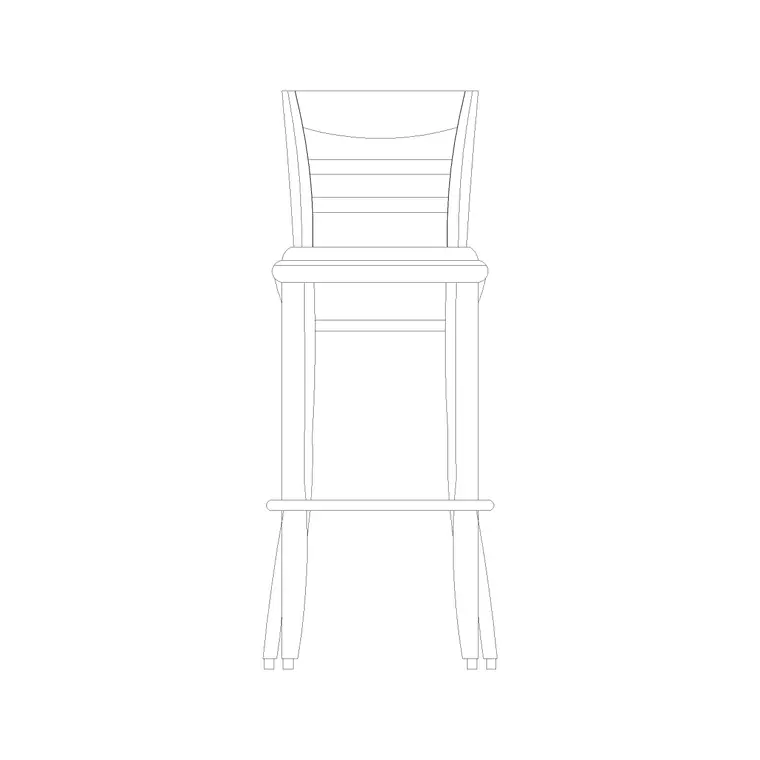
What a bar stool block looks like
A bar stool block is a small, mostly circular outline — the seat seen from above for a plan, or the side profile showing the tall legs and footrest for an elevation. Stools are compact: the seat is around 350 to 450mm across, and a bar-height stool stands roughly 750mm to the seat while a counter-height stool sits nearer 650mm. That height difference matters when you pair stools to a worktop, which is why the elevation view is useful.
The stool DWGs here are vector and measure true, so you can confirm the seat diameter with a quick dimension. Some are drawn as a clean wooden stool, others with a rounded back. Everything is free, downloads on click, and needs no login — handy when you just need three or four stools along a kitchen island and do not want to draw them by hand.
Finding the stool blocks
The bar stools are filed in the Furniture category. Search 'stool' or 'bar stool' to pull them together quickly.
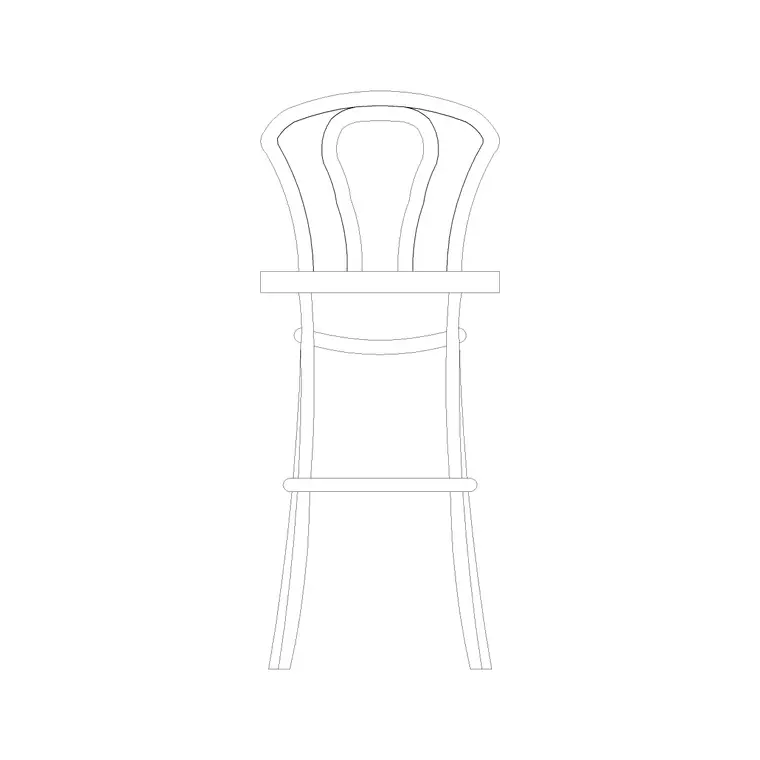
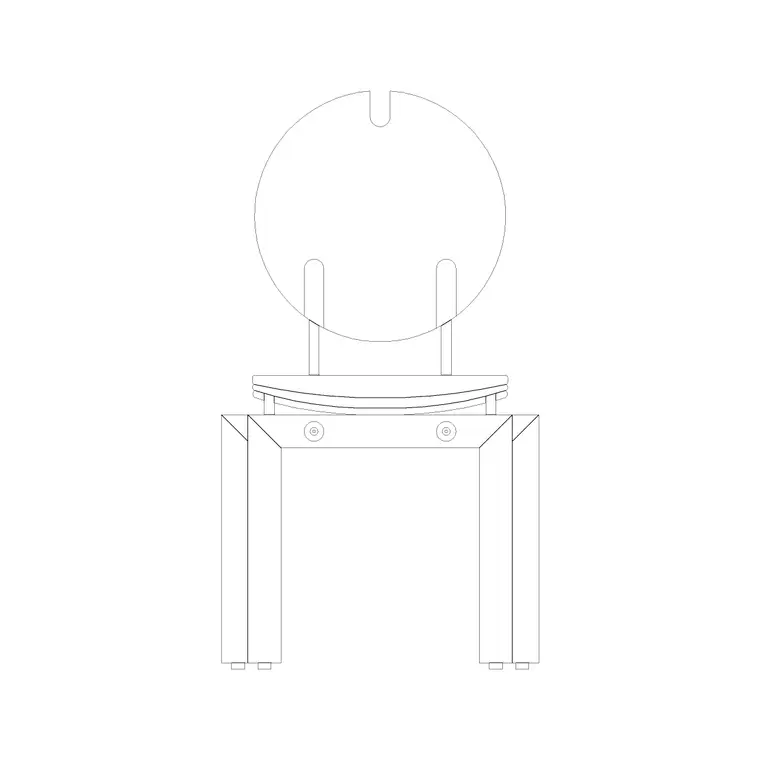
Look for the Wooden Bar Stool block — a clean, classic stool that reads well at a counter — and the Round Back Stool, which adds a low backrest for a slightly more comfortable, café feel. Both are drawn in elevation, showing the leg height and footrest, which is exactly what you want when you are checking the stool against the height of a breakfast bar or island.
Open the product page, check the preview and the view, and click download. The DWG lands in your Downloads folder with no signup step.
Inserting and spacing the stools
Run INSERT (I), browse to the stool DWG, and place it at scale 1, rotation 0. For a plan layout you want the top-down seat; for an interior elevation of a kitchen island you want the side profile — make sure you are inserting the view that matches your drawing.
The efficient way to line up several stools is to place one against the counter, then use a rectangular ARRAY to repeat it evenly along the run. Space the stools at roughly 600 to 700mm centre to centre so people are not bumping elbows — that gives each person a comfortable shoulder width at the bar. For a 1800mm island, that is about three stools; for a 2400mm run, three to four.
If a stool inserts at the wrong size, set INSUNITS consistently or SCALE by 0.001 / 1000. Then move the stools onto your Furniture layer.
Getting the counter relationship right
Stools only make sense in relation to the worktop they serve, so check two things on the elevation. First, the knee clearance: leave roughly 250 to 300mm between the top of the seat and the underside of the counter so legs fit under comfortably. Second, the overhang: the counter or island should project about 300mm beyond its base so there is room to tuck the stool in and for knees to sit under the lip.
In plan, pull the stools far enough off the counter face that someone can sit down and the seat is not jammed against the cabinet — about 150 to 300mm of seat projecting past the counter edge works. Showing the stools tucked in on the plan, and pulled out on a presentation view, communicates how the space is used.
Keep the stools on the Furniture layer so they read as one group and can be dimmed for a cabinetry-only drawing.
Plan symbol or elevation profile
Bar stools are one of the few furniture pieces where you will genuinely reach for both views, so it is worth being deliberate about which you place. On a floor plan you want the top-down seat — a small circle that shows the stool's footprint along the counter and lets you check spacing and walkway. On a kitchen interior elevation you want the side profile, which shows the tall legs, the footrest and the seat height relative to the worktop, and that is where a bar stool really proves it fits the counter.
Mixing the two — a side-elevation stool lying flat on a plan — reads as an error to anyone trained, so confirm the view label on the product page before you insert. The elevation blocks here, like the Wooden Bar Stool and the Round Back Stool, are drawn front-on precisely so you can drop them straight into an elevation.
Give any stool the quick vet before you trust it: dimension the seat to confirm roughly 350 to 450mm, check the geometry sits on layer 0 so it inherits your Furniture layer, and confirm there is no stray geometry. A clean stool in the right view, spaced correctly along the counter, finishes a kitchen drawing convincingly whether it is a plan or an elevation. Place the plan circles to check the run fits the island, then drop the matching elevation profiles into the kitchen elevation so the seat height against the worktop is shown honestly, and the two drawings tell one consistent story.
Questions
Frequently asked
What height is a bar stool versus a counter stool?+
A bar-height stool stands roughly 750mm to the seat, a counter-height stool nearer 650mm. The elevation block shows the leg height so you can match it to your worktop.
How far apart should bar stools be?+
About 600 to 700mm centre to centre so people have comfortable shoulder width. A rectangular ARRAY is the quick way to space them evenly along a counter.
Are the bar stool DWG files free?+
Yes. The Wooden Bar Stool and Round Back Stool blocks download instantly in DWG with no account and are free for commercial use.
Free downloads from this article
Free CAD block library
Download the blocks from this article — free, no signup


