How to set the right insertion point on a downloaded block
A bad base point makes a downloaded block a pain to place. Check, change and standardise the insertion point so blocks snap exactly where you want.
Saumyajit MaityUpdated 18 March 20264 min read

Why the base point makes or breaks a block
Every block has an insertion point — also called the base point — which is the spot that lands under your cursor when you place it. A well-chosen base point makes a block effortless to position: a door whose base point sits on the hinge corner snaps straight onto a wall opening; a column whose base point is at its centre drops exactly on a grid intersection. A badly-chosen base point makes the same block a constant small fight, floating near where you want it instead of snapping to it.
Downloaded blocks vary wildly here. Some authors set a logical base point; others leave it at the origin of the original drawing, which can be far from the geometry, so the block ghosts in some random offset from your cursor. If a downloaded block feels awkward to place — it never quite lands where you click — the base point is almost always the culprit, and it is a quick fix worth making once so the block behaves forever after.
Check where the current base point actually is
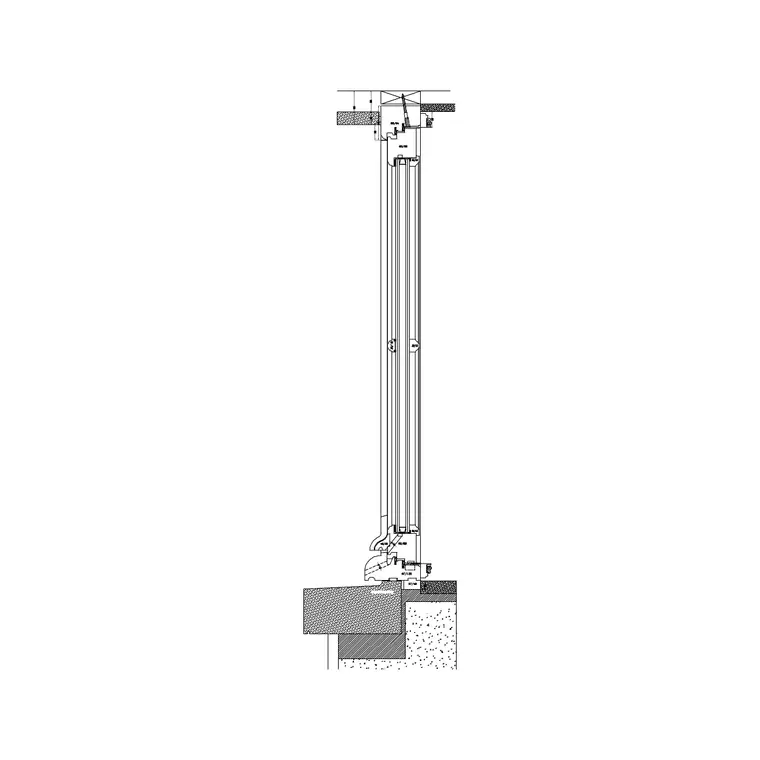
Download and insert the block — say a 1000mm door, or a Window Plan block — and watch where it attaches to your cursor as it ghosts in. If it grabs at a sensible corner or centre, the base point is fine. If the block floats with a big gap between your cursor and the geometry, the base point is sitting somewhere unhelpful, probably the original file's origin.
To see the defined base point precisely, open the block in the Block Editor (BEDIT) — the base point shows as a small marker, usually at 0,0 of the editor's coordinate space. You can also insert the block and note that the grip that appears when you select it sits at the insertion point. Either way, once you know where the base point is and where you wish it were, you can move it.
There is a faster way to judge it without any commands at all: hover over a placed instance and the single square grip that lights up is the insertion point. If that grip sits out in space rather than on the geometry, you have found your problem. For blocks you are about to add to a library, this five-second hover check tells you immediately which ones need their base point fixed and which are already fine — so you only spend effort on the ones that need it, rather than opening every block in the editor to find out.
Change the base point in the Block Editor
The cleanest way to fix a base point is the Block Editor. Double-click the block (or run BEDIT and pick it), and use the BASE command inside the editor, or the 'Base Point' parameter on the Block Authoring palette, to set a new base point. Snap it to the logical spot — a corner of a door on its hinge side, the centre of a column, the back-left corner of a cabinet, the midpoint of a window's wall line. Close and save, and the block now grabs at that point on every future insertion.
If you prefer working outside the editor, you can redefine the block: explode or select the geometry, then run BLOCK, and at the 'Specify insertion base point' prompt, snap to the point you want. Keep the block's exact name so AutoCAD redefines rather than duplicating. Either route changes where the block attaches to your cursor — the difference between a block that snaps perfectly and one you nudge into place every time.
Use object snaps so it lands exactly
A good base point only pays off if you place with object snaps on. Press F3 to toggle running snaps, and make sure Endpoint, Midpoint, Centre and Intersection are enabled (right-click the snap button or type OSNAP to set them). Now when you place a door whose base point is on its hinge corner, you can snap that corner precisely to the wall opening's endpoint — the block lands exactly, not approximately.
For finer control, hold Shift and right-click during placement to get the one-shot object-snap menu, letting you grab a specific snap for a single click. Combining a logical base point with the right object snap is what makes block placement feel precise and fast: you are snapping a meaningful point on the block to a meaningful point in the drawing, every time, instead of eyeballing an offset. This is the habit that separates blocks that 'just go where they should' from blocks you constantly correct.
Standardise base points across your library
If you maintain a block library, set sensible base points as part of your vetting routine so every block behaves consistently. Adopt simple conventions: doors grab at the hinge corner, windows at a wall-line corner or midpoint, furniture at a back corner or centre, columns and symbols at their centre. Once you internalise where each family's base point should be, placing any block from the library feels the same — predictable and snappable.
Fix each downloaded block's base point once, save the corrected DWG into your library, and you never fight that block's placement again. It is the same principle as normalising layers to 0 or running AUDIT and PURGE: a small, one-time correction per block that pays back on every single insertion forever after. A library of blocks with thoughtful, consistent base points is one where placement stops being a series of tiny frustrations and becomes the fast, precise operation it should be.
Questions
Frequently asked
How do I change a block's insertion point?+
Open the block in the Block Editor (BEDIT) and use the BASE command or the Base Point parameter to snap a new base point to a logical spot. Close and save. Alternatively, redefine the block with BLOCK and set the base point at the prompt, keeping the same name.
Why does my block float far from the cursor when inserting?+
Its base point is set somewhere away from the geometry — usually the original drawing's origin. Move the base point onto the geometry (a corner or centre) in the Block Editor, and it will grab at that point on every future insertion.
Where should a door or window block's base point be?+
A door block is easiest to place with its base point on the hinge corner so it snaps onto the wall opening. A window block works well with the base point at a wall-line corner or midpoint. Set these once with object snaps for precise placement.
Free downloads from this article

Free CAD block library
Download the blocks from this article — free, no signup
