How to redefine a downloaded block so updates apply everywhere
Redefine a block so a single edit updates every instance at once. The same-name rule, three ways to redefine, and how to avoid duplicate definitions.
Saumyajit MaityUpdated 3 January 20264 min read
The single-definition idea that makes blocks powerful
Every block in a drawing points back to one definition. Insert the same chair two hundred times and you have two hundred references to a single stored definition — which is why the file barely grows and why editing the definition once changes all two hundred chairs at the same instant. This is the behaviour that makes blocks fundamentally better than copy-pasted geometry, which has to be edited copy by copy.
Redefining means replacing that stored definition with a new one under the same name. Get the name right and AutoCAD treats your new version as the same block, so every existing instance updates. Get the name wrong — even slightly — and you create a second, separate definition, leaving the old instances unchanged and your drawing carrying two near-identical blocks. The same-name rule is the whole game, and the rest of this guide is about applying it cleanly to blocks you have downloaded.
Why you'd redefine a downloaded block
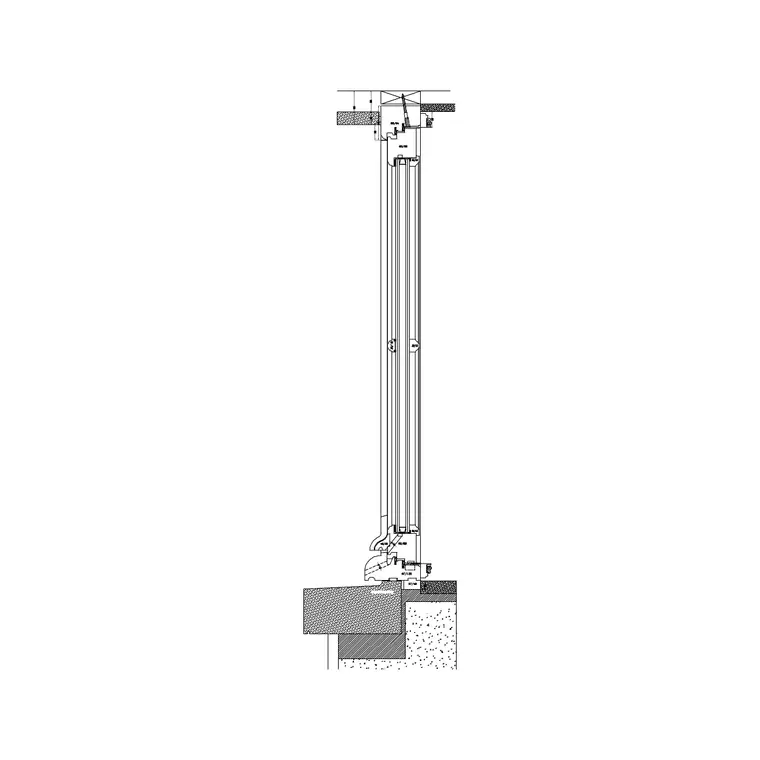
Say you download a window block — a Window Plan from the Windows category — and insert it across a floor plan, then realise the original needs the sill drawn differently, or it came in with wrong layers, or you want to standardise its appearance. Rather than deleting and re-inserting dozens of windows, you edit one definition and let the redefine propagate the change everywhere.
The same applies when a newer or cleaner version of a block becomes available, or when you have normalised the block to layer 0 and want every placed instance to inherit that fix. Redefining is the mechanism behind 'fix it once, fix it everywhere'. It turns what would be tedious bulk editing into a single operation, which is exactly why understanding it is worth a few minutes.
It is worth being clear about what redefining does and does not touch. It replaces the geometry, layers and properties stored in the definition, so every instance picks up the new look. It does not move, rotate or rescale the instances you have already placed — each one keeps its own position, rotation and scale. So a redefine that makes the sill deeper will deepen the sill on all forty windows in place, but it will not shift any of them off the openings you snapped them to. That separation between the shared definition and each instance's own placement is precisely what makes the technique safe to use on a drawing that is already laid out.
Method 1 — the Block Editor (cleanest)
Double-click any instance of the block, or type BEDIT and select it from the list. AutoCAD opens the Block Editor showing just that block's geometry. Make your changes — move geometry to layer 0, redraw the sill, set properties to ByLayer, whatever the block needs. Then click 'Close Block Editor' and choose 'Save the changes'. That save redefines the block, and every instance in the drawing updates at once.
This is the recommended route for most edits because you never explode anything and the name is preserved automatically — there is no way to accidentally create a duplicate. It also isolates the block so your edits cannot stray into the surrounding drawing. For straightforward 'change what this block looks like everywhere' tasks, the Block Editor is almost always the right tool.
Method 2 — explode, edit, re-BLOCK with the same name
If you have already exploded a block and edited the loose geometry, you can redefine by running BLOCK, typing the exact same name as the original, selecting your edited geometry, and confirming. AutoCAD warns that the block is already defined and asks whether to redefine it — say Yes. Every instance updates to your new geometry.
The critical detail is the name. It must match the original exactly, including case and any hyphens or numbers, or you will define a brand-new block instead of replacing the existing one. If you are unsure of the precise name, run PROPERTIES on an existing instance and read the Name field before you start. This method is more error-prone than the Block Editor precisely because the same-name rule is now manual rather than automatic.
Method 3 — re-insert from an updated file, and how to avoid duplicates
If a cleaned version of the block lives in a separate DWG with the same block name, you can redefine by re-inserting that file. Run -INSERT (the command-line version), type the block name followed by an equals sign and the path to the updated file — for example 'window-plan=C:/blocks/window-plan.dwg' — and AutoCAD reloads the definition from disk, updating every instance. Cancel the actual placement after it redefines if you do not need another copy.
The recurring hazard across all three methods is the accidental duplicate: a block named 'Window Plan (1)' is not the same as 'window-plan-1', and AutoCAD will happily keep both. After redefining, run a quick check — open the Block list (type BLOCK or use the Blocks palette) and confirm there is only one definition, not two near-identical names. If a stray duplicate crept in, PURGE the unused one. Keeping names disciplined and verifying afterwards is what keeps 'update everywhere' from quietly becoming 'now I have two versions of everything'.
Questions
Frequently asked
How do I make one edit update every copy of a block?+
Redefine the block under the same name. The easiest way is the Block Editor (BEDIT): edit the geometry, close, and save the changes. Every instance in the drawing updates at once because they all reference the one definition.
Why did editing a block create a duplicate instead of updating?+
The new definition was saved under a slightly different name, so AutoCAD treated it as a separate block. Names must match exactly, including case, hyphens and numbers. Check an instance's Name in Properties before re-running BLOCK.
Can I update a block from an external DWG file?+
Yes. Use -INSERT and type the block name, an equals sign, then the file path, e.g. blockname=path/to/file.dwg. AutoCAD reloads the definition from disk and updates every instance. Cancel the placement if you don't need a new copy.
Free downloads from this article


Free CAD block library
Download the blocks from this article — free, no signup
