How to insert a downloaded bed block in AutoCAD
Insert a free bed DWG into a bedroom plan — placing it against the wall, leaving access on both sides, and matching the size to single, double, queen or king.
Sumana KumarUpdated 7 April 20265 min read
Pick the right bed size
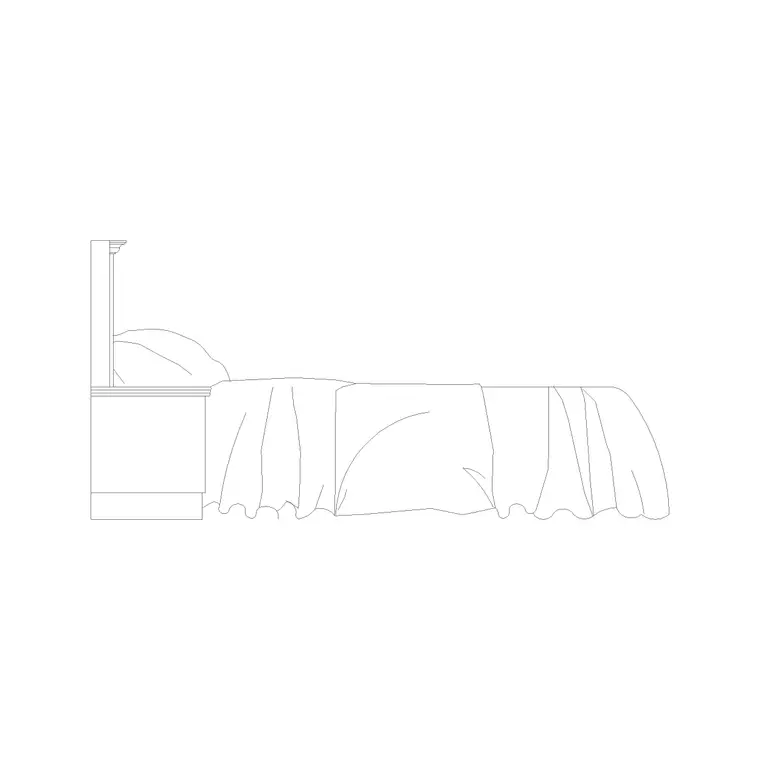
Bedrooms live or die on clearances, so start by knowing your bed size. The Bedroom category has beds drawn in plan — the top-down outline of the mattress and headboard, usually with pillows and a turned-down throw line so the block reads instantly as a bed. There are also side-elevation beds for showing the headboard height on an interior elevation. Open the size you need and download the DWG: free, no signup, commercial-cleared.
The standard sizes to match are a single at 900 by 1900mm, a double at 1350 by 1900mm, a queen at 1500 by 2000mm and a king at 1800 by 2000mm. Picking the right size up front matters because the bed is the largest object in the room and everything else — wardrobe, bedside tables, door swing — has to coexist with it. A queen block dropped into a room sized for a single will immediately show the clearance problem, which is exactly what you want the plan to reveal.
Place the bed against the wall
Open your bedroom plan, type I, Enter, Browse to the bed DWG and select it. A bed's head normally goes against a wall, so turn on snaps (F3) and place the headboard edge flush to the wall line, snapping a corner of the bed to a wall corner or a sensible point along it. The base point of a bed block is often a headboard corner, which makes this clean.
Leave scale at 1; the bed is drawn at real size. Click to place. Centre the bed on the wall where possible so there is balanced space on both sides for bedside tables and access — a bed shoved into a corner only allows access from one side, which works for a child's room but is cramped for a main bedroom. If the headboard comes in facing the wrong way, use ROTATE to turn it so the head is against the wall and the foot faces into the room.
Leave access and bedside space
The test of a bedroom is whether you can get into bed and walk around it. Allow at least about 600mm on at least one long side for access and a bedside table; two-sided access, with 600mm or more each side, is the goal for a double or larger where both occupants need to get in. Leave around 700mm at the foot if there is a route past the end of the bed.
A neat check is to place the bedside table blocks and confirm they fit in the gap between the bed and the wall without blocking the door or the wardrobe. Then look at the door swing — a door opening onto the bed is a common bedroom planning fault that the furnished plan makes obvious. Position the bed so the door clears it and so there is a sensible route from the door to both sides of the bed. These clearances are what make the difference between a bedroom that works and one that merely fits the bed in.
Match the size and fix scale issues
If the bed inserts at a strange size, it is the familiar units mismatch — millimetres versus metres. Set INSUNITS consistently for auto-scaling, or insert and run SCALE with 0.001 or 1000. Confirm with a DIST across the mattress: a double should read 1350 by 1900mm, a king 1800 by 2000mm. Because the bed sets the scale of the whole room, getting it exactly right matters.
If you downloaded a double but need a king, you do not necessarily need a new block — you can stretch the mattress width with STRETCH from 1350 to 1800mm, keeping the headboard and detailing proportionate. But for a clean result it is usually easier to download the correct size block, since the Bedroom category has each standard size drawn properly with the right proportions and detailing rather than a stretched approximation.
Layer it and complete the room
Put the bed and bedroom furniture on a furniture layer so it can be controlled with the rest of the soft furnishings — dimmed for a structural plan, recoloured for a presentation. Blocks built on layer 0 inherit the current layer, so set that layer current before inserting and the bed adopts it.
A bed anchors the room but rarely sits alone, so use the same INSERT workflow to add the wardrobe, bedside tables and any dressing table, each checked against the bed and the door. With the whole room furnished you can see at a glance whether it works: whether the wardrobe doors clear the bed, whether there is bedside space on the right sides, and whether the door swings into a clear zone. That is the real value of furnishing a bedroom plan with correctly-scaled blocks — it turns an abstract rectangle into a room you can confidently say will work.
Watch the wardrobe and door interaction
The two things most likely to clash with a bed are the wardrobe and the door, so it is worth resolving them deliberately. A wardrobe is typically 600mm deep, and hinged wardrobe doors need clear swing space in front — around 600mm — that must not be blocked by the bed; sliding wardrobe doors avoid that swing but still need standing room to access. Place the wardrobe block, draw or imagine its door swing, and confirm the bed leaves it clear.
The entrance door is the other pinch point: a door swinging onto the bed or into the wardrobe access is a common bedroom fault. Use the bed and wardrobe blocks together with the door block to check all three coexist — the door opens into a clear zone, the wardrobe doors open without hitting the bed, and there is still a route from the door to both sides of the bed. Because everything is a block, you can slide the wardrobe along the wall or flip the door swing until the conflicts disappear. Resolving these interactions on the plan is what stops them turning into awkward surprises once the room is built.
Questions
Frequently asked
What are the standard bed sizes for a CAD block?+
Single 900 by 1900mm, double 1350 by 1900mm, queen 1500 by 2000mm and king 1800 by 2000mm. Draw a DIST across the mattress to confirm the block matches the size you need.
How much space should I leave around a bed?+
At least 600mm on one long side for access and a bedside table, ideally 600mm or more on both sides for a double or larger, and around 700mm at the foot if there is a route past it.
Can I resize a double bed block to a king?+
You can STRETCH the mattress width from 1350 to 1800mm, but it is usually cleaner to download the correct size, since the Bedroom category has each standard size drawn with proper proportions and detailing.
Free downloads from this article


Free CAD block library
Download the blocks from this article — free, no signup
