How to turn a downloaded block into a tool-palette item
Stop browsing for the same block twice. Add a downloaded block to an AutoCAD tool palette and place it with a single click from any drawing.
Sumana KumarUpdated 25 June 20264 min read

Why a tool palette beats re-inserting every time
Every time you run INSERT and browse to a file, you spend a few seconds hunting. Do that fifty times a day and the seconds add up to real lost time. A tool palette removes that friction: once a block lives on a palette, placing it is a single click-and-drag from anywhere in any drawing, with no dialog, no browsing, no file path to remember. This is the feature that separates a beginner's workflow from a genuinely fast one.
Tool palettes also let you bake in defaults. A block dragged onto a palette can remember the layer it should land on, the scale, and the rotation, so it always inserts correctly. For blocks you download and use repeatedly — a standard door, a favourite sofa, a chandelier you keep specifying — promoting them to palette tools is one of the highest-return setup tasks in AutoCAD, and it takes under a minute per block.
Open the Tool Palettes window and make a home for them
Press Ctrl+3 (or type TOOLPALETTES) to open the Tool Palettes window. It ships with several sample palettes; you want your own. Right-click a palette tab and choose 'New Palette', then name it something clear like 'My Downloads', 'Furniture', or 'Doors'. Organising palettes by category mirrors how you think about blocks and keeps them scannable as the collection grows.
It is worth setting up a small set of category palettes once — Furniture, Doors, Lighting, Symbols — rather than dumping everything onto one crowded tab. A palette you can scan at a glance is one you will actually use; a palette with eighty unlabelled icons becomes its own kind of friction. Spend the minute now to give your downloaded blocks a sensible home, and every future addition slots straight in.
Drag the block onto the palette
There are two easy ways to get a downloaded block onto a palette. The first: open the downloaded DWG (or your working drawing with the block inserted), select the block reference, and drag it directly onto your palette. AutoCAD creates a tool from it, using the block's name and a thumbnail. The second, for blocks still sitting as files in a folder, is to drag the DWG file itself from a file browser onto the palette — AutoCAD adds it as a block tool that inserts the whole file.
There is an important difference between the two. Dragging a block reference copies the block definition into the tool, so the palette tool keeps working even if you later move or delete the original DWG. Dragging the file instead creates a tool that points at that file's path, so if the file moves the tool breaks. For downloaded blocks you intend to keep, dragging the inserted reference is the more robust choice. Either way you can rename the tool afterwards — right-click it and choose Rename — to give it a clearer label than the raw block name.
For a block downloaded here — say a 1000mm door, or a Sofa Set Plan — either route works in seconds. Once it is on the palette, you never browse for it again. Test it immediately: click the new tool, move into your drawing, and place it. If it lands correctly, the tool is ready; if the scale or layer is off, the next step fixes that permanently.
Set the tool's properties so it always inserts right
Right-click the new tool on the palette and choose 'Properties'. This is where you bake in defaults so the block behaves perfectly on every click. Set the 'Layer' so the block always lands on the correct layer — for a door tool, your Doors layer; for furniture, your Furniture layer. Set 'Scale' and 'Rotation' if the block needs a consistent transform. You can also set explicit colour or linetype here, though for layer-0 blocks you usually leave appearance to ByLayer.
The layer override is the most useful setting. Combined with a block that was built on layer 0, it means a single click both places the block and puts it on the right layer with the right colour and lineweight — no post-placement tidying. That is the difference between a tool that saves you a few seconds of browsing and one that also saves you the layer-management step every single time.
Use DesignCenter for one-offs, and back up your palettes
Tool palettes are for blocks you use constantly. For a one-off block you want to pull from an old project without setting up a permanent tool, AutoCAD's DesignCenter (Ctrl+2) is the complement: browse to any DWG, expand its Blocks node, and drag a block straight out into your drawing without opening the file. You can also drag blocks from DesignCenter onto a palette to build it up quickly.
Finally, protect your work. Palettes can be exported (right-click a palette tab and choose to export it, or export the whole Tool Palette group) so you can back them up and carry them between machines or share them with your team. A carefully built set of palettes is a real asset — losing it to a reinstall would mean rebuilding hours of setup. Export it once it is the way you like it, and your one-click library of downloaded blocks survives any machine change.
Questions
Frequently asked
How do I add a downloaded block to a tool palette?+
Open the Tool Palettes window (Ctrl+3), make or pick a palette, then drag the block reference from your drawing — or the DWG file from a folder — onto the palette. AutoCAD creates a tool you can click to place from then on.
Can a tool-palette block insert onto a specific layer automatically?+
Yes. Right-click the tool, choose Properties, and set the Layer (and Scale, Rotation if needed). The block then lands on that layer every time you click it — combine with a layer-0 block for perfect colour and lineweight automatically.
What's the difference between a tool palette and DesignCenter?+
Tool palettes are curated one-click tools for blocks you use constantly. DesignCenter (Ctrl+2) lets you browse any DWG and drag blocks out of it without opening the file — better for pulling a one-off block from an old project.
Free downloads from this article

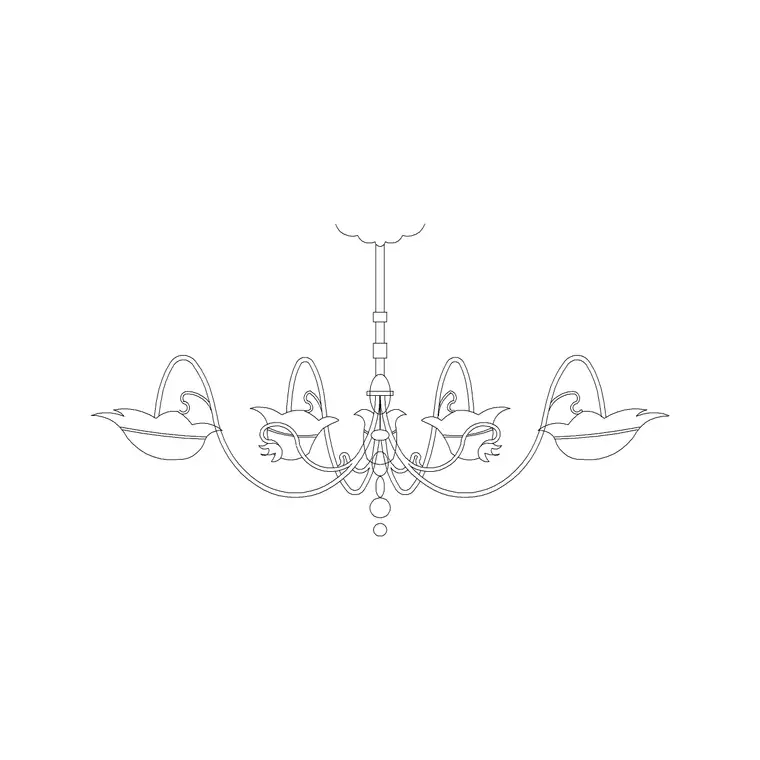
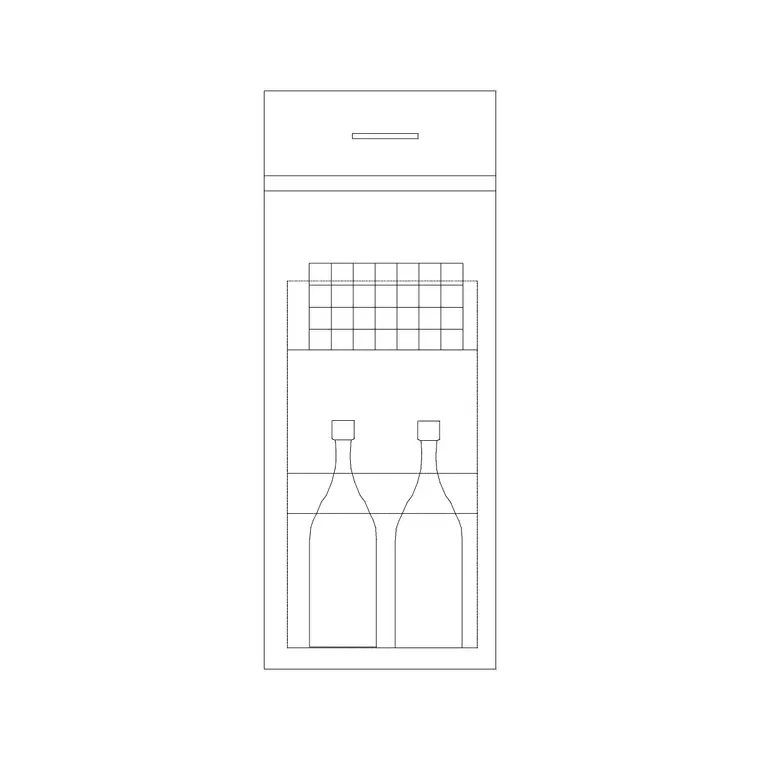
Free CAD block library
Download the blocks from this article — free, no signup
