Where to find free wall lamp DWG files (and how to use them)
Free wall lamp DWG blocks on CADBlockDWG: where they are, what the elevation shows, and how to place a wall-mounted sconce at the right height in AutoCAD.
Sumana KumarUpdated 23 March 20264 min read
Locating the wall lamp
The wall lamp sits in the Lighting category with the other fittings. Open the Lighting hub and search "wall lamp" or "sconce" to jump straight to it. It is a wall-mounted light — the kind you would specify flanking a mirror, beside a bed, along a corridor, or either side of a fireplace — and it is one of the most useful fittings to have on hand because wall lights appear in so many interior elevations.
The download is instant and free, with no signup, and the licence permits commercial use. That makes it safe to put into client-facing elevations. If you are detailing a bathroom, a hallway or a bedroom wall, the wall lamp is often the fitting that makes the elevation feel resolved rather than bare.
What the file gives you
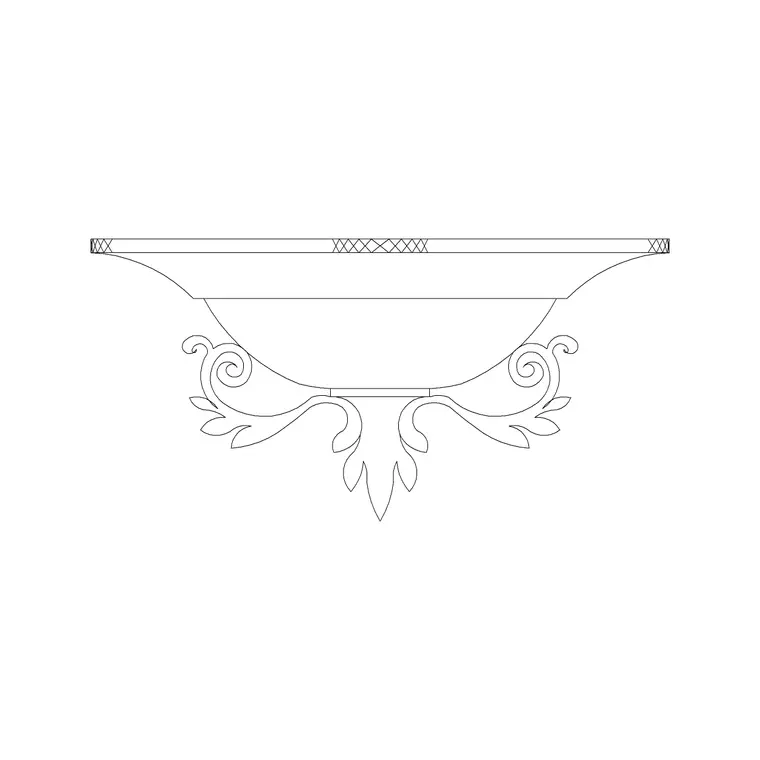
The wall lamp is an elevation block — the front-on view of the fitting as it appears mounted on a wall. That is exactly the view an interior elevation calls for, because the elevation is all about what the wall looks like face-on: the sconce's outline, its projection and its position relative to the things around it.
It downloads as a DWG and opens natively in AutoCAD. The geometry is editable vector linework rather than an image, so you can snap to it, mirror it, and adjust its lineweight. Because wall lights are so often used in symmetrical pairs, the fact that it is true geometry — not a picture — means you can mirror one instance to make a perfectly matched pair either side of a feature.
Wall lights do a particular job in a lighting scheme. They wash a vertical surface with light, which softens a room and adds a mid-level layer between the ceiling fittings above and any table or floor lamps below. In a bathroom they flank the mirror for shadow-free task light; in a hallway they provide gentle wayfinding; beside a bed they replace a table lamp where the nightstand is small. Showing them in elevation communicates all of that intent in a way a plan symbol never could.
Mounting it at the right height
Insert with the INSERT command (shortcut I), Browse to the file, and keep "Specify On-screen" ticked. The key with a wall lamp is mounting height: in an elevation you place it at the real height it would sit on the wall, which for most rooms is somewhere above eye level — commonly around the 1.6 to 1.8 metre range, though it depends on the room and the fitting. Use object snaps (F3) and, if helpful, draw a temporary horizontal guide line at the mounting height to snap the fitting onto, then delete the guide.
For a pair flanking a mirror, bed or fireplace, place one sconce, then mirror it about the centreline of the feature so both sit at identical height and equal distance from the centre. That symmetry is hard to eyeball but trivial with MIRROR, and it is what makes the elevation look professionally set out.
Scale, units and layering
A wrong-sized insertion is a units mismatch. Match INSUNITS in both files so the block auto-scales, or insert and SCALE by 0.001 or 1000 as needed. Sanity-check the sconce against the wall features near it — beside a standard door or a mirror — so its size reads believably rather than oversized.
Place it on your lighting or electrical layer. If the block is on layer 0 it inherits the active layer at insertion, so set that layer current first. Keeping wall lights on a dedicated layer means you can later isolate the lighting for an electrical drawing, or dim it on an architectural elevation, all from the Layer Manager without editing individual fittings.
Across rooms and packages
Wall lamps recur throughout a project — corridors, bedrooms, bathrooms, stairwells — so add the block to a tool palette and place it with one click each time. Over a full set of elevations that small saving compounds noticeably.
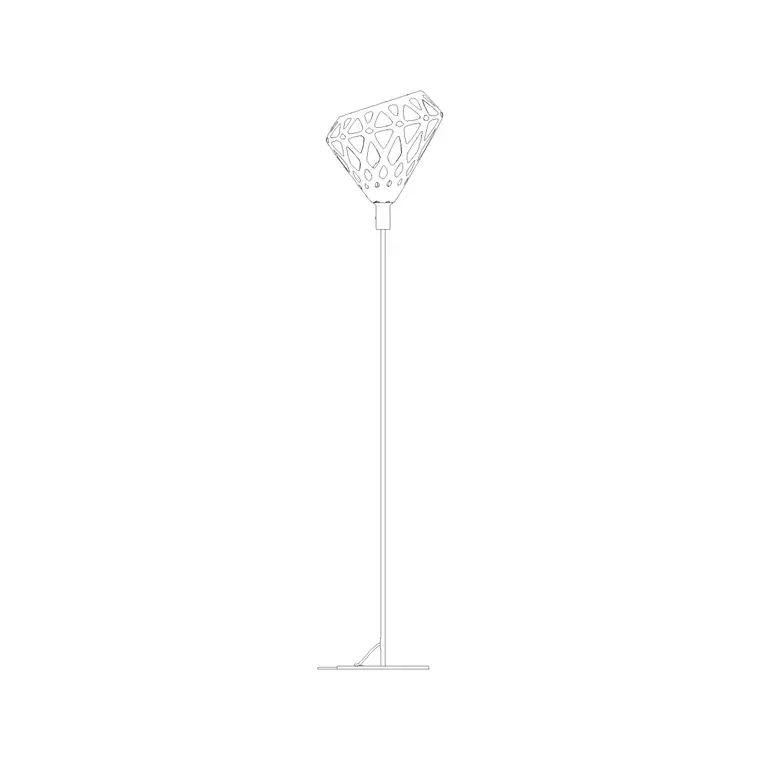
Because wall lights so often come in pairs or runs, get into the habit of placing one and mirroring or arraying the rest rather than re-inserting each by hand; you keep them perfectly aligned and the file stays tidy. Combine the wall lamp with a ceiling fitting and a floor lamp, and an interior elevation gains a layered lighting scheme — ambient, task and accent — that reads as a genuine design rather than a single token light on the wall.
For a run of sconces along a corridor, the rectangular ARRAY command spaces them evenly in one operation: place the first at its mounting height, then array horizontally at the centre-to-centre spacing you want. This keeps every fitting at identical height and equal spacing, which is exactly what makes a corridor elevation look professionally set out rather than hand-placed. And because each sconce remains an instance of one block, switching the specified fitting later is a single redefine, not a tedious edit of every copy.
Questions
Frequently asked
Where can I get a free wall lamp DWG file?+
In the Lighting category on CADBlockDWG. Search "wall lamp" or "sconce" and download the DWG free — no login, commercial use allowed.
At what height do I place a wall lamp in an elevation?+
At its real mounting height, often somewhere above eye level (commonly around 1.6–1.8 m, depending on the room). Draw a temporary guide line at that height and snap the fitting to it.
How do I make a matching pair of wall lamps?+
Place one, then use MIRROR about the centreline of the mirror, bed or fireplace so both sconces sit at identical height and equal distance from the centre.
Free downloads from this article
Free CAD block library
Download the blocks from this article — free, no signup


