Where to find free table lamp DWG files (and how to use them)
Free table lamp DWG blocks — where to look in the Lighting category, what the elevation shows, and how to place a table lamp in your AutoCAD interior.
Sumana KumarUpdated 16 January 20264 min read
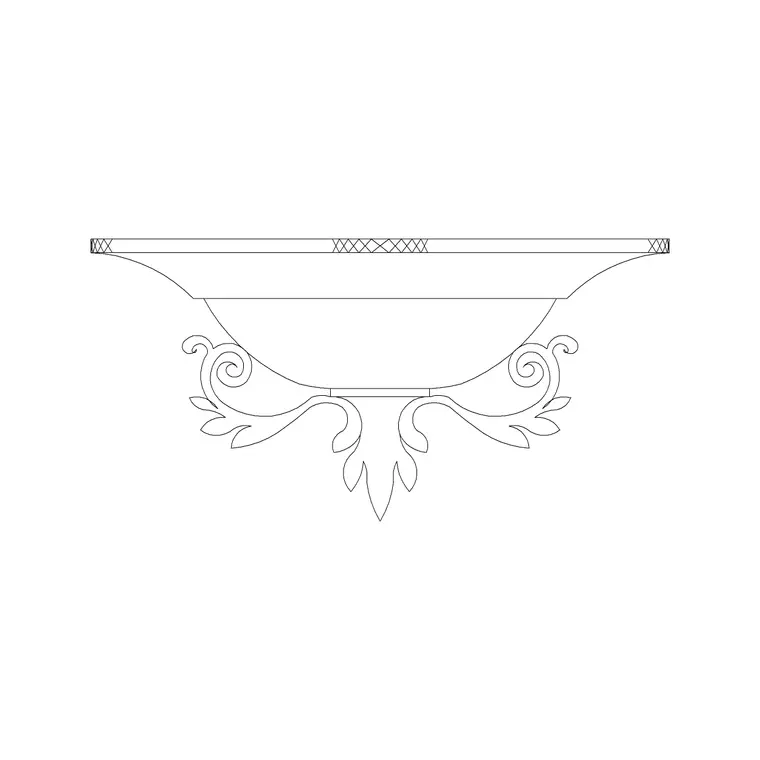
Finding a table lamp block
Table lamps live in the Lighting category with the rest of the fittings. Open the Lighting hub and search "table lamp" or "lamp" to surface the smaller lamp fittings; the ceiling lamp and wall lamp pages are nearby, and the lamp drawings give you the desk-and-bedside style light you want to sit on a surface. For a quick accent on a sideboard, bedside table or reception desk in an interior elevation, this is the fitting to reach for.
Downloads are free, instant and account-free, and the licence covers commercial use. A table lamp is one of those small touches that makes an interior elevation feel inhabited — a bedroom elevation with a lamp on the nightstand reads as a real room rather than an empty wall with furniture.
What the file contains
Table lamp blocks are elevation drawings — the front view of the lamp as it sits on a surface, showing the base, stem and shade in profile. Elevation is the right view because a table lamp is judged by its silhouette against the wall behind it and its height relative to the furniture it stands on.
The files are DWG, native to AutoCAD, so they open with nothing to convert. The geometry is editable vector linework rather than an image, so you can snap to the base, mirror it, and restyle the lineweight to suit your sheet. Because it is true geometry, you can place a matching pair of lamps on a console or either side of a bed by mirroring one instance.
A table lamp is small, so its lineweight matters more than you might expect. On a busy elevation a heavy lamp outline can shout louder than the furniture it sits on, which is the wrong emphasis. Drawing it with a lighter pen — or putting it on a layer set to a thin lineweight — keeps it as the accent it is. Because the block is editable geometry rather than a fixed image, you have full control over how prominently it reads on the final sheet.
Placing it on a surface
Insert with INSERT (shortcut I), Browse to the file, and keep "Specify On-screen" ticked. The natural anchor for a table lamp is the top surface of the furniture it stands on: snap the base of the lamp to the top of the bedside table, sideboard or desk in your elevation, using object snaps (F3) so it sits on the surface rather than floating above or sinking into it. This is where drawing the furniture first pays off — once the bedside table or console is on the elevation, the lamp has a real surface to land on, and the whole vignette reads correctly.
Position it where it makes sense in the scene — on a nightstand beside a bed, on a console under a mirror, on a desk in a study. For a symmetrical arrangement, place one lamp and mirror it about the centreline of the furniture so both sit at equal height and spacing, which reads as deliberately styled.
Scale, units and layer
A wrong-sized lamp is a units mismatch — set INSUNITS the same in both files for auto-scaling, or insert and SCALE by 0.001 or 1000. Check the lamp against the furniture it sits on: a table lamp should be a modest object on the surface, not as tall as the person beside it, so correct the scale if it looks oversized.
Drop it on your lighting or furniture layer, whichever your office uses for loose accent fittings. A block on layer 0 inherits the active layer at insertion, so set that layer first. Keeping accent lighting on a consistent layer lets you dim it on a coordination drawing or bring it forward on a presentation elevation from the Layer Manager.
Layering light in an elevation
Table lamps belong to the accent layer of a lighting scheme — the small, decorative pools of light that sit below the ambient ceiling fittings and any task lighting. Showing them in an interior elevation communicates that the room has been lit thoughtfully, not just flooded from above.
Add your preferred lamp to a tool palette for one-click placement when furnishing elevations. Combine table lamps with a ceiling fitting and a floor or wall lamp, and a room elevation gains a complete three-layer lighting story — ambient, task and accent — that reads as a real interior design. As always, insert the block rather than copying loose lines so each lamp stays a managed, swappable instance.
There is a practical coordination value too. A table lamp on a console or nightstand implies a socket nearby, so showing the lamp on the elevation is a quiet reminder to the electrical layout that a power point belongs at that location. Designers who furnish their elevations with lamps tend to catch missing sockets earlier, because the fitting on the drawing prompts the question of how it is powered — a small benefit of drawing the accent lighting rather than leaving it off the sheet.
Questions
Frequently asked
Where do I download a free table lamp CAD block?+
In the Lighting category on CADBlockDWG. Search "table lamp" or "lamp" and download the DWG free — no signup, commercial use allowed.
What view is the table lamp block drawn in?+
Elevation — the front view showing base, stem and shade — for placing on a surface in an interior elevation. Snap its base to the top of the furniture it stands on.
How do I make a matching pair of table lamps?+
Place one lamp, then use MIRROR about the centreline of the console or bed so both sit at equal height and spacing for a symmetrical, styled look.
Free downloads from this article

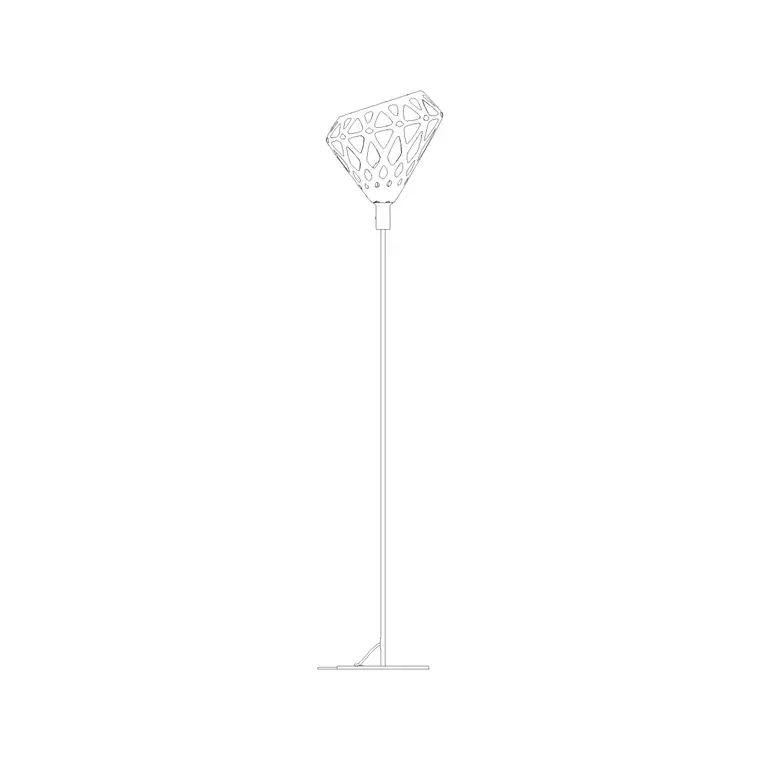
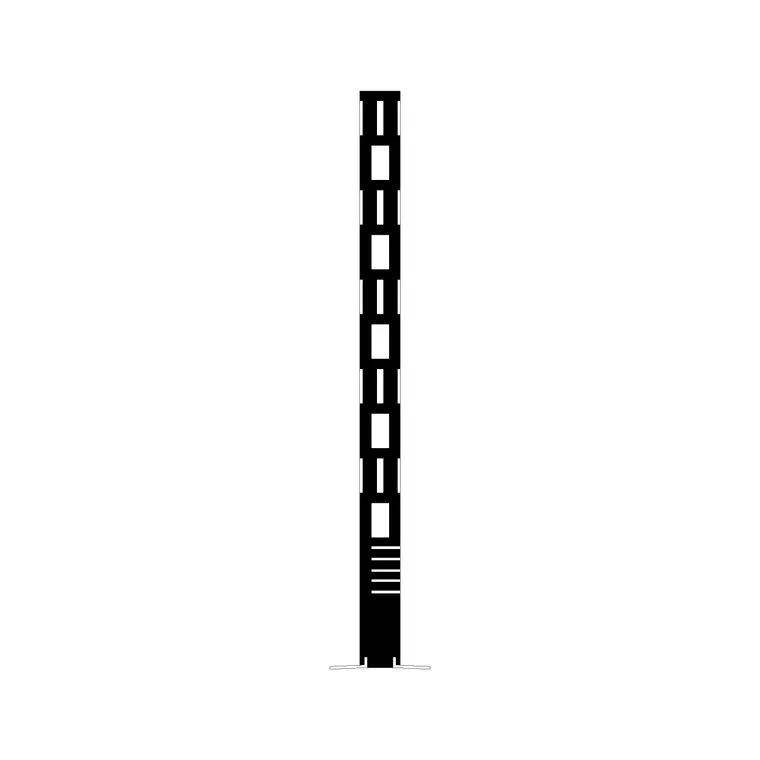
Free CAD block library
Download the blocks from this article — free, no signup


