Where to find free people DWG files for scale + use them
Free people DWG files give a drawing instant scale. Where to find them, which view to pick, how to place them in AutoCAD, and how many to use without clutter.
Saumyajit MaityUpdated 15 June 20265 min read

Why a drawing needs people
Scale is the hardest thing to read from a drawing and the easiest to fix. A wall, a counter, a flight of stairs — none of them announce their size on the page. Add a single person standing beside them and the whole drawing snaps into proportion: now the viewer knows the counter is waist-high and the stair is a comfortable climb. That is the entire purpose of people DWG files, also called scale figures or entourage.
The second thing people do is breathe life into a layout. An empty plan reads as engineering; a plan with a few figures reading, sitting and walking reads as a place someone would use. Both effects — honest scale and human warmth — come from the same small blocks, and on this site they are free people DWG files with no account required, so the only cost is choosing the right ones and placing them well.
Where to find them
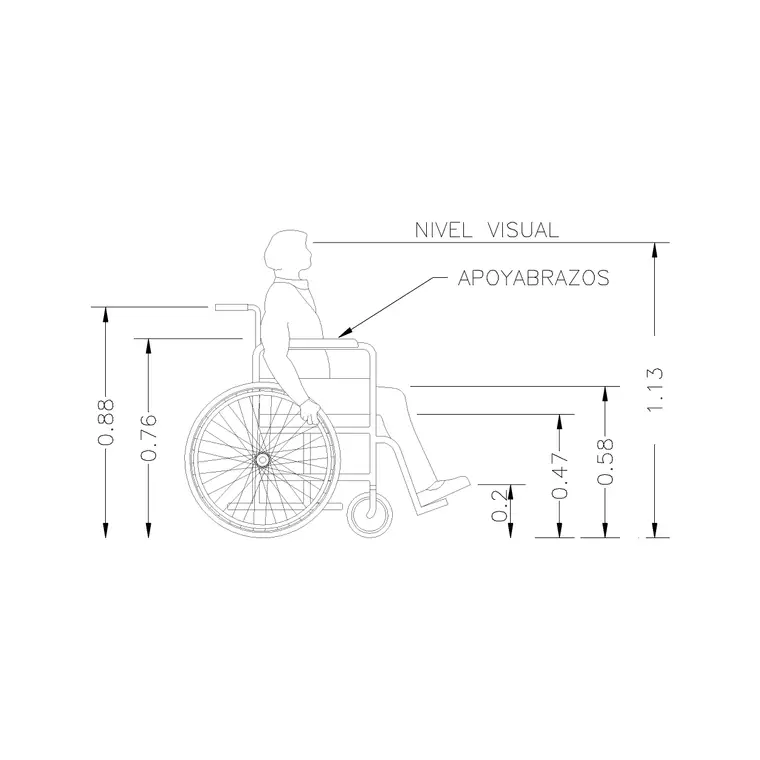
Head to the People category from the main navigation. It is the home for every figure on the site — standing, seated, walking, plan-view, couples, families and accessibility figures — gathered onto one hub so you can browse by eye.
When you have a clear need, search beats scrolling. A search for "human figure" returns the full set; add a word to focus it — "plan" for the top-down symbols that go into layouts, "standing" or "elevation" for the upright people that populate a street view or a section. Each figure has its own page with a preview and a one-click DWG download. Nothing is paywalled and nothing asks for an email, so you can grab a handful of varied figures in a couple of minutes and keep them in a personal scale-figure folder for reuse.
Pick the right view
People blocks come in two main views, and using the wrong one is the most common mistake. A plan figure is drawn as if seen from directly above — a rounded shoulder-and-head shape — and belongs in floor plans, site plans and layouts where everything else is also seen from the top. An elevation or front-view figure is the upright silhouette of a standing person, and belongs in elevations, sections and perspectives.
Mixing them shows immediately: a full-height standing person lying flat in a plan, or a plan blob floating in an elevation, reads as wrong to anyone trained. The figures on this site are described by view on their pages, so you can match the block to the drawing before you place it. As a rule, if your drawing is the view from above, reach for plan figures; if it is a face-on view, reach for standing figures.
Insert and position in AutoCAD
Download the figure, then in your drawing type INSERT, browse to the DWG, and place it with object snaps so it sits exactly where a person would — at an entrance, beside a feature, on a path. Keep scale at 1 and rotation at 0 to begin, then rotate individual figures so they are not all facing the same way; a little variety in orientation reads as natural rather than stamped.
A standing adult should measure about 1.7 to 1.8 metres. If a figure inserts wildly oversized or invisible, fix the units rather than the block: keep INSUNITS consistent so AutoCAD auto-scales, or run SCALE by 0.001 to take a millimetre figure into a metre drawing. Drag your favourite few figures onto a Tool Palette and placing them across a drawing becomes a series of single clicks.
How many people, and where
Restraint is what separates a professional drawing from a busy one. You do not need a crowd — a few well-placed figures carry the scale message without cluttering the geometry you actually want read. Put them where they explain something: one at the entrance to show the door height, one or two in a seating area to show the furniture works, a couple on the approach to give the facade scale.
Vary them so they do not look like clones. Use two or three different figures, mirror and rotate instances, and mix a standing person with a seated or walking one where it makes sense. Keep all the figures on a dedicated 'entourage' or 'people' layer so you can dim or freeze them independently — handy when you need a clean technical print without the figures, then the populated version for a presentation. Done with a light touch, people are one of the highest-impact, lowest-effort additions you can make to any drawing.
Build a small reusable scale kit
The drafters who add people fastest are not the ones who hunt for a figure every time — they keep a small, vetted set always to hand. Download half a dozen figures once: a couple of standing adults, a seated person, a walking figure, a plan-view figure for layouts and one accessibility figure. Drop them onto a Tool Palette grouped as 'scale figures', and from then on adding a person to any drawing is a single click.
Because everything here is free for commercial use with no signup, there is no cost to assembling that kit and no licence to track per project. Keep the source DWGs in a clearly named folder — something like people-plan and people-elevation — so you can re-insert or refresh them later. A few minutes building the kit once pays back on every drawing afterwards, turning 'where did I save that figure' into a reflex placement you barely think about, which is exactly what keeps scale entourage from being a chore you skip when deadlines bite.
Questions
Frequently asked
Where do I download free people DWG files with no signup?+
In the People category on CADBlockDWG. Every figure downloads instantly as DWG with no account and is free for commercial use.
How many scale figures should I put on a plan?+
Only a few, placed where they explain scale — an entrance, a seating area, a path. A handful of varied, rotated figures reads better than a crowd and keeps the geometry legible.
Should I use a plan or elevation people block?+
Match the view of the drawing. Use plan (top-down) figures in floor and site plans, and standing front-view figures in elevations, sections and perspectives.
Free downloads from this article
Free CAD block library
Download the blocks from this article — free, no signup


