How-to guide · how to scale a scale figure block in autocad
How to scale a scale figure block in AutoCAD
By Saumyajit Maity · Published 3 Feb 2026 · Updated 8 May 2026
A scale figure has one job: to tell the eye, instantly, how big everything else is. That only works if the figure is itself a true human height. A person drawn too tall makes a room look cramped; too short and a corridor looks palatial. So scaling a people block is really about calibration — pin the figure to a believable human height and it quietly validates the scale of the whole drawing.
This guide covers scaling a scale-figure block to a real height in elevation, sizing a plan-view person to a sensible footprint, and using the figure deliberately as a checking tool. Unlike furniture, a scale figure has no functional clearance to satisfy; its value is entirely in being the right size next to everything else.
Pick a true human height to scale to
An adult scale figure usually reads best at around 1700–1850 mm tall, depending on whether you want an average or a slightly taller reference person; many drafters standardise on 1800 mm. A seated figure works out to roughly 1200–1350 mm to the top of the head. A child figure for, say, a school or nursery drawing runs much shorter — broadly 1000–1400 mm depending on age.
Pick the height the figure should be and use it as your scale target. Consistency matters more than the exact number: if every scale figure in a drawing set is 1800 mm, they read as a reliable yardstick across every sheet.
Step 1 — Measure the figure you've inserted
Insert the scale-figure block, then run DIST and pick the floor point under the feet and the top of the head. That vertical distance is the figure's current height in your drawing units. In a millimetre drawing a reading of 1800 means it's already at a standard height and needs no scaling.
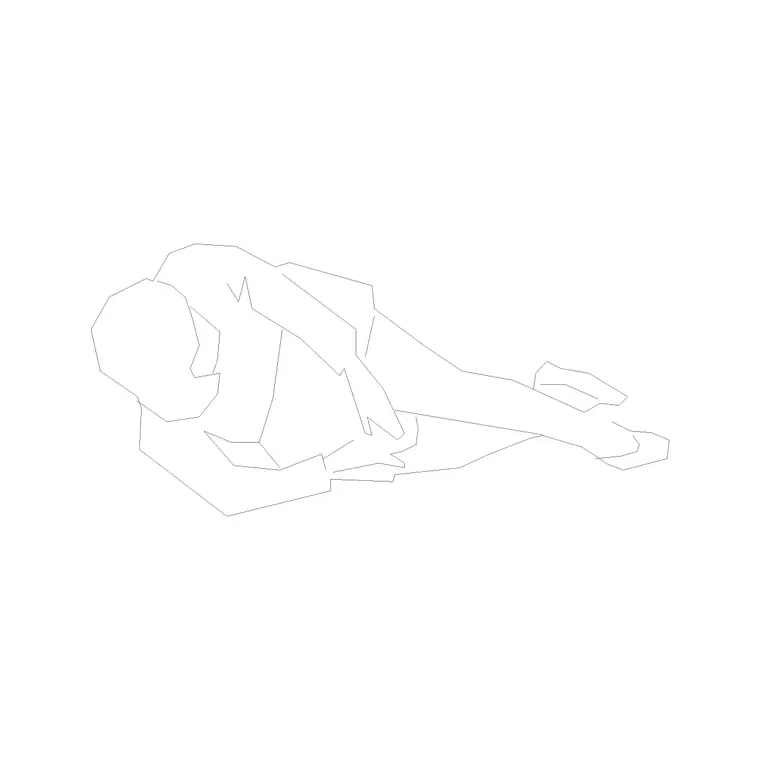
For a plan-view person you measure differently: a plan figure is the footprint seen from above, so measure the shoulder width or the bounding circle rather than a height. A standing person's plan footprint is broadly a 400–500 mm circle across the shoulders.
Step 2 — Scale an elevation figure by reference to its height
For an elevation or side-view figure, the reference method is ideal because height is exactly what you're matching. Select the figure, type SCALE, pick a base point at the feet so the figure grows upward from the ground line, then type R for Reference. Pick the feet then the top of the head as the reference length, and enter the target height — 1800, for example.
Basing the scale at the feet keeps the figure standing on the floor line as it resizes, which is what you want; scale from the head or the centre and the feet float off the ground.
Step 3 — Size a plan-view figure to its footprint
A plan scale figure doesn't carry a height, so you scale it by footprint instead. If you measured the shoulder span as, say, 600 mm and you want a more realistic 450 mm, the factor is 450 / 600 = 0.75; run SCALE from the centre of the figure with that factor. Because plan figures are small and mostly used to show occupancy and circulation, getting them roughly right is usually enough — the footprint just needs to read as one person standing or seated.
Keep plan figures on a dedicated layer (an annotation or 'people' layer) so you can switch them off for a clean technical plan and on for a presentation or occupancy drawing.
Using the figure to validate the whole drawing
Once a figure is at true height, walk it around the drawing as a sanity check. Stand it beside a door — the head should sit comfortably below a 2000–2100 mm door head. Place it next to a worktop and the surface should land around hip height. Put it in a corridor and judge whether the width feels right for the number of people who'll use it. If anything looks off against a correctly-scaled person, the problem is usually the other geometry, not the figure.
This is the figure's real purpose. Architects and interior designers drop scale figures into elevations and visuals precisely because a viewer reads human scale faster than any dimension string. A correctly-sized person does more to communicate that a space works than a page of numbers.
Pitfalls with scale figures
The most common mistake is inconsistency — different figures at different heights across a sheet set, which destroys their value as a yardstick. Decide on a standard height (1800 mm is a safe default) and scale every figure to it. The second is scaling from the wrong base point so the feet leave the ground line; always base an elevation figure at the feet.
A third issue is over-detailing for the scale of the drawing: a richly drawn figure that reads well at 1:50 turns into a smudge at 1:500, so use a simpler silhouette on small-scale plans. And as always, if a figure inserts at a wild size, check INSUNITS before reaching for SCALE — a units mismatch is far more often the cause than a genuinely mis-drawn block.
Free download
Browse the full library — DWG & DXF, no signup.
Questions
Frequently asked
What height should a scale figure be in AutoCAD?+
Around 1700–1850 mm for an adult, and many drafters standardise on 1800 mm so figures read consistently across a drawing set. A seated figure is roughly 1200–1350 mm tall, and a child figure runs shorter depending on age.
How do I scale a scale figure to an exact height?+
Use SCALE with the Reference option and base it at the feet. Type R, pick the feet then the top of the head as the reference length, then enter the target height such as 1800. AutoCAD resizes the figure to exactly that height while it stays on the ground line.
Do I scale plan-view people the same way?+
No — a plan figure has no height, so scale it by its footprint instead. Measure the shoulder span or bounding circle and scale so it reads as a realistic 400–500 mm standing footprint. Plan figures only need to be roughly right since they show occupancy, not precise dimensions.
Why use a scale figure at all?+
A correctly-sized human figure instantly communicates the scale of a space to anyone reading the drawing, faster than a dimension string. That's why it's worth pinning every figure to a true, consistent height — it becomes a built-in yardstick that validates the rest of the drawing.
Related downloads
Blocks for this guide
Popular blocks to download
Related categories
Related guides
Explainer
What Are CAD Blocks? A Beginner's Guide in 2026
What are CAD blocks? A beginner's guide to AutoCAD blocks — what they are, why drafters use them, how blocks, attributes and libraries work, and where to download free DWG blocks.
Curated pack
15 Free People & Scale Figure CAD Blocks — DWG in 2026
15 free people and scale figure CAD blocks in DWG and DXF — standing, walking and seated figures in plan and elevation to give drawings human scale. No signup.
Block landing
Human Figure Plan CAD Blocks — Free DWG
Download free human figure plan-view CAD blocks in DWG — people seen from above, drawn to scale for floor plans and circulation. AutoCAD 2004+, no signup.