Where to find free ceiling lamp DWG files (and how to use them)
Free ceiling lamp DWG blocks: where they live on CADBlockDWG, what the elevation shows, and how to place a ceiling-mounted light in your AutoCAD interior.
Saumyajit MaityUpdated 21 March 20264 min read
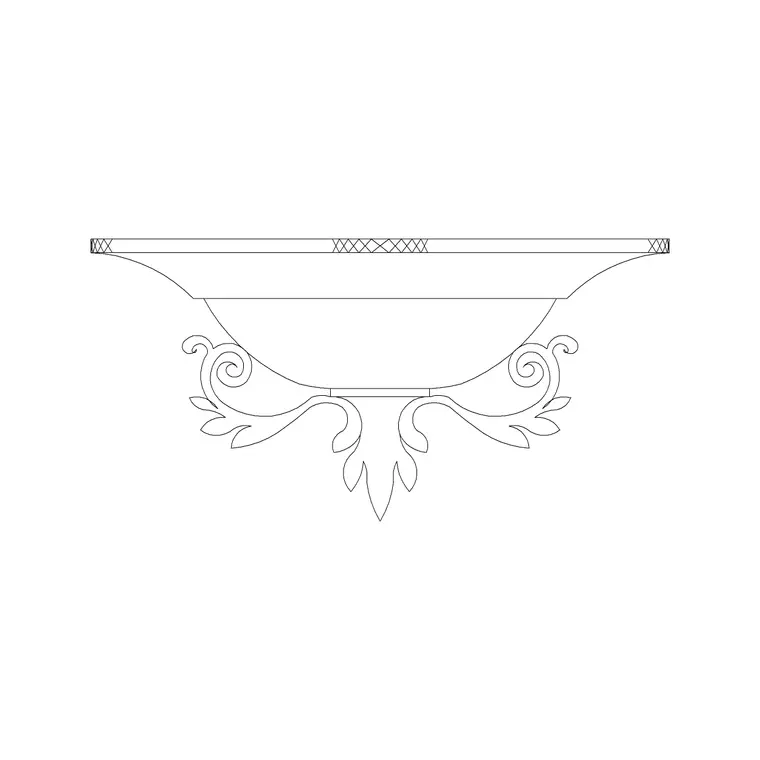
Finding the ceiling lamp block
The ceiling lamp lives in the Lighting category alongside the chandeliers, wall lights and fans. Open the Lighting hub and search "ceiling lamp", or browse the fixtures until you spot it. It is a flush or semi-flush ceiling-mounted fitting — the kind you would specify in a bedroom, hallway or low-ceiling room where a long-drop chandelier would not suit.
Downloading is immediate and free, with no login or ad gauntlet. The block is free for commercial use, so it is safe to put into a paid project. If you are assembling a lighting elevation for a whole apartment, this is one of the fittings you will reach for most, because flush ceiling lamps appear in nearly every room that does not warrant a feature pendant.
What the DWG contains
This is an elevation block — the front-on view of the fitting as it would appear on an interior elevation. You see the body of the lamp and its profile against the ceiling line, which is exactly what an elevation needs in order to communicate the fixture type and its projection below the ceiling.
It arrives as a DWG, so AutoCAD opens it natively with nothing to convert. The drawing is clean vector geometry rather than a raster image, so every line is snappable and editable — you can trim it, restyle its lineweight, or copy a portion of it. If you specifically need a top-down dot for a reflected ceiling plan instead, that is a different drawing convention; this block is for the elevation, where the lamp's shape matters.
It is worth opening the downloaded DWG on its own once before you use it, just to look at it. Note where the base point sits — ideally at the top centre, so it snaps to the ceiling line cleanly — and confirm the geometry is tidy with no stray lines floating off to the side. A thirty-second look tells you whether the block is production-ready, and you only have to do it once per fitting because every later insertion behaves the same way.
Placing it in an interior elevation
Bring it in with the INSERT command (shortcut I), Browse to the downloaded file, and tick "Specify On-screen" so you choose the spot. The natural anchor is the ceiling line: snap the top of the fitting to the ceiling so it reads as genuinely mounted rather than floating. Use F3 to enable running object snaps so it locks to the line precisely.
In a typical room elevation you will place the ceiling lamp centred over the space or over the piece of furniture it serves — above a bed, over a hallway, centred on a small room. If the room has more than one fitting, insert the block several times rather than copying loose lines, so each remains a managed instance you can update or swap in one move later.
Scale, units and layers
If it lands the wrong size, it is a units issue. Set INSUNITS the same in the block and your drawing so AutoCAD auto-scales on insertion, or insert and SCALE manually — 0.001 to take millimetres into a metre drawing, 1000 to go the other way. Sense-check the result against your ceiling height: a flush ceiling lamp should project only a modest amount below the ceiling, so if it is dropping a metre into the room, the scale is wrong.
Put it on your lighting or electrical layer. A block built on layer 0 inherits whatever layer is current at insertion, so make that layer active first and the fitting picks up the correct colour and lineweight. Keeping all the light fittings on one layer means you can later dim, freeze or recolour the whole lighting set from the Layer Manager without touching a single block.
Using it across a set of drawings
Ceiling lamps are repetitive by nature — the same fitting recurs room after room — which makes them a perfect candidate for a tool palette. Drag the block onto a Lighting palette once and you can place it with a single click from then on, which adds up across a full apartment or floor of elevations.
If the project later changes the specified fitting, redefining the block updates every instance at once, so you are not hunting down dozens of copies. Pair the ceiling lamp with the wall lamp and a pendant or chandelier for feature spaces, and you can light an entire interior package from this handful of free fittings while keeping every drawing consistent and quick to revise.
A small naming habit helps here too. If you save the downloaded fitting into a project blocks folder, give it a clear, self-describing filename — something like ceiling-lamp-flush-elev — rather than leaving it as a generic download name. When you build a palette or browse blocks through AutoCAD's DesignCenter later, descriptive names mean you find the right fitting in seconds instead of opening files to check what each one is. It costs nothing at download time and saves real friction every time you reach for the block afterwards.
Questions
Frequently asked
Where do I download a free ceiling lamp CAD block?+
In the Lighting category on CADBlockDWG. Search "ceiling lamp" and download the DWG free, with no account required and a commercial-use licence.
Is the ceiling lamp block a plan or elevation symbol?+
It is an elevation block — the front view of the fitting against the ceiling line — for use on interior elevations rather than reflected ceiling plans.
How do I stop the ceiling lamp inserting at the wrong size?+
Match INSUNITS in both files, or scale by 0.001 or 1000 after inserting, then check it against your ceiling height to confirm the projection looks right.
Free downloads from this article

Free CAD block library
Download the blocks from this article — free, no signup


