DWG vs DXF for window blocks: which format to download
Window blocks carry plan and elevation views of simple geometry that opens fine as DWG. Here is when a window DXF is better, and how to set them in walls.
Saumyajit MaityUpdated 20 April 20264 min read
For windows, download the DWG
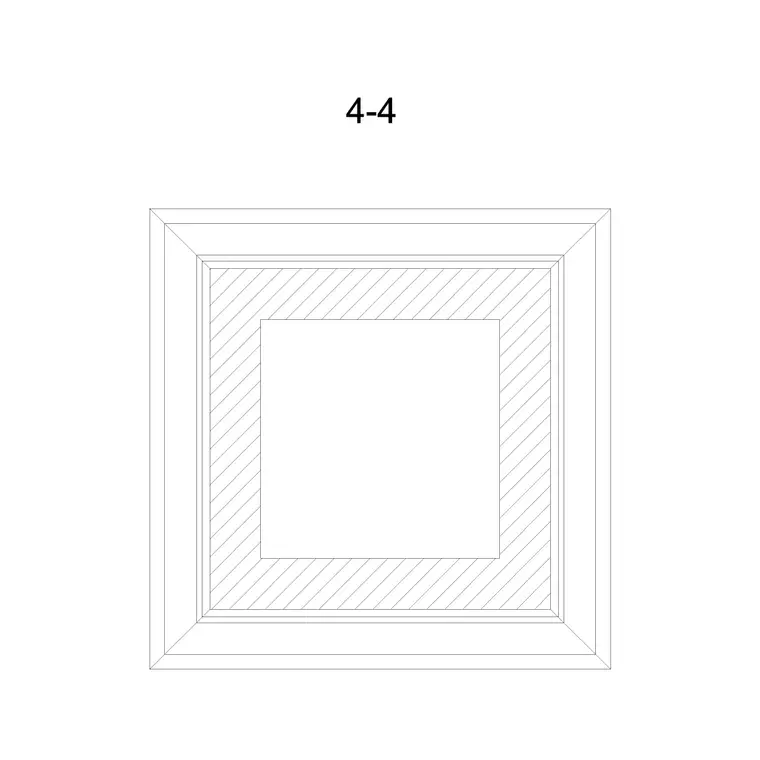
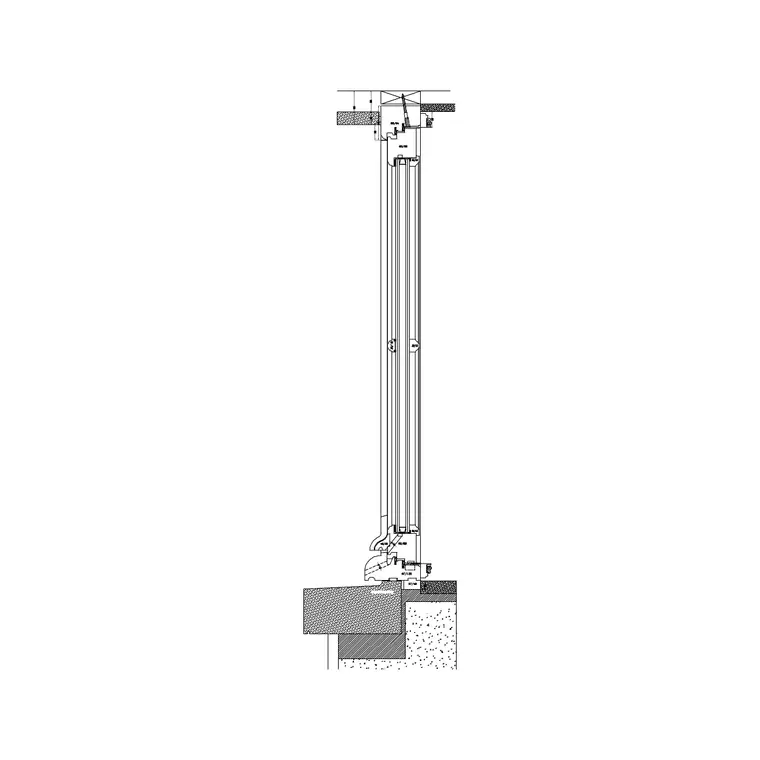
A window block is straightforward geometry — in plan, the frame lines and glazing across a wall opening; in elevation, the frame, mullions and any opening lights. That is exactly what DWG handles best: compact, native, and opened cleanly by every mainstream CAD tool. So for almost everyone, the window block to download is the DWG. Our Windows category serves both plan and elevation window blocks as free DWG downloads with no signup and free commercial use.
DXF is purely a compatibility fallback here, not a quality choice. If your drafting software sits outside the AutoCAD family and stumbles on DWG, the window DXF will open where the DWG won't. In a normal architectural workflow that is uncommon, so default to DWG and keep DXF in reserve for the program that needs it.
Same window, two views, one geometry question
Whether you download a window as DWG or DXF, the plan glazing lines and the elevation frame are the same vector geometry, measuring and plotting identically. Neither format is sharper; only the container changes. DWG is binary and compact, DXF is usually text and larger but maximally portable thanks to its open specification, and for a simple window the size gap is negligible.
The one window-specific thing to watch is dynamic blocks. A parametric window that lets you stretch the width or flip the opening with grips keeps that behaviour in DWG, whereas a DXF round-trip can bake it into a single static size. If you specifically want an adjustable window block, take the DWG. For a fixed-size plan or elevation window, there is no meaningful feature loss in DXF, so the choice is just about what your software reads.
When a window DXF is the better download
Download the DXF when the window has to enter non-AutoCAD software — an older 2D drafting app, a lightweight editor, or an architectural package that reads DXF more reliably than DWG. If a window block opens as garbage or throws an 'unsupported format' error, the DXF usually fixes it immediately.
DXF is also the safer handoff to a collaborator whose toolchain you cannot confirm, or if a window elevation is feeding a fabrication process — for example cutting a frame template or a feature panel on a CNC or laser machine, which speak DXF natively. For routine plan and elevation windows placed in walls in an AutoCAD or DWG-native drawing, none of this applies and the DWG is the simpler, smaller choice.
Setting windows into walls correctly
Download the window, INSERT it, and snap it into the wall opening — a good window block has its base point on the wall line or jamb so it lands flush. In plan, align the glazing within the wall thickness; in elevation, set the sill at the correct height above floor level, which a well-made elevation window references. Use the right view for the drawing: plan windows on the floor plan, elevation windows on the elevation. Mixing them reads as wrong.
If a window comes in oversized or invisible, that is a units mismatch, not a format fault — set INSUNITS consistently or SCALE by 0.001 or 1000, then dimension the opening to confirm a real window width. Keep windows on a windows or glazing layer, ideally with blocks on layer 0 so they inherit it and plot with the right lineweight. Consistent sill heights and aligned mullions across an elevation are what make a window run read as deliberate.
Windows and doors are a matched pair in the wall
Windows rarely sit alone — they share the wall with doors, and on an elevation they read together as the pattern of openings that gives a façade its character. So it pays to treat windows and doors as a coordinated set rather than downloading them piecemeal. Keep the format consistent across both: if the drawing stays in AutoCAD, take windows and doors as DWG; if it is heading into software that needs DXF, take both as DXF so the openings travel together cleanly.
Coordinate the conventions too. A window block and a door block built the same way — on layer 0, with base points on the wall line or jamb — drop into a wall as a matched pair and align without fiddling. On the elevation, align sill and head heights so the openings sit in a deliberate rhythm rather than scattered at random levels. Sorting the format and the conventions once for all the openings, rather than per block, keeps the wall tidy and saves needless round-tripping later.
What to download for windows
Take the DWG for any window you are placing in AutoCAD or a DWG-native program — it is smaller, native, fully supported, and it preserves any dynamic width or opening behaviour. Reach for DXF only when the window must cross into non-AutoCAD software, or when an elevation is headed for fabrication tooling. The plan and elevation geometry is identical in both, so switching costs no quality.
When a window file misbehaves in an unusual program, round-trip it through a free converter to the other format and the problem usually clears. With the format settled, the real craft is placement: glazing aligned in the wall, sills at consistent heights, the right view for each drawing, all on a tidy glazing layer. Get those right and the windows read correctly to anyone who opens the drawing.
Questions
Frequently asked
DWG or DXF for a window block?+
DWG for normal AutoCAD or DWG-native work — it is smaller, native, and keeps any dynamic width/opening behaviour. Use DXF only if your software can't read DWG, or a window elevation is going to CNC/laser fabrication.
Will a DXF lose my window's mullions or opening?+
No, the plan glazing and elevation frame round-trip cleanly. The only thing a DXF round-trip can flatten is a dynamic window's grip-driven stretch or flip, so take the DWG if you need that behaviour.
How do I place a window block in a wall accurately?+
INSERT it and snap the base point to the wall line or jamb so it sits flush; align the glazing in the wall thickness in plan, and set the sill at the correct height in elevation. Fix any size error with INSUNITS or SCALE.
Free downloads from this article


Free CAD block library
Download the blocks from this article — free, no signup