Free DWG blocks for an office floor plan — what to download
Lay out an office floor plan with free DWG blocks: desks, workstations and meeting tables. What to download and how to space it for real circulation.
Saumyajit MaityUpdated 16 June 20264 min read
The blocks an office floor needs
A working office plan typically needs:
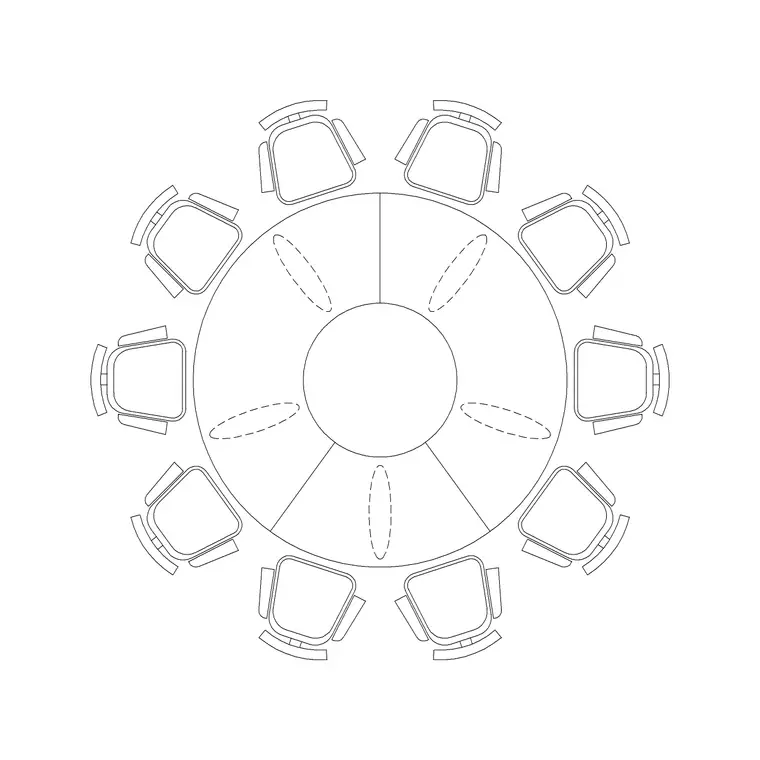
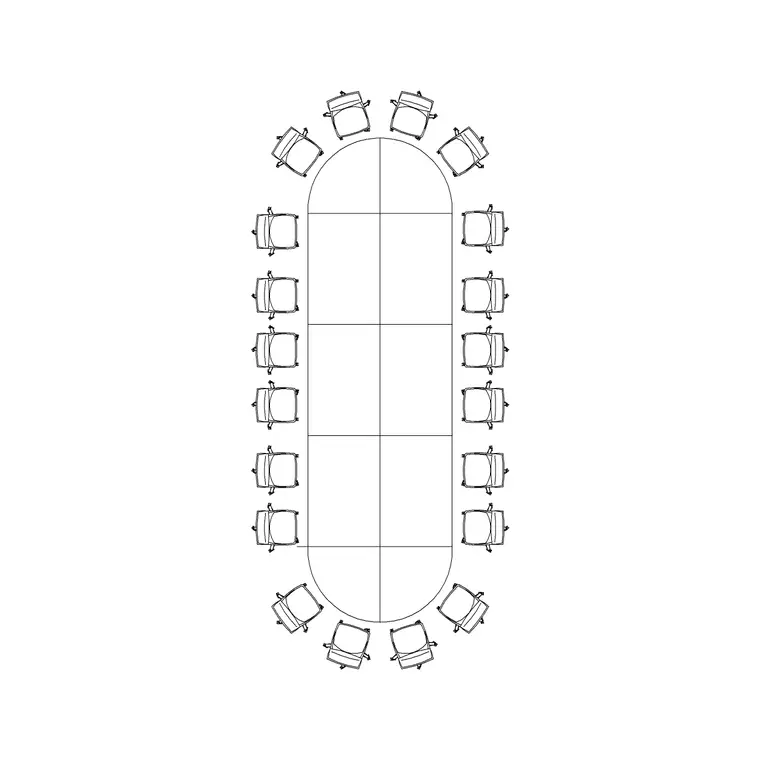
- A desk or workstation block — a single desk is 1200 to 1600mm wide by 600 to 800mm deep; bench-style workstations cluster these back to back. - Task chairs, allowing about 600mm of swing clearance behind each. - A meeting table — a 10-seater for mid-size rooms. - A larger conference / boardroom table — a 20-seater for the main meeting room. - Storage: pedestals, tambour units, lockers. - Breakout seating and a reception desk if the floor includes them.
The two table blocks do a lot of work: a 10-seater round or rectangular table furnishes a standard meeting room in one insertion, and a 20-seater conference table fits out the boardroom without drawing it by hand.
Space it for circulation and egress
The point of furnishing an office plan is to prove people can move and work. Keep primary circulation routes — the main spines between desk clusters — at roughly 1.2 to 1.5m so two people pass comfortably and they double as escape routes. Secondary routes between rows can be tighter, around 1m. Leave the 600mm chair swing behind every workstation, and around 900mm of clear space around meeting tables so chairs pull out.
Placing real desk and table blocks lets you count seats, check densities and confirm the egress routes stay clear — all before a single partition is built. For a fit-out drawing this is exactly the test the plan exists to perform: does this floor seat the headcount with circulation that actually works.
Watch where the desks sit relative to the core and the windows. Workstations generally want to be along the glazed perimeter for daylight, with meeting rooms and storage pushed toward the inner core where daylight matters less. Keep desk runs clear of structural columns — a column landing mid-desk is a classic clash — and make sure every desk cluster has a route to a fire exit that does not pass through a meeting room that might be locked. The blocks at real size make all of these conflicts visible at a glance.
Inserting and arraying desks in AutoCAD
Download your desk, chair and table blocks. INSERT one workstation, then use a rectangular array (ARRAYRECT) to repeat it across the floor at your chosen grid — this is far faster than placing each desk individually, and it keeps spacing consistent. The blocks are real-world sized, so keep scale at 1; correct any oddly-sized insert through units (INSUNITS to millimetres, or scale 0.001 / 1000).
Drop the meeting and conference tables into their rooms as single inserts. Put desks, chairs, tables and storage on layered sub-categories so you can produce a furniture plan, a power-and-data plan and a clean architectural plan from the same model. If your desk block sits on layer 0, it inherits whatever furniture layer is current when you array it.
Turning it into a fit-out drawing
Once the workstations are arrayed and the meeting rooms furnished, add the supporting detail: reception desk, breakout sofas, planting to break up the floor plate, and pendants or feature lighting over collaboration zones. Dimension the workstation grid and the room sizes so the fit-out can be set out and the furniture ordered to fit.
Because the catalogue is free for commercial use with no attribution, build a standard office kit — your desk module, task chair, the 10- and 20-seater tables and a storage unit — and you can fit out future floors quickly and consistently. Commercial fit-outs repeat their components heavily, so a vetted kit pays back fast across multiple projects. A final tip: keep a desk count and a target density (floor area per person) on the drawing as you array, so you can show the client the headcount the floor achieves and adjust the grid to hit a brief rather than discovering the number only at the end.
Questions
Frequently asked
What blocks do I need for an office floor plan?+
Desk and workstation modules, task chairs, a 10-seater meeting table, a larger conference table and storage — all free in the Office and Furniture categories.
How wide should office circulation routes be?+
Primary spines roughly 1.2 to 1.5m so two people pass and they serve as escape routes; secondary routes between rows can be around 1m.
How do I fill a floor with desks quickly in AutoCAD?+
Insert one workstation block, then use a rectangular array (ARRAYRECT) to repeat it across the floor on a consistent grid, rather than placing each desk by hand.
Free downloads from this article

Free CAD block library
Download the blocks from this article — free, no signup