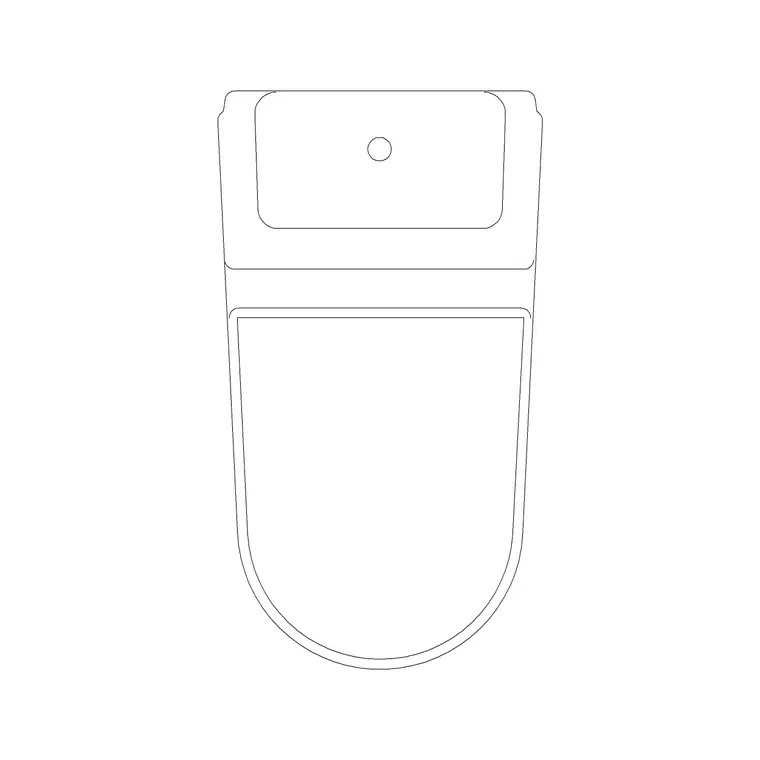
Free DWG blocks for a living room — what to download
The exact free DWG/DXF blocks to furnish a living-room plan: sofas, coffee tables, a media wall and planting — where to find them and how they insert cleanly.
Saumyajit MaityUpdated 20 June 20264 min read

Start with the seating, then build out
A living room reads as a living room the moment the seating lands. So that is where to start. Drop in your main sofa first, anchor it against the longest wall or floating in front of the TV, and the whole layout organises itself around that one decision. Everything else — coffee table, side tables, an armchair or two, a rug outline — hangs off the sofa's position and the circulation route past it.
On this site every block downloads as a real DWG file (DXF too on most), free, with no account and no email wall. You click the block, you get the file in your Downloads folder, you insert it. That is the whole flow. For a living room the single most useful block to grab first is a plan-view sofa set, because it carries the most visual weight and sets the scale for the rest of the furniture you place around it.
The block shopping list
Here is a practical list for a residential living-room plan, in roughly the order you would place them:
- A sofa set in plan — a two- or three-seater outline with the cushion lines drawn in, so it reads as a sofa from above and not just a rectangle. - A coffee table to sit in front of it, usually around 1100 by 600mm, leaving a comfortable knee gap of roughly 400mm to the sofa. - One or two armchairs to close the conversation group and anchor a reading corner. - A side table or two for lamps. - An indoor plant block to soften a corner and give the plan a sense of life. - Optionally a media unit or TV cabinet along the focal wall.
You will find the seating and tables in the Furniture category, and the planting under Trees & Plants. Mixing a leafy indoor plant into a furniture-heavy plan is a small move that makes a presentation drawing feel far more inhabited.
Where these blocks live on the site
Use the category hubs as your aisles. The Furniture category holds the sofas, armchairs, coffee tables and storage — it is the deepest source for a living room and worth browsing end to end the first time. Trees & Plants has the indoor planting. If you want a feature pendant or a floor-lamp symbol over the seating, the Lighting category covers ceiling and decorative fittings.
Each product page gives you the preview image, the available views, and the download button. Because the catalogue is searchable, typing 'sofa' or 'plant' into the search bar is usually faster than browsing if you already know what you need. The blocks are organised the way you think about a room, so furnishing a plan becomes a matter of picking from aisles rather than drawing anything from scratch.
Inserting them in AutoCAD without the scale headache
Download the blocks you want, then in your drawing type INSERT (or just I) and browse to each DWG. The blocks are drawn at real-world size, so leave the scale at 1 and the rotation at 0 unless you have a reason to change them. Tick 'Specify On-screen' for the insertion point so you can click the sofa into place against a wall, then use object snaps (F3) to lock it to a wall endpoint rather than floating it nearby.
If a block comes in absurdly large or tiny, that is a units mismatch, not a broken file — set INSUNITS to match between the block and your drawing (millimetres is the usual default here) and re-insert, or scale by 0.001 / 1000 to convert. Place the sofa first, then arrange the coffee table and chairs around it, checking that you keep a clear walking route — about 700 to 900mm — through the room. The point of furnishing the plan is to prove the room works before a single wall is built.
Make it read like a real room
A living-room plan that just has a rectangle for a sofa and a circle for a table looks unresolved. A few small habits fix that. Put all the furniture on a dedicated Furniture layer so you can dim or freeze it for a structural sheet, and keep the planting on its own layer too. Rotate the armchairs slightly off-square so the seating group feels conversational rather than rigid. Add the rug outline as a thin hatch boundary to ground the arrangement.
Think about the focal wall as you place things. In most living rooms the sofa faces either a fireplace or a television, and the coffee table sits centred on that axis. Aligning the seating group to a clear focal point is what makes the plan read as a designed room rather than furniture scattered on a floor. If the room is open-plan, use the sofa back or a console to define the edge of the living zone where it meets the dining or kitchen area, so the boundary is legible even without a wall.
None of this takes long, and the payoff is a drawing a client immediately reads as their living room. Because every block here is free for commercial use with no attribution required, you can build a reusable living-room kit — your favourite sofa, table, chairs and plant — once, and drop the whole set into every residential job from then on. Over a few projects that personal kit becomes the fastest way you furnish a plan: insert, check the clearances, adjust, done.
Questions
Frequently asked
What is the first block to download for a living-room plan?+
A plan-view sofa set. It carries the most visual weight and sets the scale for the coffee table, chairs and planting you arrange around it.
Are the living-room blocks free for client work?+
Yes. Every block on CADBlockDWG is free for personal and commercial use in DWG and DXF, with no signup and no attribution required.
How much walking clearance should a living-room plan keep?+
Aim for a clear route of about 700 to 900mm through the room, and roughly 400mm of knee gap between the sofa and the coffee table.
Free downloads from this article

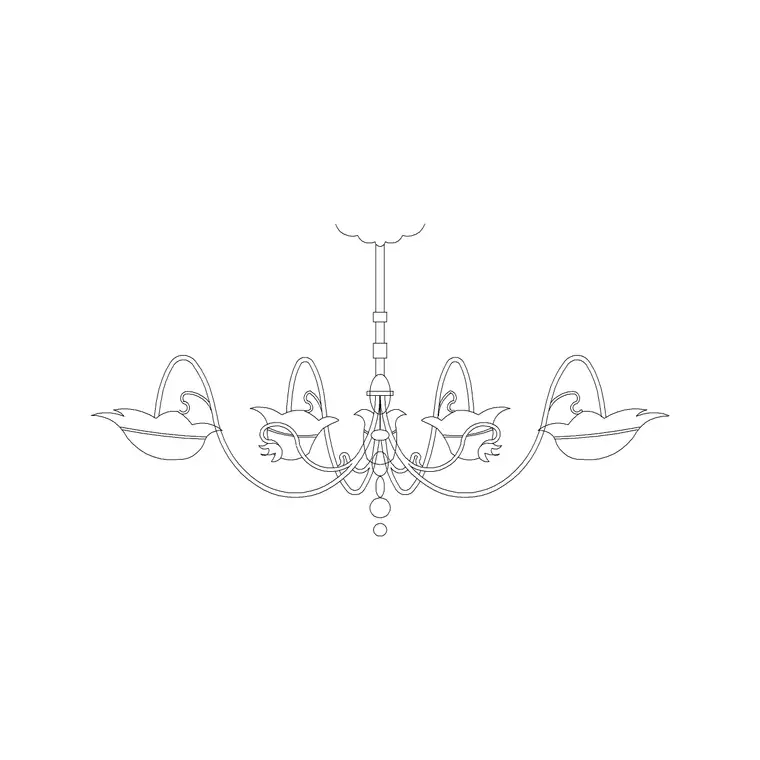
Free CAD block library
Download the blocks from this article — free, no signup