Free DWG blocks for a parking layout — what to download
Set out a parking layout with free DWG blocks: car blocks, bays and aisles. What to download, the standard bay and aisle dimensions, and how to array it.
Saumyajit MaityUpdated 16 March 20264 min read
A parking layout is bays, aisles and cars
Setting out parking is a geometry exercise: standard bays at a standard size, aisles wide enough to manoeuvre, and car blocks dropped in to prove vehicles actually fit and turn. The download list is short — mostly car blocks in plan, plus your own bay and aisle setting-out lines — but getting the dimensions right is everything, because parking standards are usually prescribed by local authorities.
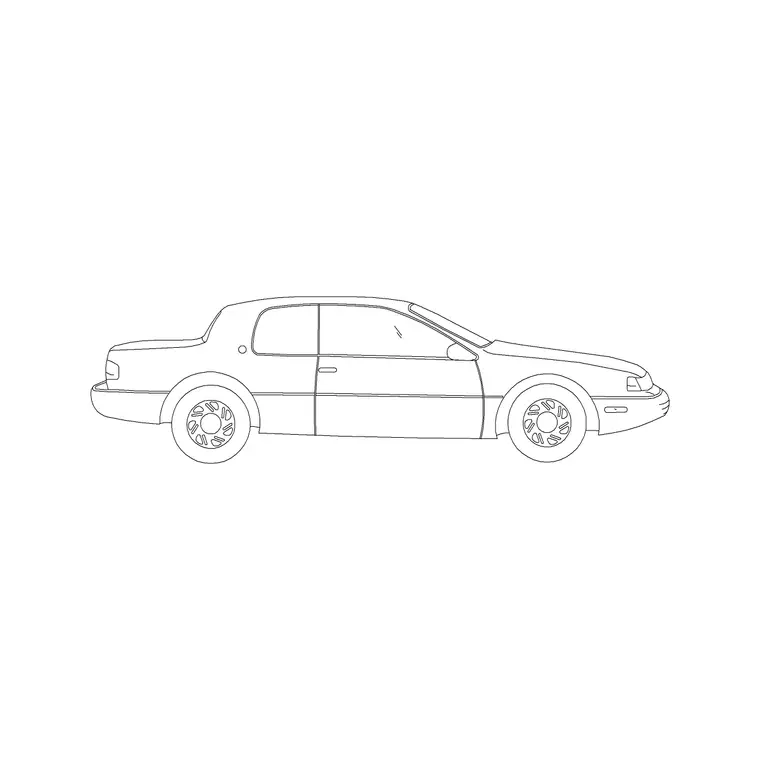
Everything here is free DWG and DXF, no signup. The Vehicles category holds car blocks in plan and elevation. Start by downloading a plan-view car block, because dropping a real car into a bay is the quickest way to verify the bay size and the aisle clearance are correct, and it makes the drawing immediately legible to a reviewer.
What to download for a car park
A parking layout typically needs:
- A plan-view car block — a standard car footprint is commonly taken as about 4.8 by 2.4m for setting-out, with a typical bay around 2.4 to 2.5m wide by 4.8 to 5.0m long. - An elevation car block if you are drawing a section through a parking structure or a streetscape. - Accessible (disabled) bay markings, which are wider — often around 3.6m to allow a wheelchair transfer. - Aisle and bay setting-out lines (your own polylines), with aisles around 6m for two-way 90-degree parking. - Optional: motorcycle bays, EV charging bays, line-marking arrows and signage.
Grab a couple of car blocks in slightly different models so a populated car park does not look like the same vehicle copied a hundred times — that variety reads as far more realistic on a presentation drawing.
Standard dimensions that drive the layout
The reason to set out parking carefully is that the dimensions are usually regulated, and an undersized bay or aisle will not pass. As a working starting point, a standard bay is about 2.4 to 2.5m wide by 4.8 to 5.0m long; a two-way aisle for 90-degree bays is around 6m; angled (45 or 60 degree) parking uses narrower aisles but fits fewer cars per length. Accessible bays are wider and must connect to an accessible route.
Always check your local parking standard, since bay and aisle dimensions vary by jurisdiction and by whether the parking is at-grade, in a structure or on-street. Dropping a real car block into each bay lets you confirm a vehicle fits with door-opening room and can swing into and out of the bay from the aisle — the exact test a parking layout has to pass.
End bays and columns are where layouts quietly fail. A bay next to a wall or a column needs to be a little wider so a door can still open, and in a multi-storey structure the column grid has to land between bays rather than through them — a column in the middle of a bay makes it unusable. Check the swept path at the ends of aisles too, where a car has to turn into the final bay; if the geometry is tight, a real car block rotated into position shows immediately whether the manoeuvre is possible or whether you need to lose a space to a turning area.
Arraying bays and cars in AutoCAD
Set out one bay with its marking lines, then array it along the run to build a row, and mirror or array rows across an aisle. Download a car block and INSERT it into a bay; the block is real-world sized, so keep scale at 1 (correct any wrong-sized insert via units — INSUNITS to millimetres, or scale 0.001 / 1000). Then array the car along the row of bays to populate the layout, deleting or swapping individual cars for variety.
Use object snaps to align bays exactly to the setting-out grid so the geometry stays precise — parking is unforgiving of accumulated drift over a long run. Put bay markings, cars and aisle arrows on separate layers so you can issue a clean setting-out plan (markings only) and a separate illustrative plan with the cars shown.
Finishing the parking drawing
Add the operational detail: accessible bays near the entrance with their connecting routes, EV and motorcycle bays, directional arrows, entry and exit points, and any barriers or pay stations. Dimension a representative bay, the aisle width and the overall setting-out grid so the car park can be marked out on site and demonstrably meets the local standard.
Because the catalogue is free for commercial use with no attribution, a parking kit — a couple of plan car blocks plus your standard bay and aisle setting-out blocks — is worth saving and reusing across site and infrastructure projects. Parking recurs on almost every commercial and residential masterplan, so a vetted set with the right dimensions speeds up every layout while keeping it compliant. Keep your bay and aisle setting-out as a small template block too, so the next car park starts from proven geometry rather than a blank sheet.
Questions
Frequently asked
What blocks do I need for a parking layout?+
Plan-view car blocks (and elevation cars for sections), plus your own bay and aisle setting-out lines — car blocks are free in the Vehicles category in DWG and DXF.
What is a standard parking bay size?+
Commonly about 2.4 to 2.5m wide by 4.8 to 5.0m long, with a two-way aisle around 6m for 90-degree bays — but always check your local parking standard, which governs the dimensions.
How do I fill a car park with cars quickly in AutoCAD?+
Insert one car block into a bay, then array it along the row of bays, swapping or deleting individual cars for variety so the layout does not look like one copied vehicle.
Free downloads from this article


Free CAD block library
Download the blocks from this article — free, no signup