How to download free sliding window CAD blocks for AutoCAD
Free sliding window DWG blocks: where to download them, how the no-projection plan symbol works, and how to place a sliding sash window in AutoCAD.
Sumana KumarUpdated 6 January 20264 min read
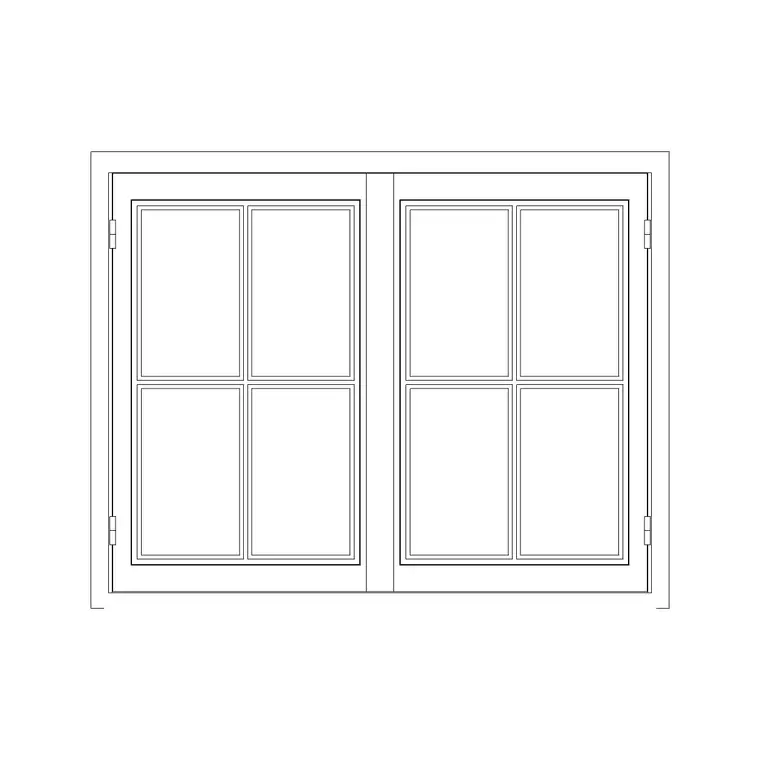
Why a sliding window suits certain openings
A sliding window opens by sliding one sash past another along a track, rather than hinging outward like a casement. The advantage is that the sash never projects beyond the wall face — nothing swings out over a balcony, a walkway, or a tight side return. That makes sliding windows a natural fit where an outward-opening casement would be a hazard or simply has nowhere to go: above a public footpath, onto a narrow balcony, in a high-density facade.
In plan, a sliding window reads cleanly: the frame sits in the wall thickness with the sashes shown as overlapping panels, and no swing arc, because nothing rotates. That tidy, projection-free symbol is the visual signature of a slider, and it keeps a busy elevation or a tight plan uncluttered compared with rows of projecting casement arcs.
Where to download sliding window blocks
The Windows category includes sliding variants, all free, all DWG, no signup — click and the file saves to your Downloads folder. Look for blocks labelled 'sliding', including decorative options such as a Roman window in two-shutter sliding form, which combines an arched or square head with horizontally sliding sashes.
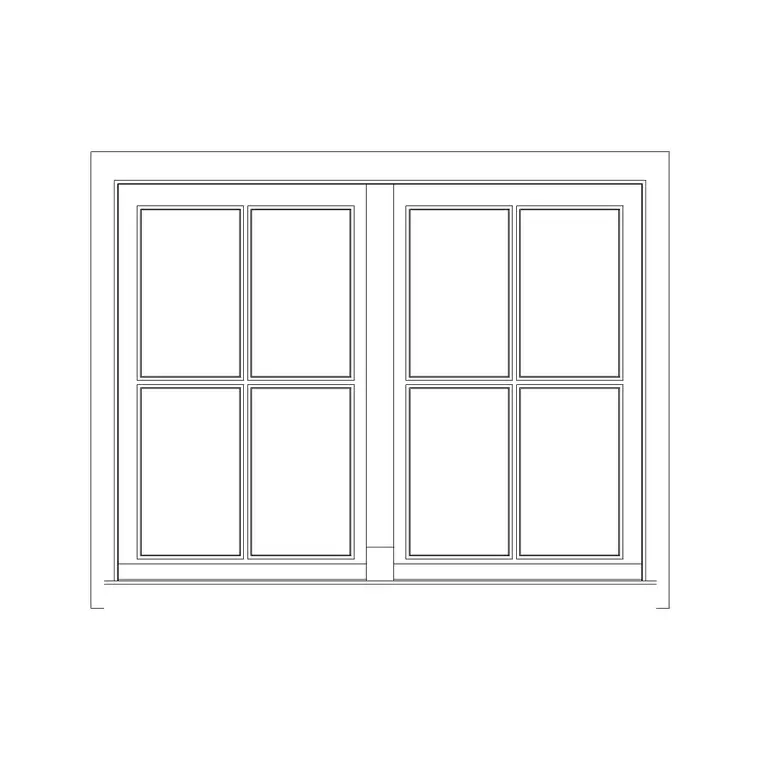
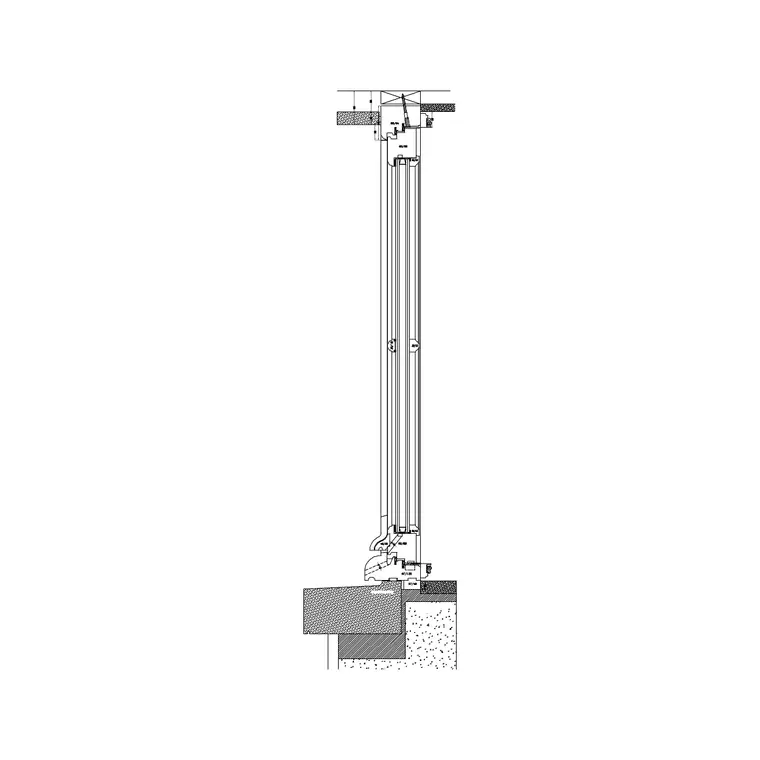
Many window blocks here ship with both plan and elevation geometry in one file, so a single download gives you the plan symbol and the elevation face together. Pick the configuration that matches your opening — two-shutter sliders are common, with the number of panels set by the width you need to fill. Starting from the right panel count means the overlap and the clear-opening area are correct without stretching the block.
Placing and aligning a sliding window
Insert the DWG with INSERT (I, Enter) or by dragging it on, scale 1, rotation 0, and snap the frame into the wall opening with object snaps (F3) for the plan view. Because the sashes only slide, there is no swing direction to flip, so MIRROR is mostly about which sash is fixed and which slides — set it so the operable panel lands where you want the ventilation and access.
If the block carries both views, place the plan symbol on the floor plan and copy the elevation onto the elevation sheet, aligning it to the correct sill and head heights. On the elevation, the overlapping sashes show the operable portion; remember a slider typically gives only half the opening as clear ventilation at any time, since one sash slides behind the other.
Scale, units and clear opening
Set INSUNITS to millimetres in both files so the window auto-scales, or SCALE by 0.001 if a millimetre block lands oversized in a metre drawing. Dimension the opening width to confirm the frame matches your wall.
The practical note for sliders is the clear ventilation opening. Unlike a casement that can open its full light, a two-panel slider opens roughly half its width at most, because one sash parks behind the other. For rooms where you are checking minimum opening area — bedrooms needing background and purge ventilation, for instance — this halving matters, and showing the overlapping sashes honestly on the elevation lets you account for it rather than over-estimating the openable area.
Sliding windows in the drawing set
Keep sliding windows on the Windows layer for clean isolation. Their projection-free symbol is a readability asset on tight plans and dense facades, where casement swing arcs would otherwise clutter the drawing — a tangible reason to choose a slider where the opening allows.
If a facade repeats the same slider, save the block to a Tool Palette for quick placement, and record the type and operable proportion in your window schedule so the supplier and the ventilation calculation both reflect a sliding unit. Drawn with overlapping sashes and no false swing, a sliding window tells a reader at once that this opening clears nothing beyond the wall — which is frequently the precise reason it was specified.
Horizontal slider or vertical sash
The word 'sliding' covers two quite different windows, and it helps to be clear which you are drawing. A horizontal slider runs its sashes left and right along a track — the configuration the two-shutter blocks here represent, and the one most associated with the projection-free symbol. A vertical sliding sash (a sash window, sometimes called single- or double-hung) slides up and down instead, the traditional pattern on period and heritage facades. Both share the no-projection advantage, since neither swings out, but they look entirely different in elevation: the horizontal slider shows side-by-side panels, the sash window shows a stacked upper and lower light.
If your scheme is contemporary or space-constrained, the horizontal slider usually fits; if it is traditional or conservation-led, a vertical sash may be required to match the architectural character. Note which you intend in the window schedule, because the hardware and the look are not interchangeable. Choosing the right block up front — and the right opening proportion with it — keeps the elevation honest to the style the building is reaching for.
Questions
Frequently asked
Why does a sliding window have no swing arc?+
Because the sashes slide horizontally along a track instead of hinging. The plan shows overlapping panels in the wall thickness and nothing projecting beyond the wall face.
How much of a sliding window actually opens?+
On a two-panel slider, roughly half the width at most, since one sash parks behind the other. Account for this when checking minimum ventilation opening area.
Where can I download a sliding window CAD block free?+
In the Windows category here — search for 'sliding'. It's a free DWG with no signup, for personal and commercial use.
Free downloads from this article
Free CAD block library
Download the blocks from this article — free, no signup


