How to download free sofa CAD blocks for AutoCAD
Grab free sofa CAD blocks in DWG for AutoCAD — no signup. Where to find plan and side-elevation sofas, what's inside, and how to insert them cleanly.
Saumyajit MaityUpdated 6 June 20264 min read

What you actually get when you download a sofa block
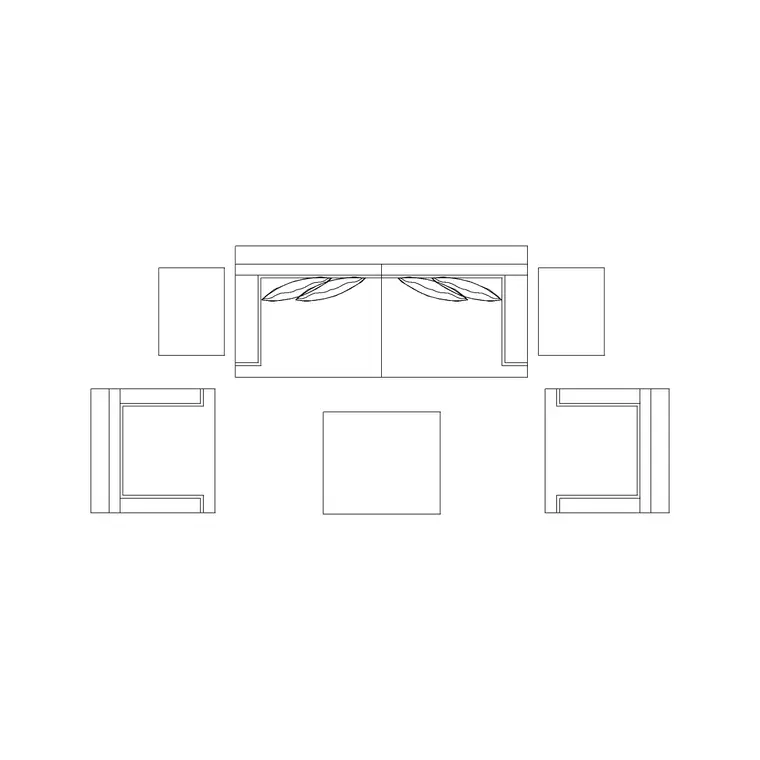
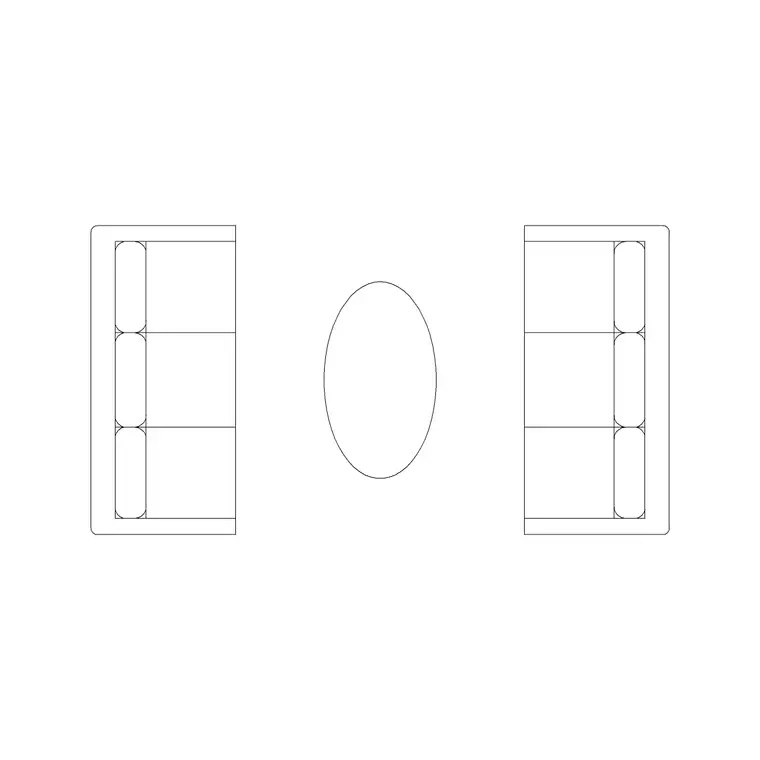
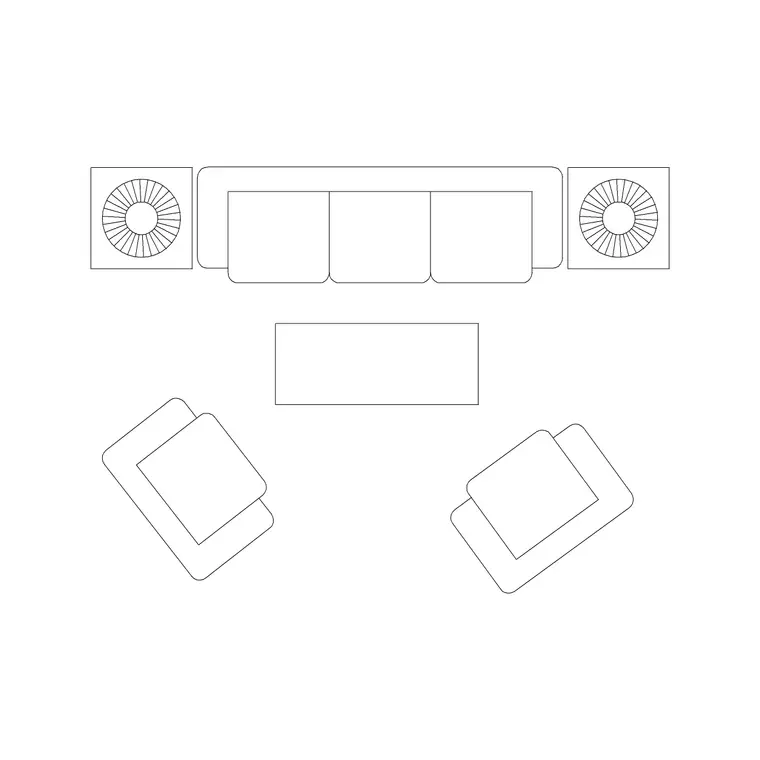
A sofa CAD block is a small DWG file containing the top-down outline of a settee — the seat cushions, the arms, the back, and usually a couple of throw-pillow lines so it reads as a sofa and not a plain box on the plan. Some are single drawings; sofa sets bundle a two- or three-seater together with armchairs and a centre table so you can furnish a whole living-room arrangement in one insertion.
Everything here is free, downloads instantly, and carries no login wall. You get the DWG, which is the format AutoCAD authored the drawing in, so nothing is lost in translation. The geometry is vector, so it stays crisp at any zoom and measures true — a two-seater should come in around 1500 by 900mm and a three-seater around 2100 by 900mm in plan, which are the dimensions you can verify with a quick DIST once it is on the canvas.
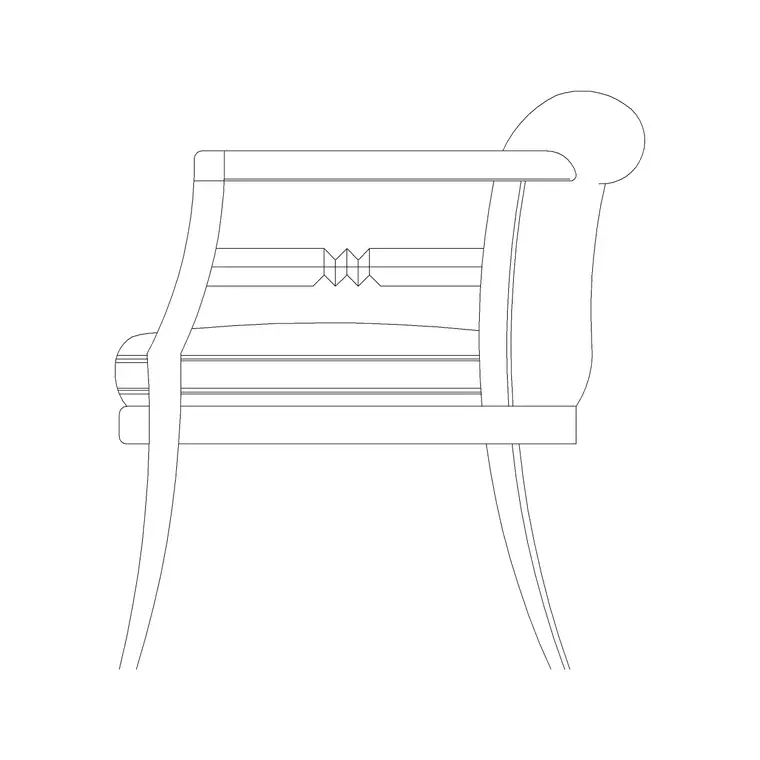
If you also need a face-on sofa for an interior elevation, look for the side-elevation version rather than reusing the plan symbol. The two views look completely different, and dropping a plan sofa into an elevation is the kind of slip a trained eye spots instantly.
Where the sofa blocks live on the site
Start in the Furniture category, which is the largest collection on the site and where every seating block is filed. You can scroll it, or use the search box at the top and type 'sofa' to jump straight to the settee results.
For a plan-view sofa, the Sofa Set Plan blocks are the cleanest drop-ins — they are drawn from above and ready to land in a room layout. If you want the whole social corner in one go, a sofa-set-with-table block brings the settee, chairs and a coffee table together at the right relative spacing. For an interior elevation, grab the Sofa Side Elevation block, which shows the settee front-on with the seat height and back profile drawn to scale.
Each product page has the preview image, the download button, and the file details. There is nothing to sign up for: click download, and the DWG lands in your Downloads folder.
Inserting the sofa into your AutoCAD drawing
Once the DWG is downloaded, open your working drawing and type INSERT (or just I) and press Enter to open the Blocks palette. Click the Browse button, point it at the downloaded sofa file, and the block attaches to your cursor.
Leave the scale at 1 and rotation at 0 to begin with — the sofa is drawn at real-world size, so a scale of 1 is correct in a millimetre drawing. Move the cursor into the room and use an object snap (press F3 for running snaps) to anchor the sofa against a wall or onto a furniture grid line rather than letting it float. Click once to place it, then rotate it with the ROTATE command if it needs to face a different way.
If the sofa comes in absurdly large or vanishes until you Zoom Extents, that is a units mismatch, not a broken file. The block is in millimetres and your drawing is probably set to metres, or vice versa — set INSUNITS consistently in both, or run SCALE by 0.001 (mm into a metre drawing) to correct it.
Placing it well in a living-room layout
A sofa block earns its keep when it tests the room, not just decorates it. Drop it in and immediately check the circulation: leave a walkway of roughly 700 to 900mm in front of the seat so people can pass and reach the cushions, and keep about 300 to 450mm between the sofa front and a coffee table so legs have room.
For an L-shaped or conversational arrangement, place the main sofa first, then add an armchair at an angle and a coffee table centred on the group. A sofa-set block does this spacing for you, which is handy for a quick concept layout you can refine later. If you build a lot of living rooms, drag your favourite sofa onto a Tool Palette once and you can place it with a single click from then on.
Put the sofa on a dedicated Furniture layer so you can dim or freeze all the furnishings when you need a clean structural plan. If the block was built on layer 0 — the recommended way — it will inherit that Furniture layer automatically the moment you insert it.
A quick quality check before you rely on it
Spend thirty seconds vetting any downloaded sofa before it goes into client work. Run a dimension across the seat: a two-seater near 1500mm wide and a three-seater near 2100mm tells you the scale is right. Check that the geometry sits on sensible layers — ideally layer 0 — so it behaves when you insert it. Confirm there are no stray lines hiding off to one side, and that the base point is somewhere logical like a corner.
If all four checks pass, the block is production-ready. If the sofa measures wrong, fix the scale before you build clearances around it, because a mis-scaled sofa will quietly throw off every gap you draw next to it. Run a quick AUDIT and PURGE after inserting unfamiliar content to strip any orphaned data, and your drawing stays clean.
Questions
Frequently asked
Are the sofa CAD blocks really free for commercial use?+
Yes. Every sofa block on CADBlockDWG is free for personal and commercial projects, with no attribution required and no account needed. Download the DWG and use it in client work.
What size should a sofa block be in plan?+
Roughly 1500 by 900mm for a two-seater and 2100 by 900mm for a three-seater. Measure the block with DIST after inserting to confirm it is at the right scale.
Do you have a sofa in elevation as well as plan?+
Yes. The Sofa Side Elevation block shows the settee front-on for interior elevations, while the Sofa Set Plan blocks are the top-down view for floor plans. Pick the view that matches your drawing.
Free downloads from this article
Free CAD block library
Download the blocks from this article — free, no signup


