Free reflected ceiling plan light blocks for AutoCAD
Free light blocks for reflected ceiling plans — which fittings to use, how an RCP works, and how to set out lighting fittings cleanly in AutoCAD.
Sumana KumarUpdated 19 April 20264 min read
What a reflected ceiling plan needs
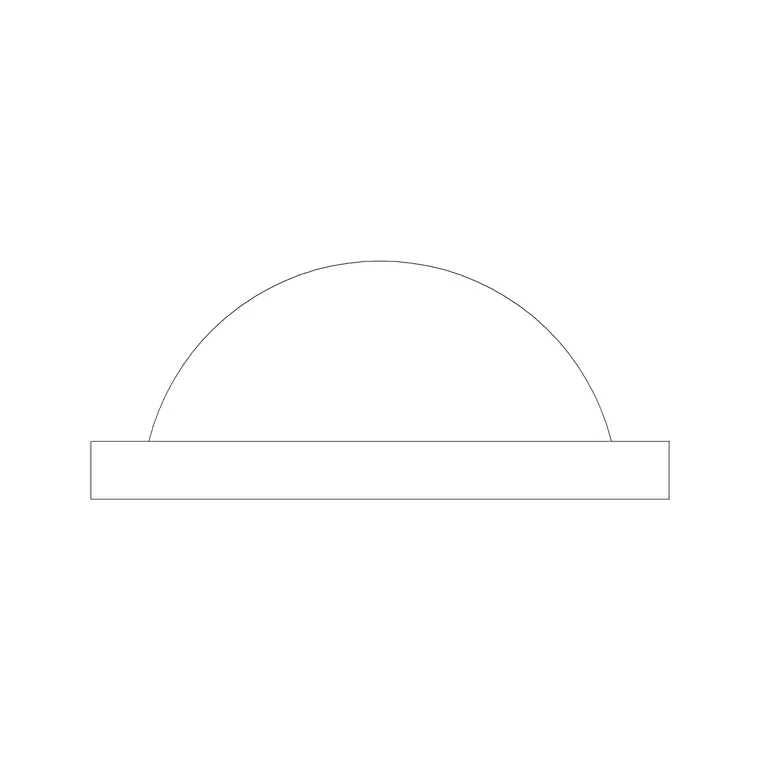
A reflected ceiling plan (RCP) shows the ceiling as if it were mirrored down onto the floor, so you can plot the position of every fitting — downlights, pendants, fans, surface lights — as seen from below. To build one you need ceiling-fitting blocks you can place repeatedly and set out accurately. The Lighting category on CADBlockDWG supplies the fittings: the round ceiling light for downlights, the ceiling lamp for surface fittings, the suspended chandeliers and pendants for feature positions, and the ceiling fans where air movement is needed.
Everything downloads free as DWG with no signup, and the licence allows commercial use. That matters for an RCP, because it is a coordination drawing that often goes out as part of a tender or construction package, where you cannot afford licensing ambiguity on the symbols you used.
Which blocks for which fitting
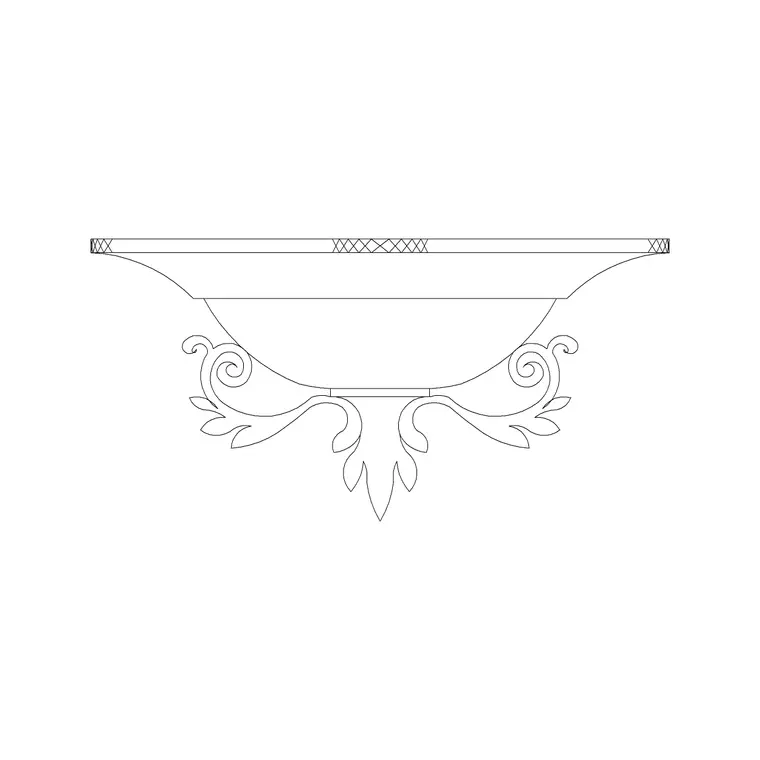
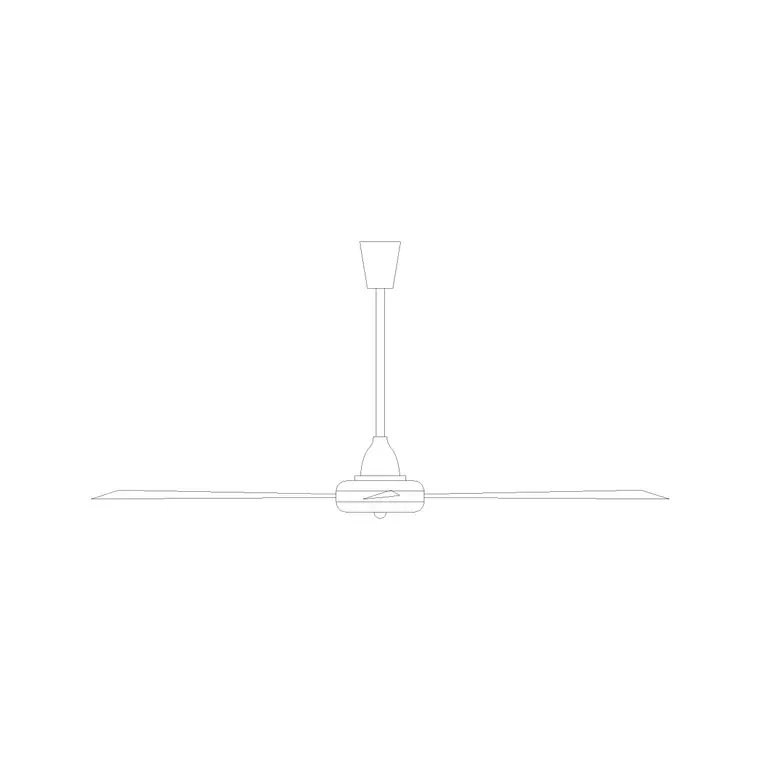
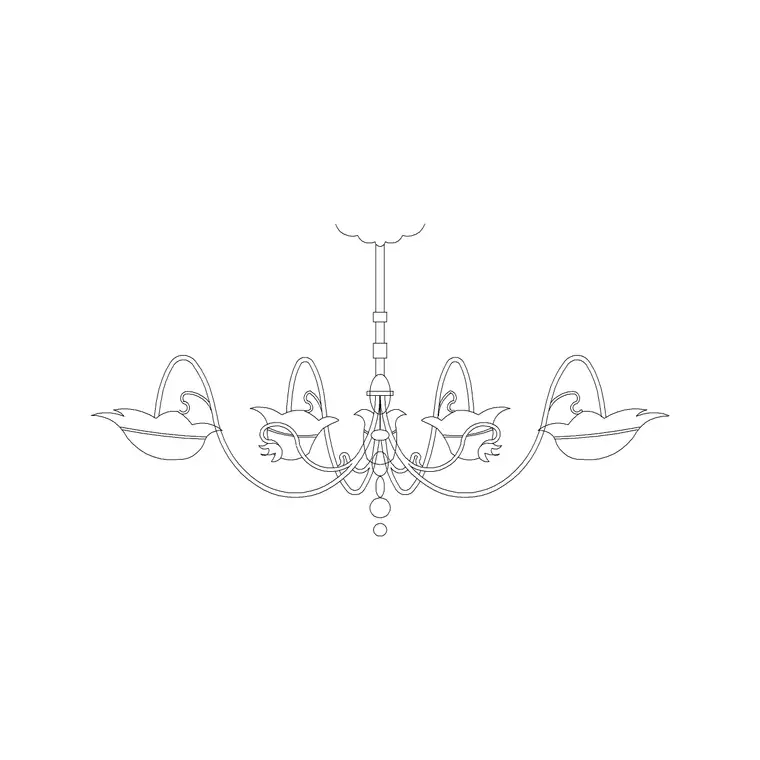
Match the block to the fitting type. For recessed and surface downlights, the round ceiling light gives you a clean circular symbol that arrays neatly across a ceiling grid. For decorative surface fittings, the ceiling lamp marks the position. For feature lights over islands, tables and voids, the suspended and long suspended chandeliers (and the small suspended fitting as a pendant) mark where the statement fittings hang. For fans, the two ceiling fan blocks show the air-movement positions.
Using distinct symbols for distinct fitting types is what makes an RCP readable: anyone looking at it can tell a downlight from a pendant from a fan at a glance. Because each is a separate block, you can build a simple legend keyed to the symbols, which is standard practice on a coordinated ceiling plan.
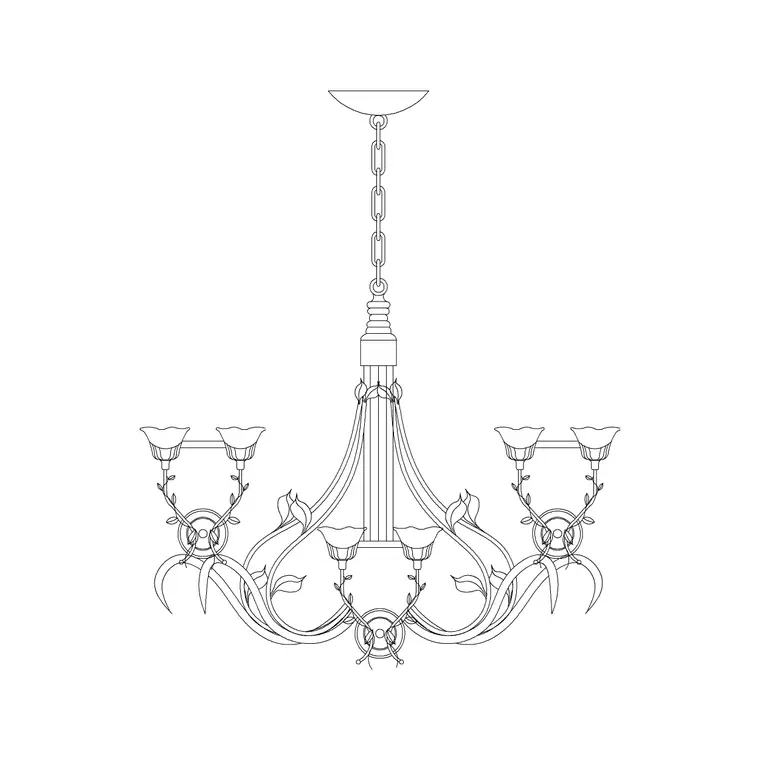
For the feature fittings, remember the chandelier and pendant blocks are drawn in elevation, so on the plan you are using them to mark a position rather than to show the fitting from below. Some offices place a simple plan symbol on the RCP and reserve the elevation block for the interior elevation; others place the elevation block on a non-plotting reference layer as a visual note of which fitting goes where. Either approach works — the key is that the RCP carries the location and the legend carries the meaning, while the elevations show the fitting itself in full.
Setting out fittings on the RCP
Insert each fitting with INSERT (shortcut I), Browse to the file, and tick "Specify On-screen". Place the first of each type at its setting-out point — snapping to a grid line or a measured offset with object snaps (F3) — then array or copy the rest. Downlights in particular benefit from the rectangular ARRAY command to lay a regular field at even spacing; feature fittings are usually placed individually over the surfaces they light.
A practical way to start is to underlay the floor plan, trace the room outlines and any features the lighting responds to — the island, the table, the bed — onto the ceiling layers, then switch the floor plan off and set out the fittings against those references. Working over the plan keeps every fitting located against real geometry rather than guessed positions, and switching the floor plan off at the end leaves a clean ceiling drawing.
Keep the whole RCP on dedicated ceiling and lighting layers, separate from the floor plan beneath. If the blocks are on layer 0 they inherit the active layer at insertion, so set your ceiling layer current before placing. This separation is what lets the reflected ceiling plan plot cleanly on its own sheet without the furniture and walls of the floor plan getting in the way.
Scale, units and consistency
Wrong-sized symbols are a units mismatch — match INSUNITS across files, or insert and SCALE by 0.001 or 1000. On an RCP, keep the downlight symbols at a consistent, readable diameter so the grid reads cleanly; oversized or tiny symbols make the drawing hard to interpret.
Consistency is the whole game on a coordination drawing. Use the same block for every downlight, the same block for every fan, and so on, so the RCP is unambiguous. Because every symbol is an instance of one definition, you can adjust a fitting type everywhere by redefining its block, and the file stays light even with a ceiling full of fittings.
From RCP to a complete lighting set
Once the RCP locates every fitting, the same free Lighting blocks carry through to your interior elevations and sections — the elevation views of the chandeliers, pendants, wall and floor lamps — so the lighting design is consistent across plan and elevation. Plotting the positions on the RCP and showing the fittings in elevation together gives a coordinated package a contractor can actually build from.
Add your core RCP symbols — downlight, surface light, fan — to a tool palette for fast, one-click setting out. Build a small legend keyed to the blocks, array the downlights, place the feature fittings, and a reflected ceiling plan comes together quickly from free, consistent blocks, ready to coordinate with the electrical and services drawings.
Questions
Frequently asked
Which free blocks suit a reflected ceiling plan?+
The round ceiling light for downlights, the ceiling lamp for surface fittings, the suspended chandeliers and pendants for feature positions, and the ceiling fans — all free DWG downloads in the Lighting category.
How do I keep an RCP separate from the floor plan?+
Put all ceiling fittings on dedicated ceiling and lighting layers. Set that layer current before inserting (layer-0 blocks inherit it) so the RCP plots cleanly on its own sheet.
What is the fastest way to set out downlights on an RCP?+
Insert the round ceiling light once, then use the rectangular ARRAY command to place a regular field at even spacing, keeping every downlight symbol identical and aligned.
Free downloads from this article
Free CAD block library
Download the blocks from this article — free, no signup


