How to download free recliner CAD blocks for AutoCAD
Free recliner and lounge chair CAD blocks in DWG for AutoCAD. Where to find them, the footprint to plan for, and how to insert one with reclining clearance.
Sumana KumarUpdated 4 March 20264 min read
What a recliner block needs to show
A recliner is a comfort chair that tilts back and often extends a footrest, so the one detail that sets it apart from an ordinary armchair on a plan is the reclining clearance behind it. Upright, a recliner footprint is similar to a generous lounge chair — roughly 850 to 950mm square — but reclined it can extend another 400 to 600mm to the rear and front, and that swept space is what you must keep clear.
The chair blocks here are drawn at real size as vector DWGs, so they measure true and you can confirm the seat footprint with a quick dimension. While the catalogue's comfort chairs read as lounge and cushion-back armchairs rather than mechanism-specific recliners, they give you the correct seated footprint to plan around; you then add the recline clearance yourself. Everything is free, downloads on click, and needs no login.
Finding a suitable chair block
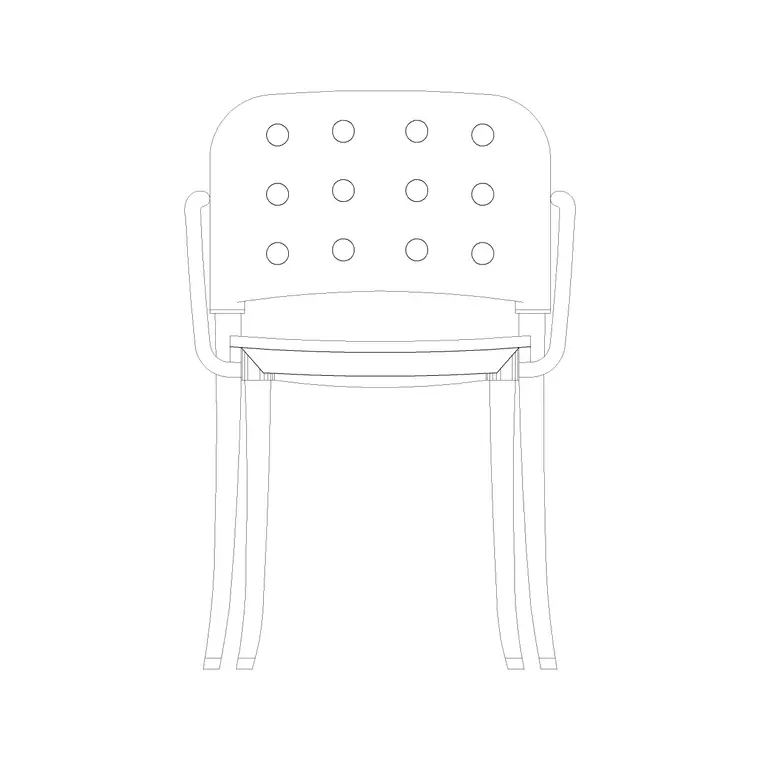
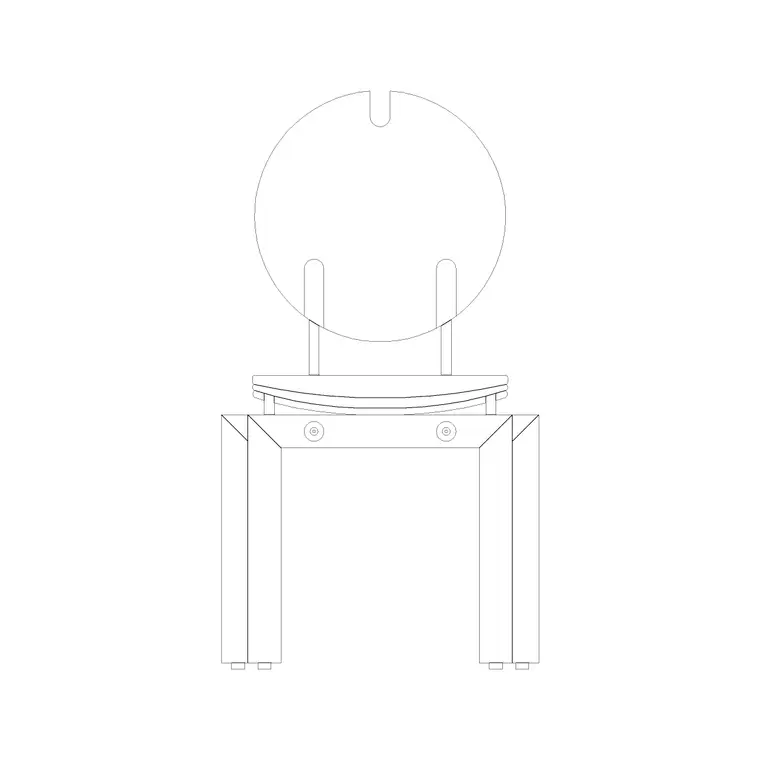
Browse the Furniture category and search 'chair' to see the comfort-seating options together. For a recliner-style lounge chair, the Chair With Cushion Back block is a good fit — a padded, high-back occasional chair that reads convincingly as a relaxing seat in a living room or den. The Chair With Round Back is a slightly lighter alternative with a curved backrest.
Each product page shows the preview and the view label, with most of these chairs drawn in elevation so you can see the back height and seat profile. Pick the chair whose proportions match the comfort seat you are showing, and click download — the DWG saves to your Downloads folder with no signup.
If you specifically need a medical or dental recliner, those are specialist blocks elsewhere on the site; for a domestic living-room recliner, the cushioned lounge chairs here are the right starting point.
Inserting the chair in AutoCAD
Run INSERT (I), browse to the chair DWG, and place it at scale 1, rotation 0 — the chair is drawn at real-world size. Snap it into position facing the television or the focal point of the room, and use ROTATE to fine-tune the angle once you can see it in context.
If the chair inserts too large or too small, that is the units mismatch again: set INSUNITS the same in both files, or SCALE by 0.001 (millimetres into a metre drawing) or 1000 the other way. Then move the chair onto your Furniture layer so it groups with the other furnishings.
For an interior elevation, use the elevation view of the chair to show the back height and headrest, which is where a recliner's comfort really reads — a tall, supportive back is the visual signature of the chair.
Planning the recline clearance
The mistake people make with recliners is treating them like static armchairs and butting them against a wall. A wall-hugger recliner needs only a little space behind, but a traditional recliner tilts backward and needs roughly 400 to 600mm of clear wall offset to fully recline, plus a similar extension at the front for the footrest.
Draw the upright footprint, then sketch a light clearance zone behind and in front showing the reclined extent, so the layout honestly proves the chair can open without hitting a wall, a window sill, or a walkway. This is exactly the kind of conflict a furnished plan catches early, while it is still cheap to move the chair.
Leave a circulation path of at least 600mm around the recliner so people can pass even when it is reclined. Keep the chair and its clearance note on the Furniture layer so you can produce a clean structural plan without the comfort-seating clutter.
Placing the recliner in the room
A recliner is almost always pointed at something — a television, a fireplace, a view — so place it facing that focal point and check the geometry around it. For a TV den, square the recliner up to the screen and confirm a comfortable viewing distance of roughly 2.5 to 3.5 metres, which a furnished plan lets you measure directly. Angle it slightly if it shares the room with a sofa so the two seats both address the screen.
The recline clearance shapes where the chair can go. A traditional recliner cannot sit tight in a corner or under a window sill that the headrest would foul when tilted, so favour an open stretch of floor or pull it forward off the wall. A wall-hugger, which slides forward as it reclines, gives you back that wall position if the room is tight.
Give the block the usual quick vet before relying on it: dimension the seat to confirm the footprint, check it sits on layer 0 so it inherits your Furniture layer, and confirm there is no stray geometry. A correctly scaled comfort chair with its recline zone drawn honestly is what proves a den actually works for the way people will use it. Show the chair upright for the tidy plan, then add the light reclined-extent zone behind and in front so a reviewer can see at a glance that the footrest and headrest have somewhere to go without fouling a wall or a walkway.
Questions
Frequently asked
How much space does a recliner need behind it?+
Roughly 400 to 600mm of clearance to the wall for a traditional recliner to tilt back, plus a similar extension at the front for the footrest. Wall-hugger recliners need less.
Do you have a true mechanism recliner block?+
The catalogue's comfort chairs read as cushioned lounge and high-back armchairs, which give you the correct seated footprint. You then add the recline clearance zone yourself on the plan.
Are these chair blocks free to use commercially?+
Yes. Every chair block downloads instantly in DWG with no signup and is free for personal and commercial projects.
Free downloads from this article
Free CAD block library
Download the blocks from this article — free, no signup


