How to download free recessed ceiling light CAD blocks
Free recessed and flush ceiling light DWG blocks — where they are, what the round ceiling light gives you, and how to use it for downlights in AutoCAD.
Saumyajit MaityUpdated 4 May 20264 min read
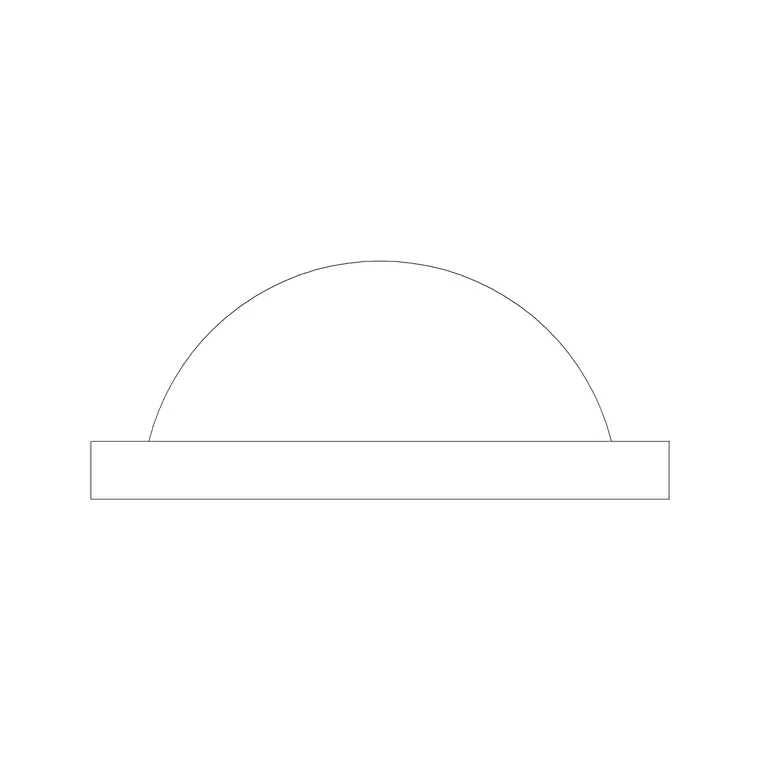
The block to start with
For recessed downlights, the fitting to grab is the round ceiling light in the Lighting category — a simple circular ceiling-mounted light that works as a recessed downlight symbol or a flush ceiling fitting. Open the Lighting hub and search "ceiling light" or "round" to find it. Its clean circular geometry is exactly what you want for the repeated downlight symbol that fills a ceiling layout.
It downloads free as a DWG with no signup, and the licence allows commercial use. Recessed downlights are everywhere in modern interiors — kitchens, bathrooms, retail, offices — so a tidy, reusable circular fitting is one of the most-placed blocks in any lighting drawing.
What's in the file
The round ceiling light is a compact circular fitting drawn as vector geometry. Because a recessed downlight reads the same from below regardless of orientation, a clean circle is the conventional symbol, and that is what makes this block so reusable across a ceiling grid.
It is a DWG, so AutoCAD opens it natively. The circle is real geometry you can snap to centre and quadrant points, copy, array and restyle — not a flattened image. That matters for downlights specifically, because you rarely place just one: you set out a regular grid of them, and snappable, arrayable geometry is what lets you do that quickly and accurately.
Because it is a clean circle, the same block doubles for more than one purpose. Drawn small, it is a downlight; scaled up, it can stand in for a circular surface-mounted fitting or mark the position of a ceiling speaker or detector on a coordinated ceiling plan, distinguished by a layer or a label. Keeping one simple, reliable circular block and reusing it with clear annotation is cleaner than hunting for a slightly different symbol for every fitting type — the legend tells the reader what each circle means.
Setting out downlights on a ceiling
Insert with INSERT (shortcut I), Browse to the file, and tick "Specify On-screen". Place the first downlight where your setting-out begins, snapping to a grid line or a known offset from the wall using object snaps (F3). Then array it: use the ARRAY command (rectangular) to lay a regular field of downlights across the ceiling at the spacing your design calls for, keeping every fitting identical and perfectly aligned.
Even spacing and a sensible offset from the walls are what make a downlight layout look professional. Because each fitting is an instance of one block, the file stays light even with dozens of downlights, and you can adjust the whole field by editing the array rather than nudging fittings one at a time.
Reflected ceiling plans vs elevations
A circular downlight symbol is most at home on a reflected ceiling plan — the ceiling drawn as if mirrored on the floor — where you plot the position of every fitting from below. The round ceiling light suits that use directly, dropped onto the ceiling grid at each downlight location. Because a reflected ceiling plan is mirrored, anything with a handed orientation flips on it, but a plain circular downlight reads identically either way, which is another reason the simple round symbol is so well suited to this drawing.
Keep the downlights on a dedicated ceiling or lighting layer so the reflected ceiling plan stays separate from the floor plan beneath it. If the block is on layer 0 it inherits the current layer at insertion, so set your ceiling layer active first. A clean layer split is what lets you plot the reflected ceiling plan on its own sheet without the furniture and walls of the floor plan cluttering it.
Scale, units and reuse
If the fitting comes in the wrong size, it is a units mismatch — match INSUNITS in both files, or insert and SCALE by 0.001 or 1000. A downlight symbol is small, so check it reads at a sensible diameter against the room rather than as a giant circle or an invisible dot.
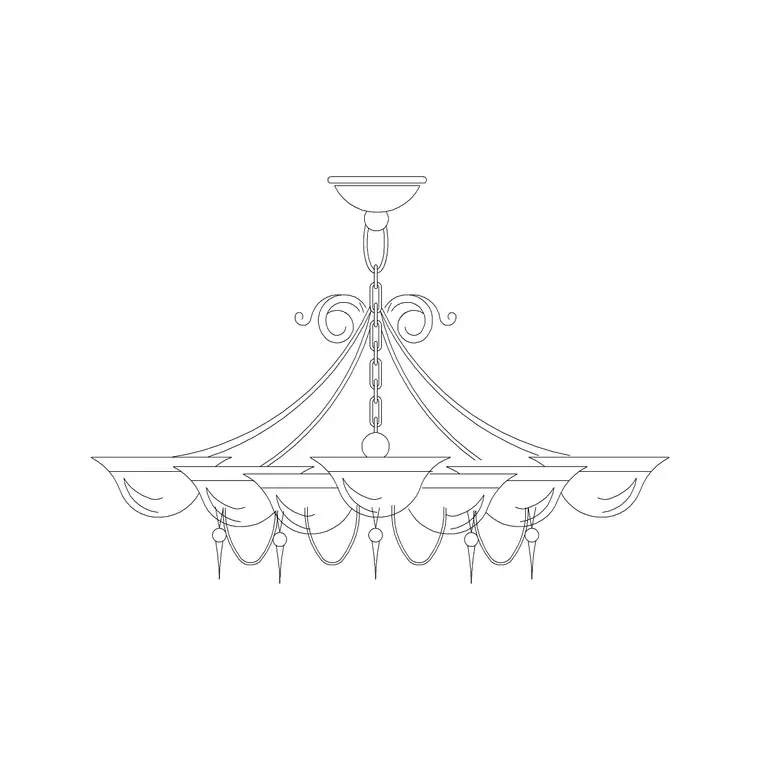
Add the round ceiling light to a tool palette and you can place a downlight with one click, then array the rest — the fastest way to lay out a ceiling. Combine it with a feature pendant or chandelier where the design wants a focal fitting, and the downlights plus one statement light give you a complete, layered ceiling scheme from free blocks, plotted cleanly on a reflected ceiling plan.
When you set out the grid, a couple of conventions keep it looking professional. Hold a consistent offset from the walls — downlights crammed right up to the edge or floating randomly in the centre both read as careless — and align the rows and columns so the field looks deliberate. If a row has to dodge a beam or a duct, shift the whole row rather than nudging one fitting, so the regularity survives. The ARRAY command makes all of this quick, and because every downlight is one block, the count and spacing stay easy to adjust as the layout firms up.
Questions
Frequently asked
Which block do I use for recessed downlights?+
The round ceiling light in the Lighting category. Its clean circular geometry works as a recessed downlight symbol on reflected ceiling plans, and it downloads free as a DWG.
How do I lay out a grid of downlights quickly?+
Insert the round ceiling light once, then use the rectangular ARRAY command to place a regular field at your chosen spacing, keeping every fitting aligned and identical.
Should downlights go on their own layer?+
Yes. Keep them on a dedicated ceiling or lighting layer so your reflected ceiling plan stays separate from the floor plan and plots cleanly on its own sheet.
Free downloads from this article
Free CAD block library
Download the blocks from this article — free, no signup


