How to download free office chair CAD blocks for AutoCAD
Free office chair CAD blocks in DWG for AutoCAD, no signup. Where to find desk and task chairs, the footprint to plan for, and how to insert them.
Sumana KumarUpdated 21 June 20264 min read
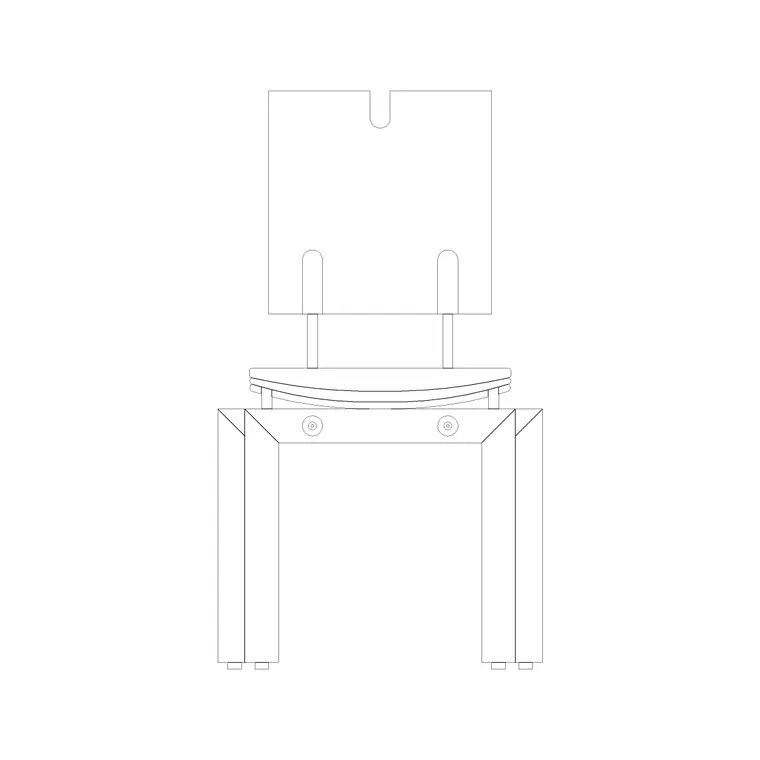
What an office chair block shows
An office chair — a task or desk chair — reads in plan as a seat with a back and, usually, the suggestion of a swivel base or castors. The footprint is around 600 by 600mm, but the real planning number is the swing-and-roll clearance: an office chair needs roughly 600mm of space behind the desk so it can roll back and someone can stand up. That clearance, not the seat itself, is what governs how tightly you can pack a workspace.
The chair blocks here are vector DWGs drawn at real size, so they measure true and you can confirm the footprint with a quick dimension. Square-back and wooden-leg chairs in the catalogue read well as desk and meeting chairs. Everything is free, downloads on click, and needs no login — useful when you are laying out a row of workstations and need the same chair repeated cleanly.
Finding office chairs on the site
The Office category is the natural home for workplace furniture, and the Furniture category holds the broader range of seating. Search 'chair' to gather the options, then pick the ones whose proportions suit a desk.
The Chair Square Back block is a tidy, upright chair that reads as a desk or meeting chair, and the Chair Wooden Legs block works for a more traditional office or a meeting room. For a home study, pair the chair with a desk or table block from the catalogue to complete the workstation.
Open the product page, check the preview, and download the DWG. There is no signup, and the blocks are free for commercial use. For an exact branded task chair with catalogue dimensions, the manufacturer's CAD is the right source; for a generic office chair on a floor plan, these blocks are all you need.
Inserting the office chair
Run INSERT (I), browse to the chair DWG, and place it at scale 1, rotation 0 — the chair is drawn at real-world size. Snap it to the centreline of the desk so it sits squarely in front, then ROTATE if you want it tucked at a slight angle.
If the chair inserts too big or too small, set INSUNITS consistently in both files or SCALE by 0.001 / 1000 to bridge the millimetre-versus-metre gap. Then move it onto your Furniture or Office-furniture layer.
To lay out a row or bank of workstations, place one desk-and-chair pair, then use a rectangular ARRAY to repeat it down the run or across the floorplate. This is the fast way to fit out an open-plan office without drawing each station from scratch — set the array spacing to your desk module and the chairs land correctly with each desk.
Planning the workspace around the chair
The office chair's clearance drives the whole workstation. Behind a desk, keep about 600mm clear so the chair can roll back and the user can stand — and if there is a wall or a credenza behind, make it a little more so the chair does not hit it. Back-to-back rows of desks need roughly 1500 to 1800mm between the desk fronts so two people can push back at the same time and someone can still walk between them.
In a meeting room, allow about 600mm of chair swing behind each seat around the table, and confirm a person can pull a chair out and walk behind seated colleagues — the same 900mm circulation rule that governs dining tables applies to boardroom tables.
Show the chairs on the plan so these clearances are real, not assumed, and keep them on the Office or Furniture layer so you can dim the furniture for a structural or services drawing.
Task chair, meeting chair or visitor chair
Not every office seat is a wheeled task chair, and choosing the right type keeps a plan honest. A task chair on castors serves a desk and needs the roll-back clearance described above. A meeting chair around a boardroom table is often a fixed four-leg or cantilever chair that does not roll, so it needs pull-out room but not the same swing. A visitor chair on the public side of a desk, or in a reception, is usually a simple stationary seat that tucks close.
Match the block to the role: a square-back or wooden-leg chair reads well as a meeting or visitor seat, while a chair drawn with a swivel base suits a workstation. Using the right type stops a boardroom from looking like a bank of desk chairs and tells anyone reading the plan how each zone is meant to function.
Before you repeat a chair across a floorplate, vet it once: dimension the seat to confirm roughly 600mm, check the geometry sits on layer 0 so it inherits your Office or Furniture layer, and confirm there is no stray geometry. A clean, correctly scaled chair you have verified can then be arrayed across an entire office floor with confidence, which is exactly where a good block saves the most time.
Questions
Frequently asked
What is the footprint of an office chair block?+
Around 600 by 600mm, but plan for roughly 600mm of clearance behind the desk so the chair can roll back and the user can stand. Measure the block to confirm its size.
Which blocks work as office chairs?+
The Chair Square Back and Chair Wooden Legs blocks read well as desk and meeting chairs. Browse the Office and Furniture categories for the full range, all free in DWG.
How do I lay out a row of workstations quickly?+
Place one desk-and-chair pair, then use a rectangular ARRAY set to your desk module to repeat it down the run. The chairs land correctly with each desk.
Free downloads from this article
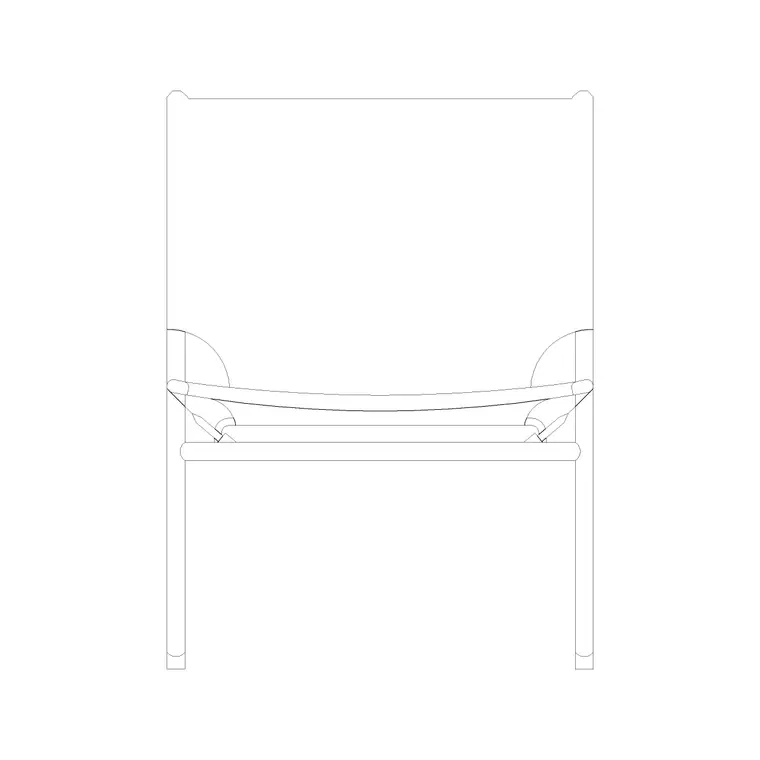
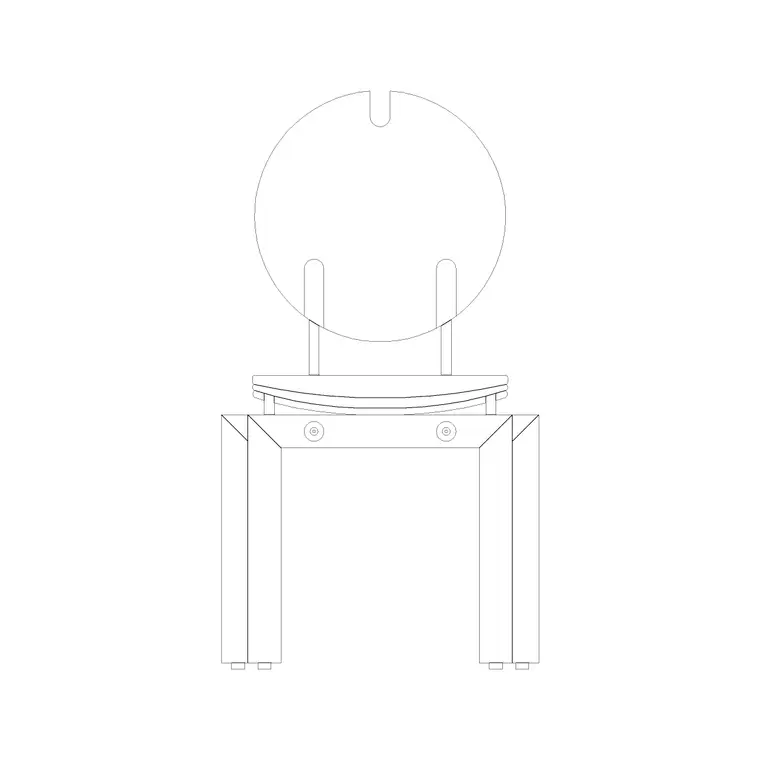
Free CAD block library
Download the blocks from this article — free, no signup


