How to download free floor lamp CAD blocks for AutoCAD
Three free floor lamp DWG elevations on CADBlockDWG — where to find them, what they include, and how to insert a standing lamp in your AutoCAD elevation.
Saumyajit MaityUpdated 9 April 20264 min read
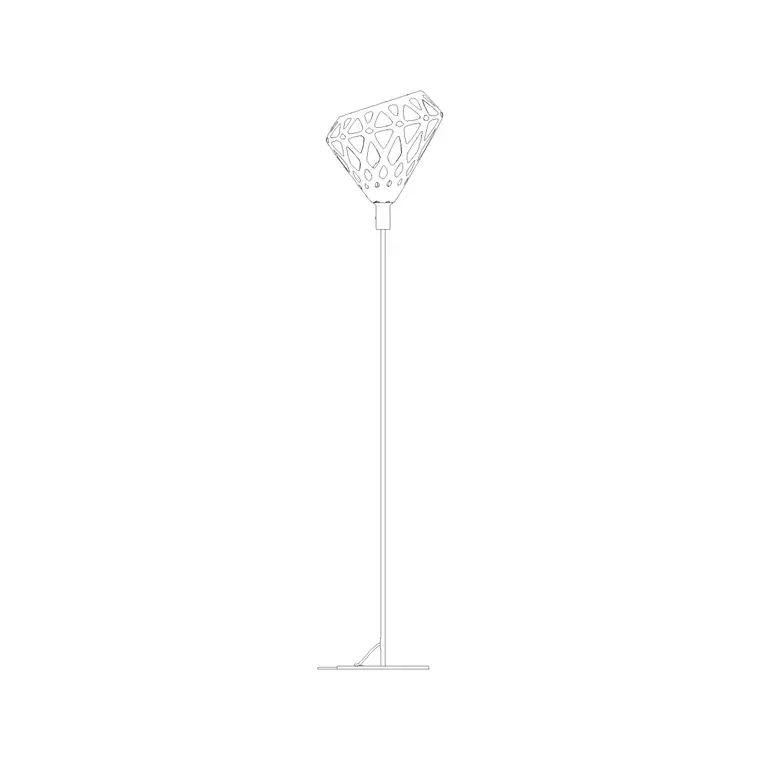
Three floor lamps to choose from
Rather than one generic symbol, the Lighting category carries three separate floor lamp elevations, so you can match the fitting to the room's style instead of settling for whatever you find first. A standing lamp beside a sofa, a reading lamp in a corner, an accent light by an armchair — having a few shapes lets your interior elevations feel furnished rather than stamped.
To find them, open the Lighting hub and search "floor lamp" or "standing lamp". Each of the three has its own page and preview, so you can see the silhouette before you commit. All three download free as DWG with no signup, and the licence covers commercial work, so they are fine for client elevations and presentation sheets.
What's in each download
Each floor lamp is an elevation drawing — the front-on view of the lamp standing on the floor, showing the base, the stem and the shade in profile. Elevation is the correct view here because a floor lamp's whole character is vertical: its height relative to the surrounding furniture is exactly what an interior elevation needs to convey.
The files are DWG, so AutoCAD opens them directly. The geometry is clean vector linework, not a flattened image, which means you can snap to the base, restyle the lineweight, or trim the shade outline if you want to simplify it for a small-scale sheet. Because the three lamps are distinct drawings, you can place all three in the same set of elevations without any two rooms looking identical.
The three styles tend to suit different rooms. A taller, slimmer lamp reads well in a bedroom corner or beside a slim armchair; a wider-shaded reading lamp suits a living-room sofa where it doubles as task light; a more sculptural shape works as an accent piece in a hallway or a study. Picking the lamp that matches the room's character, rather than dropping the same one everywhere, is a small choice that makes a set of interior elevations feel genuinely designed.
Inserting a floor lamp
Use INSERT (shortcut I), click Browse, and select the downloaded DWG. Keep "Specify On-screen" ticked for the insertion point. The natural anchor for a floor lamp is the floor line: snap the base of the lamp to the finished floor so it stands correctly rather than hovering. Press F3 first to turn on object snaps so it locks to the line cleanly.
Position it where it belongs in the scene — beside the sofa in a living-room elevation, in the corner of a study, next to a bed. Floor lamps read best when they sit against or near a piece of furniture, giving the elevation a sense of how the room is used. If you want the lamp to face the other way, select it after placing and mirror it about a vertical axis.
Scale and layer in one pass
If the lamp inserts wrong-sized, it is a units mismatch. Set INSUNITS the same in both files for automatic scaling, or insert and SCALE by 0.001 (millimetres into metres) or 1000 the other way. Check the height against the furniture around it — a floor lamp typically stands a little above seated head height, taller than a sofa back, so if it is towering over the room the scale needs correcting.
Drop it onto your lighting or furniture layer depending on how your office classifies loose fittings. If the block sits on layer 0 it adopts the current layer automatically, so set that layer active before inserting. Keeping floor lamps on a consistent layer lets you grey them back for a structural plan or bring them forward on a presentation sheet from one place.
Building a furnished elevation
Floor lamps are part of the cast of objects — alongside furniture, wall art and other fittings — that make an interior elevation read as a real room rather than a bare wall. Because three different lamps are available free, you can vary them across rooms and even within a single open-plan space so the lighting does not look repetitive.
For speed, add your favourite of the three to a tool palette and place it with one click whenever you furnish an elevation. Combine the floor lamps with a ceiling fitting and perhaps a wall light, and a room elevation gains a complete, believable lighting story. As always, inserting the block (rather than copying raw geometry) keeps each lamp as a managed instance you can update or swap without redrawing.
In lighting terms, a floor lamp is accent or task lighting — it does not replace the ambient ceiling fitting but layers warmth at a lower level, beside seating where people actually sit. Showing one in an elevation signals to a client that the room has been lit in layers rather than flooded from a single source above. That is the quiet value of these blocks: not just decoration on the page, but a way to communicate a considered lighting design at a glance.
Questions
Frequently asked
How many free floor lamp blocks are there?+
Three distinct floor lamp elevations in the Lighting category, each a separate DWG you can download free with no account and use commercially.
Are the floor lamps drawn in plan or elevation?+
Elevation — the standing front view showing base, stem and shade — which is the right view for placing a standing lamp in an interior elevation.
What height should a floor lamp block be in my drawing?+
Roughly a little above seated head height and taller than a sofa back. If it dwarfs the furniture, fix the scale via INSUNITS or a SCALE factor of 0.001 or 1000.
Free downloads from this article
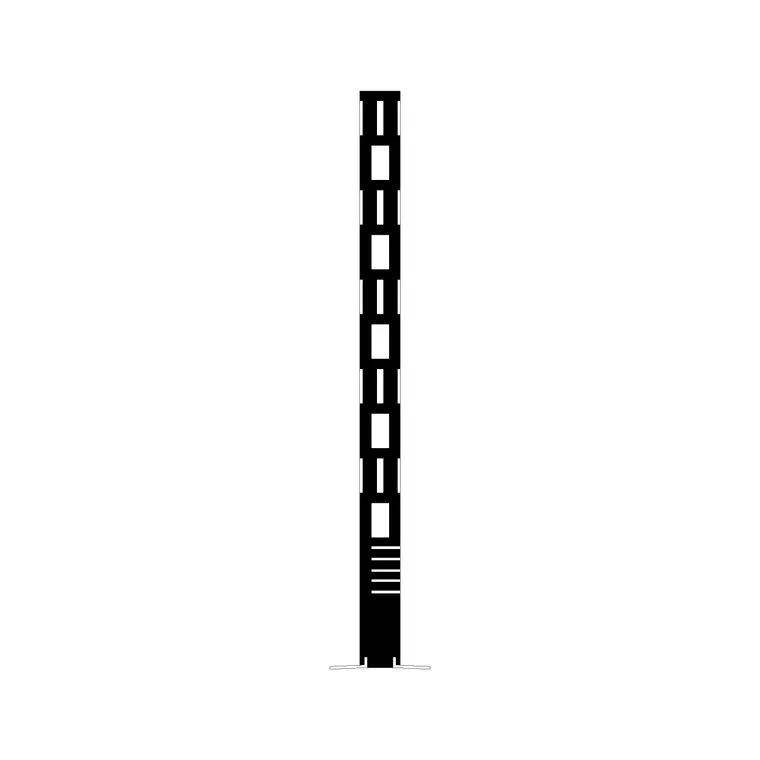
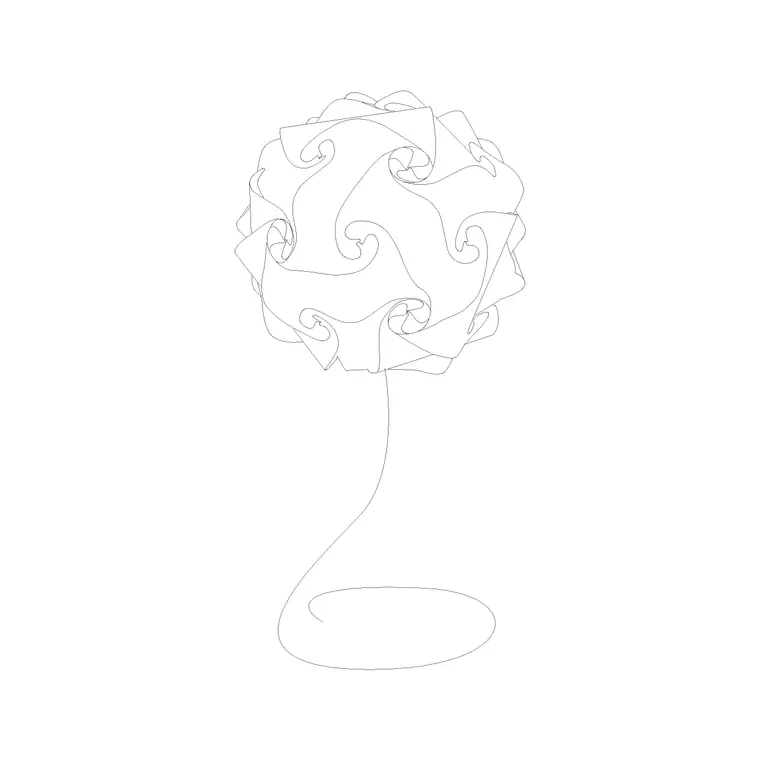

Free CAD block library
Download the blocks from this article — free, no signup


