How to download free chandelier CAD blocks for AutoCAD
Where the free chandelier DWG blocks live on CADBlockDWG, what each elevation drawing includes, and how to insert and scale one cleanly in AutoCAD.
Saumyajit MaityUpdated 17 April 20264 min read
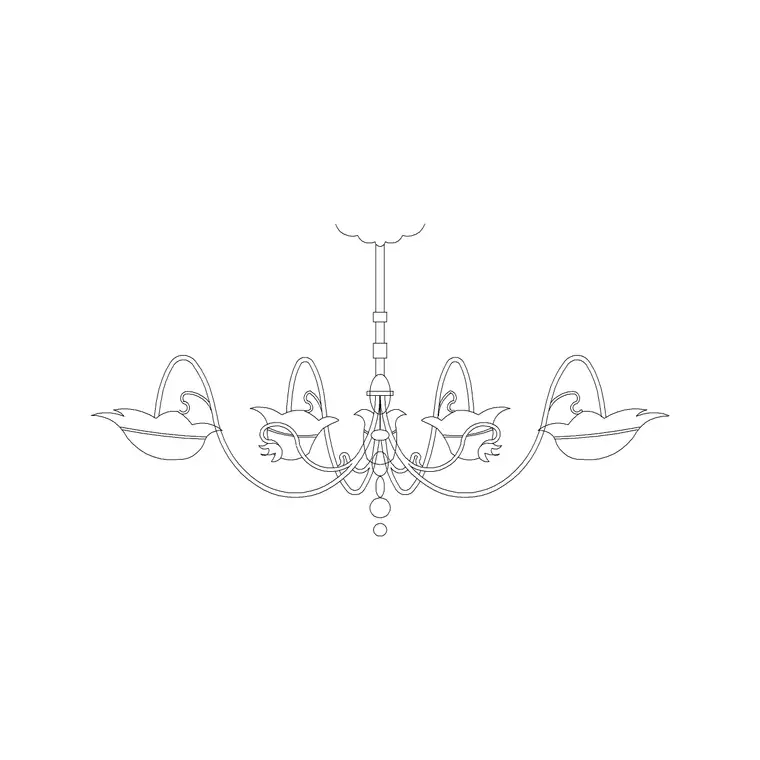
Where the free chandelier blocks are
Every chandelier block on this site sits inside the Lighting category, so the fastest route is to open the Lighting hub and either scroll the fixtures or type "chandelier" into the search box at the top of the page. The catalogue holds several distinct chandelier drawings — including a couple of metal-frame suspended types and a smaller suspended version — so you are picking a specific fixture rather than a single generic symbol.
There is no account, no email wall and no waiting timer. You land on the block's page, see the preview, and the download button is right there. The files are free for personal and commercial projects, which matters if the drawing is heading to a client: you can drop a chandelier into a hotel lobby elevation or a dining-room interior without worrying about a licence buried in the fine print.
What you actually get in the file
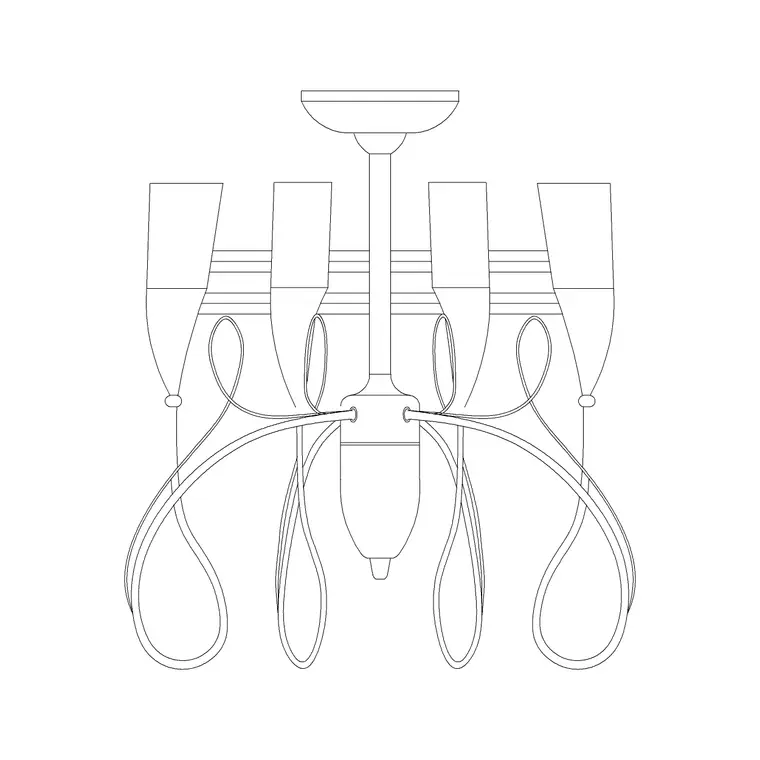
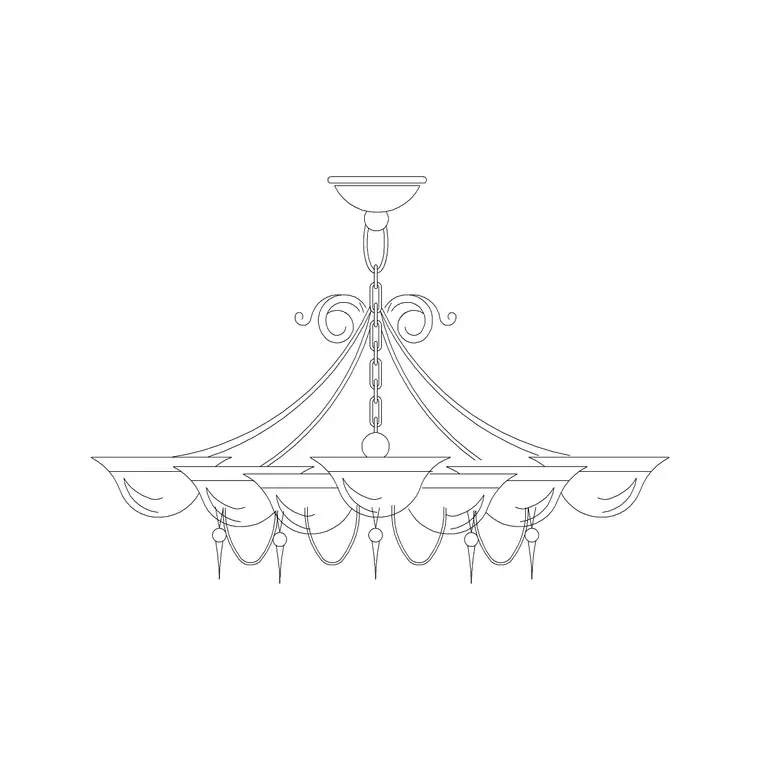
These chandelier blocks are drawn in elevation — the straight-on front view you would use on an interior elevation or a section, where the fixture's height and silhouette are the point. That is the right view for showing a chandelier hanging over a dining table or stair void, because plan symbols cannot communicate how far the fixture drops or what its profile looks like.
The download is a DWG, the native AutoCAD format, so it opens cleanly with no conversion. The geometry is vector linework — arms, the central body, the suspension chain or rod and the lamp shapes — drawn as lines and arcs rather than an image, so you can snap to it, trim it, restyle it and plot it at any scale. If your toolchain needs DXF instead, you can SAVEAS to DXF once it is open, but for AutoCAD itself the DWG is all you need.
Insert it into your drawing
Save the DWG to a folder you can find — your Downloads or a project blocks folder. In your working drawing, type INSERT (or just the shortcut I) and press Enter to open the Blocks palette, then click Browse and point it at the downloaded chandelier file. Leave "Specify On-screen" ticked for the insertion point so you can click exactly where it hangs.
Because a chandelier is a vertical-face object, anchor it against a real reference in your elevation: snap the top of the suspension to the ceiling line, or position the centre over the table or stair it lights. Turn on object snaps with F3 so the block locks to an endpoint or midpoint rather than floating near it. Once placed, you can mirror or nudge it, but a chandelier is symmetrical, so usually a single clean insertion is all it takes.
Get the size and layer right
If the chandelier comes in absurdly large or vanishes until you Zoom Extents, that is a units mismatch, not a broken file. A block drawn in millimetres dropped into a drawing set to metres lands 1000 times too big. The clean fix is to set INSUNITS consistently in both files before inserting; the manual fix is to insert anyway and run SCALE by 0.001 (mm into a metre drawing) or 1000 the other way.
For sizing, calibrate against something you trust. If you have a ceiling height or a table width drawn correctly, scale the chandelier so it reads proportionally against them — a dining chandelier typically hangs so its base sits well above head height over the table. Finally, put it on your lighting or electrical layer. If the block is built on layer 0 it will inherit whatever layer is current when you insert, so set that layer first and the fixture adopts the right colour and lineweight automatically.
Make it read on the sheet
A chandelier earns its place by giving an interior elevation scale and a sense of occasion, so treat its lineweight deliberately. On a presentation elevation you might want the fixture drawn a touch heavier so it reads as a focal point; on a busy coordination drawing you might dim the lighting layer back so it does not fight the architecture. Keeping it on a dedicated layer is what lets you make that call from the Layer Manager rather than editing the block.
If you need the same fixture in several rooms, insert the block repeatedly rather than copying raw lines — every instance then points back to one definition, so the file stays light and you can swap the chandelier everywhere by redefining it once. For variety across a scheme, the catalogue's different chandelier types let you avoid stamping the identical fixture in every space, which is what separates a considered set of elevations from a copy-paste one.
One last habit pays off on imported content of any kind: after inserting an unfamiliar block, run AUDIT and PURGE on the drawing. AUDIT catches any small corruption the file may carry, and PURGE strips out empty layers, unused linetypes or text styles the block dragged in. It takes a couple of seconds and keeps a single downloaded fixture from quietly cluttering an otherwise clean drawing standard — worth doing the first time you bring any new chandelier into a working file.
Questions
Frequently asked
Are the chandelier CAD blocks really free?+
Yes. Every chandelier block in the Lighting category downloads free as a DWG with no signup, and they are licensed for both personal and commercial drawings.
What view are the chandelier blocks drawn in?+
Elevation — the front-on view — which is the correct view for showing a hanging fixture's height and profile on an interior elevation or section.
Why does my chandelier block insert too big?+
It is almost always a units mismatch. Set INSUNITS the same in both files, or scale the block by 0.001 or 1000 after inserting to correct it.
Free downloads from this article
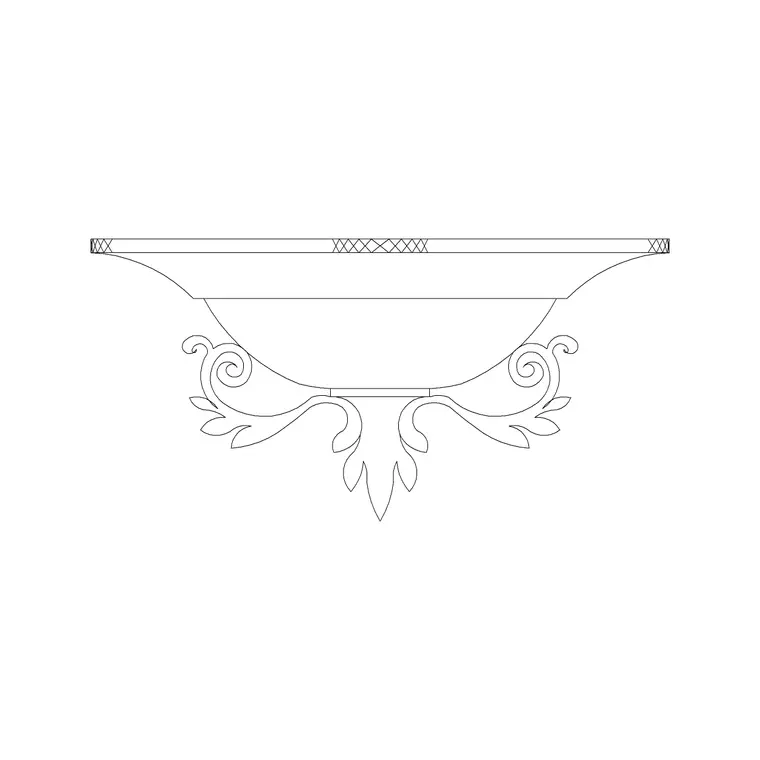
Free CAD block library
Download the blocks from this article — free, no signup


