How to download free car CAD blocks (plan & elevation)
Download free car CAD blocks in DWG for plan and elevation. Where to find them, what each view is for, how to insert in AutoCAD, and the footprint to check.
Sumana KumarUpdated 19 April 20265 min read
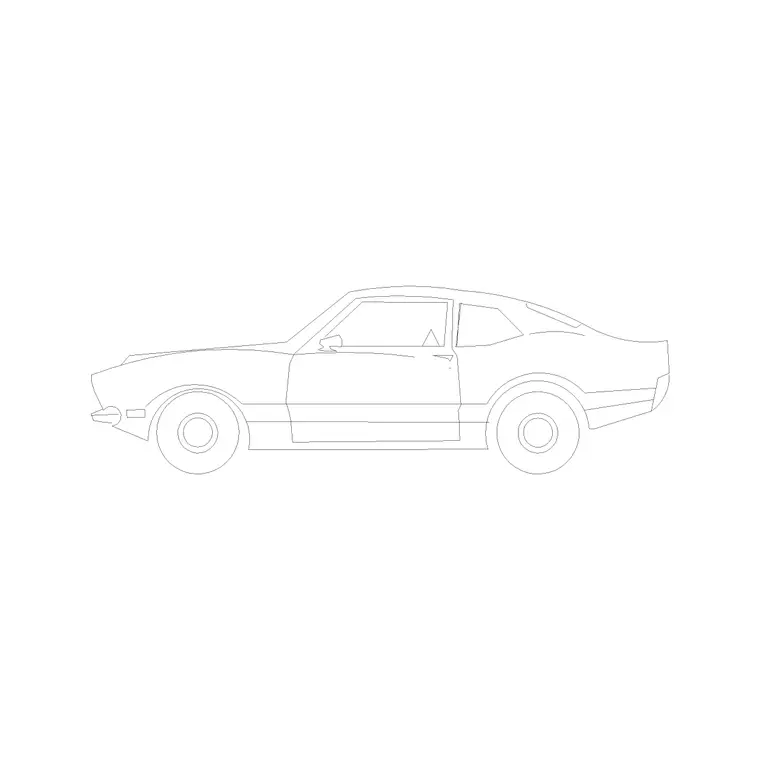
When you need a car block
Cars turn up on more drawings than people expect. A site plan needs them to lay out a driveway or a parking bay. A landscape or masterplan uses them to show the relationship between the building and the street. An elevation or perspective uses a car at the kerb to give a facade scale and a sense of everyday life. In every case a ready-made car CAD block saves you from drawing a vehicle from scratch, which is fiddly to do convincingly.
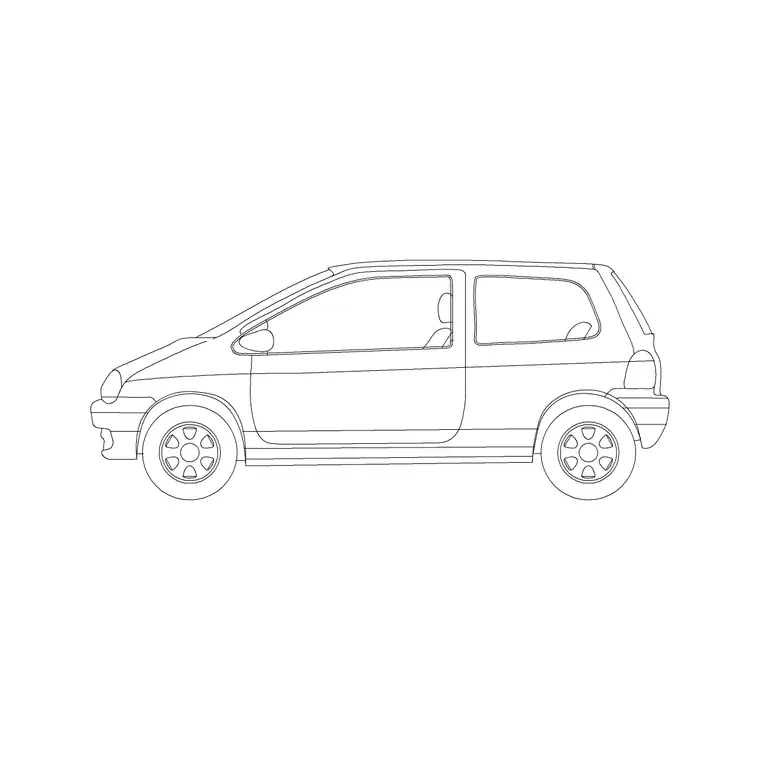
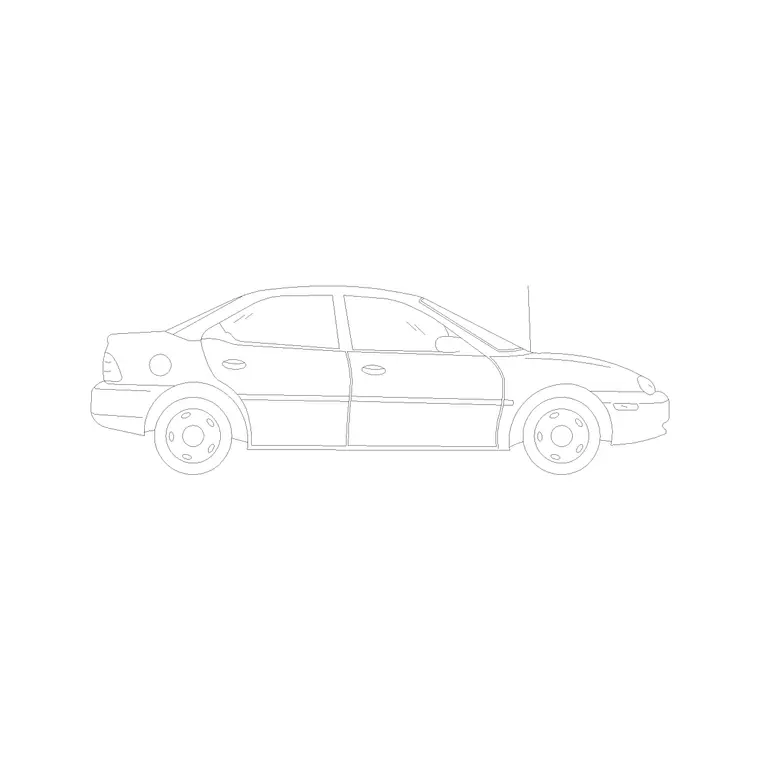
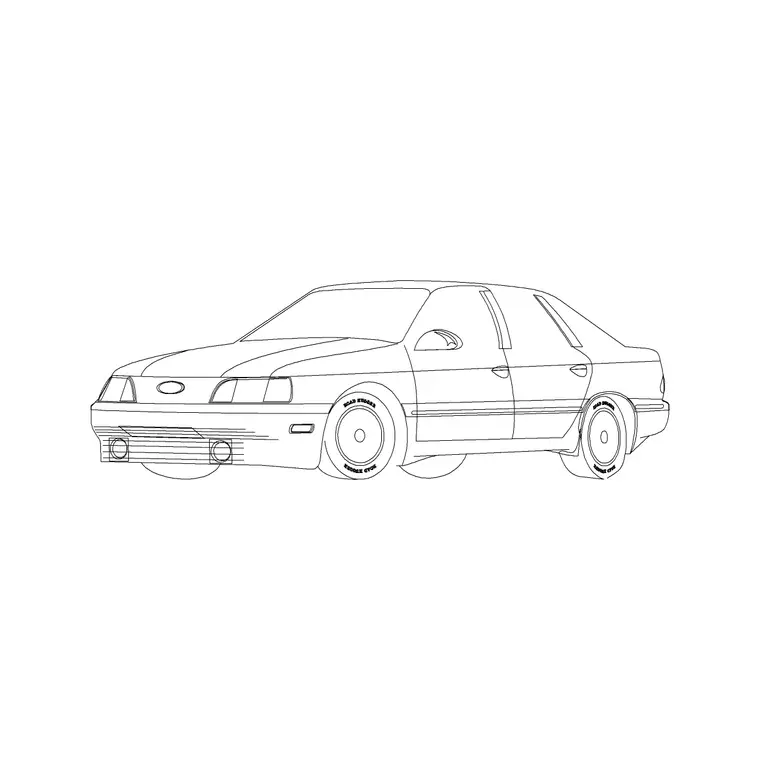
The cars on this site are free car CAD blocks in DWG, no signup, free for commercial use. They come mostly as elevations — the side profile you would line up against a street view — and the catalogue also covers different body shapes and a couple of cars drawn with people, which add life as well as scale. Because they are unencumbered by licensing, you can drop them into a client's parking layout or a presentation render without a second thought.
Plan view vs elevation — what each is for
There are two ways to draw a car, and they serve different drawings. A plan-view car is the outline seen from directly above — a rounded rectangle with the windscreen and roof suggested — and it is what you place in a parking layout, a site plan or a turning-circle study, where everything else is also seen from the top. An elevation car is the side profile, showing the silhouette, wheels and glazing, and it belongs in street elevations, sections and perspectives.
Use the wrong one and it shows instantly: a side-profile car lying flat in a parking plan looks like a mistake. Most of the vehicle blocks on this site are described as elevation, so they are ideal for face-on views; check the page so you grab the view your drawing needs. If your sheet is the view from above, you want a plan car; if it is a face-on view of the street, you want an elevation.
Where to find them on the site
Open the Vehicles category from the main menu. It collects every car, bike and bicycle on the site — over a hundred blocks — in one searchable hub. Browse by eye, or use the search box to jump straight to what you need.
Searching "car" returns the full set; add a word to narrow it — "car elevation" for side profiles, "sedan" or "luxury" for particular body shapes, "car family" for the ones drawn with people. Each block has its own page with a preview image and a download button. There is no cart and no email wall: click download and the DWG lands in your Downloads folder. It is worth grabbing two or three different cars at once so that when you furnish a car park or a street you can vary the vehicles rather than stamping one model repeatedly.
Insert the car in AutoCAD
Download the DWG, then in your drawing type INSERT (shortcut I), press Enter, and Browse to the car file in the Blocks palette. Leave the insertion point on-screen, keep scale at 1 and rotation at 0 to start, and click to place. Use object snaps to line the car up — an elevation car's wheels on the ground line, a plan car squared to a parking bay.
Rotation is where car blocks earn a little attention. In a parking layout you will often need the car at the bay angle, so either set the rotation on insertion or place first and then use ROTATE. For a row of bays, place one car, then copy or array it along the bay spacing and the parking fills out quickly. Drop your go-to cars onto a Tool Palette and each future placement is a single click.
Check the footprint
A car block is only useful if it is the right size, so verify the footprint after inserting. A typical passenger car is roughly 4.5 metres long and about 1.8 metres wide; a compact is shorter, a large saloon or SUV longer. If the car comes in the size of a building or shrinks to a dot, that is a units mismatch — a vehicle drawn in millimetres dropped into a metre drawing lands 1000 times too big.
Keep INSUNITS consistent between the block and your drawing so AutoCAD auto-scales on insertion, or run SCALE by 0.001 for a millimetre car going into a metre drawing (1000 the other way). The quick check is to dimension the car bumper to bumper — if it reads about 4500mm or 4.5m, you are right, and your parking bays, aisles and driveways will be sized against a believable vehicle rather than a guess.
Laying out parking with the block
Once you have a correctly scaled plan car, it becomes a design check rather than just a symbol. A standard parking bay is roughly 2.4 to 2.5 metres wide by 4.8 to 5 metres long, with an aisle of about 6 metres for two-way circulation. Drop the car into a bay and you can see at a glance whether a door can open and a person can step out, or whether the bay is too tight.
The efficient workflow is to draw one bay, place the car in it, then array both along the run so the parking fills out in one move. For angled or accessible bays, rotate the car to the bay angle and check the wider clearances an accessible space needs. Keep the cars on their own vehicles layer so you can freeze them once the bays are sized, leaving a clean dimensioned parking plan, and bring them back for any presentation version. Used this way the block does double duty — it both furnishes the drawing and silently tests that your layout actually works for real vehicles.
Questions
Frequently asked
Do the car blocks come in plan view or elevation?+
Most vehicle blocks on CADBlockDWG are elevations (the side profile) for street views and perspectives. Check each block's page for its view, and use a plan car for parking layouts and site plans.
How long is a standard car block?+
A typical passenger car is about 4.5 metres long and 1.8 metres wide. Dimension the block bumper to bumper after inserting to confirm it is at real scale before sizing parking bays.
Are the car CAD blocks free to download?+
Yes. Every vehicle block is free in DWG with no signup and free for commercial use, so you can place them in parking layouts, site plans and renders without restriction.
Free downloads from this article
Free CAD block library
Download the blocks from this article — free, no signup


