Building a bedroom in AutoCAD from free blocks
Lay out a bedroom in AutoCAD from free DWG bed, bedside and wardrobe blocks — bed clearances, where to place storage, and matching plan and elevation views.
Sumana KumarUpdated 14 May 20264 min read
The bed sets everything else
A bedroom layout is organised around one dominant object: the bed. Where it goes, and which way it faces, dictates the position of bedside tables, the run of wardrobes and the clear walking space. So place the bed first, conventionally with its head against a solid wall (not under a window if you can avoid it), and let the rest of the room arrange itself around that decision.
Before placing anything, mark the door swing and the window positions on the shell. Bedrooms are quietly demanding on clearances — you need access down at least one side of the bed, room for wardrobe doors to open, and a clear path to the door — and those constraints are easiest to honour when the door and windows are already on the plan. With the shell marked and the bed wall chosen, furnishing from free blocks is fast.
Get the bed, bedside and storage blocks (free DWG)
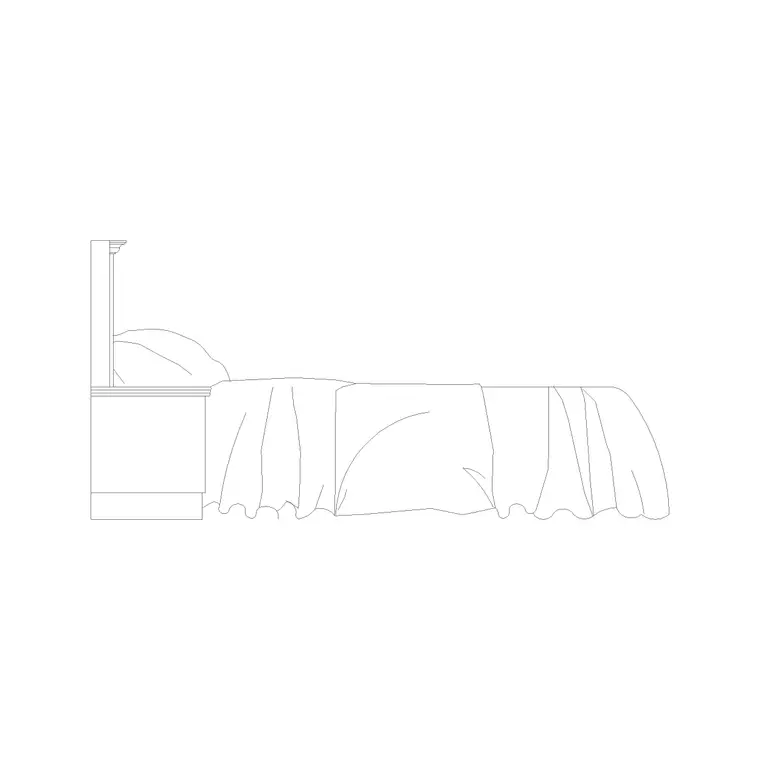
The Bedroom category on CADBlockDWG has beds, bedside tables and headboards, and the Furniture category covers wardrobes and dressers — all free in DWG, no signup, free for commercial use. A particularly handy block here is the 500mm-high bed-side elevation: it ships with plan, elevation and side views, so you can lay the bedroom out in plan and then reuse the very same block to build a wall elevation for a joinery or styling sheet without hunting for a matching drawing.
Add a pair of bedside tables, a wardrobe run, and a dresser or chair if the room allows. For the wardrobe and dresser, a base Cabinet block works well as the carcass footprint — wardrobes run in roughly 600mm-deep modules, the same logic as kitchen units — so you can build a fitted run by repeating it along the wall. A plant in the corner, such as a large indoor plant with MS legs, softens the room on a styling sheet and gives the elevation a foreground element. Pull each piece as a single small DWG. Because the bed block carries multiple views, it is a good anchor for projects needing both the layout and an elevation: place it once in plan, then drop its elevation version onto your interior elevation later and the two drawings stay consistent.
Insert the bed and build out the room
Set the furniture layer current, run INSERT, and place the bed with its headboard snapped to the chosen wall. Leave scale at 1; if it lands oversized or vanishes, correct INSUNITS rather than guessing a factor. Use the bed's plan view here — the top-down rectangle with pillows and a turned-down throw line — so the room instantly reads as a bedroom rather than a blank box. Centre it on the wall or offset it to leave a wider access side, depending on the room.
Then add the supporting pieces. Snap a bedside table to each side of the headboard (or just one if the bed sits against a side wall). Run the wardrobe along a free wall, showing the doors or the swing so you can check they clear. Rotate pieces with ROTATE once down. Keep everything ByLayer so the bedroom furniture can be dimmed for a structural plan or brought forward for a presentation.
Clearances: get in, get dressed, get out
Three clearances make a bedroom usable. First, access alongside the bed: allow a comfortable side margin — enough to walk and to fit a bedside table — on at least one long side, and ideally both for a double. Second, wardrobe access: hinged doors need swing room in front, and even sliding doors need standing space to use them, so check the bed does not crowd the wardrobe. Third, a clear route from the door to the bed and around the furniture.
With real bed and wardrobe blocks in place, these are visible immediately: you can see whether the door swing clips the bed corner, whether the wardrobe doors open into the mattress, or whether the bedside table blocks the walkway. Nudge pieces until every gap reads right. In a tight bedroom this is iterative — exactly why doing it with accurate blocks beats sketching by eye.
Layers, the elevation, and a final tidy
Keep bedroom furniture on its own layer (or split into furniture and joinery) so you can issue a clean plan, dim the furniture for a services drawing, or push it forward for a client sheet. If the project needs an interior elevation — common for fitted wardrobes and headboard detailing — reuse the multi-view bed block's elevation, and pull elevation versions of the wardrobe and bedside pieces from the catalogue so the wall view matches the plan you built.
A quick AUDIT and PURGE after importing keeps the file lean. Put it together — bed placed first against a solid wall, bedside and wardrobe arranged around it, all three clearances checked, layers kept clean, and a matching elevation built from the same family — and a complete bedroom comes together in minutes from free DWG blocks, ready for both the layout and the joinery package.
Questions
Frequently asked
Where can I download free bed blocks for AutoCAD?+
The Bedroom category on CADBlockDWG has beds, bedside tables and headboards free in DWG. The 500mm-high bed-side elevation block even ships with plan, elevation and side views.
How much clearance should I leave around a bed?+
A comfortable walking margin down at least one long side — enough for access and a bedside table — and ideally both sides for a double. Real blocks let you check this against the door swing.
Can I use the same bed block for a plan and an elevation?+
Yes, if it carries multiple views. The 500mm-high bed-side elevation includes plan, elevation and side views, so you lay out in plan and reuse it for a wall elevation.
Free downloads from this article

Free CAD block library
Download the blocks from this article — free, no signup