Where to find free north arrow & graphic-scale DWG files
Free north arrow and direction arrow DWG blocks for plans and title blocks — where to download them, how to place a north point, and keep it right at any scale.
Saumyajit MaityUpdated 27 January 20265 min read

Finding the arrow and direction blocks
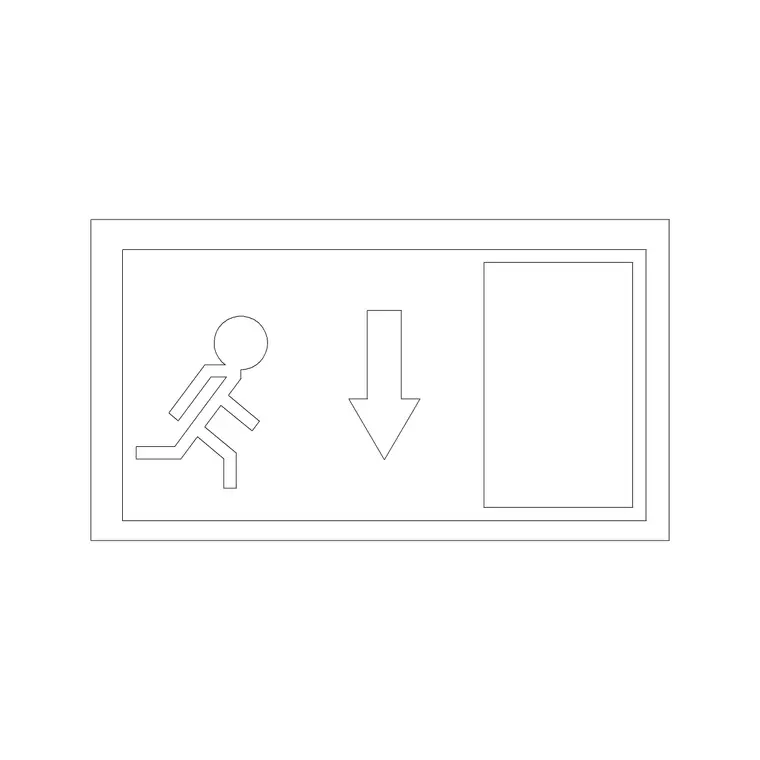
North arrows and directional arrows live in the Building Symbols category on CADBlockDWG, the collection that holds the annotation graphics a drawing relies on. Search 'arrow' and you will find the directional arrow block and related markers you can use as a north point or a direction indicator on a plan and in a title block. The download is free and immediate — no account, no email gate, no countdown. Open the block and click download.
These are generic, standard-style graphics rather than one studio's title-block artwork, which is exactly what most drawings need. A north arrow orients the plan; a direction arrow points to a detail, a section or an entrance; both communicate at a glance. They sit in the same annotation family as the scale bars, signage and life-safety symbols, so once you know where the Building Symbols category is, the whole annotation toolkit is a search away.
What the blocks contain
Each download is a small DWG with the arrow drawn as clean 2D linework — a compact, self-contained graphic ready to drop onto a plan or into a title block. A directional arrow is a single tidy block, so it inserts as one object you can place, rotate and align to true north or to whatever it points at, rather than a sprawl of loose lines you have to keep selected together.
The files open in any modern CAD program thanks to a widely compatible AutoCAD format, with DXF offered where available. The arrows are simple inside — no 3D, no clutter — so they insert cleanly and keep the drawing light. Being reusable blocks, they update from one definition: place the same north arrow on every sheet via the title block and a change to the symbol style propagates everywhere it appears.
Placing and rotating a north arrow
A north arrow is annotation, so it needs to read at the plotted scale and, critically, point the right way. Insert the arrow with INSERT, place it in the title-block area or a clear corner of the plan, and rotate it to align with true north for that drawing — the rotation is the whole job of a north point, so set it on insertion or use ROTATE afterwards. Get the angle right against your plan's orientation and the arrow does its job.
Because it is annotation, size it to read clearly at the plotted scale rather than at real-world size; scale the block so it is legible on the printed sheet. As always, an absurd insert size usually means a units mismatch first — fix INSUNITS or scale by 0.001 or 1000 before fine-tuning. For a direction arrow pointing to a detail or section, the same applies: place it, rotate it to point at the target, and size it to read.
North arrow vs graphic scale — two different jobs
It helps to be clear that a north arrow and a graphic scale do different jobs, and a complete plan usually carries both. The north arrow answers 'which way is the drawing facing', and once rotated to true north it never changes with scale — it is purely an orientation symbol. The graphic scale answers 'how big is everything', and it must correspond to the scale the sheet is plotted at, which is why it is drawn as a measured bar rather than just a word.
Keep the two distinct on the sheet: the north point oriented to the site, the scale bar matched to the viewport scale. A common mistake is to treat the scale note as decoration and let it fall out of step with the actual plot scale; a measured graphic bar avoids that because it is geometry that scales with the drawing. Put both in the title block, get the arrow's rotation and the bar's scale right, and the plan is unambiguous about both direction and size.
Keeping it right at any scale
Plans are issued at different scales — 1:50, 1:100, 1:200 — and annotation has to hold a consistent printed size across them, which is where a graphic (bar) scale and an annotative north arrow earn their place. A graphic scale bar is the safest way to communicate scale because it stays correct even if the drawing is later enlarged or reduced on a photocopier or a PDF: the printed bar scales with the drawing, so the relationship is never lost. A typed scale like '1:100', by contrast, becomes wrong the moment the sheet is rescaled.
For symbols reused across multiple viewport scales, AutoCAD's annotative scaling holds the north arrow at a consistent printed size automatically, so you do not maintain a separate copy per scale. Set that up once for your title-block annotation and the north point and scale indication stay correct and legible whatever scale a given sheet is plotted at.
Put it in the title block and reuse it
The natural home for a north arrow and a scale indicator is the title block, so they appear consistently on every sheet in the set. Put them on a dedicated annotation or title-block layer, separate from the building geometry, so you can control and isolate them cleanly. The blocks inherit the layer you insert them onto, so set that layer current before placing and they fall into line automatically.
Once you have a north arrow you trust, save it to a tool palette — or better, build it into your sheet template — so every new drawing starts with the north point and scale ready to orient. Combine correct rotation to true north, annotation sizing that reads at the plotted scale, and a graphic scale bar for safety against rescaling, and your plans will always be properly oriented and scaled from this free Building Symbols category, with no per-sheet fiddling.
Questions
Frequently asked
Where do I download a free north arrow DWG file?+
From the Building Symbols category on CADBlockDWG. Search 'arrow' for directional and north-point arrows, then download the DWG free with no signup or attribution required.
How do I orient a north arrow correctly?+
Insert it, then rotate it to align with true north for that drawing using ROTATE or by setting the rotation on insertion. The rotation is the whole purpose of a north point, so match it to your plan's orientation.
Why use a graphic scale bar instead of typing the scale?+
A graphic scale bar stays correct even if the sheet is later enlarged or reduced, because the printed bar scales with the drawing. A typed scale like '1:100' becomes wrong the moment the drawing is rescaled.
Free downloads from this article

Free CAD block library
Download the blocks from this article — free, no signup

