Where to find free classical column DWG files
Free classical and Ionic column DWG blocks — where to download them, what the elevation and plan views show, and how to place columns at the right scale.
Sumana KumarUpdated 27 February 20264 min read
Finding the column blocks
Classical columns sit in the Other CAD Blocks category on CADBlockDWG, which gathers architectural detail elements that do not fall under furniture, doors or symbols. Search 'column' and you will find a classical arch column, an Ionic column and a column shown in plan, among others. As everywhere on the site, the download is free and immediate — no account, no email gate, no countdown. Open the block and click download.
These are generic classical orders and column profiles rather than a measured survey of a specific building, which is what most elevation and detail work needs. You are conveying the character and proportion of a classical façade — the order, the shaft, the capital — rather than reproducing one exact historic column. For elevations, gateposts, porticos and traditional detailing, the generic column blocks give you a strong, ready-made starting point to adapt.
Elevation versus plan views
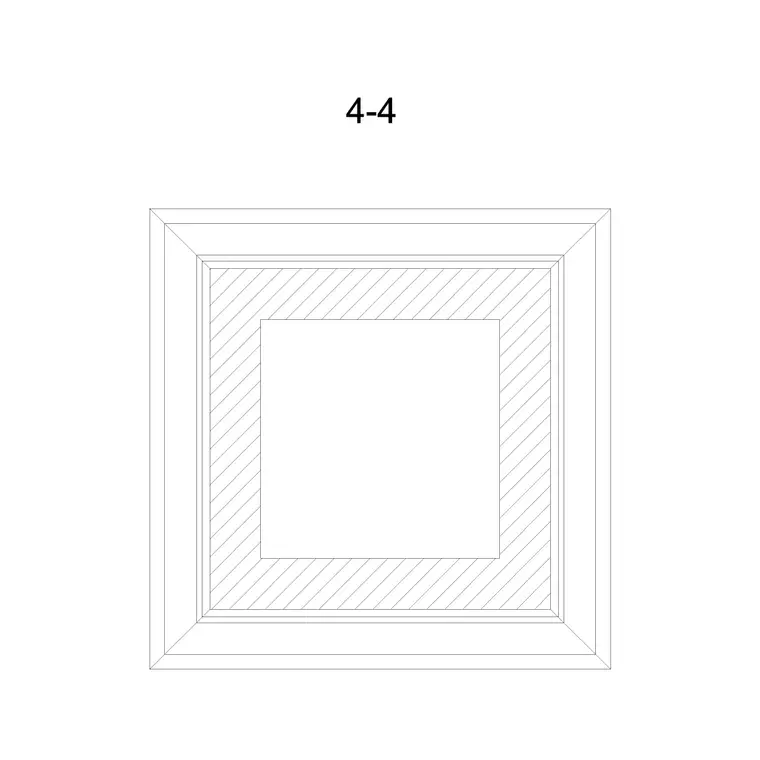
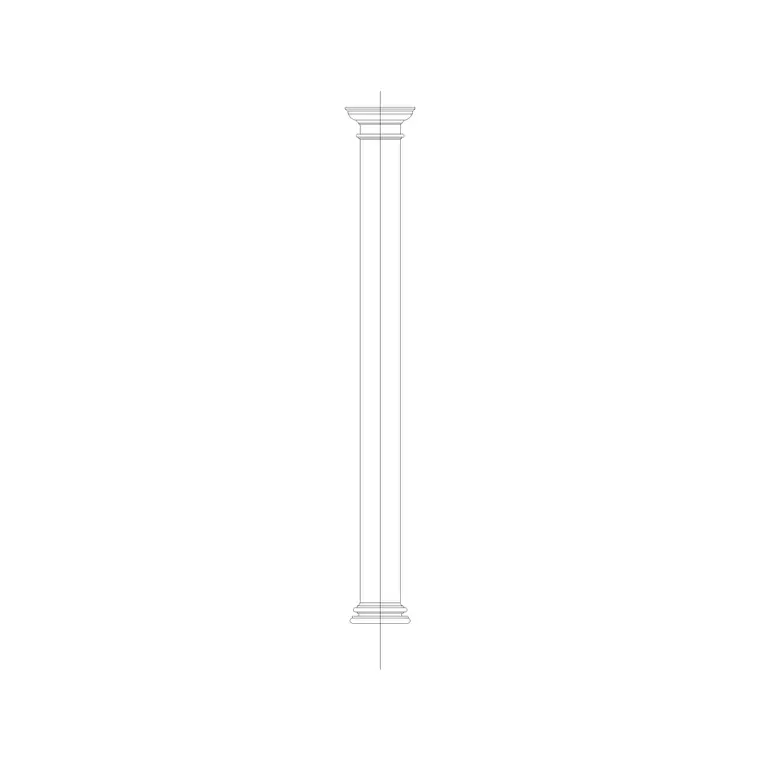
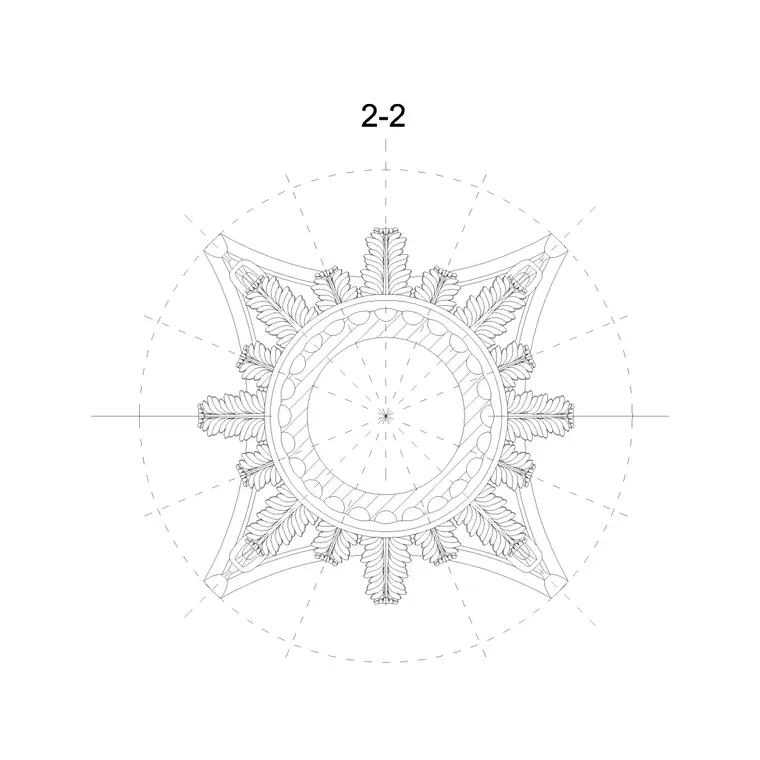
Columns come in two views and choosing the right one is the first thing to get right. The classical arch column and the Ionic column are elevation blocks — the front profile of the column showing the base, the shaft and the capital as you would see it standing in front of the façade. The column-plan block is the top-down view: the circular or square section you place on a floor plan to show where a column sits in the structure.
Use the elevation column on an elevation or a section where the vertical profile and the order are the point, and the plan column on a floor plan where you are locating the structure. Dropping an elevation column flat onto a plan, or a plan circle into an elevation, reads as a mistake to anyone trained — so confirm the view before you place. The block pages note which view each one is, so matching them to the drawing is straightforward.
What the files contain
Each download is a small DWG with the column drawn as clean 2D linework. An elevation column shows the profile — base mouldings, fluted or plain shaft, and the capital detail that distinguishes the order (the volutes of an Ionic capital, for instance). A plan column is the simple section outline you repeat across a structural grid. Both are blocks, so they insert as single objects you can place, count and edit from one definition.
The files open in any modern CAD program thanks to a widely compatible AutoCAD format, with DXF offered where available. There is no 3D inside and no clutter, so the blocks insert cleanly and a colonnade of repeated columns stays light. Because they are reusable blocks, editing the definition once updates every instance — handy when you refine a capital detail and want the whole run to follow.
Placing columns at the right scale
Columns carry strong proportion, so scale is where they either convince or fall flat. Insert an elevation column with INSERT and place it on the façade with object snaps so the base sits exactly on the floor or plinth line. Keep scale at 1 to start, but expect to scale the column to suit your storey height — a column drawn at one height rarely matches your exact floor-to-soffit dimension, so use the SCALE command, or scale by reference against the known height, to fit it.
If the column comes in absurdly large or small, sort the units first — match INSUNITS or scale by 0.001 or 1000 — before fine-tuning the height. On a plan, place the column-plan block on each grid intersection and copy it along the grid so the spacing stays exact. Confirm the column reads at the right proportion against the rest of the elevation, then repeat it across the colonnade.
Compose a colonnade and entablature
A single column rarely stands alone — it usually belongs to a portico or a colonnade crowned by an entablature. Once your column is scaled correctly, set out the run by copying it at an even bay spacing, keeping the centres consistent so the rhythm reads as deliberate classical work rather than an accident. For a symmetrical façade, mirror the arrangement about its centre line so the two ends match exactly.
Then pair the columns with a cornice profile from the same Other CAD Blocks category to build the entablature band across the top, so the columns and the crowning moulding read as one composed order. Because each element is a block, you can adjust the bay spacing, the column height or the cornice profile and the composition updates cleanly — letting you tune the proportion of the whole façade rather than fiddling with individual lines.
Layer columns with the architecture
Put column blocks on a sensible architectural layer — structure for the plan columns, an elevation or detail layer for the elevation profiles — so they plot with the right lineweight and you can control them from the Layer Manager. The blocks inherit the layer you insert them onto, so set the right layer current before placing and they adopt it automatically, keeping the colour and weight consistent with the rest of the drawing.
Once you have the column profiles you use most, save them to a tool palette so building a portico or a colonnade is a quick, repeatable job. Combine the right view, careful scaling to your storey height and a tidy layer structure, and your classical elevations will read with proper proportion and weight — then you can restyle the layer for a presentation or a construction sheet whenever the drawing calls for it.
Questions
Frequently asked
Where do I download free classical column DWG files?+
From the Other CAD Blocks category on CADBlockDWG. Search 'column' for a classical arch column, an Ionic column and a plan column, then download the DWG free with no signup.
Are the column blocks elevation or plan?+
Both. The classical arch and Ionic columns are elevation profiles for façades and sections; the column-plan block is the top-down section for locating columns on a floor plan. Match the view to your drawing.
How do I get a column to the right height?+
Fix units first, then scale the column to your storey height with the SCALE command or by scaling against a known reference dimension, since a stock column rarely matches your exact floor-to-soffit height.
Free downloads from this article

Free CAD block library
Download the blocks from this article — free, no signup


