How to download free gym equipment CAD blocks for AutoCAD
How to download free gym equipment DWG blocks — where to find them, what each block contains, and how to lay out a fitness room cleanly in AutoCAD.
Saumyajit MaityUpdated 6 March 20264 min read
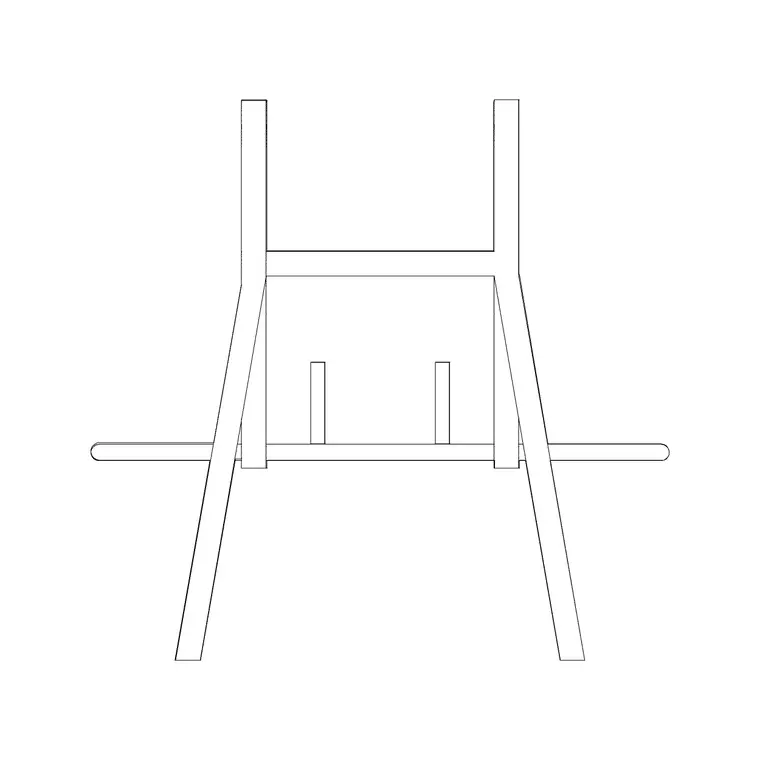
Where the gym blocks live on the site
Every gym equipment block on CADBlockDWG sits in the Fitness & Sports category, and you can reach it straight from the top navigation or by searching for the specific machine you need — 'treadmill', 'bench', 'rowing machine' and so on. There is no account, no email wall and no waiting timer: open the block page, click the download button, and the DWG lands in your Downloads folder in a second or two.
The category mixes generic, unbranded machines — the kind that fill out a layout without pretending to be a specific manufacturer's model — with a few more detailed pieces. That generic quality is exactly what you want when you are planning a gym or a home fitness room, because you are usually showing intent and clearance rather than specifying a particular catalogue product. If a client later locks in a specific brand, you can swap the generic block for the manufacturer's own CAD download at that point.
What you actually get in the download
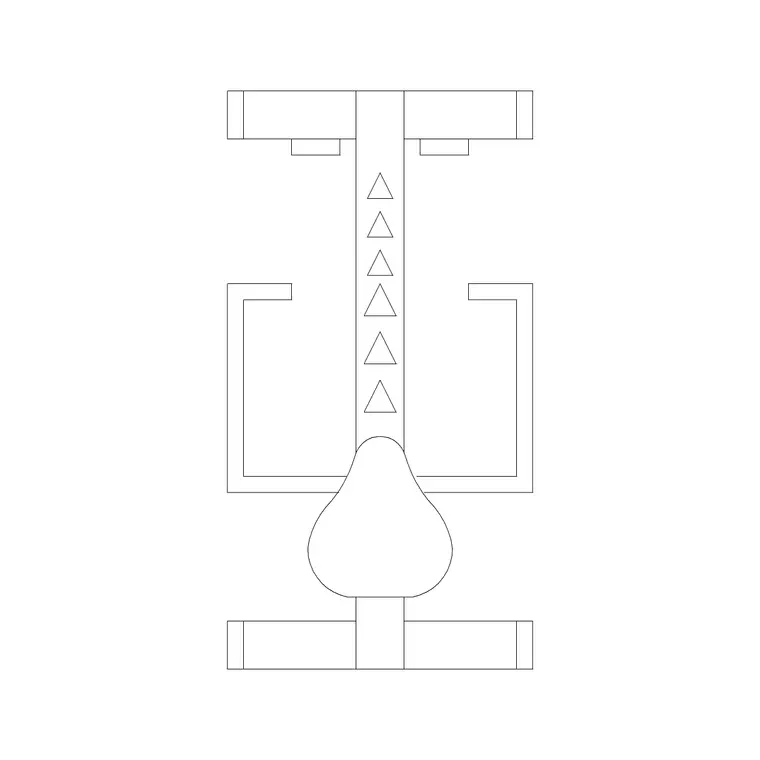
Each download is a small DWG containing the equipment drawn as clean 2D linework, ready to insert as a block. Most of the fitness pieces are top-down plan footprints — the outline you see looking straight down at a treadmill deck, a bike, or a weight bench — because that is the view a gym layout needs. A handful are drawn in elevation where the machine's profile matters.
The files are saved to a widely compatible AutoCAD format (2004 and later), so they open without complaint in any recent CAD program, free or paid, not just AutoCAD itself. Most ship as DWG; where a DXF variant exists you will see it offered too, which is the format to grab if you are importing into software that is fussy about DWG. There is no 3D mesh and no hidden bloat — just the flat geometry you place on a plan.
Inserting an equipment block step by step
Download the machine you need, then in your gym layout type INSERT (or the shortcut I) and press Enter to open the Blocks palette. Click Browse, point it at the downloaded DWG, and the block attaches to your cursor. Leave scale at 1 and rotation at 0 to start — the equipment is drawn at real-world size, so a scale of 1 is correct in a millimetre drawing.
Use object snaps to land the machine against a wall line or on a grid so it anchors precisely rather than floating. If a treadmill comes in the size of the room or vanishes until you Zoom Extents, that is a units mismatch, not a broken file: set INSUNITS to match in both your drawing and the block, or scale the block by 0.001 (mm into a metre drawing) or 1000 the other way. Place the machine, confirm it reads right, then move on to the next one.
Check the block before you trust it
Whenever you bring in a downloaded block, give it a quick thirty-second check before it goes into a real layout. Draw a dimension across the treadmill or bench and confirm it measures a believable footprint — a treadmill deck is well over a metre long, not a few hundred millimetres. Then check the block sits on a sensible structure, ideally inheriting your layer, and that it carries no stray lines hiding off to the side.
If anything looks off, it is easy to correct: scale the block to the right size, move its geometry onto a tidy layer, and run PURGE to strip out anything unused it dragged in. Building this habit means your gym library is something you have personally vetted rather than a pile of unknown files, and every machine you place behaves predictably on the plan.
Laying out a gym floor that works
Gym layouts live or die on circulation and safety gaps, and an accurately scaled block makes those visible at a glance. As a working habit, keep clear walking routes of at least 900mm to 1000mm between machine rows, and leave generous run-off behind treadmills and in front of mirrors. Cardio equipment generally lines the perimeter; free-weight and resistance pieces cluster in the centre with space to move around each bench.
Because the blocks are drawn to real footprints, you can drop a row of bikes or treadmills and immediately see whether the aisle between them is usable or whether two machines are about to collide. That is the whole point of furnishing the plan rather than leaving empty rectangles — you catch the crowding while it is still cheap to fix, before a single wall is built or a single machine is ordered.
Keep the equipment on its own layer
Put all the fitness blocks on a dedicated layer — 'Gym-Equipment' or similar — so you can dim, freeze or recolour them independently of the architecture and the flooring. That lets you produce a clean equipment-only plan for the gym fit-out package without the wall and services geometry fighting for attention.
Most of these blocks are built so they inherit whatever layer you insert them onto, so simply set your equipment layer current before you place them and they adopt it automatically. Combine that with correct scaling and sensible aisle clearances and you can fit out a full gym floor from this one free category in minutes, then restyle the whole equipment layer from the Layer Manager whenever the drawing needs it.
Questions
Frequently asked
Are the gym equipment CAD blocks really free to download?+
Yes. Every block in the Fitness & Sports category is free in DWG (and DXF where available) with no signup and no attribution required, including for commercial gym and fit-out projects.
What view are the gym blocks drawn in?+
Mostly top-down plan footprints, which is what a gym layout needs, with a few elevation pieces where the machine profile matters. Each block page notes its view.
Why did my treadmill block come in the wrong size?+
It is almost always a units mismatch. Set INSUNITS to match in both the block and your drawing, or scale the block by 0.001 (mm into metres) or 1000 (metres into mm) after inserting.
Free downloads from this article
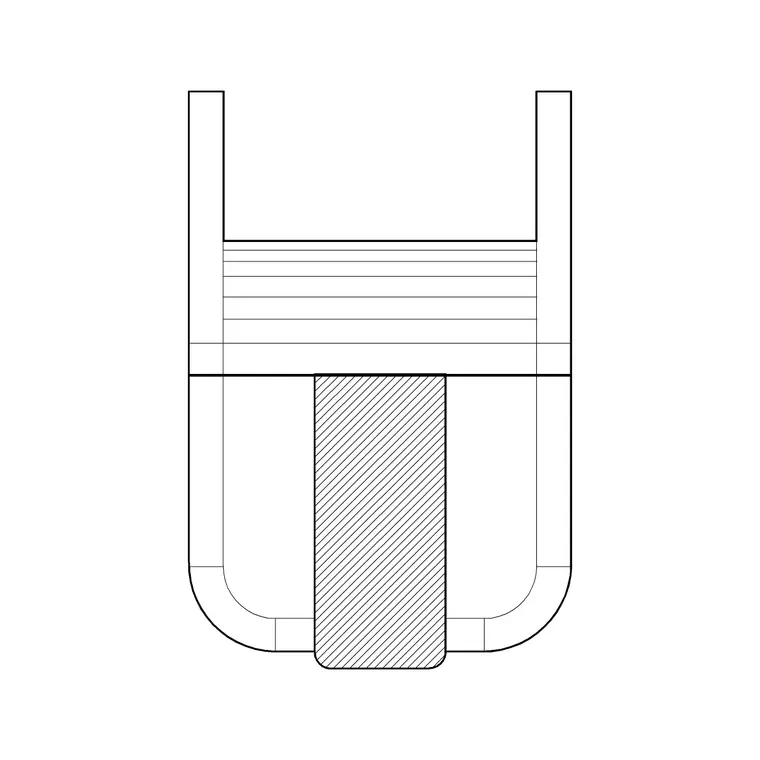
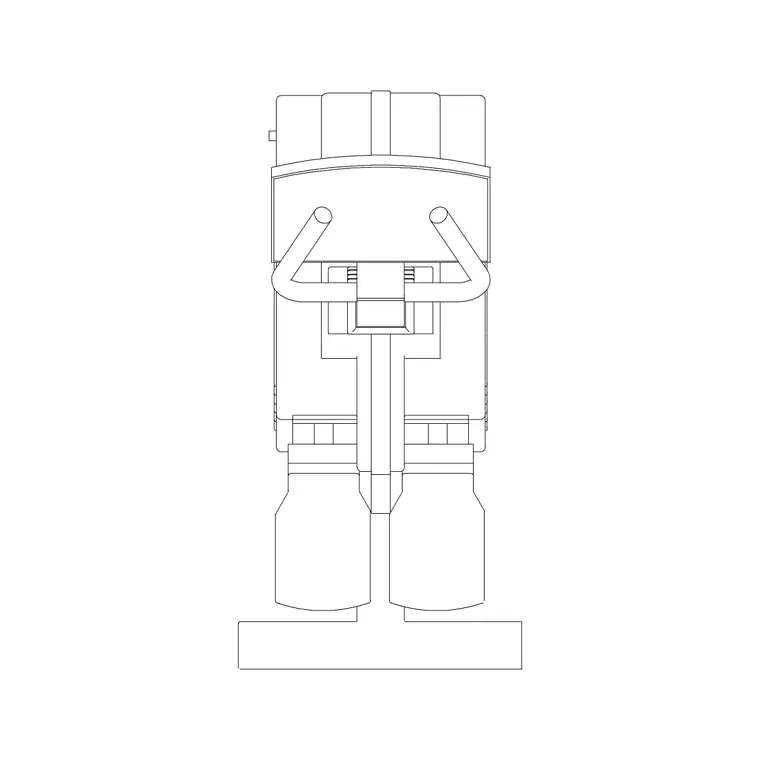
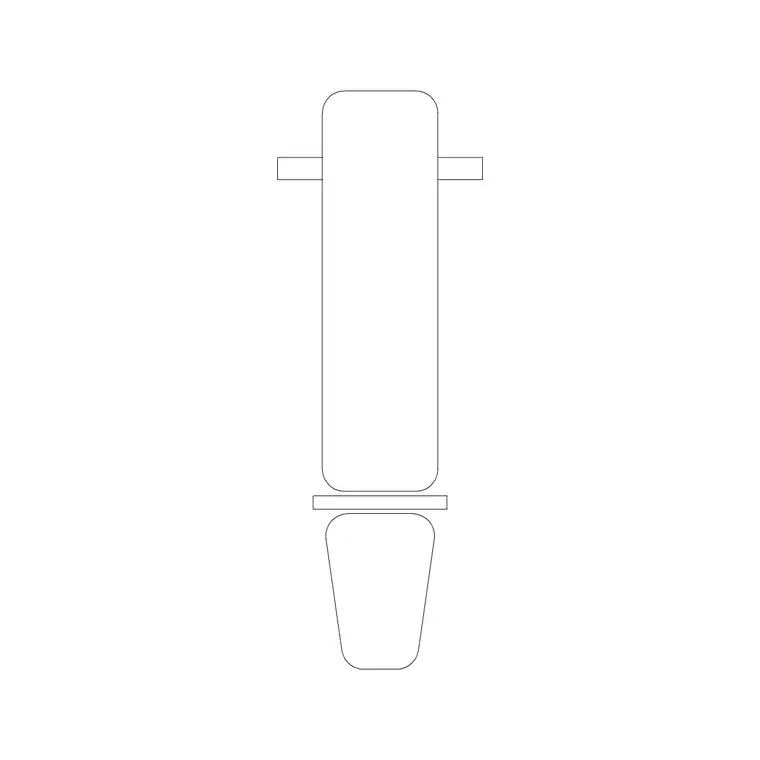
Free CAD block library
Download the blocks from this article — free, no signup


