Where to find free pocket door DWG files (and how to use them)
Free pocket door DWG blocks for AutoCAD: where to download them, how the cavity-wall plan symbol differs from a slider, and how to detail the pocket correctly.
Sumana KumarUpdated 3 April 20264 min read
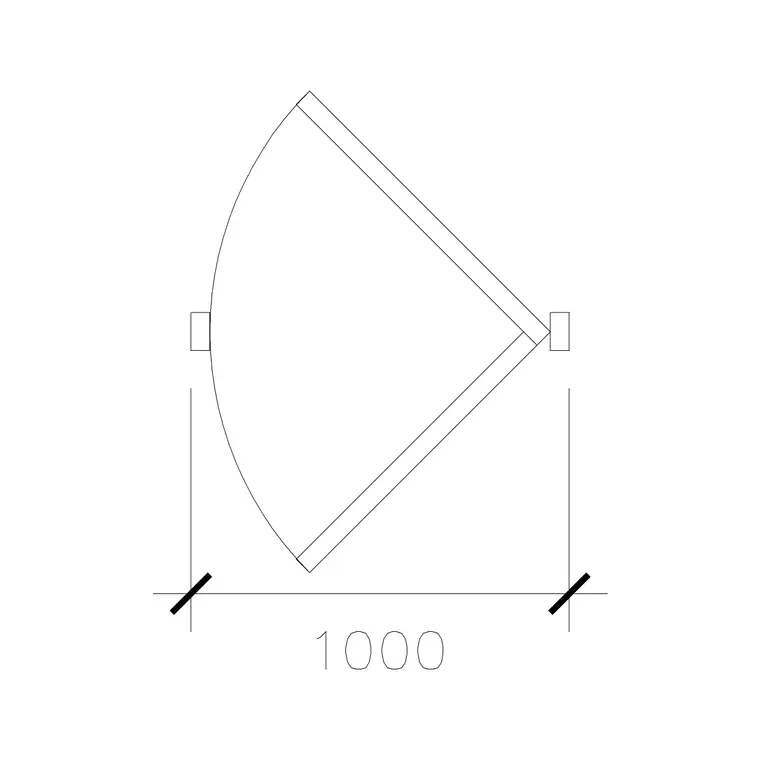
A pocket door, and why it differs from a surface slider
A pocket door slides — like any sliding door — but instead of parking on the face of the wall, the leaf disappears into a cavity built inside the wall itself. When fully open, the doorway is completely clear and the door is invisible, tucked into the pocket. That makes it the cleanest space-saver of all: no swing, and no panel left sitting against the wall blocking pictures, switches or furniture.
In plan, this shows as the door leaf drawn inside the thickness of the wall, with the pocket void indicated where the leaf retreats. It is subtly but importantly different from a surface-mounted slider, which shows the panel on the wall face. The distinction matters because a pocket door demands a thicker wall or a proprietary cavity frame — a construction consequence you want captured on the drawing, not discovered on site.
Downloading pocket door blocks free
The Doors category includes pocket door variants among the sliding and hinged options, all free, all DWG, no account needed — click to download to your Downloads folder. Search the door names for 'pocket' to find them quickly.
A 1000mm single pocket door gives a wide clear opening with the leaf hidden in the wall when open — ideal for an en-suite, a study, or a utility off a kitchen where you want the option of a fully open threshold without any door in sight. As always the leading number is the opening width, so pick the size that suits the doorway and the wall it disappears into. Starting from the correct width means the pocket length drawn into the wall is right too.
Detailing the pocket in your wall
Insert the DWG with INSERT (I, Enter) or by dragging it on, scale 1, rotation 0, then snap it into the opening with object snaps (F3). The critical part of placing a pocket door is the wall itself: the cavity must be long enough for the leaf to slide fully in, which means a clear stretch of wall beside the opening at least as long as the door leaf, with no studs, pipes, switches or sockets intruding into that zone.
Draw or confirm the pocket void on your wall so the block's hidden leaf has somewhere to go. Decide which side the door retreats into and MIRROR the block if it needs to slide the other way. Because a pocket door is built into the wall, getting this right on the plan is not cosmetic — it dictates where services can and cannot run, so it is worth detailing properly rather than dropping in the symbol and moving on.
Scale, units and wall thickness
Use INSUNITS set to millimetres in both files for auto-scaling, or SCALE by 0.001 if a millimetre block lands oversized in a metre drawing. Dimension the clear opening to confirm.
The extra check unique to pocket doors is wall thickness and pocket length. A standard stud wall may need a dedicated cavity frame to house the leaf, and the pocket run is typically a little longer than the door width to allow the leaf to fully clear the opening plus the jamb detail. Showing this on the plan — the wall thickened or noted as a cavity, the pocket void dimensioned — turns the block from a pretty symbol into a buildable instruction, which is the difference between a presentation drawing and a working one.
Using pocket doors well in a scheme
Keep pocket doors on the Doors layer for clean isolation, and note on the drawing that they require a cavity frame so the contractor prices it correctly. Pocket doors shine in compact, high-spec interiors — boutique hotels, small apartments, accessible bathrooms — where a fully clear opening and a hidden leaf are worth the extra wall build-up.
If the scheme repeats the same pocket door, add it to a Tool Palette. And always trace the wall the leaf slides into: the single most common pocket-door mistake is a socket, a downpipe, or a structural stud sitting exactly where the leaf needs to be. The plan symbol, drawn honestly inside the wall, is what lets you catch that before the cavity is framed.
Questions
Frequently asked
How is a pocket door different from a sliding door?+
A pocket door slides into a cavity inside the wall and vanishes when open; a surface slider parks the panel on the face of the wall. The pocket gives a fully clear, door-free opening but needs a cavity-framed wall.
How much wall do I need for a pocket door?+
A clear run beside the opening at least as long as the door leaf — usually a little more — with no studs, pipes or sockets intruding into the pocket void.
Where can I download a pocket door CAD block free?+
In the Doors category here — search the names for 'pocket'. It's a free DWG with no signup, for personal and commercial use.
Free downloads from this article
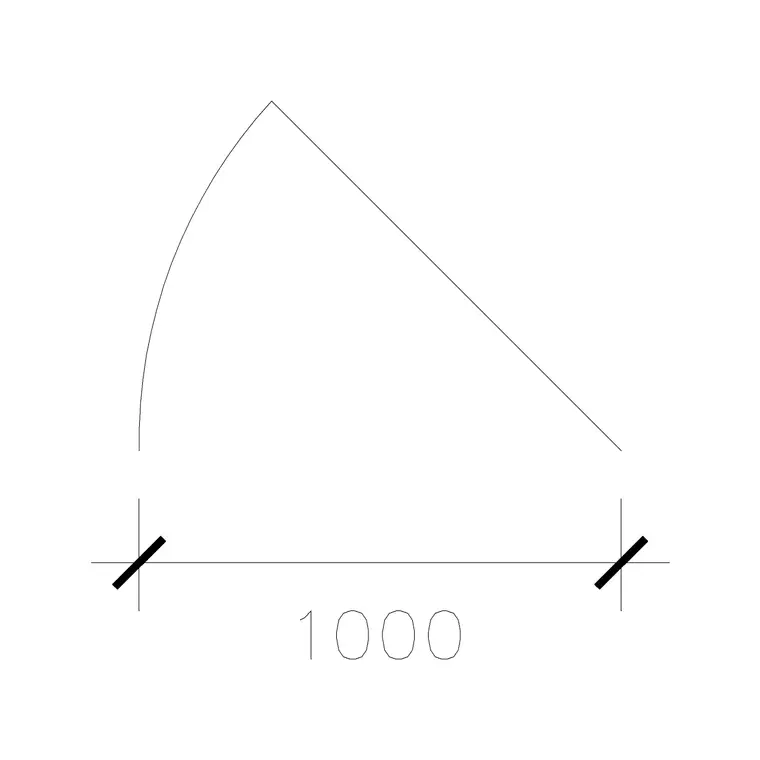

Free CAD block library
Download the blocks from this article — free, no signup


