Where to find free laminated door DWG files (and how to use them)
Free laminated door DWG blocks: where to download them, what 'laminated' means for the door schedule, and how to place and annotate the leaf in AutoCAD.
Saumyajit MaityUpdated 21 April 20264 min read
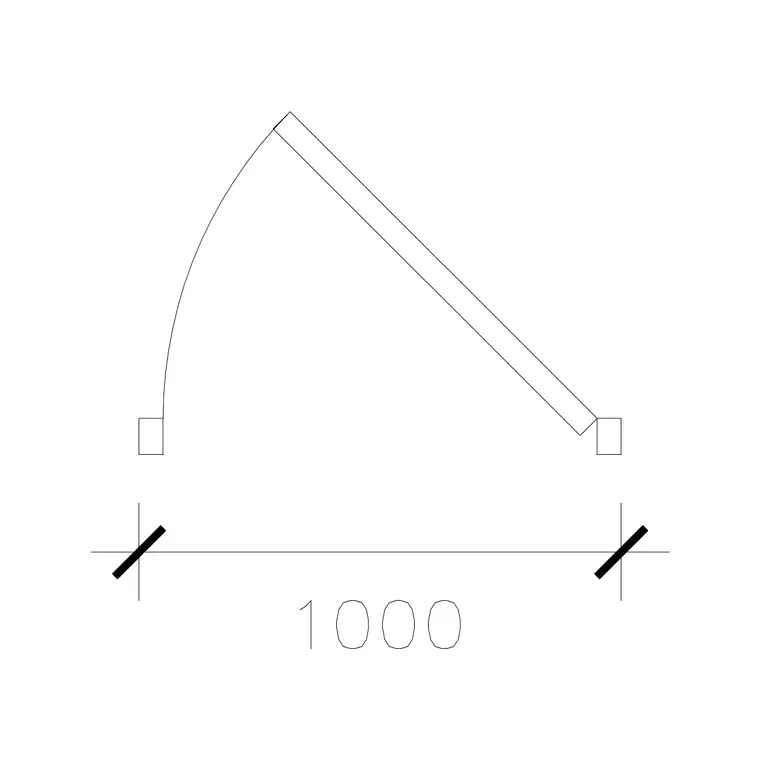
What 'laminated' tells you about a door
A laminated door is a flush leaf faced with a laminate finish — a thin decorative or wear-resistant surface bonded to the door core. The term describes the finish and construction, not the way it opens, so a laminated door behaves in plan like any single hinged leaf: a gap in the wall, the leaf swung open, and a swing arc. What the label adds is specification information that belongs in your door schedule.
Laminate finishes are popular because they are durable, easy to clean, and available in a huge range of colours and wood-grain effects, which makes laminated doors a workhorse in offices, schools, hospitals, hotels and budget-conscious housing. Calling a door 'laminated' on the drawing signals the finish to whoever prices and orders it, so the symbol is really a placeholder carrying a finish note.
Downloading a laminated door block
Find the laminated door in the Doors category alongside the other width-and-type variants. It downloads free as a DWG with no signup — click and it lands in Downloads. The common offering is a 1000mm laminated door, a generous single leaf already sized for comfortable or accessible openings.
Because the plan geometry of a laminated door is essentially the same as any single door, you can also treat any single-door block as a laminated door simply by tagging the finish in your schedule. But starting from the named laminated block keeps your intent explicit and your file self-describing — anyone opening the drawing sees immediately that this opening was specified as a laminated leaf, which reduces the chance of a finish being guessed at later.
Inserting and orienting the leaf
Insert the DWG with INSERT (I, Enter) or by dragging the file onto the canvas, scale 1, rotation 0, and snap the hinge point to the wall opening with object snaps (F3). If the swing faces the wrong way, MIRROR across the jamb; if the door serves a different wall, ROTATE it into place. This is identical to placing any single hinged door — the laminate finish changes nothing about the geometry, only the annotation.
Confirm the opening width by dimensioning it: a 1000mm laminated door should measure 1000mm across the gap. As ever, a wildly wrong size is a units issue, fixed by setting INSUNITS to millimetres in both files or scaling by 0.001 to move a millimetre block into a metre drawing.
Carrying the finish into the schedule
The value of a laminated door block is realised in the documentation. Tag the door with a reference (D01, D02, and so on) and record in your door schedule that the leaf is laminated, along with the laminate colour or code, the core type, fire rating if applicable, and ironmongery. The plan symbol locates the door; the schedule specifies it.
This split — symbol on the plan, detail in the schedule — is standard practice and keeps the drawing uncluttered while still being fully specified. A common mistake is to draw lots of identical door symbols and never record which are laminated, painted, veneered or glazed, leaving the contractor to guess. Naming the block as laminated from the outset nudges you to capture that finish where it counts.
Where laminated doors fit best
Keep laminated doors on the Doors layer and let a layer-0 block inherit it so the whole door set stays controllable. Laminated leaves are the sensible default for high-traffic, budget-aware interiors where durability and easy cleaning beat the cost of timber veneer — think corridors, classrooms, ward doors and back-of-house.
If a project standardises on one laminate door type, save it to a Tool Palette and reference the same schedule line for every instance, so the spec stays consistent. The discipline that pays off here is matching the drawn symbol to a real, recorded finish — that is what turns a tidy plan into a door package a manufacturer can quote from without a single follow-up question.
Laminate, veneer or paint — recording the choice
Flush doors come with several common facings, and the plan symbol looks identical for all of them, so the distinction lives entirely in your annotation. Laminate is a bonded plastic-faced surface — tough, wipeable, and available in solid colours and convincing wood-grain prints. Veneer is a thin slice of real timber, warmer and more premium but more easily marked. Paint-grade is a primed flush leaf finished on site. Each implies a different cost, lead time and durability, which is precisely why the door schedule, not the drawing, decides them.
When you place a laminated door, the useful habit is to record the finish reference straight away: laminate range and colour code, core type, fire and acoustic rating if relevant, and ironmongery set. Do that at the moment of placing and the specification never drifts out of step with the plan. Leave it for later and you risk a sheet full of identical door symbols whose finishes nobody can reconstruct — the classic gap that sends a manufacturer back with a list of questions before they can quote.
Questions
Frequently asked
Does a laminated door look different in plan from a normal door?+
No — the plan symbol is the same single-leaf door with a swing arc. 'Laminated' describes the finish, which you record in the door schedule rather than the geometry.
Why specify a laminated door over a timber one?+
Laminate finishes are durable, easy to clean and cost-effective, which suits high-traffic interiors like offices, schools and hospitals. The choice is about finish and budget, not how the door opens.
Is the laminated door DWG free to download?+
Yes — it's in the Doors category, free in DWG with no signup, for personal and commercial use.
Free downloads from this article


Free CAD block library
Download the blocks from this article — free, no signup


