How to download free sliding door CAD blocks for AutoCAD
Free sliding door DWG blocks: where to download them, how the no-swing plan symbol works, and how to place a sliding or sliding-wardrobe door in AutoCAD.
Sumana KumarUpdated 10 May 20264 min read
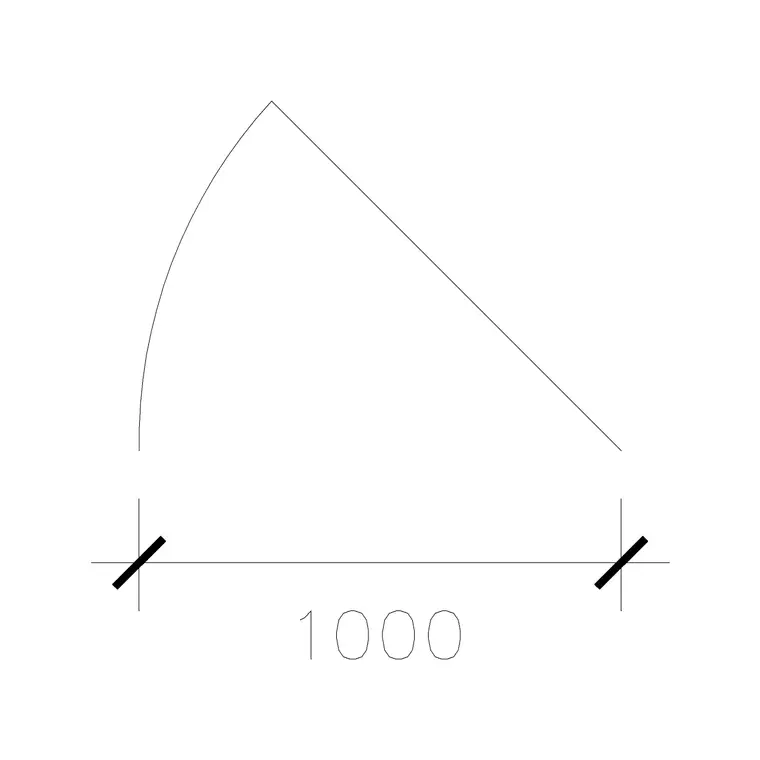
Why sliding doors solve a layout problem
A sliding door earns its place wherever a swinging leaf would steal usable floor. Slide one panel behind another and you reclaim the entire quarter-circle a hinged door would have demanded — invaluable for tight bathrooms, compact bedrooms, balcony access, and wardrobe fronts. In plan, a sliding door reads quite differently from a hinged one: there is no swing arc. Instead you see the panels drawn as thin rectangles within or alongside the wall, with the leaf that slides shown offset to indicate the direction of travel.
That absence of an arc is the whole appeal. The opening reads as clear floor, which is exactly the point of choosing a slider. When you are squeezing a usable layout out of a small room, swapping a swing door for a sliding one on the plan is often the move that makes the furniture finally fit.
Where to download sliding door blocks
The Doors category holds the sliding variants alongside hinged singles and doubles, all free, all DWG, no signup — click and the file saves to Downloads. Look for blocks named with 'SL' or 'sliding' in the title, which marks them as track-mounted rather than hinged.
Widths are encoded in the name as usual. A 1000mm wide sliding door is a single sliding leaf for a generous opening; a 1000mm sliding double door (often shown as SL DD) is a pair that slides apart or stacks, common on wide closet runs and room dividers. Choose by the opening width and whether you want one panel or two, so the block's track length and panel count match your wall from the outset rather than needing a stretch.
Inserting and aligning a sliding door
Bring the DWG in with INSERT (I, Enter) or by dragging it onto the canvas, scale 1, rotation 0. Sliding door blocks usually base-point at one end of the track, so snap that to the edge of your wall opening with object snaps (F3) and the panels fall into place along the wall line.
Because there is no swing to flip, MIRROR is rarely needed — but you may want to mirror the block so the sliding panel parks on the correct side (you generally do not want it sliding across a window or into a corner it cannot reach). If the door sits in a cavity or pocket arrangement, make sure the track length you have drawn allows the leaf to fully clear the opening. Unlike a swing door, a slider's constraint is the parking space beside the opening, not the floor in front of it.
Scale, units and the parking run
Set INSUNITS to millimetres in both the block and your drawing so the slider auto-scales, or SCALE by 0.001 to take a millimetre block into a metre drawing if it comes in oversized. Confirm by dimensioning the clear opening against the panel width.
The detail people miss with sliding doors is the parking run — the stretch of wall the panel needs to slide onto when fully open. For a single slider, that is roughly one panel width of clear wall beside the opening; for a wardrobe slider, the panels overlap, so the run is shorter but you lose access to half the closet at any one time. Drawing the track at the right length on the plan makes these trade-offs visible, which is exactly why you furnish the opening rather than leaving a bare gap.
Sliding doors on the plan and in the set
Keep sliding doors on your Doors layer so they isolate cleanly for review. Because they carry no swing arc, sliding doors keep a plan looking tidy in tight areas where overlapping swing arcs would otherwise clutter the drawing — a real readability win in compact apartments and hotel rooms.
If the project repeats a sliding wardrobe across many bedrooms, save the block to a Tool Palette for one-click placement. And do a quick reality check on the wall behind the parking run: a light switch, a radiator, or a return wall in the way of a sliding panel is a clash the flat plan symbol will reveal before it ever reaches the joiner.
Surface slider versus pocket — choosing on the plan
A sliding door can run on the face of the wall (a surface or barn-style slider) or disappear into a cavity inside the wall (a pocket door). The plan symbols differ, and so do the consequences. A surface slider is simpler and cheaper — the panel parks visibly against the wall — but it occupies that stretch of wall face, so you cannot hang anything there or place tall furniture against it. A pocket door gives a completely clear, door-free wall when open, at the cost of a thicker, cavity-framed wall to swallow the leaf.
When you are setting out, decide which the room can afford. A bathroom with a long blank wall beside the door suits a surface slider; a tight ensuite where every wall is needed for tiling or fittings may justify the pocket. Drawing the correct symbol — panel on the face for a surface slider, leaf inside the wall for a pocket — keeps the construction implication honest, so the wall build-up gets priced and detailed for what you actually intend rather than for a generic 'sliding door' note.
Questions
Frequently asked
Why does a sliding door block have no swing arc?+
Because the leaf slides along a track rather than hinging open. The plan shows the panels offset to indicate travel direction, and the opening reads as clear floor — the main reason to choose a slider.
What does 'SL DD' mean in a door block name?+
SL means sliding and DD means double door — a pair of sliding leaves that part or stack, common on wide wardrobes and room dividers.
How much wall space does a sliding door need?+
Roughly one panel width of clear wall beside the opening for a single slider to park on. Draw the track at full length so the panel clears the opening completely.
Free downloads from this article
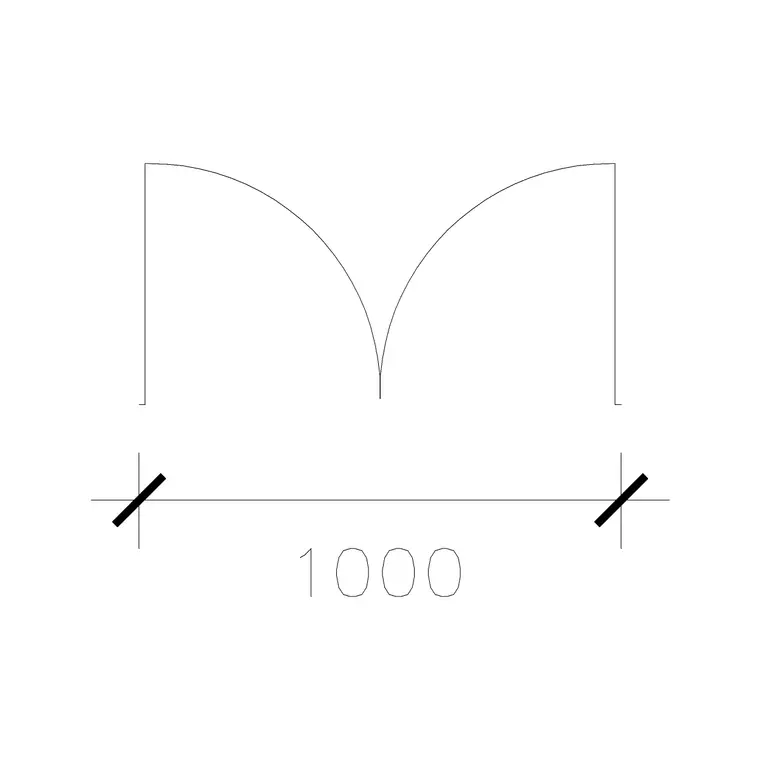

Free CAD block library
Download the blocks from this article — free, no signup


