How to download free single door CAD blocks for AutoCAD
Where to find free single door DWG blocks, what the plan symbol includes, and how to insert and scale a single-leaf door cleanly in AutoCAD.
Sumana KumarUpdated 14 May 20264 min read

What a single door block is for
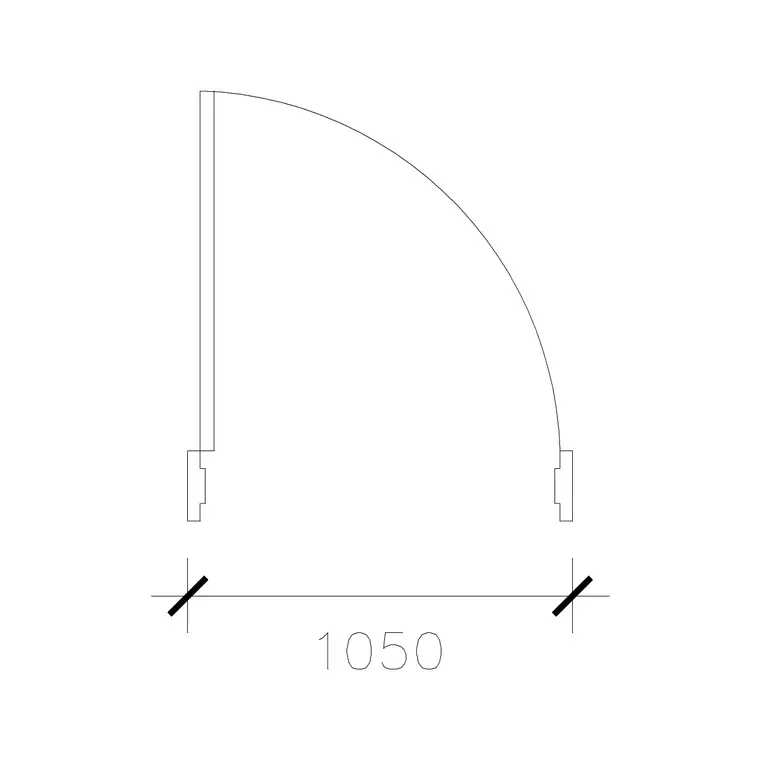
A single door is the most common opening in any residential plan — bedrooms, bathrooms, studies, utility rooms — so it is the block you will drop in more than any other. A good single-leaf door block is drawn in plan view: a gap in the wall the width of the door, the door leaf shown as a thin rectangle swung open, and a quarter-circle arc tracing the swing. That arc is doing real work. It shows which way the door opens, how far the leaf travels, and whether it will collide with furniture, another door, or a wall return.
Because it reads from above, the single door block belongs in floor plans rather than elevations. If you need the front face of the door — panels, handle height, a vision panel — that is an elevation door, a different drawing entirely. For laying out rooms, fixing circulation, and checking that a wardrobe does not block the swing, the plan-view single door is exactly the right tool.
Finding free single door blocks here
Every door block on this site is free, downloads in DWG, and needs no signup or email — you click and the file lands in your Downloads folder. The fastest route is the Doors category, where single-leaf doors sit alongside double, sliding and pocket variants so you can compare widths at a glance.
Doors are usually named by their opening width in millimetres, which is how drafters think about them. A 1000mm door type is a generous single leaf — wider than a standard 900mm bedroom door, useful where accessibility or a feeling of openness matters. Pick the width that matches your wall opening rather than resizing a mismatched block later; starting from the right size saves a scaling step and keeps the swing arc honest.
Inserting a single door into your plan
Once the DWG is downloaded, bring it in with the INSERT command (type I, Enter) and browse to the file, or simply drag the DWG from your file manager onto the canvas. Leave the scale at 1 and rotation at 0 to start. The door comes in ghosting under your cursor — this is your chance to place it precisely.
Press F3 to enable object snaps and snap the door's hinge point to the corner of the wall opening. Most well-built door blocks put their insertion base point at the hinge for exactly this reason, so the leaf and arc fall on the correct side automatically. If the door opens the wrong way, do not redraw it: select it and use MIRROR across the door jamb to flip the swing, then ROTATE if the whole door needs to face a different wall. Place first, then adjust the swing — it is far easier to judge the opening direction once you can see the door sitting in the room.
Getting the size and swing right
A single internal door leaf is typically around 900mm wide, with 800mm common for bathrooms and en-suites and 1000mm where you want extra clearance. If a downloaded block inserts wildly too large or too small, it is a units mismatch, not a broken file — a millimetre block dropped into a metre drawing lands 1000 times too big. Set INSUNITS to millimetres in both the block and your drawing so it auto-scales, or run SCALE by 0.001 after inserting to bring a millimetre door into a metre drawing.
For the swing, remember the leaf needs a clear quarter-circle. Check that nothing — a light switch reach, a radiator, the edge of a vanity — sits inside that arc. The plan block makes this visible instantly, which is the whole point of furnishing the opening rather than leaving a plain gap in the wall.
Tips for clean door work
Keep doors on a dedicated Doors layer (or let a layer-0 block inherit it) so you can dim or isolate all the doors at once when checking a fire-escape route or an accessibility audit. If you place the same single door dozens of times, drag it onto a Tool Palette once and every future placement is a single click.
When a room has back-to-back doors or a door near a corner, watch for swing clashes — two leaves trying to occupy the same space is one of the most common plan errors, and the arc is there precisely so you catch it on screen. A few seconds confirming the swing on each door saves an awkward conversation on site later.
DWG or DXF, and a quick cleanliness check
These single door blocks are supplied in DWG, which opens natively in AutoCAD and in virtually every modern CAD tool. If your software prefers an open exchange format, you can convert to DXF in seconds with SAVEAS in AutoCAD, or with a free tool such as the ODA File Converter or LibreCAD — the geometry round-trips cleanly for a simple 2D door.
After inserting an unfamiliar block, it is worth a ten-second hygiene pass. Run AUDIT to catch any minor errors, then PURGE to strip out any unused layers or styles the file might have carried in. Confirm the door geometry is sensible — leaf, frame and swing arc only, with no stray lines hiding off to one side. A single door is about as simple as a block gets, so a clean one should contain nothing surprising; if it does, PURGE and a quick look at the Layer Manager will tidy it before it touches the rest of your drawing.
Questions
Frequently asked
What width is a standard single door block?+
Internal single doors are usually about 900mm wide, with 800mm for bathrooms and 1000mm where extra clearance is wanted. Pick the block whose named width matches your wall opening.
Do I need to sign up to download a single door DWG?+
No. Every door block here is free and downloads instantly in DWG with no account or email required, for personal and commercial use.
My door swings the wrong way — how do I fix it?+
Don't redraw it. Select the block and MIRROR it across the door jamb to flip the swing, then ROTATE if it needs to face a different wall.
Free downloads from this article

Free CAD block library
Download the blocks from this article — free, no signup


