Block landing · workstation with partition cad block dwg
Workstation with partition CAD block in DWG and DXF
By Sumana Kumar · Published 27 Dec 2022 · Updated 2 Jan 2026
A workstation with a partition is the screened desk that gives an open-plan office a measure of privacy and acoustic separation without building walls. The partition — a desk-mounted screen or a taller floor-standing divider — defines the personal zone around each seat, which is exactly what this CAD block captures. It is drawn at true millimetre dimensions in plan view, ready for AutoCAD 2004 or later, and free for personal and commercial work with no signup and no watermark.
The partition is the whole point of this block. Where a bare bench reads as fully open, a partitioned workstation shows where the screens sit, how tall they are in principle, and how much of each desk they enclose. That lets you design for focused work, hot-desking with separation, or roles that handle sensitive information, while still planning the floor as an efficient grid of repeating units.
What the partitioned workstation contains
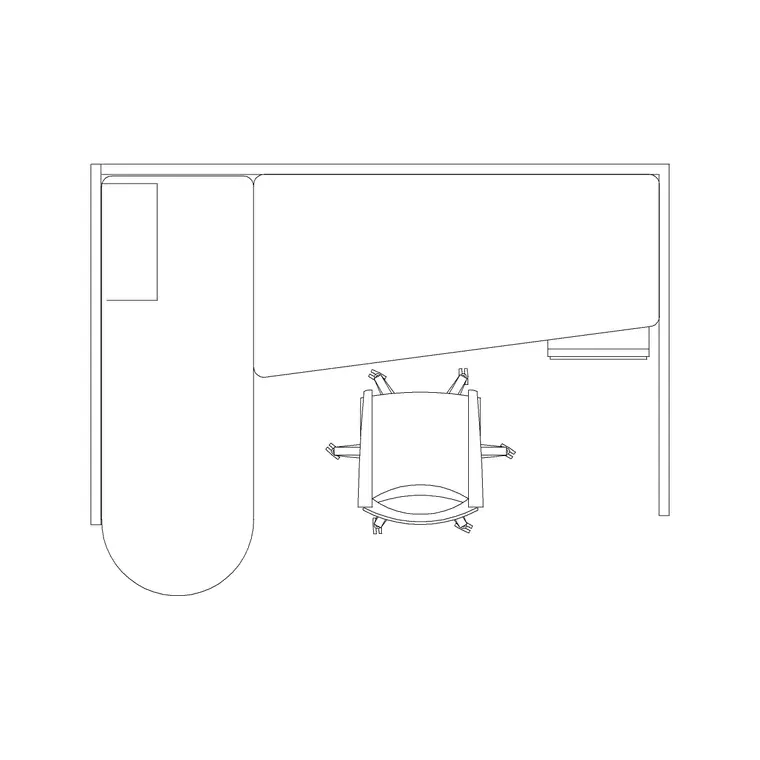
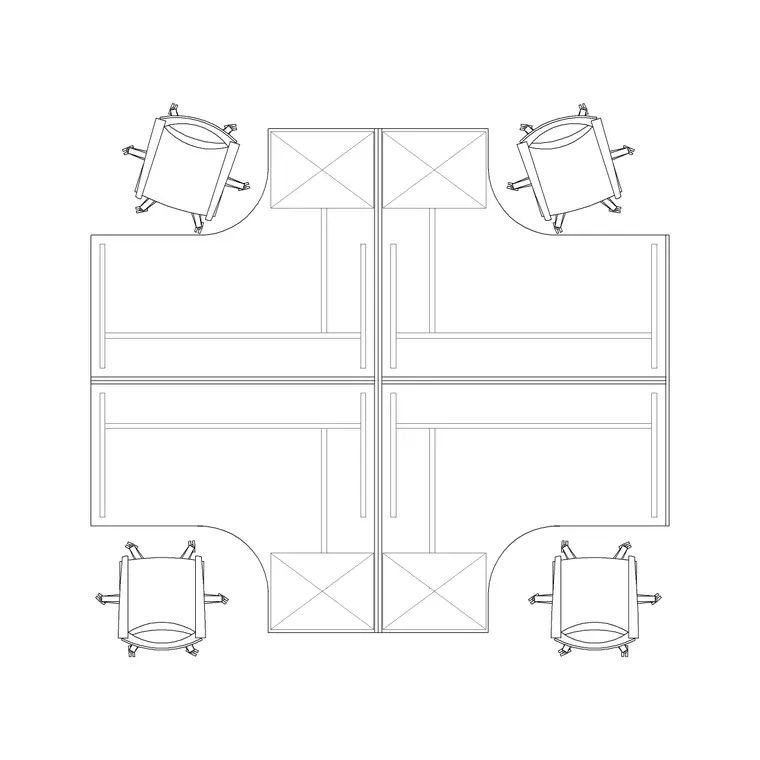
The plan view shows the desk surface, the seat position and the partition geometry — typically a screen running along the back of the desk and often returning down one or both sides to form a part-enclosed bay. The block keeps the desk outline, the screen lines and the seat on separate layers so you can adjust the partition extent without redrawing the desk.
The partition is drawn as a line of finite thickness because a real screen has depth and a footprint that affects how units pack together. A desk-mounted screen adds little to the plan footprint, while a floor-standing partition takes up its own strip of floor. The block makes that distinction clear, so the layout you read reflects how much room the dividers actually consume.
Typical sizing to design around
Use these ranges when you plan. The desk itself follows normal office figures, commonly 1200 to 1600 mm wide and 700 to 800 mm deep. Desk-mounted screens are typically drawn as a thin line a few tens of millimetres thick, while floor-standing partitions are more substantial in plan. Partition heights are not shown in a plan view but are usually noted on the drawing: low screens around desk level for light separation, mid screens roughly at seated eye level, and tall partitions approaching standing height for fuller enclosure.
For circulation, keep the usual 900 to 1000 mm of clear floor behind each seat, remembering that a returning side screen narrows the entry to each bay, so check a person can still get in and out comfortably. Treat these as typical planning ranges and confirm exact screen dimensions and heights against the partition system you specify, since acoustic and standard screens differ markedly.
How to insert and adjust the partition
The block is full size in millimetres. Insert at scale 1 in a millimetre drawing, 0.001 in a metre drawing, or set INSUNITS to millimetres on an imperial template so AutoCAD rescales on insertion. Run INSERT or drag the DWG from a tool palette, pick an insertion point, and rotate to suit the bay.
Because the partition lines sit on their own layer, you can edit them without touching the desk: extend a side screen to fully enclose a bay, shorten it for a more open feel, or freeze the screens entirely to compare a partitioned and an open version of the same plan. Make a standard change to the block definition with BEDIT and every partitioned desk updates together. Annotate the screen heights in the drawing or in a block attribute so the partition spec carries through to the schedule.
Where partitioned workstations are used
Screened workstations suit roles and settings that need focus or confidentiality within an open floor: finance and legal teams, HR, customer-service desks handling personal data, examination and assessment rooms, and hot-desking zones where users want a sense of their own space. They also help with acoustics in noisy open-plan environments.
Because the block is free and licence-clear it works from concept to construction. Use it to show a client where privacy and acoustic separation will be provided, then keep the same geometry as you coordinate the partition system, the power and data, and the furniture schedule. The screened bay that addressed the privacy brief is the one that gets specified and installed.
Layers, attributes and schedules
Put the desk on a furniture layer, the partitions on a dedicated screen or partition layer, and the chairs on their own layer. Separating the partitions out means you can produce an open-plan furniture drawing, a partition-only drawing for the screen installer, and a fully furnished plan, all from one model.
Tag each partitioned workstation with a block attribute capturing the screen height or acoustic rating, and you can extract a partition schedule alongside the furniture count. That is exactly the data a fit-out contractor and a procurement team need. When a bay is finalised, WBLOCK the furnished, partitioned unit as one reusable assembly so the rest of the screened zone lays out quickly and consistently.
Free download
Browse the full library — DWG & DXF, no signup.
Questions
Frequently asked
Does the block show the partition height?+
A plan view shows the partition footprint, not its height. Heights are typically noted on the drawing or held in a block attribute — for example low desk-level screens, mid eye-level screens or tall standing-height partitions — so the spec carries to the schedule.
Is the workstation with partition block free for commercial use?+
Yes. It downloads free in DWG, with DXF where available, and is cleared for commercial projects with no signup, no watermark and no attribution requirement.
Can I remove the partition to compare an open layout?+
Yes. The partition lines sit on their own layer, so you can freeze them to see the open version of the plan or extend them to enclose a bay further. The desk geometry stays unchanged.
What software opens the file?+
The DWG targets AutoCAD 2004 and later, opening in current AutoCAD, AutoCAD LT, BricsCAD, DraftSight and free DWG viewers. DXF is provided where available for other CAD tools.
Related downloads
Blocks for this guide
Related categories
Related guides
Block landing
Free Office Chair CAD Blocks — DWG Download
Download free office chair CAD blocks in DWG and DXF — task chairs, swivel chairs and executive seats drawn in plan and elevation, AutoCAD 2004+, no signup.
Block landing
Free Lighting Fixtures CAD Blocks — DWG Download
Download free lighting fixtures CAD blocks in DWG and DXF — chandeliers, wall lights, downlights and pendants in plan and elevation for AutoCAD.
Block landing
Free Office Desk CAD Blocks — DWG Download
Free office desk CAD blocks in DWG and DXF — straight desks and desk-with-chair units in plan and elevation for AutoCAD. No signup, commercial OK.