Block landing · wardrobe plan view cad block
Free wardrobe plan view CAD block in DWG
By Sumana Kumar · Published 15 Jul 2024 · Updated 30 May 2026
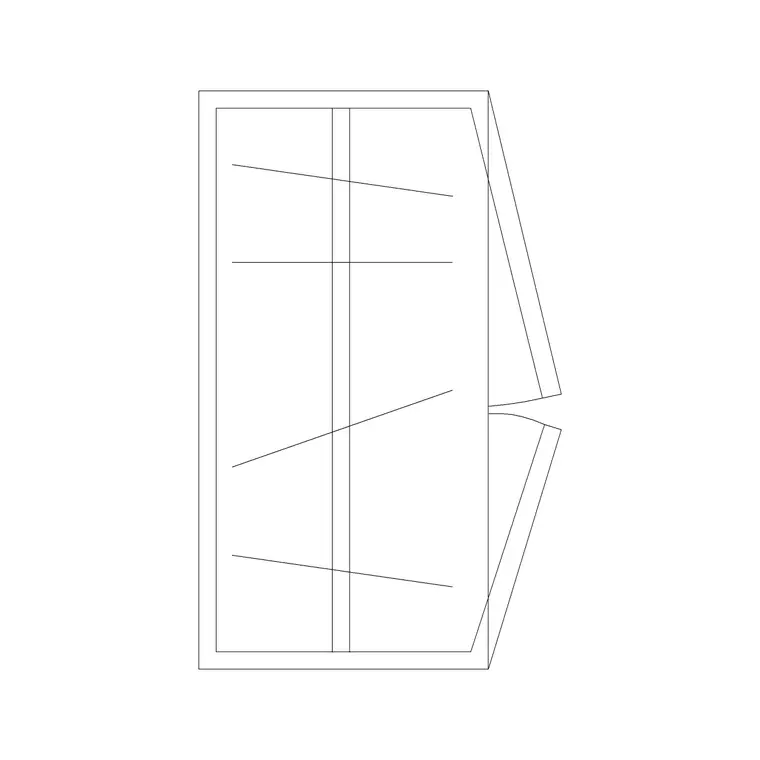
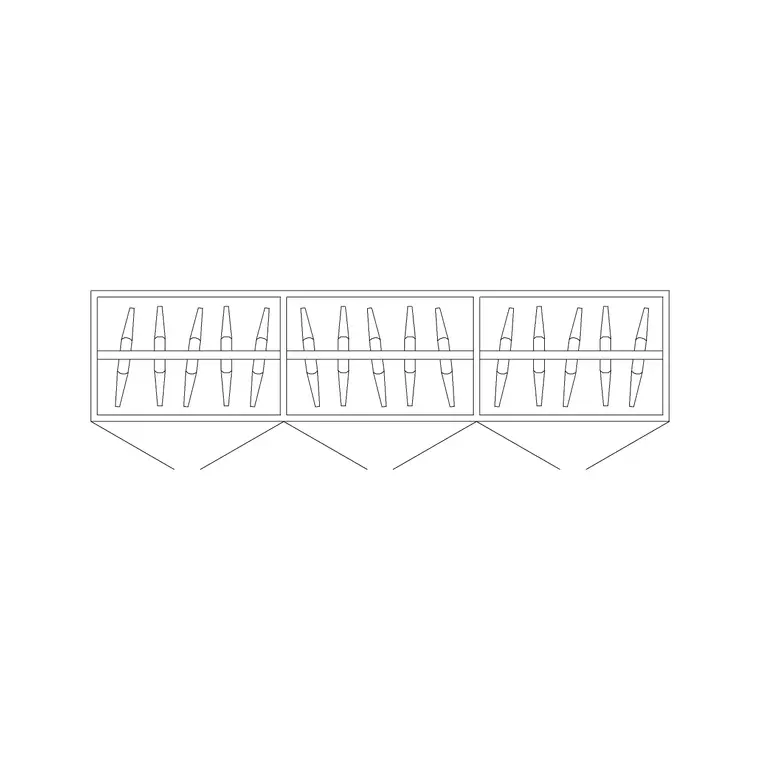
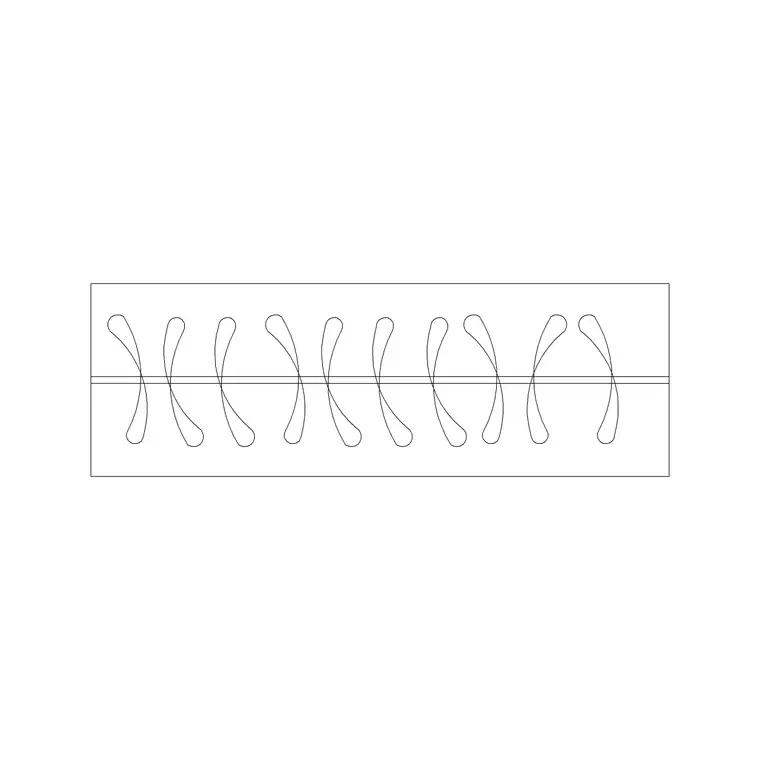
When you are setting out a bedroom, the view you actually work in is the plan — the wardrobe seen from above. A wardrobe plan view CAD block gives you exactly that: the storage footprint with its door leaves and swing indication, ready to array around a room and check against the bed and circulation. This page offers a free wardrobe plan view block in DWG, drawn at true millimetre dimensions for AutoCAD 2004 or later, free for personal and commercial work, with no signup and no watermark.
This page is about the view rather than a specific door count: it explains what a wardrobe plan symbol carries, why the plan is the working view for layouts, and how to use it well. Whether you end up placing a two-door cupboard or a six-door run, the plan view is where the spatial decisions get made, so getting the plan block right is what keeps a furniture layout honest.
What a wardrobe plan view shows
A wardrobe plan view is the top-down footprint: the carcass drawn as a rectangle against the wall, the door leaves shown as lines across the front, and a swing arc or open-direction mark for each hinged leaf. For a sliding-door unit the leaves are shown overlapping rather than swinging; for an open or walk-in arrangement the runs are shallow rectangles with the rail or shelf zone indicated.
The plan deliberately ignores height. A wardrobe's height does not affect where it sits on the floor or how it clears the bed, so the plan strips that information out and concentrates on footprint and swing — the two things that govern the layout. That is exactly why the plan is the view designers reach for first.
Why the plan is the working view
Almost every spatial decision about a wardrobe is made in plan. Does the run fit the wall? Do the doors clear the bed when open? Is there a walkway past the open leaves? Can a person stand in front of the unit to use it? All of those are plan questions, answered by the footprint and the swing arcs, not by the elevation.
The elevation matters later, for joinery and presentation, but it follows the plan. You set the wardrobe out in plan, lock its position and door arrangement, and only then draw the face-on elevation for the cabinet-maker. Treating the plan as the lead view keeps the workflow in the right order and avoids re-planning after the elevation is drawn.
Reading swing arcs and clearances
The most useful marks on a wardrobe plan are the swing arcs. Each hinged leaf sweeps a quarter-circle as it opens, and that arc shows the floor that must stay clear. For hinged doors, allow roughly 450–600 mm of clearance in front of the leaves; treat that as a planning range rather than a fixed rule.
Where the room is too tight for swings, the plan tells you to switch door type: a sliding-door wardrobe shows overlapping leaves and needs no swing clearance, which can save the strip of floor a hinged run would consume. Reading the arcs is therefore not just a check — it is how the plan steers you toward the right door type for the space.
How to insert and use the plan block
The block is full size in millimetres. Insert at scale 1 in a millimetre drawing, 0.001 in a metre template, or set INSUNITS to millimetres so AutoCAD rescales on insertion. Use INSERT or drag the DWG from a tool palette, snap the insertion point to a back corner so the footprint sits flush to the wall, and rotate to face into the room.
Mirror the block about its centreline to reverse the swing if the leaves open the wrong way. Stretch the carcass with grips to fit a slightly different wall length, keeping the leaf widths sensible. Because the plan ignores height, you can use the same footprint regardless of the ceiling height of the room.
Where wardrobe plan views are used
Wardrobe plan views appear in every residential and hospitality drawing set: bedroom layouts, apartment plans, hotel and serviced-apartment rooms, student accommodation and show-home plans. They are the furniture symbol the architect and interior designer use to communicate storage on the general arrangement before any joinery is detailed.
Pair the plan block with the bed, side-table and dressing-table plan blocks in the furniture category to set out a complete room, and with the door and window blocks to coordinate against the architecture. When the layout is fixed, the plan also seeds the elevation and the joinery package, so it carries from concept right through the drawing set.
Keeping plan blocks consistent and scheduled
Put every wardrobe on the same furniture layer so storage can be frozen and thawed independently of the architecture, and so the whole furniture layer prints with one colour and lineweight. Consistent layering across all your wardrobe plan blocks — two-door, three-door, walk-in — keeps a multi-room scheme legible.
Tag each plan block with a type attribute and you can extract a furniture schedule directly, counting wardrobes per room and even per door type. That turns the plan into data for a fit-out spreadsheet. When a standard room is finalised, WBLOCK the bed-and-wardrobe plan as one reusable unit so the layout repeats cleanly across a scheme.
Free download
Browse the full library — DWG & DXF, no signup.
Questions
Frequently asked
Is the wardrobe plan view CAD block free?+
Yes. It downloads free in DWG with no signup, no watermark and no attribution requirement, and it is cleared for commercial and personal use.
Why does the plan view leave out the wardrobe height?+
Because height does not affect the layout. The plan concentrates on footprint and door swing — the two things that govern where the unit sits and how it clears the bed. Height is added later in the elevation for joinery.
What do the arcs on the plan mean?+
They are door-swing arcs: each hinged leaf sweeps a quarter-circle as it opens, and the arc shows the floor that must stay clear in front of the unit. Sliding-door plans show overlapping leaves instead, with no swing.
Can I use one plan block for any ceiling height?+
Yes. Because the plan ignores height, the same footprint works regardless of room height. You only need to vary the block when the footprint, door count or door type changes.
Related downloads
Blocks for this guide
Related categories
Related guides
Block landing
Free Office Chair CAD Blocks — DWG Download
Download free office chair CAD blocks in DWG and DXF — task chairs, swivel chairs and executive seats drawn in plan and elevation, AutoCAD 2004+, no signup.
Block landing
Free Bar Table CAD Blocks — DWG Download
Download free bar table CAD blocks in DWG and DXF — round, square and rectangular high bar tables in plan and elevation for AutoCAD. No signup, commercial-use OK.
Block landing
Free Restaurant Table CAD Blocks — DWG Download
Download free restaurant table CAD blocks in DWG and DXF — 2, 4 and 6 cover tables with chairs drawn in plan and elevation for AutoCAD. No signup, commercial-use OK.