Block landing · wall shelf cad block dwg
Free wall shelf CAD block in DWG
By Sumana Kumar · Published 18 Nov 2022 · Updated 4 Jun 2026
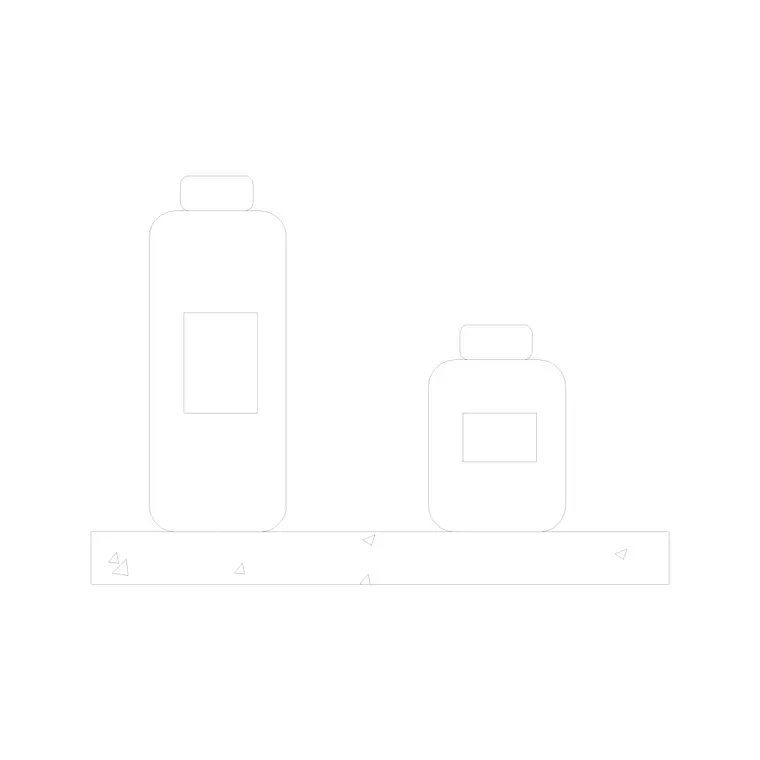
A wall shelf CAD block is a small piece of joinery you mount on a wall to hold books, jars, plants or display pieces. Drawn in elevation, it gives an interior wall something to read against and a place to hang the styling props that bring a room to life. This page offers a free wall shelf block in DWG — drawn with the shelf already dressed with a jar in one version — ready for AutoCAD and any compatible viewer.
The file is free for personal and commercial use, with no signup, no watermark and no attribution. It sits between structure and styling: the shelf itself is a joinery element you place against a wall, and the items on it are the props that show how the shelf is used. That dual nature makes it one of the more useful small blocks in an interior set.
What the wall shelf block shows
The block is an elevation of a wall-mounted shelf — a horizontal board with its bracket or fixing detail, and in the dressed version a jar sitting on top to show the shelf in use. The board line is the surface you place other props on; the bracket line tells the reader it is wall-fixed rather than floor-standing.
Because it is an elevation element, it is built to sit against a wall face at a chosen height. The back edge of the shelf is the line you align to the wall, and the height above the floor is something you set when you place it, depending on whether it is a low display ledge or a high storage shelf.
Typical sizing to design around
A domestic wall or display shelf is commonly somewhere around 200–300 mm deep and 600–1200 mm long, with the board itself perhaps 20–40 mm thick. Mounting height varies with use — a display ledge might sit around 1200–1500 mm above the floor, a high storage shelf higher. Treat all of these as ranges and adjust to the room.
When the supplied shelf is the wrong length, do not stretch it unevenly, which distorts the bracket. Instead SCALE it uniformly, or copy and trim the board to length and re-space the brackets. Keeping the proportions honest is what makes the joinery read correctly.
Where wall shelf blocks are used
Use them in kitchen and pantry elevations, living-room and study walls, bathroom and utility ledges, retail and display-wall drawings, cafe and bar back-walls, and children's-room storage. A run of shelves on a feature wall is a quick way to add storage and display to an elevation.
The dressed shelf-with-jar version is handy when you want a ready-styled ledge in one insertion. For a custom arrangement, place the plain shelf and add your own jars, books, plates and plants from the same library to control exactly what sits on each board.
How to insert and place the block
The DWG is drawn full size in millimetres. Insert at scale 1 in a millimetre drawing, 0.001 in a metre template, or set INSUNITS to millimetres so AutoCAD rescales on insertion. Run INSERT, browse to the file and pick the back-bottom corner of the shelf as the insertion point.
Snap that corner to the wall line at your chosen mounting height with an endpoint or from-osnap so the shelf sits level against the wall. To draw a run of shelves, copy the block up the wall at even vertical spacing, or array it for a regular stack.
Dressing the shelf with props
A wall shelf is a stage for styling props. Once the board is placed, drop books, jars, plates, plants or a clock onto the shelf line so it reads as used. Snap each prop's base to the top surface of the board so nothing floats, and vary the items between shelves so a run does not look repetitive.
Keep the shelf on a joinery layer and the props on a styling layer. That way you can freeze the styling for a clean joinery elevation and thaw it for the dressed presentation — both from the same drawing. When a dressed shelf works, WBLOCK the whole arrangement as one reusable display.
Floating shelf versus bracketed shelf
A floating shelf hides its fixings and reads as a clean board against the wall, suited to minimal interiors. A bracketed shelf shows its supports and reads as more utilitarian or industrial. The block here can serve either look depending on whether you keep or hide the bracket line on the layer.
For a presentation elevation you might thaw the bracket detail to show how the shelf is fixed; for a clean styling view you might freeze it. Keeping the bracket on its own layer gives you that choice without redrawing the shelf.
File format, compatibility and licensing
The shelf downloads as a native DWG, which means it drops straight into your joinery elevation with no conversion step. It opens in current AutoCAD and AutoCAD LT, in BricsCAD and DraftSight, and in free online DWG viewers when you only need to preview it. A DXF version, where supplied, gives a fallback for software that reads that interchange format better.
Licensing is straightforward and generous: the block is free for personal and commercial drawings, with no signup, no watermark and no attribution required. Kitchen, living, retail and hospitality elevations can all use it without usage limits. Edit the board depth, hide or show the bracket on its layer, or scale the run to length — the finished drawing is cleared for any project, commercial included.
Free download
Browse the full library — DWG & DXF, no signup.
Questions
Frequently asked
Is the wall shelf CAD block free for commercial use?+
Yes. It is a free DWG download with no signup, no watermark and no attribution, cleared for commercial project drawings.
Does the shelf come dressed with anything?+
One version pairs the shelf with a jar so you get a ready-styled ledge in a single insertion. Use the plain shelf when you want to add your own props for a custom display.
How do I draw a run of shelves up a wall?+
Place one shelf at your mounting height, then copy it up the wall at even vertical spacing or use an array for a regular stack. Snap each shelf's back corner to the wall line so they stay aligned.
Will it open in free viewers and AutoCAD LT?+
Yes. The DWG targets AutoCAD 2004 and later, opening in AutoCAD, AutoCAD LT, BricsCAD, DraftSight and free online DWG viewers.
Related downloads
Blocks for this guide



Related categories
Related guides
Block landing
Free Classical Column CAD Blocks — DWG Download
Download free classical column CAD blocks in DWG — shaft, capital and base drawn in elevation and plan for AutoCAD. No signup, free for commercial use.
Block landing
Free Greek & Ionic Column CAD Blocks — DWG
Free Greek and Ionic column CAD blocks in DWG — fluted shafts and volute capitals drawn in elevation for AutoCAD. No signup, free for commercial use.
Block landing
Free Decorative Arch CAD Blocks — DWG Download
Download free decorative arch CAD blocks in DWG — round, segmental and classical archways drawn in elevation for AutoCAD. No signup, free for commercial use.