Block landing · classical column cad block
Free classical column CAD blocks in DWG
By Sumana Kumar · Published 25 Sep 2022 · Updated 25 May 2026
A classical column carries a lot of a building's character, so when you are drawing a portico, a colonnade or a traditional facade in AutoCAD it pays to start from a column that is already proportioned and detailed. This page collects free classical column CAD blocks in DWG — the full order with its base, fluted or plain shaft, and capital — drawn in elevation and plan and ready to insert into AutoCAD 2004 or later. Every file is free for personal and commercial work, with no signup, no watermark and no attribution required.
Classical columns are not arbitrary shapes; they follow proportional systems handed down from Greek and Roman practice, where the height is set as a multiple of the shaft diameter at the base. Drawing from a block that already respects those proportions means your colonnade reads as genuinely classical rather than as a row of cylinders, and the spacing between columns stays believable from the first concept sketch onward.
What a classical column block contains
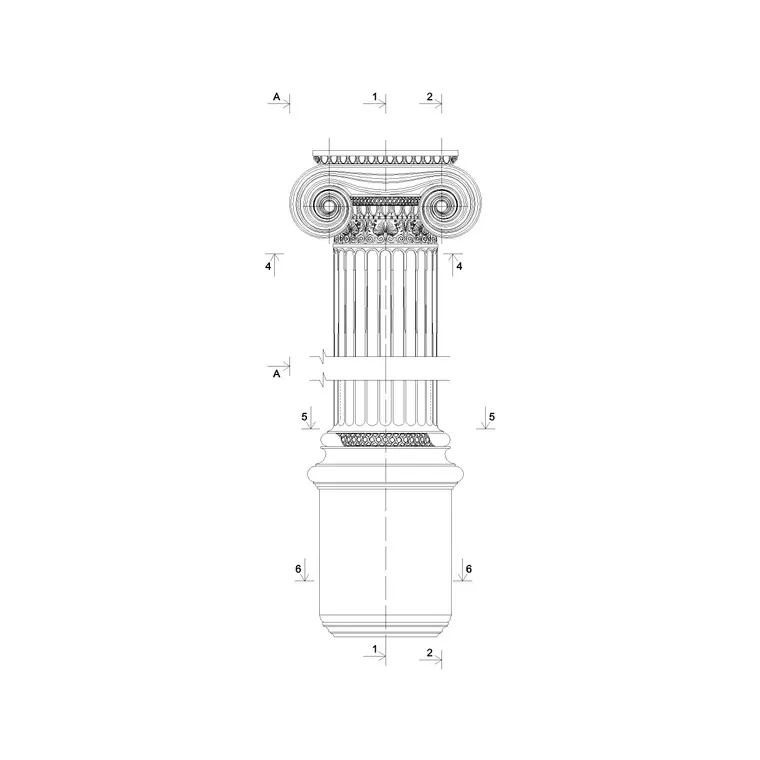
A complete classical column block is really three parts stacked together: the base that spreads the load to the floor or stylobate, the shaft that does the visible work, and the capital that crowns it and meets the entablature above. In elevation you see all three, often with the subtle entasis — the slight outward swelling of the shaft — that stops a tall column looking pinched in the middle.
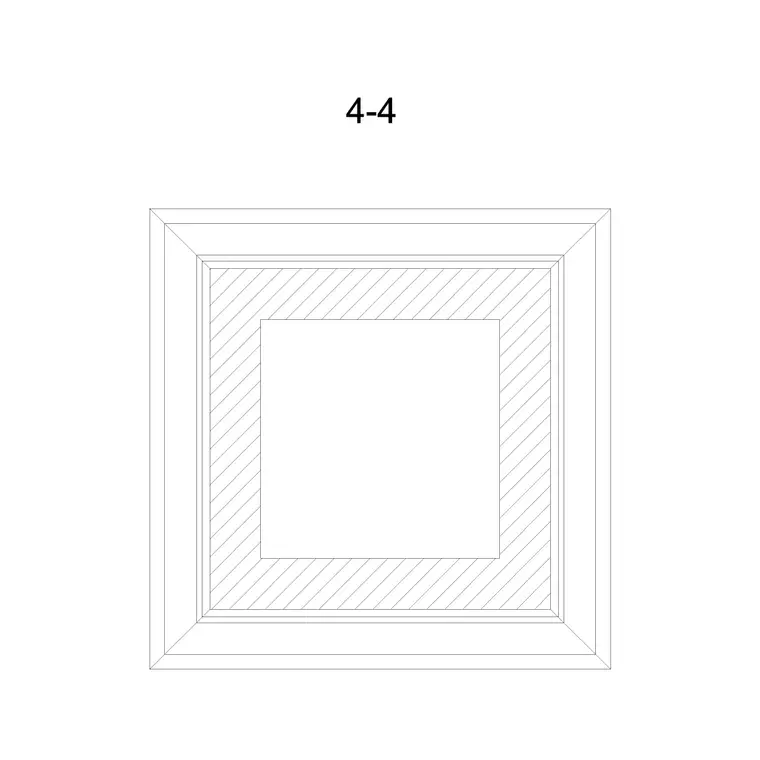
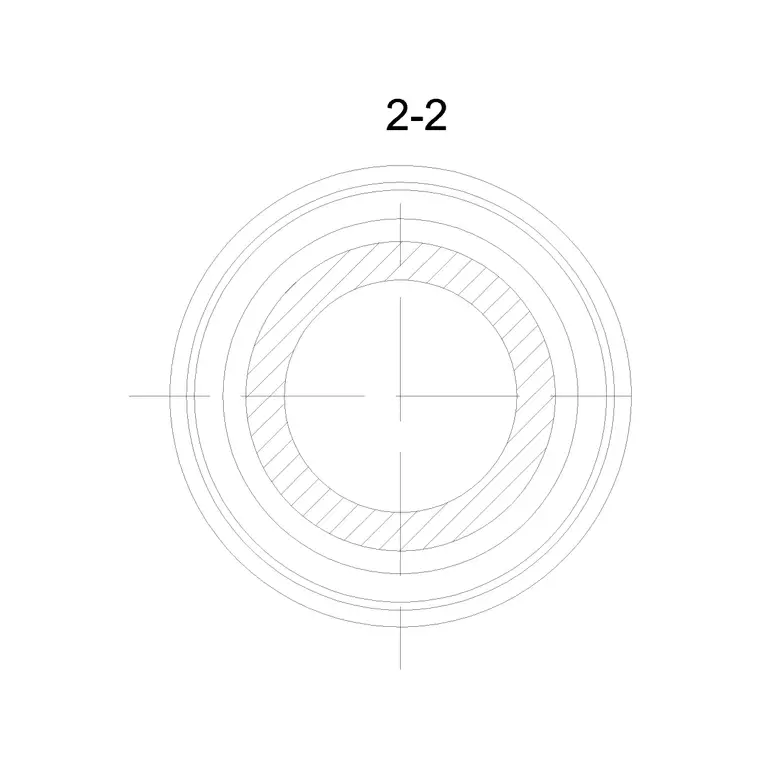
The plan view, by contrast, is usually a simple circle or a circle with a square plinth, and that is what you actually array along a colonnade. Keeping the elevation and the plan as separate blocks (or as separate views in one DWG) lets you lay out the column positions in plan, then drop the matching elevation into a facade drawing without redrawing the profile.
Elevation, plan and the detail that matters
For a facade, a portico or an interior elevation you reach for the elevation block, because that is where the order is read — the flutes, the capital scrolls or acanthus, the moulded base rings. For setting out the structure and checking spacing you work in plan, where the column footprint and any pedestal are what you array.
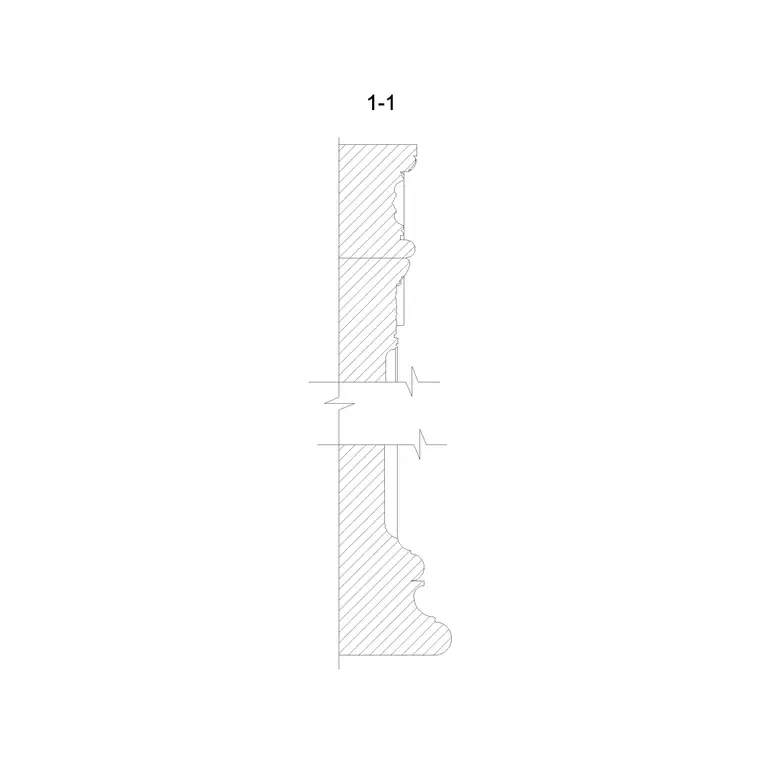
Classical detailing is fractal: at a large scale a column is a few mouldings, but zoom in and each torus, scotia and fillet of the base is its own profile. A good block carries enough of that detail to read at presentation scale without becoming so heavy that it slows a busy facade drawing. Where you need a crisp moulding profile for a setting-out detail, an elevation-detail block of the column is the right tool.
Typical column proportions to design around
Classical columns are sized by their lower shaft diameter rather than by a fixed number. As a rough guide to the orders: a Doric column runs about 7–8 lower diameters tall including capital and base; Ionic about 9; Corinthian about 10. So if your shaft is, say, 600 mm across at the base, a Doric column lands near 4.2–4.8 m tall and a Corinthian near 6 m — use these as ratios, not absolutes, and let the building set the actual size.
Intercolumniation — the gap between columns — is also expressed in diameters, commonly between roughly 1.5 and 4 diameters depending on the rhythm you want. Because the block is drawn to scale, you can space your plan columns at the diameter multiple you have chosen and read the colonnade rhythm straight off the drawing.
How to insert and scale the column
These column blocks are drawn full size in millimetres. In a millimetre drawing, insert at scale 1 and the column lands at real height; in a metre template insert at 0.001, or set INSUNITS to millimetres so AutoCAD rescales automatically on insertion and you avoid the classic too-big or too-small surprise.
Use INSERT (or drag the DWG from a tool palette), snap the insertion point to the base centreline, and rotate to suit the elevation. To resize a column to a different storey height, scale uniformly from the base point so the proportions stay true — stretching the shaft alone would distort the order. For a colonnade, array the plan block at your chosen intercolumniation, then place the matching elevation behind the facade line.
Where classical column blocks are used
Classical columns turn up across a wide range of drawings: porticoes and entrance canopies, colonnaded loggias and arcades, grand interiors and double-height halls, restoration and heritage work, and pastiche or neo-classical facades. They also appear at small scale as decorative pilasters flanking a doorway or framing a window.
Pair these column blocks with the arch, cornice and skirting detail blocks in the other category to assemble a coherent classical vocabulary — column, arch springing from it, entablature and cornice above, and the trim that ties it all to the floor and ceiling. Because the blocks are free and licence-clear, they suit everything from a quick concept facade to a measured heritage survey drawing.
Keeping columns on a structural and a decorative layer
A column is doing two jobs at once: it is structure, and it is ornament. It is worth reflecting that in your layers. Put the structural footprint — the load-bearing circle or square in plan — on a column or grid layer, and put the decorative profile and the flutes on a separate architectural-detail layer. That way a structural plan can show just the load path while the architectural elevation carries the full order.
If you give each column a block attribute, even something as simple as an order code and a diameter, you can extract a quick schedule of how many columns of each size a scheme needs. When a facade bay is settled, WBLOCK the whole bay — column, arch and entablature together — as one reusable unit and array it along the elevation, which is exactly how a long classical frontage gets drawn quickly and consistently.
Free download
Browse the full library — DWG & DXF, no signup.
Questions
Frequently asked
Are these classical column CAD blocks free to use commercially?+
Yes. Every classical column block downloads free in DWG with no signup, no watermark and no attribution requirement, and is cleared for commercial project use.
Do the column blocks show the base, shaft and capital?+
The elevation blocks show the full order — base, shaft (plain or fluted) and capital — while the plan blocks show the column footprint you array along a colonnade. A separate elevation-detail block gives you the crisp moulding profiles for setting out.
What height should a classical column be?+
Classical columns are proportioned to their lower shaft diameter, not a fixed height — roughly 7–8 diameters for Doric, 9 for Ionic and 10 for Corinthian. Scale the block uniformly so it matches your storey height while keeping the order's proportions.
How do I scale the column without distorting it?+
Scale uniformly from the base point so the X and Y factors stay equal. Stretching only the shaft would change the proportions of the order; a uniform SCALE keeps the base, shaft and capital in correct relationship.
Related downloads
Blocks for this guide
Related categories
Related guides
Block landing
Free Greek & Ionic Column CAD Blocks — DWG
Free Greek and Ionic column CAD blocks in DWG — fluted shafts and volute capitals drawn in elevation for AutoCAD. No signup, free for commercial use.
Block landing
Free Decorative Arch CAD Blocks — DWG Download
Download free decorative arch CAD blocks in DWG — round, segmental and classical archways drawn in elevation for AutoCAD. No signup, free for commercial use.
Block landing
Free Cornice Moulding CAD Blocks — DWG Section
Download free cornice moulding CAD blocks in DWG — profile sections for ceilings, eaves and classical entablatures. No signup, free for commercial use.