Block landing · sitting person figure cad block
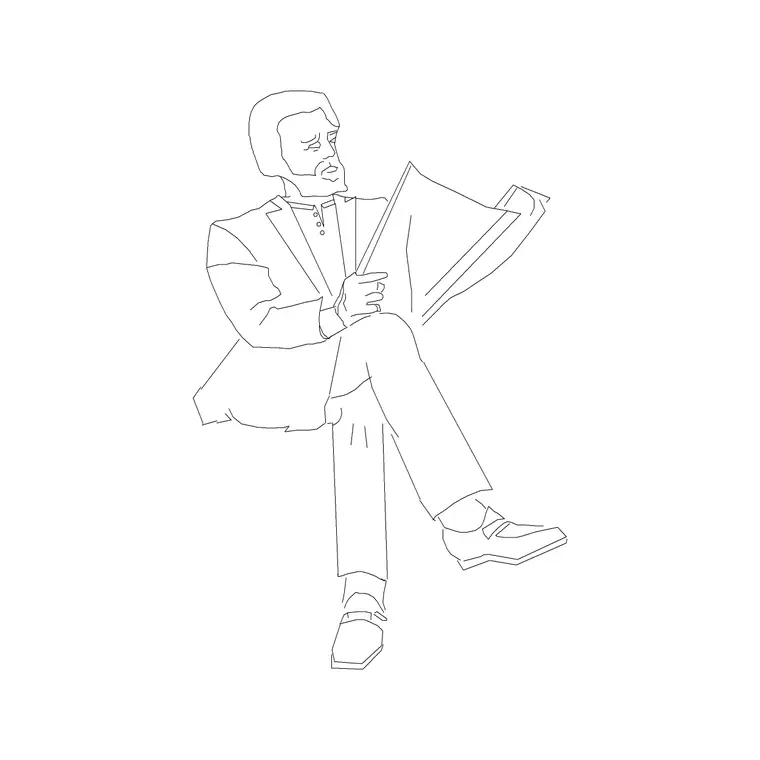
Free sitting person figure CAD block for DWG drawings
By Saumyajit Maity · Published 7 Jan 2022 · Updated 27 May 2026
A standing scale figure tells you how tall a room reads; a seated one tells you whether the furniture actually works. The sitting person figure is the block you drop onto a chair, a sofa, a bench or a desk to prove the seat height, the knee clearance and the backrest angle all add up before anything is built. This page offers a free sitting person figure CAD block in DWG and DXF, drawn in elevation as a recognisable seated human and ready to place over any seating elevation in AutoCAD 2004 or later, free for personal and commercial work with no signup and no watermark.
The value of a seated figure is that it forces the relationship between body and furniture into the open. A chair drawn alone is just a profile; the same chair with a person sitting in it shows whether the seat is at the right height, whether the feet reach the floor, and whether the backrest meets the spine where it should. That is why interior designers, furniture detailers and office planners keep a seated figure on hand — it is a quiet correctness check disguised as a presentation element.
What the sitting person figure block shows
The block is a side-on silhouette of a seated adult: hips at the seat line, thighs roughly horizontal, lower legs vertical with feet flat on the floor, and the torso upright against a notional backrest. It is drawn in elevation because that is the view where seating is judged — you read the seat height off the floor, the depth from hip to knee, and the height the head reaches above the seat. Unlike a furniture block, the figure carries no chair of its own; it is meant to sit on top of whatever seat you have already drawn.
Keep the figure as a single clean profile with no interior fussiness. Because it is a block reference, you insert one instance per seat and never redraw the body. The same seated profile reads correctly on a dining chair, an office task chair, a sofa or a public bench, so one block covers a surprising amount of a project's seating.
Where a seated figure earns its place
Interior elevations are the obvious home: a restaurant booth, a reception sofa, a classroom desk, a barber's chair. Dropping the figure over each seat shows the client that the furniture is sized for real people and not just for the drawing. In office and workplace layouts the seated figure proves desk-to-chair height and the gap to the underside of the worktop, which is exactly the clearance that goes wrong when a desk and a chair are specified separately.
The figure is also a scale device. Even where you are not checking ergonomics, a seated person beside a standing one in a section instantly communicates the height of a mezzanine, a stair or a counter. It reads as human activity rather than as a measuring stick, which is why it suits presentation drawings as well as working ones.
Sizing a seated figure into a real drawing
The figure is drawn at adult scale, so the body proportions are fixed — what you control is the seat it sits on. As a design-stage guide, a comfortable seat height is commonly in the region of 400 to 460 mm off the floor, seat depth in the region of 400 to 500 mm, and the head of a seated adult reaches roughly 1200 to 1350 mm above the floor depending on posture and build. Treat every one of those as a range to sanity-check the figure against, never as a fixed specification, and confirm seat heights against the actual furniture schedule.
Because the block is full size, the only sizing decision at insertion is whether your drawing is in millimetres or another unit. Set INSUNITS to millimetres and AutoCAD will rescale the figure on insertion if it was built in different units. Avoid stretching the figure vertically to fit a tall chair — if the seat is high, that is information you want to see, not hide.
Placing the figure over a seat in AutoCAD
Draw or insert the seat first. Then INSERT the sitting figure and snap its hip point to the front of the seat, with the feet landing on your floor line. Use OSNAP endpoints so the feet sit exactly on the floor rather than floating or sinking. If the feet do not reach the floor, that is a real finding: the seat is too high, and the figure has just told you so.
Put the figure on a dedicated layer — many drafters use a non-plotting or screened layer for scale figures so they read on screen and in client PDFs but can be turned off for construction issue. Mirror the block with the MIRROR command when a seat faces the other way, and keep one master block so a single edit updates every seated person on the sheet.
Free download
Browse the full library — DWG & DXF, no signup.
Questions
Frequently asked
What scale is the sitting person figure drawn at?+
It is drawn full size at adult proportions, so you insert it at scale 1 in a millimetre drawing and it reads correctly at any plot scale. Set INSUNITS to millimetres so AutoCAD rescales it on insertion if your units differ.
Can I use it to check chair and desk heights?+
Yes — that is its main job. Place the figure over your seat elevation and read the seat height, the knee clearance and the gap to a desk underside. If the feet do not reach the floor or the knees foul the desk, the figure has flagged a real sizing problem.
Is the block in elevation or plan?+
This block is an elevation (side) view, which is the view where seating is judged. For a top-down layout you want the plan-view people figures instead, kept on their own block so the two views never get mixed up.
Is it really free for commercial projects?+
Yes. The DWG and DXF download is free for personal and commercial use with no signup, no watermark and no attribution requirement, so you can place it in client drawings and tender sets without restriction.
How do I stop the figure plotting on construction drawings?+
Put it on a dedicated scale-figure layer and either set that layer to non-plot or freeze it before issuing for construction. Keeping every figure on one layer means you toggle them all at once.
Related downloads
Blocks for this guide
Popular blocks to download
Related categories
Related guides
Block landing
Human Figure Plan CAD Blocks — Free DWG
Download free human figure plan-view CAD blocks in DWG — people seen from above, drawn to scale for floor plans and circulation. AutoCAD 2004+, no signup.
Block landing
Human Figure Elevation CAD Blocks — Free DWG
Free human figure elevation CAD blocks in DWG — people drawn front-on and in profile to scale your sections and streetscapes. AutoCAD 2004+, no signup.
Block landing
Standing Person Scale Figure CAD Blocks (Free)
Free standing person scale figure CAD blocks in DWG — clean, true-height figures to set the scale of plans, sections and elevations. AutoCAD 2004+, no signup.