Block landing · pilaster detail cad block dwg
Pilaster detail CAD block for AutoCAD
By Saumyajit Maity · Published 27 Sep 2023 · Updated 14 Jan 2026
A pilaster detail CAD block gives you the flattened, engaged version of a classical column — a shallow rectangular shaft with its own base and capital that projects slightly from a wall — so you can frame a door, a panel or a bay without the depth of a full round column. This free DWG is drawn to scale in millimetres and opens in AutoCAD 2004 or later. It is free for personal and commercial work, with no signup, no watermark and no attribution line.
Pilasters do the visual work of columns where there is no room (or no need) for a free-standing column: they articulate a wall into bays, flank an important doorway, divide a shopfront, or turn a corner where a real column cannot. Because this block carries the order's base, shaft and capital in flat form, you can apply a column's proportions to a wall surface and keep a facade or a panelled room coherent.
What a pilaster is and what the block contains
A pilaster is an engaged, flattened column: it has a base, a shaft and a capital like a column, but it is rectangular in plan and projects only a little from the wall, reading as a applied vertical strip. This block is the front elevation of a pilaster, carrying the moulded base, the shaft (plain or fluted), the necking and the capital in whichever order you choose — Doric, Ionic, Corinthian or composite to match the columns it accompanies.
It is editable linework, so you can change the order, add or remove flutes, or adjust the projection. Because it is real geometry, you can hatch the shaft, dimension the width and height, and keep base, shaft and capital on separate sub-layers. Many pilaster blocks also include a thin plan slice showing the shallow projection from the wall.
Views and how it pairs with columns
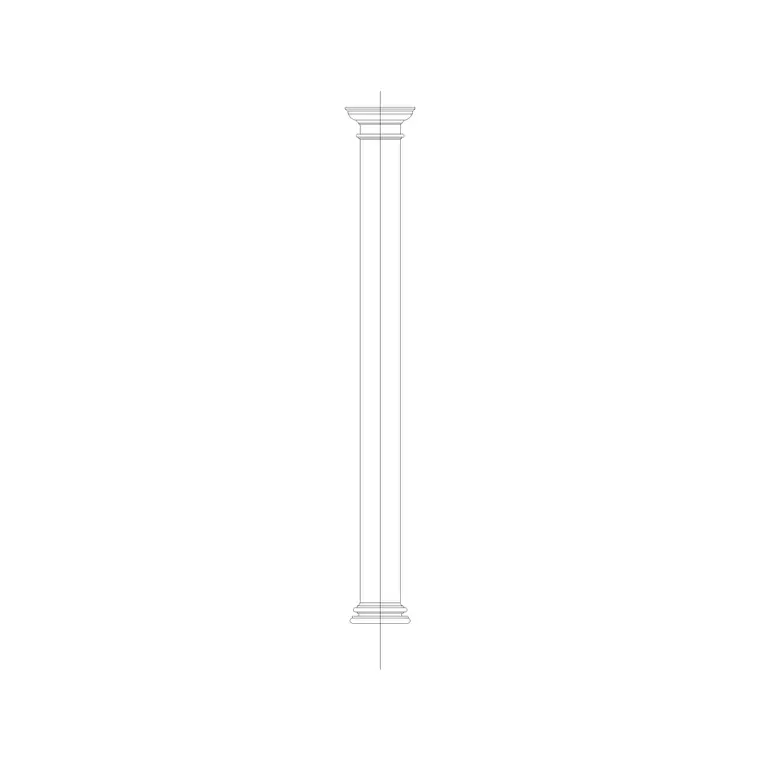
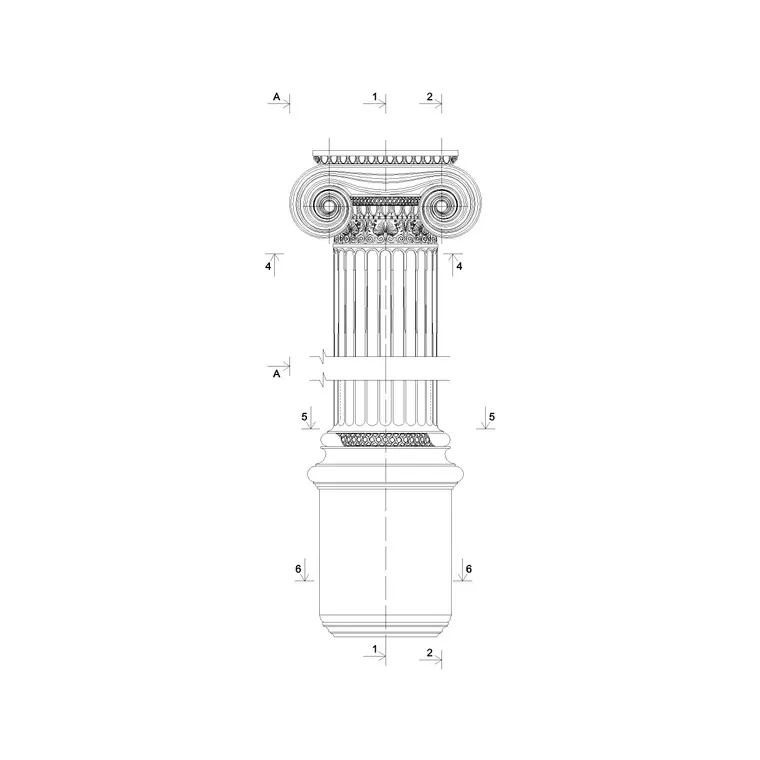
This is the elevation — the pilaster seen face-on against the wall it articulates. It is the flat counterpart to the round or square column, so it pairs naturally with a column elevation block: a classical bay is often a free-standing column or two with answering pilasters against the wall behind, all sharing the same order, base line and capital height. For a run of bays, ARRAY the pilaster along the wall at the bay spacing.
The capital and base usually match the columns exactly, so it is common to WBLOCK the capital from a column block and reuse it on the pilaster, guaranteeing they agree. Keep the pilaster on its own layer so you can isolate the order from the wall, and align its capital with the entablature above and its base with the plinth or skirting below.
Proportions and sizing
A pilaster borrows the proportions of the order it represents, but flattened: its width corresponds to a column's lower diameter, and its height to the column height, while its projection from the wall is shallow — often only a small fraction of its width, just enough to cast a shadow and read as a relief. So if the matching column has a 400 mm diameter, the pilaster is about 400 mm wide and projects perhaps a few tens of millimetres.
Where a pilaster turns a corner, it may be wider or doubled (an L-shaped or pier pilaster) to resolve the return. Treat the order's proportions as the guide, scale the block to the width you need, and let the base and capital follow. Confirm the projection and any structural role against your construction details — most pilasters are decorative relief rather than load-bearing, but some thicken a pier.
Inserting and applying in AutoCAD
The block is full-size in millimetres. Insert at scale 1 in a millimetre drawing, 0.001 in metres, or set INSUNITS to millimetres in an imperial template so AutoCAD rescales on insertion. Snap the insertion point to the base centreline at floor level and align it with the wall and the bay setting-out.
To articulate a wall into bays, ARRAY the pilaster at the bay spacing so the rhythm is exact, and place answering pilasters at the ends and corners. Keep the pilaster on its own layer, align the capitals to the entablature and the bases to the plinth, and add the shallow projection to the wall plan if you are coordinating the relief. If you build a refined pilaster, save it with BEDIT or WBLOCK it so every bay matches, and mirror it at a symmetrical centrepiece.
Where pilasters are used
Pilasters appear wherever a wall wants the dignity of columns without their depth: classical and Georgian facades articulated into bays, the flanks of important doorways and gateways, shopfronts and bank fronts, chimney-breasts and overmantels, and panelled rooms divided into compartments. Architects use them on classical, Renaissance and revival buildings; interior designers on panelled walls, libraries and grand fireplaces; restoration teams on record and repair drawings of articulated facades.
They scale down to furniture and joinery — the flanking pilasters of a bookcase, cabinet or door surround are the same idea. Because the block is licence-clear, it suits student studies and competition boards with no sourcing worry. Combine it with the column elevation, entablature, cornice and arch blocks from the same family to build a fully articulated classical bay or facade.
Coordinating pilasters with the order
The point of a pilaster is to agree with its columns, so coordination is everything. Use the same order, the same base and capital, and the same base and entablature lines as the free-standing columns in the composition, so the eye reads them as one system. Where a pilaster meets a column at a corner, the capital must turn the corner cleanly — mirroring the capital or using an L-shaped corner pilaster solves this.
Keep the base, shaft and capital on sub-layers so lineweights stay consistent with the columns, and reuse the capital block from the column so they cannot drift apart. When the bay is resolved, WBLOCK a complete bay — pilaster, panel and entablature segment — and array it along the facade so the whole elevation is built from a single coordinated unit.
Free download
Browse the full library — DWG & DXF, no signup.
Questions
Frequently asked
What is the difference between a pilaster and a column?+
A column is free-standing and usually round; a pilaster is a flattened, engaged version applied to a wall, rectangular in plan and projecting only slightly. The pilaster carries the same base, shaft and capital so it reads as a column in relief.
How wide should a pilaster be?+
It takes the order's proportions, so its width matches the lower diameter of the column it represents, with a shallow projection from the wall. Scale the block to the width you need and let the base and capital follow in proportion.
Can I match the pilaster to my column blocks?+
Yes, and you should. Use the same order, and WBLOCK the capital and base from your column block onto the pilaster so they cannot drift apart. Align the capitals to the entablature and the bases to the plinth across the whole composition.
Is the pilaster detail block free for commercial use?+
Yes. It downloads free in DWG with no signup, no watermark and no attribution requirement, cleared for commercial, personal and student projects.
Related downloads
Blocks for this guide

Related categories
Related guides
Block landing
Free Classical Column CAD Blocks — DWG Download
Download free classical column CAD blocks in DWG — shaft, capital and base drawn in elevation and plan for AutoCAD. No signup, free for commercial use.
Block landing
Free Greek & Ionic Column CAD Blocks — DWG
Free Greek and Ionic column CAD blocks in DWG — fluted shafts and volute capitals drawn in elevation for AutoCAD. No signup, free for commercial use.
Block landing
Free Decorative Arch CAD Blocks — DWG Download
Download free decorative arch CAD blocks in DWG — round, segmental and classical archways drawn in elevation for AutoCAD. No signup, free for commercial use.