Block landing · north arrow symbol cad block
North arrow symbol CAD block in DWG
By Saumyajit Maity · Published 16 Dec 2024 · Updated 5 Mar 2026
A north arrow is the orientation marker that tells anyone reading your drawing which way is north, and it belongs on almost every site plan, floor plan and landscape sheet you produce. This page offers a free north arrow symbol CAD block in DWG so you can drop a clean, consistent compass point onto a sheet in seconds instead of redrawing one each time. The block is line work only, free for personal and commercial use, with no signup, no watermark and no attribution required.
Unlike a piece of furniture, a north arrow has no real-world physical size — it is a graphic convention sized to read well at the chosen plot scale. That makes it a slightly different animal to insert: you size it to the sheet, not to the world. The notes below cover what a good north arrow block contains, how big to make it on common sheet sizes, and how to align it to true north or to a project grid so the symbol agrees with the geometry it sits beside.
What a north arrow symbol block contains
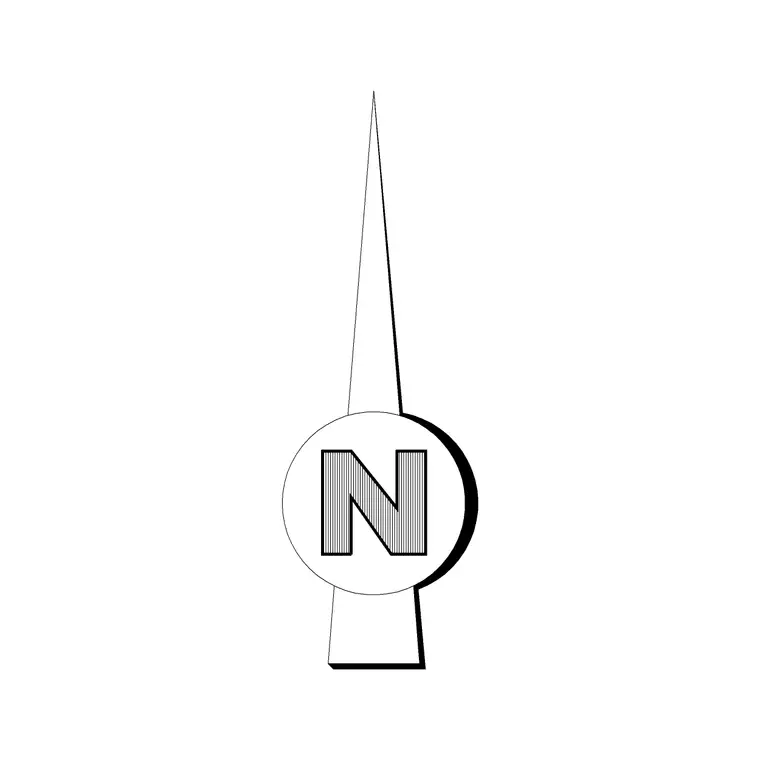
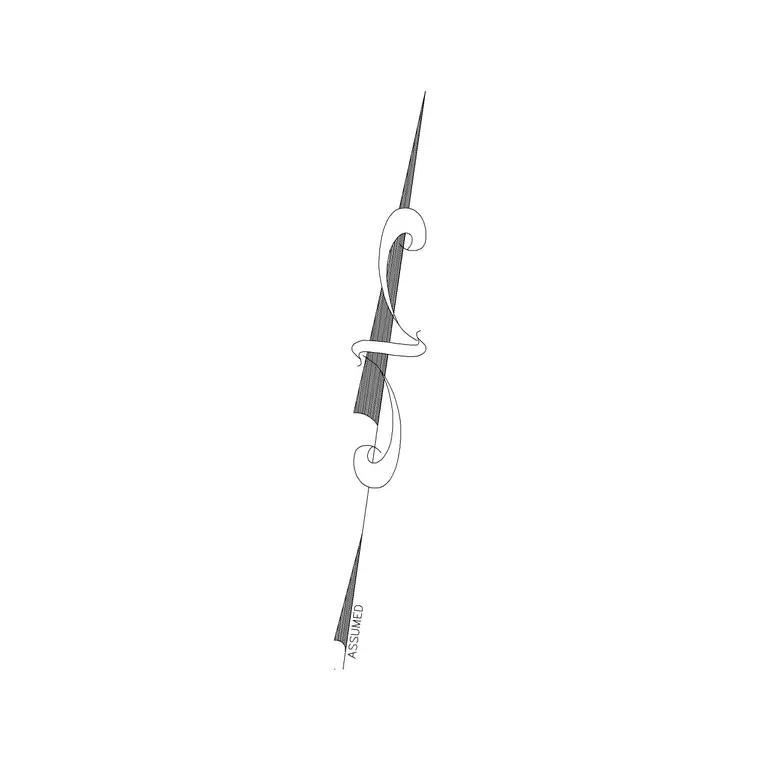
A north arrow block is pure annotation: an arrowhead pointing to north, a stem, and usually the letter N or the word NORTH. Some versions add a simple star, a half-filled diamond or a compass rose with the secondary points marked. The block on this page is drawn as clean polyline and text geometry so it stays crisp at any plot scale and prints with a predictable lineweight.
Because the symbol is graphic rather than scaled-to-reality, the important thing is that it is a single, self-contained block with its insertion point at the base of the arrow. That lets you place it precisely in a corner of the sheet, rotate it to match your project north, and scale it as one object without the text drifting away from the arrowhead.
Sizing a north arrow to the plot scale
Sizing is the one judgement call with a north arrow. The goal is for the symbol to read at roughly 15 to 30 mm tall on the printed page, regardless of the drawing scale. On a plan plotted at 1:100, a north arrow drawn around 1500 to 3000 mm tall in model space lands at that printed height; at 1:50 you would halve those model-space figures, and at 1:200 you would double them.
The cleaner modern approach is to place the north arrow in paper space (a layout viewport's surrounding sheet), where it sits at true paper size no matter what scale the viewport uses. Either way, insert the block, then SCALE it until it reads comfortably against the title block — large enough to spot at a glance, small enough that it never competes with the plan itself.
Aligning the arrow to true north or project north
Two norths matter on a drawing. True north is the geographic direction; project north (or 'plan north') is the convenient up-the-page direction you orient the building to so the plan reads squarely. Decide which your sheet uses, then rotate the block to suit.
To align the arrow, insert it, then use the ROTATE command and either type the bearing angle or pick two points along a known site boundary. If your site survey gives north as a bearing relative to the building grid, rotate the block by that angle. Keeping the same north arrow block across every sheet in a set guarantees the orientation reads identically from the location plan down to the detail sheets.
How to insert and reuse the block
Run INSERT (or drag the DWG from a tool palette), pick the corner of the title block or a spot near the plan as the insertion point, then rotate to your chosen north. Because the symbol carries no real units, INSUNITS scaling is irrelevant — you set its visible size with the insertion scale or a later SCALE command.
Once it reads well, save the sized-and-rotated arrow into your office template or a tool palette so every new sheet starts with the same symbol. Putting the north arrow on a dedicated annotation layer (for example A-ANNO-SYMB) keeps it with titles and labels rather than mixed in with the building geometry, so it never gets frozen by accident when you isolate the plan.
Where a north arrow is used
A north arrow appears on site and location plans, general arrangement floor plans, landscape and planting layouts, roof plans, drainage and services plans, and survey drawings. Anywhere a reader needs to relate the drawing to the real world — to check solar orientation, prevailing wind, street frontage or which façade faces the road — the north arrow is what anchors that reading.
It pairs naturally with a scale bar and a title block as the trio of orientation annotation every sheet should carry. Architects, civil and structural engineers, landscape designers and surveyors all rely on it, which is exactly why a single reusable block beats redrawing the symbol on each project.
North arrow versus a full compass rose
A plain north arrow shows just the north direction and is the right choice for most architectural and engineering sheets, where clutter is the enemy and the reader only needs one bearing. A compass rose adds the south, east and west points and sometimes the intercardinals, which suits survey plans, masterplans and presentation drawings where orientation is a feature rather than a footnote.
If you need both, keep them as separate blocks rather than one bloated symbol, so you can pick the simplest marker that does the job on each sheet. The download here is the simple north arrow; reach for the fuller compass rose only when the drawing genuinely benefits from showing every point.
Free download
Browse the full library — DWG & DXF, no signup.
Questions
Frequently asked
Is this north arrow CAD block free to use commercially?+
Yes. The north arrow symbol downloads free in DWG with no signup, no watermark and no attribution requirement, and it is cleared for use on commercial project drawings.
What size should I draw the north arrow at?+
Size it to read about 15 to 30 mm tall on the printed sheet. In model space scale it to suit the plot scale, or place it in paper space where it stays at true paper size regardless of viewport scale.
How do I point the arrow at the correct north?+
Insert the block, then use ROTATE and either type your north bearing or pick two points along a known site line. Decide first whether the sheet uses true north or project north and rotate to match.
Does the file open in older AutoCAD and free viewers?+
Yes. The DWG targets AutoCAD 2004 and later, which opens in current AutoCAD, AutoCAD LT, BricsCAD, DraftSight and free DWG viewers such as Autodesk's online viewer.
Related downloads
Blocks for this guide

Related categories
Related guides
Block landing
North Mark CAD Block — Free DWG Download
Download a free north mark CAD block in DWG — a compact orientation symbol for plans and title blocks, scalable to any plot scale. AutoCAD 2004+, no signup.
Block landing
North Direction Symbol CAD Block — DWG
Download a free north direction symbol CAD block in DWG — an orientation pointer for plans, showing true north or project north. AutoCAD 2004+, no signup.
Block landing
Direction Arrow Symbol CAD Block — DWG
Download a free direction arrow symbol CAD block in DWG — a flow and circulation arrow for plans, parking, egress routes and signage. AutoCAD 2004+, no signup.