Block landing · direction arrow symbol cad block
Direction arrow symbol CAD block in DWG
By Saumyajit Maity · Published 22 Jan 2026 · Updated 13 Mar 2026
A direction arrow is the workhorse symbol that shows movement on a plan — the way traffic flows, the path of an escape route, the direction water drains, or simply where a viewer's eye should travel. This page offers a free direction arrow symbol CAD block in DWG that you can rotate to any bearing and reuse wherever a drawing needs to show a direction. It is clean line work, free for personal and commercial use, with no signup and no watermark.
A direction arrow is graphic annotation rather than a scaled object, so you size it to read clearly at the plot scale and rotate it to point the right way. Its great strength is versatility: the same block serves a one-way parking aisle, a fire-egress route, a drainage fall and a pedestrian flow line. The sections below cover what the arrow contains, how to scale and rotate it, and the many places it earns its keep.
What the direction arrow block contains
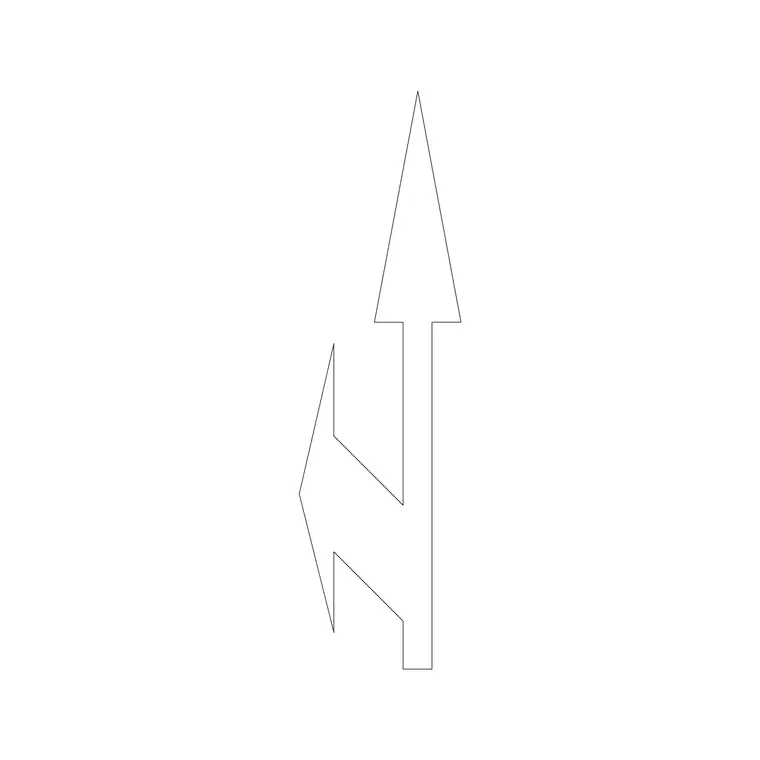
The block is a single arrow — a stem and arrowhead — drawn as clean geometry with its insertion point at the tail so you can place the start of the arrow precisely and rotate it about that point. Some versions are solid-filled for emphasis, others are open outlines that print lighter; the download here is built to read crisply at any plot scale and to print with a predictable lineweight.
Because it is one self-contained object, you can copy it freely around a plan, mirror it for opposing flows, and array it along a route. Editing the block definition later updates every instance at once, so a change of arrow style ripples through the whole drawing in one step.
Sizing and rotating the arrow
A direction arrow has no real-world size, so scale it to the page. As a rule of thumb make it read about 10 to 25 mm long when plotted; longer for emphasis on a key route, shorter where you are peppering many small arrows across a plan. In a 1:100 model-space drawing that means roughly 1000 to 2500 mm long, adjusted proportionally for other scales.
Rotation is the whole point of the symbol. After inserting, use ROTATE and either type the angle or pick two points along the line of flow so the arrow follows the aisle, route or fall exactly. For a curved path, place several arrows and rotate each tangent to the curve rather than stretching one arrow around the bend.
How to insert and array it along a route
Run INSERT or drag the DWG in from a tool palette, click the tail point where the flow begins, and set the rotation to the direction of travel. The INSUNITS setting does not change a unitless symbol's look — set its size with the insertion scale or a later SCALE.
To mark a long route, use the ARRAY command — a path array along a polyline that traces the aisle or escape corridor will repeat the arrow at an even spacing and keep each instance aligned to the path. That is far quicker and tidier than copying arrows by eye, and it stays correct if you later edit the route polyline.
Where direction arrows are used
Direction arrows turn up across nearly every discipline. In parking and traffic layouts they show one-way aisles, entry and exit routes and turning movements. In life-safety drawings they trace escape and egress paths toward exits. In drainage plans they show the fall of a slab or the flow in a pipe. In landscape and circulation diagrams they guide pedestrian movement.
They also serve as plain graphic pointers — calling out a detail, linking a note to its target, or showing the viewing direction for a section. Because one block covers all of these, a single reusable direction arrow saves redrawing the same shape over and over.
Layering and lineweight for clear flow
Put your direction arrows on a layer that matches their purpose — a circulation or egress layer for route arrows, a drainage layer for fall arrows — rather than mixing them into the building geometry. That lets you produce a clean base plan by freezing the arrows and a flow diagram by thawing them, all from the same drawing.
Give route arrows a bold, distinct colour and a heavier plotted lineweight so the direction reads instantly, and keep incidental pointer arrows lighter so they do not compete. Consistent styling across a set means a reader interprets every arrow the same way, which is exactly what a life-safety or traffic drawing needs.
Choosing the right arrow for the job
Not every direction needs the same arrow. A bold filled arrow suits a primary one-way traffic route or an escape path you want impossible to miss. A lighter open arrow suits secondary flows, drainage falls or a simple note pointer. Curved or bent arrows suit turning movements; straight arrows suit aisles and corridors.
Keep a small family of arrow blocks rather than stretching one shape to every use — a stretched arrowhead reads as a mistake. Pick the block whose proportions already suit the size and emphasis you need, and your plans stay legible no matter how many directions they have to show.
Free download
Browse the full library — DWG & DXF, no signup.
Questions
Frequently asked
Can I rotate this arrow to any direction?+
Yes. The arrow inserts with its base at the tail, so you can use ROTATE to point it at any bearing — type the angle or pick two points along the line of flow.
Is the direction arrow CAD block free for commercial use?+
Yes. It downloads free in DWG with no signup, no watermark and no attribution requirement, and is cleared for commercial project drawings.
How do I repeat the arrow along a long route?+
Use the ARRAY command with a path array along a polyline tracing the route. It repeats the arrow at even spacing and keeps each instance aligned to the path.
What size should a direction arrow be on the sheet?+
Aim for it to read about 10 to 25 mm long when plotted — longer for emphasis on a key route, shorter where you place many small arrows. Scale it to suit your plot scale.
Related downloads
Blocks for this guide

Related categories
Related guides
Block landing
North Arrow Symbol CAD Block — DWG Download
Download a free north arrow symbol CAD block in DWG — a scalable compass-point marker for site plans, floor plans and title blocks. AutoCAD 2004+, no signup.
Block landing
North Mark CAD Block — Free DWG Download
Download a free north mark CAD block in DWG — a compact orientation symbol for plans and title blocks, scalable to any plot scale. AutoCAD 2004+, no signup.
Block landing
North Direction Symbol CAD Block — DWG
Download a free north direction symbol CAD block in DWG — an orientation pointer for plans, showing true north or project north. AutoCAD 2004+, no signup.