Room guide · modular kitchen cad blocks
Modular kitchen CAD blocks built on the unit grid
By Saumyajit Maity · Published 7 Jan 2025 · Updated 10 Jun 2026
A modular kitchen is a kitchen built from factory-standard carcass units rather than carpentry made on site. Everything is sized to a grid — base units in fixed widths, wall units to match, appliances cut to the same module — so the run assembles like Lego and any unit can be swapped for another of the same width. Designing one in AutoCAD is less about free-form drawing and more about choosing modules off a grid, which is exactly what scaled blocks are good for.
Every block on this page is drawn to the module dimensions a modular system actually uses, in DWG and DXF, free for personal and commercial work with no signup. Because the carcasses and appliances share a width module, they snap together into a continuous run with no leftover gaps — and if a unit changes, you swap the block rather than redraw the run.
This page treats the kitchen as a modular system: pick the carcass widths, slot the appliances into their cut-outs, and let the grid keep everything aligned. That discipline is what separates a buildable modular plan from a sketch a factory cannot quote.
What 'modular' means for the drawing
In a modular kitchen, every base and wall unit comes in standard widths — commonly 300, 450, 600, 800 and 900 mm — at a fixed depth and height. Appliances are cut to the same module so a 600 mm oven housing or a 600 mm dishwasher drops into a 600 mm gap in the run. The point of the system is interchangeability: a drawer bank and a door cabinet of the same width occupy the same footprint, so the layout is a sequence of module widths along each wall.
That changes how you draw. Instead of sketching cabinets freehand, you lay a module grid along the wall and place unit blocks on it. The plan becomes a tally — so many 600s, so many 450s, a 900 corner — which is exactly what a factory needs to quote and cut. Scaled blocks on a grid give you that tally for free.
Base, wall and tall modules
Three families of carcass make up the run. Base units sit on the floor at roughly 600 mm deep and around 720 mm carcass height before the worktop, carrying drawers, doors, sink bases and appliance housings. Wall units hang above at a shallower depth, typically around 300–350 mm, leaving the splashback clear. Tall units run floor to wall-cabinet height and hold a fridge housing, an oven tower or a larder.
Draw each family on its own layer. A modular plan usually needs three views: a base-unit plan, a wall-unit plan and one or more elevations showing the door faces. With base, wall and tall blocks on separate layers you freeze and thaw to plot each sheet from a single model, and the module widths read straight off the drawing for the cut list.
Slotting the appliances into the grid
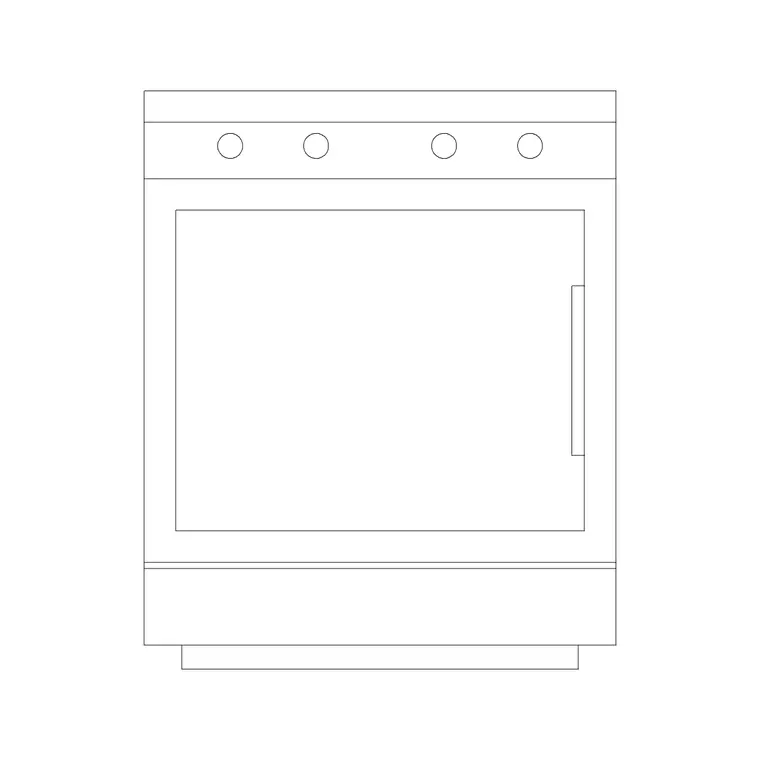
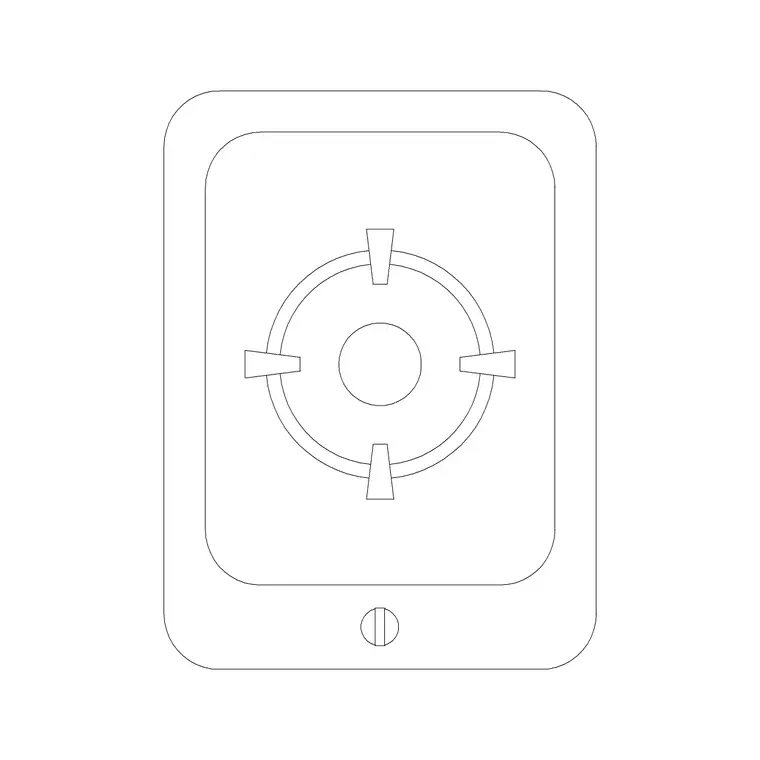
Appliances in a modular kitchen are not freestanding — they are housed. A built-in oven sits in a 600 mm tall housing or under the worktop in a 600 mm base gap. A hob drops into the worktop over a base unit. The hood mounts on the wall line above the hob, on the module above it. A dishwasher and a washing machine take a 600 mm base gap each, plumbed near the sink base.
Place the appliance blocks first because they fix the module widths around them. The oven housing claims a 600 mm slot; the sink base claims an 800 or 900 mm slot; the rest of the run is filled with drawer and door modules to close it. Because every block is the true module width, the run always sums to the wall length without a sliver left over — and if it does not, you see the offcut and adjust a module rather than discovering it on site.
Corners and run transitions
The corner is where modular kitchens succeed or fail. Two runs meeting at an internal corner overlap unless a corner unit is planned: either a diagonal carousel cabinet or a blind-corner unit with a filler. Draw the corner block first when two runs meet, then build each run outward from it, so the corner access is guaranteed rather than swallowed.
Watch the worktop transition too. Where a run turns a corner the worktop is mitred, and the units underneath must align so the joint lands over a carcass and not over a gap. On an L- or U-shaped modular plan, set the corner unit, set the appliances, and only then fill the straights — that order keeps both the access and the worktop joint correct.
Building the modular plan in AutoCAD
Draw the room and snap a module grid to each wall at your base-unit increment. Place the sink base under the window and the appliance housings on their slots. Now array door and drawer modules to fill each run to the wall, and drop the corner unit where runs meet. Mirror the base layer up to a wall-unit layer, removing the units that sit over the hob and the window.
Add the worktop as a polyline over the base run, mitred at the corners, and drop pendant or downlight blocks on a lighting layer above the island and sink. Keep base, wall, tall, worktop and lighting on separate layers and one model plots the base plan, the wall plan and the elevation set — with a module schedule you can read straight off the base layer.
Common modular mistakes
The first mistake is a run that does not sum to the wall: five 600 mm units in a 2900 mm wall leaves a 100 mm gap that needs a filler nobody drew. Lay the grid and let the modules tally exactly, with fillers placed deliberately. The second is forgetting the corner unit, so two runs overlap on paper and the cabinets foul on site.
The third is hanging a wall unit over the hob with no clearance for the hood, or housing an oven in a tall unit hard against a wall so its door cannot open the full 90 degrees into the room. On scaled blocks you draw the door swing and the hood clearance and catch both before the factory cuts a single carcass.
Free download
Browse the full library — DWG & DXF, no signup.
Questions
Frequently asked
What unit widths do modular kitchen blocks come in?+
Base and wall carcasses follow a standard module — commonly 300, 450, 600, 800 and 900 mm wide — at a fixed depth. The blocks are drawn to those widths so a run is a tally of modules that sums to the wall length, ready for a factory to quote.
How do appliances fit a modular run?+
Appliances are cut to the same module: a 600 mm oven housing drops into a 600 mm slot, a sink base claims an 800–900 mm slot, and dishwasher and washing-machine gaps are 600 mm each. Place the appliance blocks first so they fix the module widths around them.
How do I stop a run leaving an awkward gap?+
Lay a module grid along the wall before placing units and let the carcasses tally to the wall length. Where the wall is not an exact multiple of the module, add a filler block deliberately rather than discovering an unplanned gap on site.
What is the right way to handle a modular corner?+
Place a corner unit — a diagonal carousel or a blind-corner cabinet with a filler — before building the two runs outward from it. Mitre the worktop over a carcass at the corner so the joint never lands over an empty gap.
Can I plot base, wall and elevation views from one drawing?+
Yes. Keep base units, wall units, tall units, worktop and lighting on separate layers; freeze and thaw to plot the base-unit plan, the wall-unit plan and the elevations from a single model without redrawing anything.
Related downloads
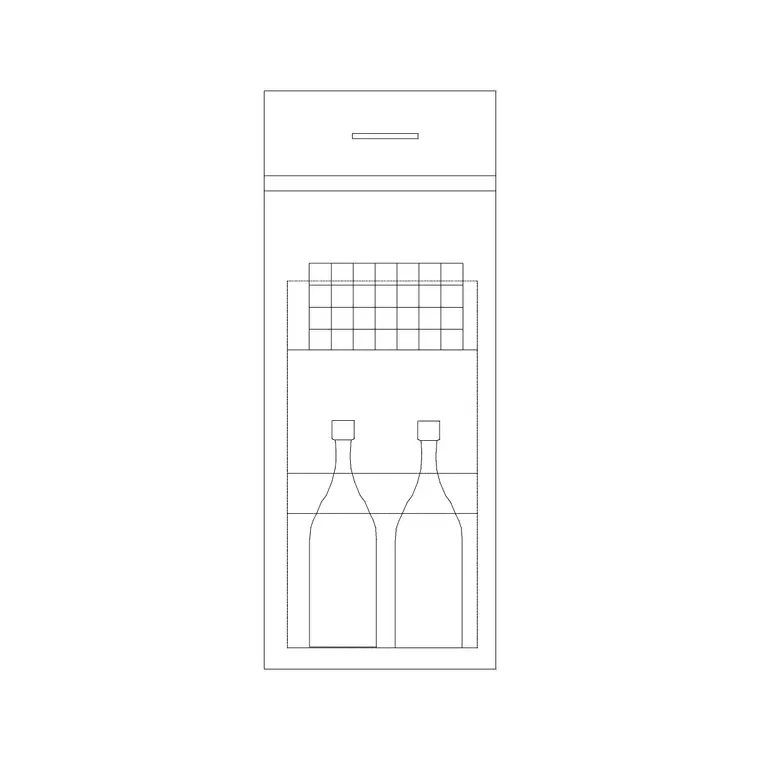
Blocks for this guide
Related categories
Related guides
Room guide
Kitchen CAD Blocks — Design the Room in DWG
Design a full kitchen in AutoCAD with free DWG blocks — appliances, sink, cabinets and lighting scaled for the work triangle, clearances and a clean plan.
Room guide
Kitchenette CAD Blocks — Compact Kitchen DWG
Free kitchenette CAD blocks in DWG — compact sink, two-burner hob, under-counter fridge and short cabinet runs scaled for studio, office and apartment plans.
Room guide
Scullery CAD Blocks — Back Kitchen DWG Layout
Free scullery CAD blocks in DWG — twin sinks, dishwasher, prep counter and tall storage scaled to design a working back kitchen that keeps the main run clean.