Block landing · iron gate elevation cad block
Free iron gate elevation CAD block in DWG and DXF
By Saumyajit Maity · Published 15 Jul 2023 · Updated 27 Feb 2026
An iron gate elevation is the front-view drawing of a gate — the face you see from the street, showing the frame, the bar pattern, the finials and the height against the boundary. This page offers a free iron gate elevation CAD block in DWG and DXF, drawn specifically as the elevation rather than the plan, because the elevation is what carries the gate's design onto a frontage drawing. It is free for personal and commercial use, with no signup, no watermark and no credit required.
The elevation is worth a dedicated block because it is the view a planning or presentation drawing actually needs: the bar rhythm, the cresting, the height and the way the gate sits between its piers all live in the front view. A plan only shows the swing; the elevation shows the gate. Drop the block straight into a street or entrance elevation and it lands at the right height against the boundary.
Because it is licence-clear, the same iron gate elevation carries from a concept frontage to a planning submission and into a fabrication drawing.
What the iron gate elevation shows
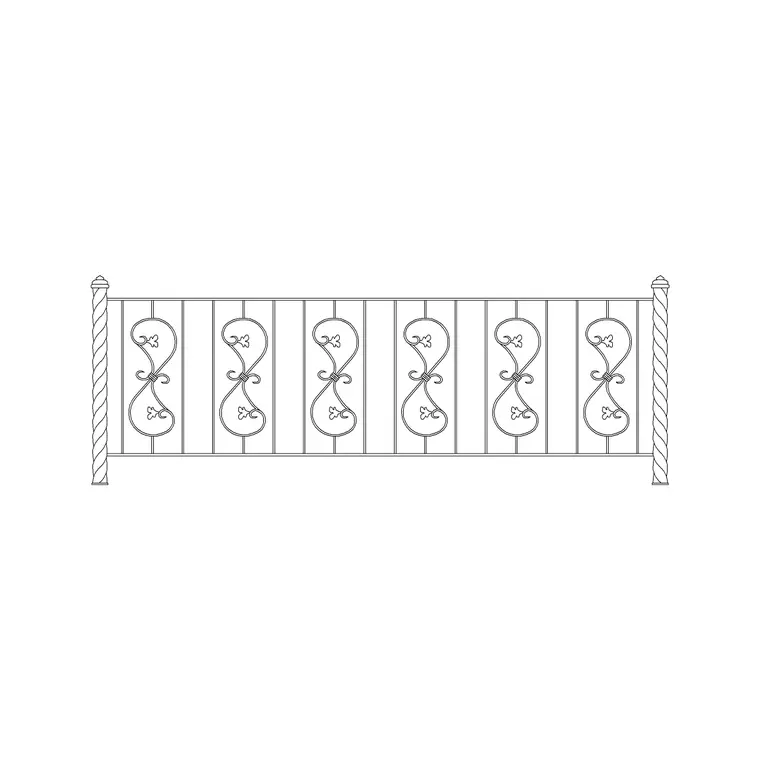
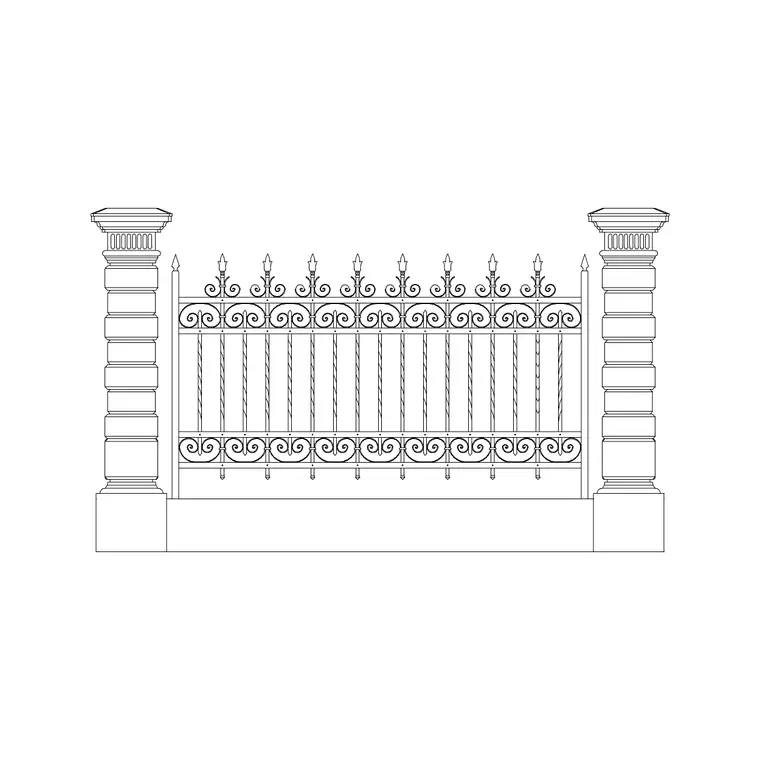
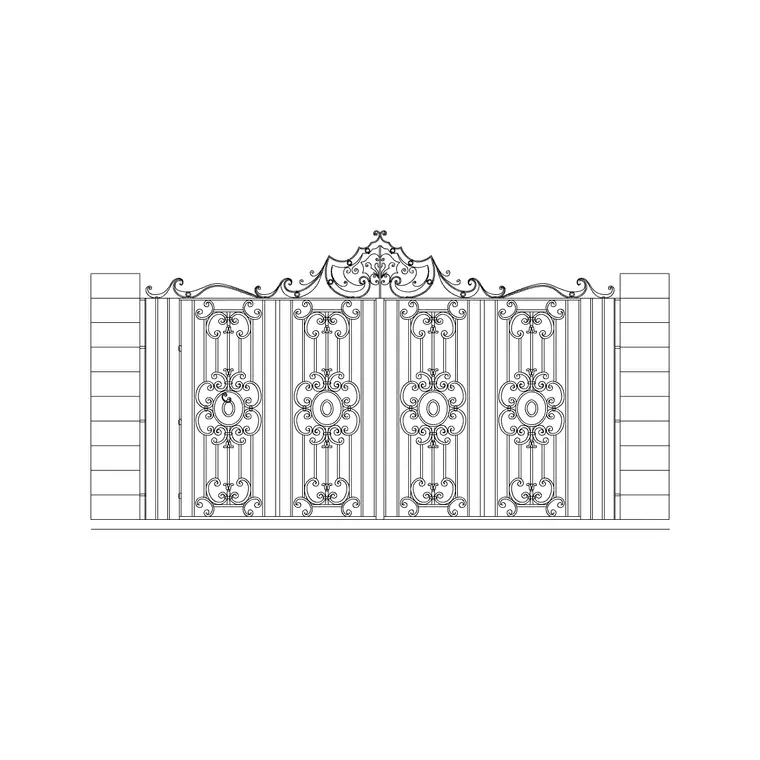
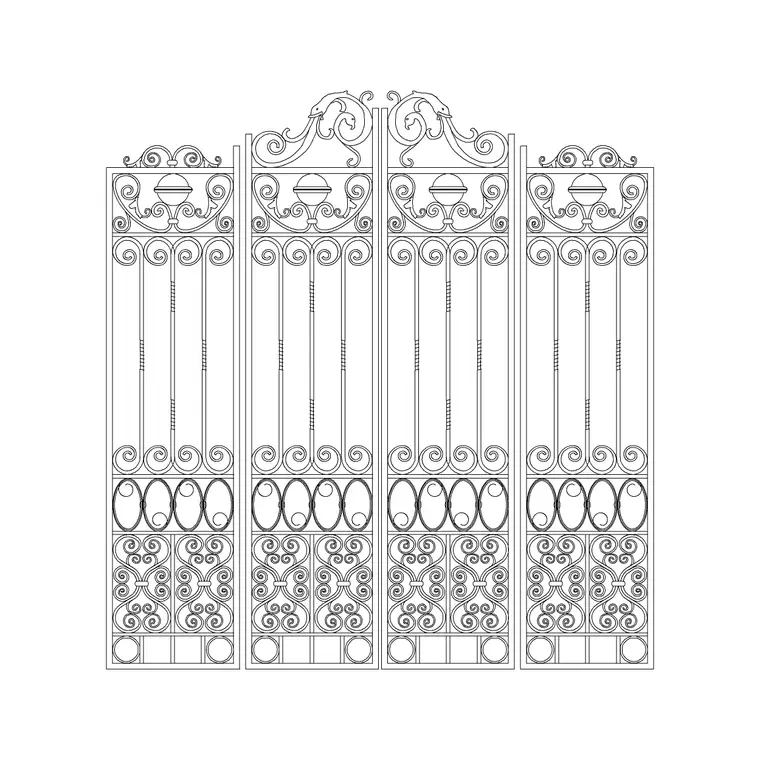
The block is the front view of the gate: the perimeter frame, the run of vertical bars, the horizontal rails, the finials or spear tops and any decorative cresting, all drawn against the ground line and to the boundary height. Frame, bars and decoration sit on separate layers so you can simplify to a frame line for a location plan or show the full pattern for a presentation elevation.
Gate height usually matches the boundary at around 1500–2100 mm; bar pitch commonly in the 100–130 mm range. Because the gate is drawn as a block, you can drop the same elevation into several openings on a frontage for a consistent family of metalwork.
Why elevation, not plan, for the facade
There are two ways to draw a gate, and they answer different questions. The plan answers 'does it clear the drive' with a swing arc or a slide path. The elevation answers 'what does it look like' — the bar pattern, the height, the cresting and the relationship to the piers and the boundary. For a planning submission, a presentation board or a client frontage view, the elevation is the drawing that matters.
This block is built for that elevation use, so it lands at full height against the ground line and reads correctly in a street or entrance elevation without you having to construct the front view from a plan.
Typical iron gate elevation sizes
Use these as planning ranges. A pedestrian iron gate sits around 0.9–1.2 m wide; a vehicle gate around 3.0–4.5 m, often split into two leaves; gate height typically matches the boundary at around 1500–2100 mm, sometimes rising at the centre for an arched or peaked head. Bar pitch commonly sits in the 100–130 mm range.
These are sketching ranges, not a spec — the ironwork design, the manufacturer's sections and any local rule set the real figures. The elevation block lets you test the gate's height and pattern against the boundary at a realistic size before the metalwork is detailed.
Inserting the elevation onto a facade
The block is drawn full size in millimetres: insert at scale 1 in a millimetre drawing, 0.001 in a metre drawing, or set INSUNITS to millimetres for automatic rescaling. Snap the insertion point to the gate's base on the ground line of your elevation so it sits at the right height against the boundary and piers.
For a symmetrical vehicle gate, mirror the leaf about the opening centre so the pattern reflects into a matched pair. Because it is the elevation, there is no swing to draw here — if you also need the clearance check, set the same opening out in plan and add the swing arc or slide path there.
Where the gate elevation is used
An iron gate elevation belongs on street and entrance elevations, planning submission drawings, presentation boards, frontage and facade studies, and fabrication drawings for the metalworker. Pair it with the matching railing and pier elevations in the outdoor set so the whole frontage reads as one composed elevation rather than separate pieces.
The file is licence-clear, so it carries from a concept frontage to a planning elevation and into a fabrication drawing without a redraw. It suits residential, heritage and student work alike, and it pairs naturally with the gate-with-column elevation when the entrance is framed by piers.
Coordinating the elevation with the rest of the frontage
A gate elevation reads best when it sits in a complete frontage — the gate between its piers, the railings running off to either side, the ground line continuous across the whole drawing. Set the ground line and the boundary height first, then drop the gate elevation onto it so the gate, piers and railings share one datum. Keep the gate, the piers and the railings on separate layers so a fabrication drawing can isolate the gate alone. Carrying the gate's finial or scroll motif into the flanking railings ties the whole elevation together as one designed entrance.
Free download
Browse the full library — DWG & DXF, no signup.
Questions
Frequently asked
Is this gate drawn as a plan or an elevation?+
As an elevation — the front view of the gate showing the frame, bar pattern, finials and height against the boundary, ready to drop onto a street or entrance elevation.
Does it include the swing arc?+
No — this is the elevation, so there is no swing. If you need the clearance check, set the same opening out in plan and add the swing arc or slide path there.
Can I make it a symmetrical double gate?+
Yes. Mirror the leaf about the opening centre so the bar pattern reflects into a matched pair, which is how a vehicle iron gate is normally composed.
What scale should I insert it at?+
Full size in millimetres. Insert at scale 1 in a millimetre drawing, 0.001 in a metre drawing, or set INSUNITS to millimetres for automatic rescaling on insertion.
Which programs open the DWG?+
It targets AutoCAD 2004 and later and opens in current AutoCAD, AutoCAD LT, BricsCAD, DraftSight and free online DWG viewers.
Related downloads
Blocks for this guide
Related categories
Related guides
Block landing
Free Bar Table CAD Blocks — DWG Download
Download free bar table CAD blocks in DWG and DXF — round, square and rectangular high bar tables in plan and elevation for AutoCAD. No signup, commercial-use OK.
Block landing
Free Restaurant Table CAD Blocks — DWG Download
Download free restaurant table CAD blocks in DWG and DXF — 2, 4 and 6 cover tables with chairs drawn in plan and elevation for AutoCAD. No signup, commercial-use OK.
Block landing
Free Restaurant Chair CAD Blocks — DWG Download
Download free restaurant chair CAD blocks in DWG and DXF — dining, cafe and side chairs plus baby high chairs in plan and elevation. No signup, commercial-use OK.