Block landing · iron fence cad block
Free iron fence CAD block in DWG and DXF
By Sumana Kumar · Published 15 Jun 2023 · Updated 21 Mar 2026
An iron fence reads as a repeating rhythm of vertical pickets held between horizontal rails and dropped between masonry or steel posts, and that repeat is exactly what makes it worth keeping as a ready-made CAD block. This page offers a free iron fence CAD block in DWG and DXF that you can array along a boundary line without redrawing every baluster by hand. The file is free for personal and commercial work, with no login, no watermark and no attribution clause attached.
Iron fencing shows up wherever a designer wants security and sightlines at the same time — front gardens, school perimeters, park edges, the railings around a basement light-well. Because you can see straight through it, the fence has to be drawn honestly: picket spacing, rail positions and post centres all matter on the sheet. The block here is built as a single repeatable panel so you can set the run length and let AutoCAD do the counting.
Drop it into a site plan to fix the boundary, or into an elevation to show the streetscape, and the same definition keeps your picket pitch consistent down the whole length.
What the iron fence block contains
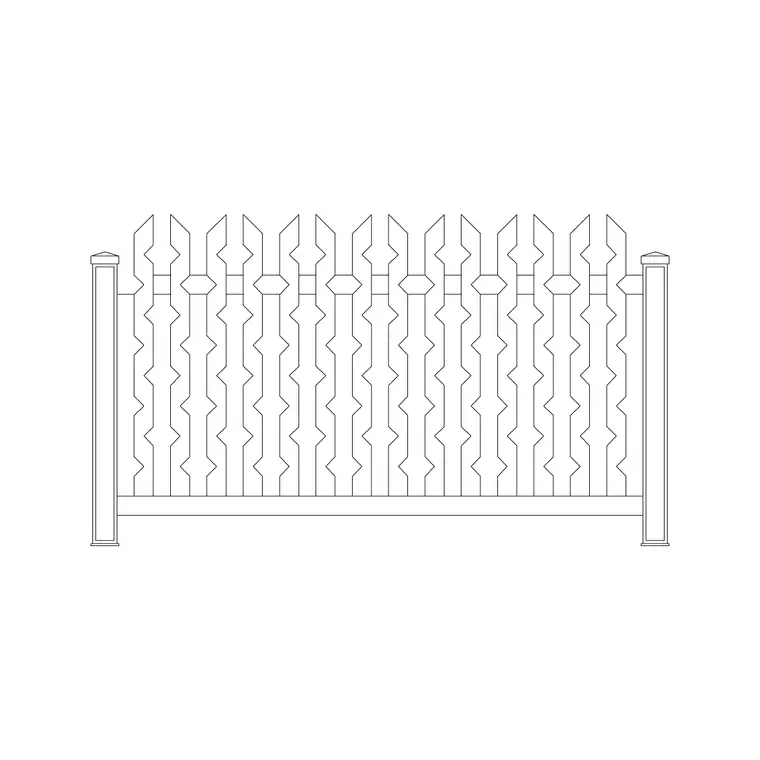
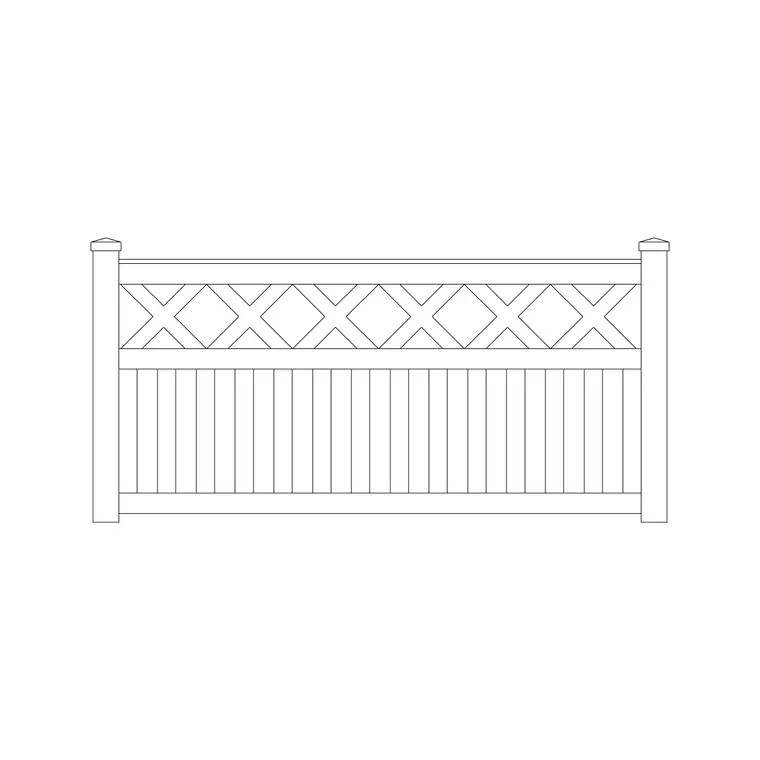
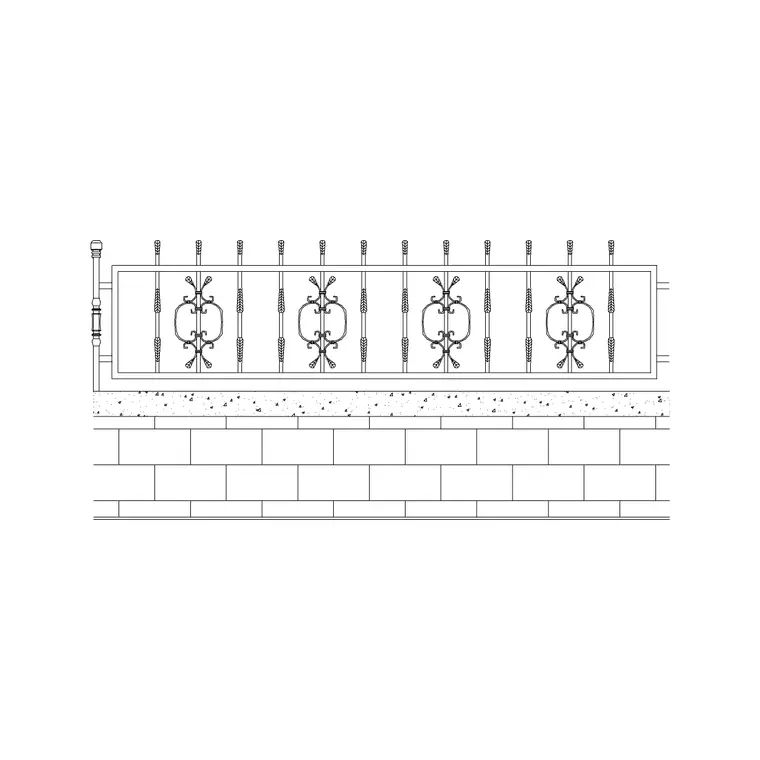
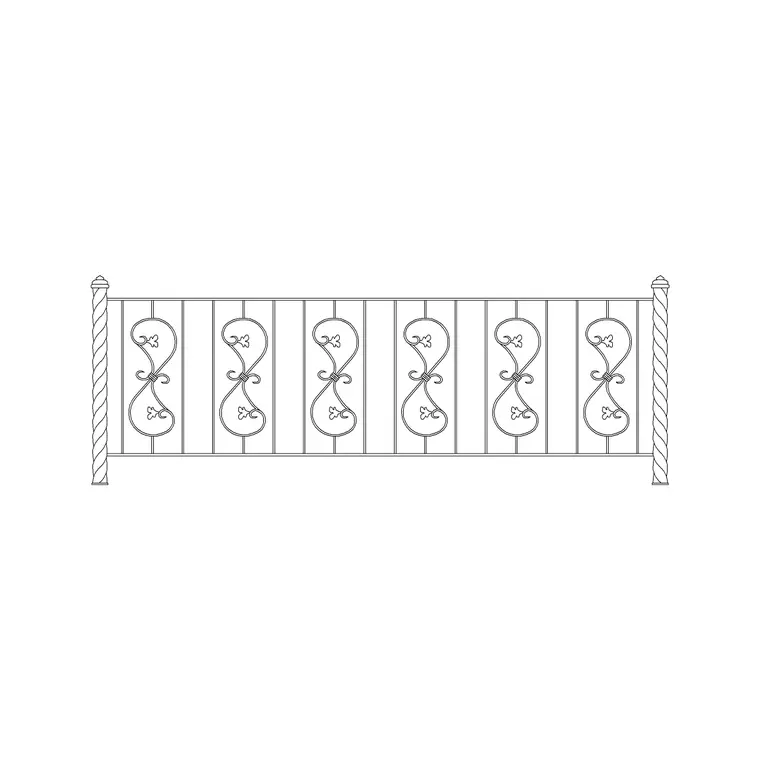
The panel is drawn as one bay between two post centres, with the top and bottom rails, the run of pickets and the picket finials shown as separate geometry on sensible layers. Picket pitch on a typical residential iron fence sits somewhere in the 100–150 mm range centre to centre, so a single bay between posts of around 2.0–3.0 m carries a believable count of verticals rather than a vague hatched strip.
Keeping the rails, pickets and posts on their own layers means you can recolour the steelwork, fade the masonry piers or freeze the finial detail when you only need a schematic line. Because the bay is a block, editing the definition once — say swapping a spear-top finial for a flat cap — updates every bay you have placed along the run.
Plan line vs elevation: drawing the same fence twice
On a site or landscape plan an iron fence is mostly a line: a thin double line for the rail thickness with post markers at centres, sometimes with a light tick pattern to read as 'see-through railing' rather than a solid wall. That plan line is what you snap the gate, the piers and the planting beds against.
The elevation is where the iron fence earns its detail. Here you show the full picket rhythm, the rail heights, the finials and the relationship to ground level and to any dwarf wall beneath. Many designers draw the boundary once in plan to set out the run, then build the street elevation from the same post centres so the two drawings never drift apart.
Typical iron fence heights to design around
Reach for these ranges when you size a run. A low front-garden iron fence usually sits around 600–900 mm tall; a standard residential boundary railing around 1000–1200 mm; a security or commercial perimeter fence often runs 1800–2100 mm with anti-climb spear tops. Posts are commonly spaced at 1.8–3.0 m centres depending on panel weight and wind exposure.
These are planning ranges, not a specification — your local boundary rules, the manufacturer's panel sizes and the wind load all set the final figures. The point of the block is to let you test the look and the setting-out at a realistic size before any of those numbers are locked.
How to insert and array the fence
The block is drawn full size in millimetres. Insert at scale 1 in a millimetre drawing, 0.001 in a metre drawing, or set INSUNITS to millimetres so AutoCAD rescales on insertion. Use INSERT (or drag from a tool palette), snap the insertion point to a post centre on your boundary line, then repeat the bay along the run.
For a long boundary the fastest route is to place one bay, then use a rectangular ARRAY or a measured COPY at the bay spacing so every panel lines up. On a curved or stepped boundary, place each bay individually at its post centres and let the rails break at the steps — iron fencing is happy to follow a falling site in short straight bays.
Where iron fence blocks get used
Iron fencing appears in front-boundary treatments, communal garden edges, school and nursery perimeters, park railings, balcony and terrace guarding read in elevation, and the protective rail around sunken courtyards and basement light-wells. Pair the fence block with the gate, pier and planting blocks in the outdoor category to assemble a complete boundary in one pass.
Because the file is licence-clear it carries comfortably from a concept site plan to a planning elevation and on into a tender drawing, so you are not rebuilding the railing at each stage. It is equally at home in a student scheme or a quick feasibility sketch where you need a convincing perimeter without licensing friction.
Coordinating the fence with gates and piers
An iron fence rarely runs unbroken — it meets a vehicle gate, a pedestrian gate and the masonry piers that carry them. Set the fence post centres out first, then drop the gate openings on the same grid so the gate leaf width and the adjacent bay add up to a clean module. A common habit is to keep the fence, the gate and the piers on three separate layers so you can isolate the steelwork for a fabrication drawing.
If you tag each bay as a block, a quick attribute extraction gives you a running count of panels and posts — a lightweight take-off straight from the drawing rather than a manual tally along the boundary.
Free download
Browse the full library — DWG & DXF, no signup.
Questions
Frequently asked
Is this iron fence CAD block free for commercial use?+
Yes. It downloads free in DWG and, where available, DXF, with no signup, no watermark and no attribution requirement, and it is cleared for commercial project work.
What scale is the iron fence block drawn at?+
Full size in millimetres. Insert at scale 1 in a millimetre drawing, 0.001 in a metre drawing, or set INSUNITS to millimetres so AutoCAD rescales automatically on insertion.
Can I change the picket spacing or finial?+
Yes. The rails, pickets and finials sit on separate layers, so you can edit the bay definition once — adjust the pitch or swap the top — and every placed bay updates together.
Does the file include a plan line as well as the elevation?+
The block is built around the elevation bay, but because it is drawn to true post centres you can set the same centres out in plan as a thin railing line to keep both drawings aligned.
Will it open in older AutoCAD or a free DWG viewer?+
Yes. The DWG targets AutoCAD 2004 and later and opens in current AutoCAD, AutoCAD LT, BricsCAD, DraftSight and free online DWG viewers.
Related downloads
Blocks for this guide
Related categories
Related guides
Block landing
Free Bar Table CAD Blocks — DWG Download
Download free bar table CAD blocks in DWG and DXF — round, square and rectangular high bar tables in plan and elevation for AutoCAD. No signup, commercial-use OK.
Block landing
Free Restaurant Table CAD Blocks — DWG Download
Download free restaurant table CAD blocks in DWG and DXF — 2, 4 and 6 cover tables with chairs drawn in plan and elevation for AutoCAD. No signup, commercial-use OK.
Block landing
Free Restaurant Chair CAD Blocks — DWG Download
Download free restaurant chair CAD blocks in DWG and DXF — dining, cafe and side chairs plus baby high chairs in plan and elevation. No signup, commercial-use OK.